Browser extensions can make your browser more useful and easier to work with. But they can also put your privacy at risk by grabbing personal data. With stories like \”Web of Deceit\” getting attention, it’s smart to know what shady extensions can do. This article breaks down how they work, walks you through a careful extension audit, and shows you how to read permission requests so you can spot trouble early. You’ll also find tools and simple techniques to make your audits stronger against data-stealing add-ons. The goal is straightforward: help you browse safely with practical steps you can actually use.
How Malicious Browser Extensions Steal Your Data

Browser extensions are supposed to make things better—faster workflows, fewer clicks, more features. But some quietly turn into data grabbers. Malicious extensions take advantage of the access you give them, using sneaky methods to capture and send your info to people who shouldn’t have it. Common examples include stealing logged-in session tokens, grabbing cookies, and watching network requests in the background.
One of the most common ways these extensions break in is by stealing session tokens and cookies. These are what keep you logged into websites and apps. If an extension injects scripts that watch outbound traffic from services like ChatGPT, it can pick up authorization headers and session tokens. Once it has them, it sends them to an attacker-controlled server, which can be used to get into your accounts. Session cookies work similarly—if they’re taken, attackers may not need your password at all.
Some extensions also go after what you copy and paste. Clipboard and data interception attacks watch clipboard activity to catch things like passwords, authentication tokens, or crypto wallet addresses. That can lead to \”check-and-switch\” tricks, like swapping a cryptocurrency address right before you send a transaction.
And it’s not just logins. Many malicious extensions collect metadata and behavioral patterns too. By gathering usage data and backend-issued access tokens, they can piece together what you do online, link activity across sessions, and keep access to accounts and services longer than you’d expect. Most of the time, it happens quietly, with data shipped off to third-party servers.
Once session tokens are stolen, the fallout can be ugly. Attackers can look through chat histories, connect to sensitive third-party apps, and even mess with security settings so it’s harder for you to change passwords or review login activity. And if they load your stolen session into another browser, they can get in instantly.
Malicious extensions also try hard to stay hidden. They often use obfuscation and evasion tactics like scrambling code, splitting strings into chunks, or using command and control (C&C) systems for remote code execution. Just as often, they pose as normal productivity tools or copy the look and feel of popular services so people install them without thinking twice.
Organized campaigns show how widespread this can get. One campaign found by LayerX Research included at least 16 malicious ChatGPT enhancement extensions with similar code and backend setups, totaling around 900 downloads. Another included five extensions pretending to be productivity tools that were built to steal credentials and hijack accounts. The numbers may not sound massive, but the threat keeps showing up—and it keeps changing.
Knowing how these tricks work makes it much easier to avoid getting hit. If you can spot risky extensions early (or skip them entirely), you’re far less likely to lose data. For more ways to protect yourself, you can also check out this guide on detecting computer viruses.
How to Audit Browser Extensions

Extensions are handy, but they can also act like a Trojan horse—something that looks harmless while sneaking in risky code. Doing a quick self-audit of your extensions isn’t just a nice idea; it’s one of the easiest ways to protect your data. With a careful, step-by-step review, you can spot problems early and cut off access to sensitive info.
A solid audit starts with an inventory of everything installed. In Chrome, Firefox, or Edge, open the extensions page: chrome://extensions/ for Chrome, about:addons for Firefox, and edge://extensions/ for Edge. Write down what you have, and pay close attention to anything you don’t recognize or don’t use anymore. As a rule of thumb, keeping fewer than ten active extensions lowers your risk.
Next, check the permissions each extension asks for. Big, broad permissions—like letting it read and modify data on all websites—are a major warning sign. That’s often exactly what data-stealing extensions need. Click \”Details\” for each extension and read what it can access. If it doesn’t need that level of access to do its job, limit it if you can. And if the permissions don’t make sense and you can’t scale them back, uninstall it.
After that, look into the developer’s reputation and track record. This matters because even a normal extension can turn bad if the developer account gets hacked or a shady update gets pushed. Check the developer’s site, privacy policy, and reviews. Pay extra attention to extensions from brand-new accounts or ones that get odd updates during holidays. In general, extensions with a verified badge on the Chrome Web Store or a large, consistent user base tend to be safer.
Now watch for suspicious behavior. Tools like Chrome’s DevTools can help you see network activity and spot weird calls to unknown domains. If turning an extension off suddenly \”fixes\” strange browser issues, that’s a clue. Only turn it back on if you truly need it. And don’t forget built-in protections—Chrome’s \”Enhanced Safe Browsing\” can add another layer of defense.
Once you’ve flagged something risky, decide whether to remove, update, or replace it. Start by disabling it and see if anything important breaks. If nothing changes, remove it for good. Keep your extensions updated too, since updates often include security fixes. If you need a replacement, pick a well-known option and make sure it’s the current version. After removing an extension, it’s a good idea to clear browser data (especially cookies and cache) to help wipe leftover traces.
Last, set up ongoing monitoring and prevention. Turn on auto-updates, and do a quick extension check every so often. Only install extensions from official stores, since phishing links and bundled installs are common ways bad add-ons sneak in. If you manage a lot of devices or extensions, a trusted extension manager can make reviews easier.
Regular extension audits cut the odds of data theft and make your browsing safer overall. Keep the process simple, stick with it, and you’ll turn your browser from an easy target into a much harder one.
How to Read Extension Permissions (and Spot Red Flags)
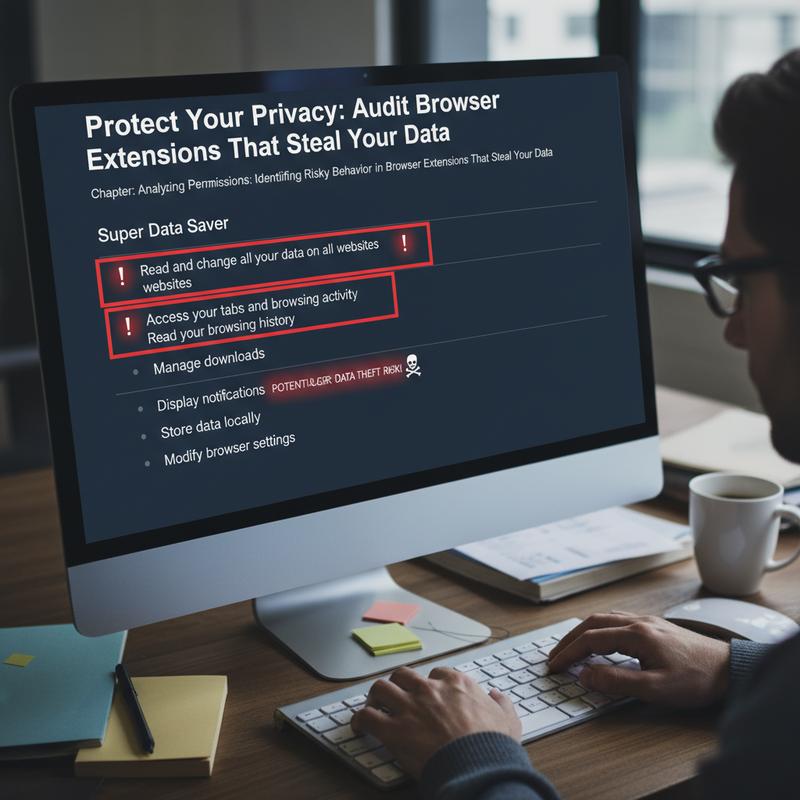
Extensions can make browsing easier—ad blocking, task tools, shortcuts, and more. But the catch is permissions. Some extensions ask for access that has nothing to do with what they claim to do, and that’s often where privacy problems start. If you learn what these permissions really mean, you’ll have a much easier time spotting extensions that might steal data.
Malicious browser extensions often hide behind excessive permissions. That extra access can let them read form inputs, grab credentials, or collect browsing history—basically giving them free rein over what you do online. If an extension asks to \”read and change all your data on all websites,\” take that seriously. That level of access means it can see (and alter) information on every site you visit.
Access to browsing history can sound harmless, but it can be risky. It gives a detailed view of your habits, interests, and sometimes clues about the accounts you’re logged into. Permissions like \”manage your apps, extensions, and themes\” can be even worse, since they can change how your browser works—like disabling security tools or installing unwanted software without you realizing it.
One permission that deserves extra caution is network or proxy access. That can let an extension route your traffic through servers it controls, which is a common way to quietly collect sensitive data. Be especially careful with VPN-like requests from extensions that don’t clearly need them.
Spotting indicators of data-stealing behavior isn’t always easy, but there are patterns. Extensions that request huge access for a simple job are a big one. An ad blocker, for example, shouldn’t need broad access to everything you do online if it can be limited to sites you choose. Also, if an extension updates constantly, it could be using updates to slip in new malicious code after you’ve already trusted it.
So what should you do? When you install an extension, read the permissions and ask yourself if they match what it claims to do. Use built-in tools like Chrome’s chrome://extensions/ to review permissions and remove anything that feels over the top. You can also scan extensions with antivirus tools or use extension checkers like ExtensionTotal.
And don’t ignore the developer behind the extension. Stick to verified creators when possible, avoid anything that requires sideloading, and keep an eye on what your browser is doing. If you’re comfortable with it, monitoring traffic with tools like Wireshark can help uncover suspicious proxy behavior fast.
At the end of the day, it’s about balancing convenience and caution. Do quick audits regularly, and you’ll catch issues sooner. If an extension seems off, uninstall it right away and change any affected passwords or tokens. For another real-world look at how small actions can lead to big damage, see our guide on how one click can cost you $10,000.
Tools and Tips for Auditing Risky Extensions

Extensions can be helpful, but they can also be used to pull sensitive data, which has shown up in real incidents like \”DataSpii.\” That’s why extension audits matter. If you want to protect your privacy, being able to check an extension yourself is a skill worth having.
The point of an audit is pretty simple: figure out which extensions are overreaching or leaking data, and get rid of them before they cause damage. You’ll usually get the best results by combining a careful process with a few practical tools.
Static Analysis: Looking at the Code Without Running It
A good audit often starts with static analysis—checking an extension’s code and configuration without executing it. Tools like Extension Auditor and WebExt Analyzer can review manifest files and flag risky APIs or permissions that don’t seem needed. For example, a manifest.json that requests access to \”<all_urls>\” is a clear sign the extension wants wide access.
You can also use Dexter to help spot obfuscated scripts or hidden payloads. The biggest red flags here are things like hardcoded endpoints or tracking code that looks designed to ship data out of your browser.
Dynamic Monitoring: Watching What It Does in Real Time
Static checks help, but you also want to see what an extension does while it’s running. Tools like uBlock Origin and Wireshark can help you watch network traffic and catch unexpected data transfers. uBlock Origin can show extension-related requests, while Wireshark gives deeper packet-level details that can reveal data being sent to outside servers.
It also helps to test in a safer setup, like an incognito window or a separate browser profile, so you’re not exposing personal accounts. And if you want to see whether an extension is grabbing form data, try entering fake info into test forms and watch what happens.
Runtime Inspection and Keeping an Eye on Things
Runtime inspection takes it a step further. With Chrome Developer Tools or Firefox Developer Tools, you can inspect service workers, background scripts, and persistent processes that might be scraping data quietly. Setting breakpoints on network events and storage calls can help uncover suspicious behavior, like saving credentials in plain text.
Now, staying alert over time is what really helps. If you’re up for it, tools like Puppeteer can automate periodic checks, which makes it easier to catch behavior changes after an update.
Yes, auditing can take a bit of time. Still, it’s usually worth it—especially if it keeps your accounts and personal data from leaking out. If you want more on protecting yourself from costly mistakes online, you can also read how one click can lead to significant financial loss.
Final thoughts
Protecting your privacy online starts with paying attention—and doing something about it. Once you understand the risks extensions can bring, auditing them becomes a lot less intimidating. You’ve now seen how malicious extensions steal data, how to review and remove risky add-ons, how to judge permissions, and which tools can help you check behavior. Make these checks part of your routine. Security isn’t a one-time fix; it’s ongoing, and it gets easier the more consistent you are.
Not sure which extensions are safe? If you want a second set of eyes, IT Carolina can review them with you.
Learn more: https://itcarolina.com/about/
About us
At IT Carolina, we don’t just tune up gaming rigs—we help keep your everyday tech safe too. Our team can do browser extension audits to find and remove data-stealing add-ons that put your privacy at risk. Whether you’re gaming, streaming, or just browsing, we’ll help keep your system secure and running smoothly so you can get online without worrying about what’s happening behind the scenes.