Checking out remote desktop tools can make your home or small office a lot easier to manage. With the right app, you can hop onto your computer from anywhere or jump in to help someone else fix a problem. This guide looks at some of the best tools for home and small office use, including how free options compare to paid ones. Each section breaks down what to look for, what you really get with free vs. paid plans, and how well each tool works on different devices. It also covers security basics and how to pick the right fit. By the end, you’ll have a clear idea of which remote desktop tool makes the most sense for you.
Key Features in Remote Desktop Tools
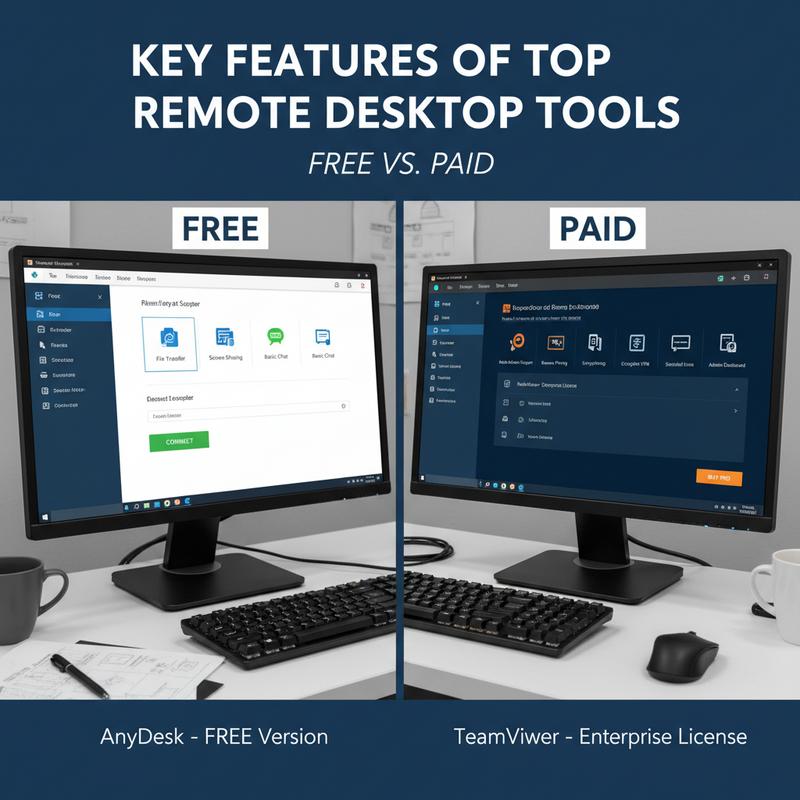
When you’re picking a remote desktop tool for home use, the “best” one usually depends on which features you’ll actually use. Things like remote control, screen sharing, and solid security matter a lot. A few well-known options are Splashtop, TeamViewer, AnyDesk, Chrome Remote Desktop, RustDesk, and NinjaOne.
One big feature you’ll see across most of these is remote control and screen sharing. It lets you see your computer and use it in real time, even if you’re across town (or across the country). That’s great for grabbing files, running programs, or helping someone troubleshoot. Many tools also support multi-monitor setups and can adjust video quality based on your connection. TeamViewer, for example, is strong here because it can handle multiple sessions at the same time, which can be handy in work settings.
File transfer is another feature people care about, especially if your important documents aren’t in the cloud. Most tools make this pretty simple with drag-and-drop transfers. But some options, like Chrome Remote Desktop, have more limits since they’re built to be lightweight and simple.
It also helps a lot when a tool works across different devices. The better remote desktop apps run on Windows, macOS, Linux, iOS, Android, and in web browsers. So you can jump onto your home PC from just about anything you’ve got nearby.
And yes, security matters. When you’re logging into a remote machine, you don’t want to take chances. Features like end-to-end encryption, two-factor authentication (2FA), and session logs are common in top tools and help keep out unwanted visitors. RustDesk is a popular pick for privacy-focused users because it’s open-source and offers end-to-end encryption.
Performance is another piece of the puzzle. Tools like AnyDesk focus on low delay and efficient bandwidth use, which helps a lot if your internet isn’t perfect. That can be the difference between a smooth session and a frustrating one.
At the end of the day, it comes down to matching the tool to what you need. If you want something simple (and you care a lot about privacy), RustDesk or Chrome Remote Desktop may be enough. But if you want stronger performance and tighter controls, paid plans like Splashtop can be worth it.
Some tools also include extras like remote commands, scripting, and endpoint security, but those are usually in the paid tiers. Knowing what’s included (and what isn’t) makes it easier to choose something that fits, whether you just need occasional access or you’ll use it all the time. For more help staying safe while using remote tools, check out cybersecurity tips for small businesses.
Free vs. Paid Remote Desktop Tools
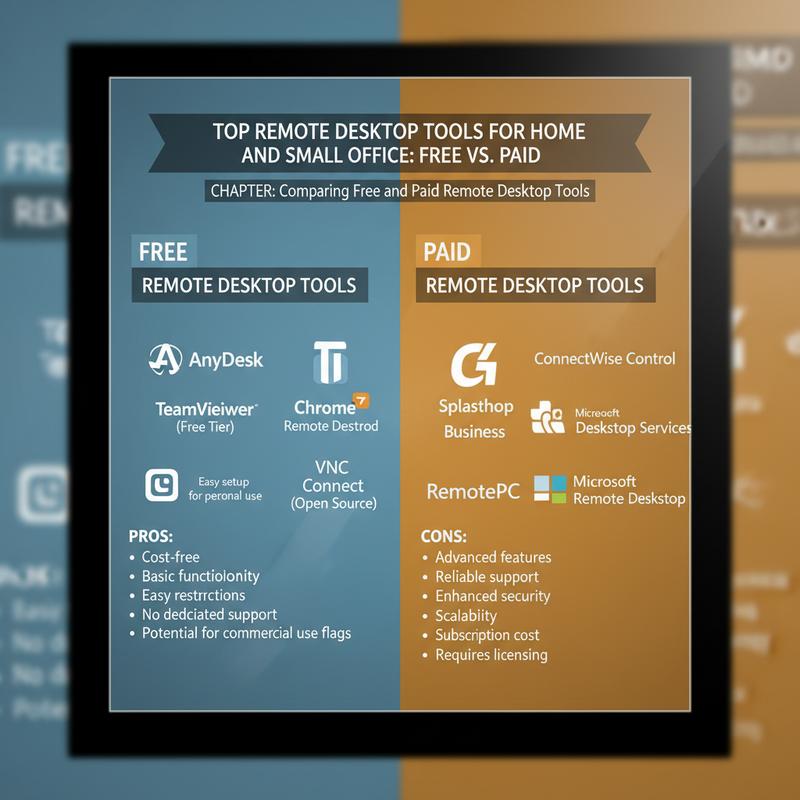
Picking a remote desktop tool for home usually comes down to one question: do you want a free option, or do you need the extras that come with a paid plan? Both can work well, but they’re built for different situations. Free remote desktop tools are often best if you only need access once in a while and want something simple that costs nothing. The tradeoff is that free tools can have limits, like shorter sessions or restrictions on business use. Paid tools tend to add features like multi-monitor support and session recording, and they usually cost somewhere between $6 and $30 per month or year.
Popular free choices include Chrome Remote Desktop, TeamViewer, and RustDesk. Chrome Remote Desktop gives you full free access (including commercial use) through a browser-based setup with a simple PIN. But it doesn’t come with things like session recording or strong multi-monitor features, so it’s a good fit for non-technical users who just want something straightforward. TeamViewer Free supports lots of devices and is great for helping family or friends, but it has restrictions—like shorter sessions and blocked access if it thinks you’re using it for business. RustDesk is open-source and gives you more control over privacy settings, which is great if you like tinkering, even if it doesn’t feel as polished as some paid products.
On the paid side, tools like Splashtop and RemotePC can make remote access feel a lot smoother. You typically get upgrades like 4K streaming, faster performance thanks to low latency, and team-friendly features like single sign-on (SSO) and remote file transfer. Splashtop often gets attention for pricing, especially since it can come in at close to half the cost of older options like TeamViewer.
Security and support are usually where paid tools pull ahead. Free tools often stick to basic encryption and community-style help. Paid plans more often include stronger security options and quicker customer support. If you’re working with sensitive data, that extra help can be a big deal.
For most home users, it really depends on how often you’ll use it and what you’ll do with it. If you just need basic access every now and then, a free tool may be enough—kind of like the fixes covered in common computer problems solutions. But if you’re connecting regularly and want fewer headaches, paid tools can be easier to live with long-term. Either way, it’s smart to think about upgrade options and device compatibility so you don’t end up switching tools later.
Usability and Compatibility for Home Use
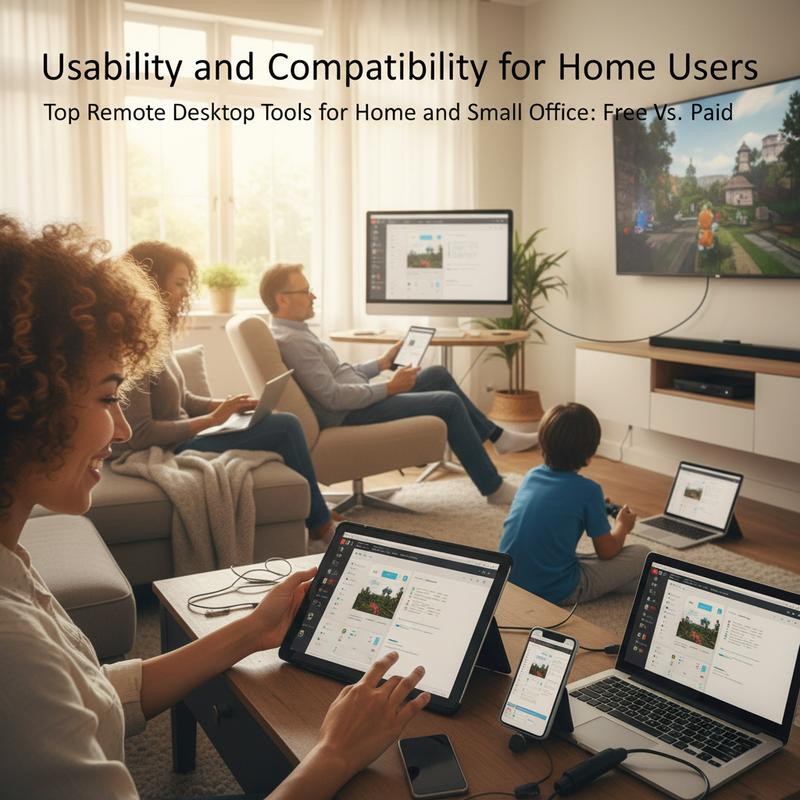
With remote desktop tools, usability and compatibility matter a ton, especially at home where you just want things to work without a lot of setup. These two areas shape how easy the tool feels day to day, and whether it plays nicely with the devices you already have.
Usability starts with how quickly someone can get comfortable using the software. The learnability of a tool is basically how fast you can figure it out without hunting through docs. Tools with clean layouts, familiar icons, and obvious navigation are easier to pick up, especially for family members who aren’t techy but still might need to access files or help troubleshoot something.
But usability isn’t only about looks. It’s also about whether the tool helps you get things done without making you fight it. Think about logging in to grab a file from your home PC—ideally it should feel smooth, and you should be able to complete tasks without unnecessary frustration. Fast loading, easy-to-find controls, and fewer clicks all help, especially if your internet connection is slow.
Compatibility is the other half of it. Home setups can be all over the place, from older machines to brand-new ones, with operating systems anywhere from Windows XP to Windows 11. Your network can also change a lot depending on where you are in the house, so it helps when a remote desktop tool can handle both weak Wi-Fi and fast broadband without falling apart.
And compatibility isn’t only about hardware and operating systems. It can also mean features that make the app easier for different people to use, like dark mode for low-vision users to reduce eye strain. If multiple people in a household are using the same tool, universal usability matters too—something that’s simple for a beginner but still capable enough for someone doing more advanced tasks.
If you want to sanity-check usability and compatibility before settling on a tool, unmoderated testing platforms like Userbrain can help you get real feedback by trying out remote setups. That way, you can see if a tool fits your needs and works well with your existing devices before you commit.
You can also read up on common computer problems and solutions that pop up at home, since those issues often affect how well remote desktop tools perform.
Security Basics for Remote Desktop Tools
Remote work and always-on internet access are convenient, but they also mean your remote desktop tool needs to be locked down. If someone gets your login, they can potentially get into everything. So, setting up strong security isn’t optional. A few core practices go a long way toward protecting against credential theft and unauthorized access.
Authentication and Access Control
One of the easiest wins is turning on multi-factor authentication (MFA). It forces a second step beyond a password, which makes stolen credentials way less useful. It’s especially important to require MFA for admin accounts and any remote desktop login points you use.
Another smart step is role-based access control (RBAC) along with the principle of least privilege. Basically: only give users the access they truly need. Regularly checking who has access (and removing permissions that aren’t needed anymore) helps avoid problems later. And don’t forget the basics—strong, unique passwords stored in a trusted password manager can make a big difference.
Network and Exposure Protections
Leaving remote desktop protocol (RDP) ports open to the internet—like port 3389—is risky. A safer setup is to route access through secure gateways, a virtual private network (VPN), or access portals with IP allowlisting. And you’ll want encryption for data in transit, using TLS or VPN tools, so your traffic stays protected even on public Wi-Fi.
It also helps to check the devices that are allowed to connect. That can mean confirming operating system updates, verifying security software is installed, and using checks like MAC filtering or device profiling before access is allowed.
Monitoring, Hardening, and Maintenance
Logging and monitoring remote desktop sessions can help you spot trouble early. You can also set alerts for suspicious behavior, or even auto-stop sessions that don’t look right.
Keeping your remote tools updated is huge. Pair that with firewalls, endpoint detection and response (EDR), and modern antivirus, and you’ll be in a much safer place. It also helps to remove services you don’t use and run regular security checkups. And if more than one person uses the system, basic incident-response training makes sure everyone knows what to do if something goes wrong.
Starting with MFA is a simple first step, then you can tighten exposure settings and add monitoring over time. Together, these steps can lower successful phishing attempts and reduce failed login attempts. Even if you’re using free tools, these habits still help keep your setup safer. For more ways to protect your data, visit Cybersecurity Tips for Small Businesses.
How to Pick the Right Remote Desktop Tool
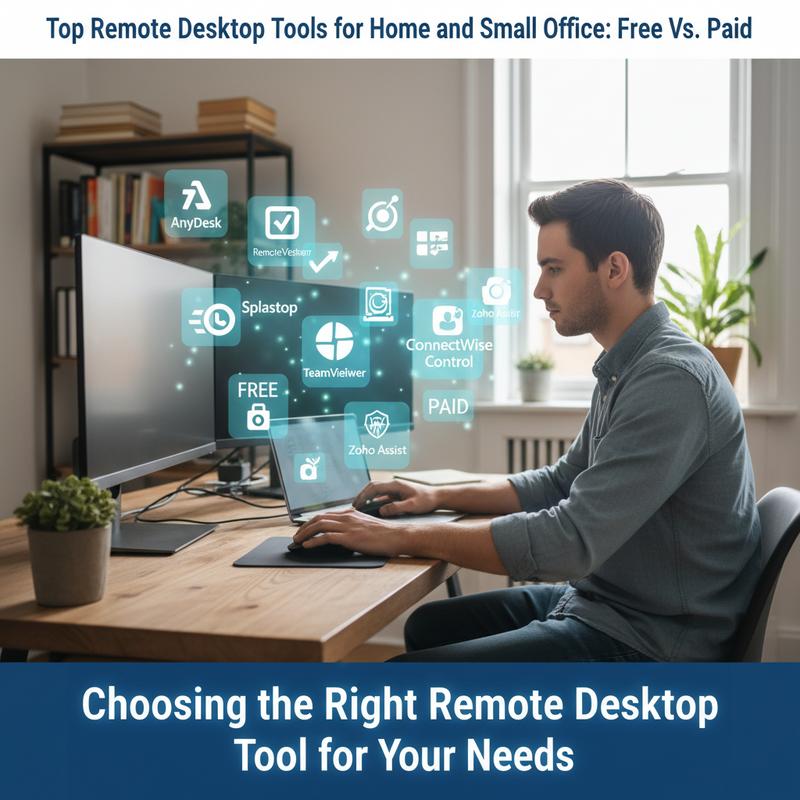
Choosing the right remote desktop tool for home use is mostly about being honest about what you need. There are lots of options, from simple “just let me log in” tools to heavier business-focused platforms. The main things to look at are your use case, which devices you need it to work on, security features, performance, pricing, and how easy it is to use. If you check those boxes, you’ll end up with something that fits now and won’t feel limiting later.
Use Cases and Recommendations: Start with why you need remote access. If it’s just you (or a small team) doing basic remote work, Chrome Remote Desktop can be a solid free pick with simple browser access across devices. But if you need features like file transfers or multiple monitors, Splashtop Remote Access is a common step up that usually isn’t too expensive. It’s popular with budget-minded users because you get a lot for the price.
If you do IT support or help desk work, tools like Zoho Assist offer cloud-based options with security features like end-to-end encryption and even AR integration for troubleshooting. Many of these tools also have free versions with the basics, so you can get started without paying right away. And if you’re more on the enterprise side—or you manage systems for others—NinjaOne is known for fast sessions, multifactor authentication, and detailed logging.
Security and Performance Considerations: Encryption is standard across most remote desktop tools, and it’s a must. But if you’re dealing with sensitive data, you may also want MFA and session recording. Performance-wise, it’s worth thinking about your internet speed, file transfer performance, and multi-monitor needs. NinjaOne often gets called out for quick session startup and fast file transfers, which can matter a lot in high-demand setups.
Still, don’t guess—test. Free trials are there for a reason, and they’re the easiest way to confirm a tool works well with your devices and your network. And if you want more control and don’t want to be tied to one vendor, RustDesk is a strong open-source option, especially if you’re interested in self-hosting.
So start by deciding how much access and control you really need. Then try a couple tools (free or paid) and see what feels right. If you want more on staying safe with IT tools, take a look at cybersecurity habits every small business must adopt.
Final thoughts
Picking the right remote desktop tool can make your home or small office setup a lot easier to run. Once you understand the key features, the real differences between free and paid options, and the basics around usability, compatibility, and security, it’s much easier to choose confidently. Whether you’re trying to save money or you want extra features, the right remote desktop app helps you stay connected and get more done without the hassle.
Need a hand getting remote access set up the right way? IT Carolina can help you get it running smoothly.
Learn more: https://itcarolina.com/about/
About us
IT Carolina helps home and small office users stay connected and productive with remote desktop tools. Whether you’re working from your home office or helping manage devices around the house, our team can help with setup, speed tuning, and network tweaks for both free and paid remote desktop options. From installing everything the first time to making sure connections stay smooth and secure, IT Carolina takes care of the tech headaches so you don’t have to. We’ll help get your home tech running better—so remote work and device access stays fast, reliable, and a lot less stressful.