Remote work and online classes are pretty normal now, so having tech that actually keeps up matters. One of the easiest upgrades is an external monitor. It can make your laptop setup feel bigger, faster, and a lot more comfortable to use day to day. In this guide, we’ll help you figure out what you need the monitor for, make sure it’ll work with your laptop, and choose the right size and resolution. We’ll also cover panel types so you can pick something that fits your work or study style.
Usage Needs: Picking the Right Laptop Monitor
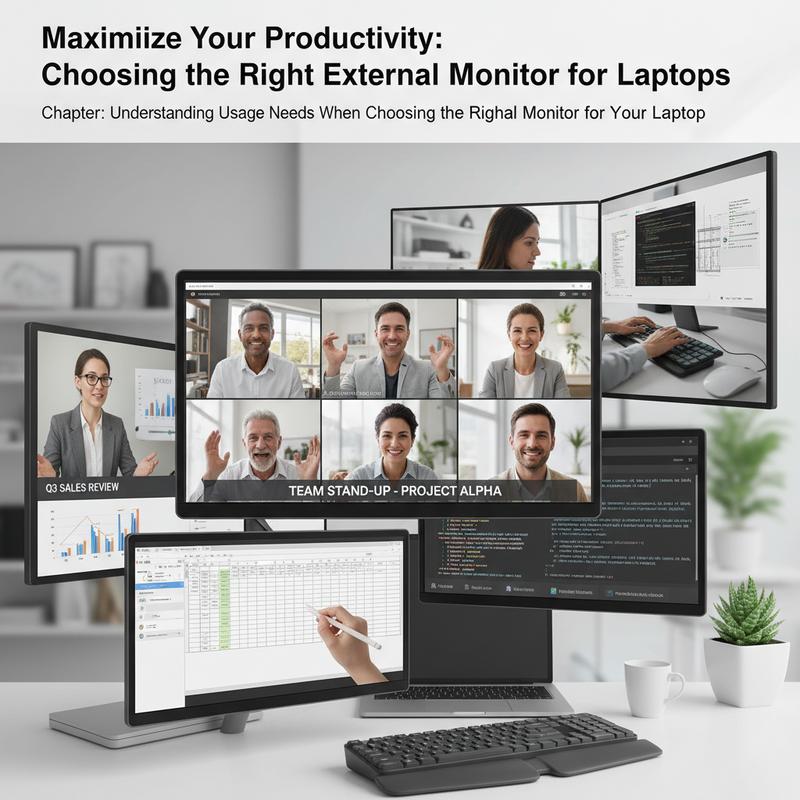
First things first: how you plan to use the monitor is what should drive the choice. A good match can make work feel easier, creative projects look better, and games run smoother. Different uses call for different screen sizes, resolutions, refresh rates, and ports.
Start with your main use case. If you mostly need it for everyday stuff like browsing, email, docs, or video calls, a 24 to 27 inch monitor at 1080p is usually a smart, affordable pick. An IPS panel is a solid choice here because you get nice viewing angles and good-enough color. And little things like a height-adjustable stand or USB-C for a one-cable setup can make a big difference in comfort and convenience.
If you’re doing creative work—photo editing, video work, design—go bigger and sharper. Look at 27 to 32-inch screens with 1440p or 4K. An IPS panel with wide color coverage is the better fit, and it’s even nicer if it’s calibrated out of the box. For connections, DisplayPort or USB-C with DisplayPort Alt Mode helps you get those higher resolutions reliably. Features like hardware calibration support and uniformity compensation can also be worth it if color work is a big part of your day.
If you’re gaming and want smoother motion, refresh rate and response time matter most. 24 to 27 inches is the usual sweet spot. Aim for 120Hz to 240Hz depending on what you play—fast FPS games benefit the most, but lots of games feel better with higher refresh rates. Thing is, you’ll often be balancing resolution and refresh rate to keep performance smooth. HDMI 2.0/2.1 or DisplayPort are key for higher-end gaming, and IPS or fast VA panels can give you a good mix of speed and color.
If you travel a lot or just want a second screen that’s easy to pack, portable monitors in the 14 to 16 inch range are a great fit. 1080p is a good value pick, while 2.5K can look sharper on a smaller screen. A 60Hz refresh rate is fine for work, though you might want more if you’ll game on it. USB-C with DisplayPort Alt Mode can keep things simple with one cable for power and video, but having HDMI available can help with compatibility.
Now, don’t forget your laptop’s limits. Make sure it can actually run the resolution and refresh rate you want. Integrated GPUs usually handle fewer external displays than dedicated GPUs and can struggle more with 4K. And ports matter too—knowing if you have HDMI, USB-C with DisplayPort Alt Mode, or Thunderbolt will shape what monitors (and docks) make sense.
Monitor tech changes fast, so it helps to keep an eye on what’s new. If you want a quick look at what’s trending, check out Fascinating Monitors at CES 2026. Match your use case with realistic specs, and you’ll end up with a monitor that genuinely makes your laptop setup better.
Laptop Compatibility and Connections
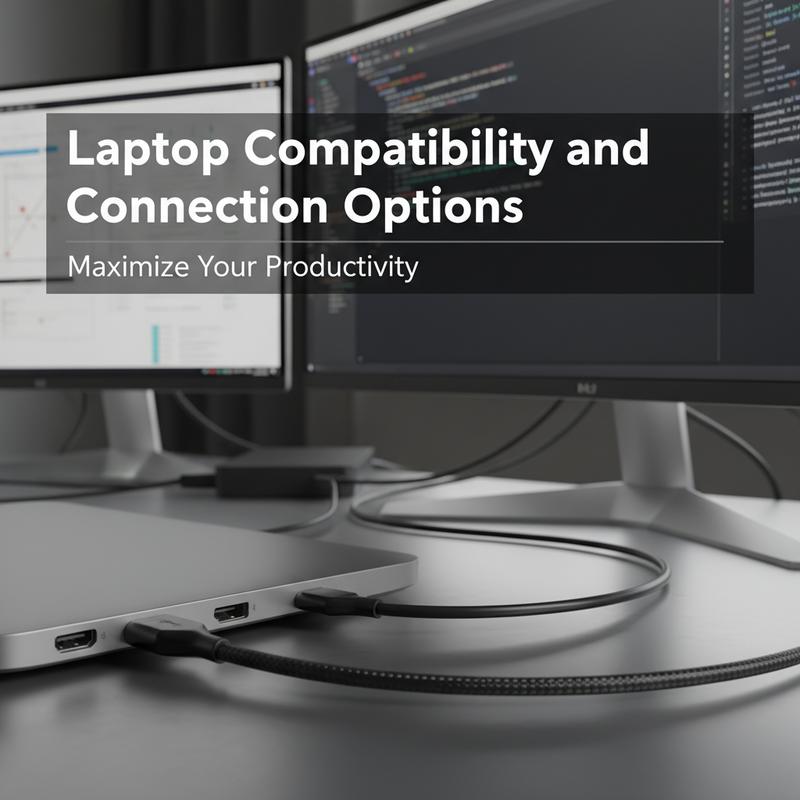
Picking the right external monitor also means making sure your laptop can connect to it properly. The ports on your laptop and the inputs on the monitor decide what resolutions and refresh rates you can actually use—and how smooth the whole setup feels.
Identify Your Laptop’s Output Capabilities
Before you buy anything, confirm what your laptop can output. Check your exact model’s specs on the manufacturer’s site or in the manual. Most laptops use HDMI and/or USB-C, but the version matters, and that’s where people get tripped up.
HDMI Ports are common on laptops. HDMI 1.4 can do up to 1080p at 120 Hz or 1440p at 60 Hz, but 4K usually tops out at 30 Hz. HDMI 2.0 improves this to 4K at 60 Hz. And if you’re chasing very high refresh rates, HDMI 2.1 is the one that can handle up to 240 Hz in higher-resolution (1440p/4K) situations.
USB-C Connections can be a great option, especially when they support DisplayPort Alt Mode (often shown with a DisplayPort icon). Some USB-C ports are also Thunderbolt, which makes it easier to run multiple displays with a dock and expand your setup without a mess of cables.
Choose the Right Monitor Based on Connectivity
Once you know what your laptop supports, match it to a monitor that fits what you actually do. For office tasks, 1080p to 1440p with a normal refresh rate is usually plenty. For gaming, higher refresh rates matter more. For design and editing work, focus on resolution and color.
Ports still matter here, too. A monitor with the right input—like HDMI 2.0+ for gaming, or USB-C with DP Alt Mode for creative work—helps you get the most out of your laptop’s output. And don’t cheap out on the cable: use the best standard your devices support, like HDMI 2.0/2.1 or a USB-C to DisplayPort cable, so you’re not limiting your setup for no reason.
Implement Efficient Multi-Monitor Setups
Want two (or more) external screens? Then you’ll need to think about multi-display support. Many newer laptops with USB-C (DP Alt Mode) or Thunderbolt can run two external monitors through a dock. If you need more than two, you may have to use DisplayLink adapters over USB—but make sure they work with your operating system before you buy.
At the end of the day, getting a smooth setup is mostly about matching ports and cables across your laptop and monitor. Do that part right, and your display will look good and respond the way you expect, whether you’re working or gaming.
For more insights on the latest monitor technologies, check out fascinating monitors at CES 2026.
Screen Size and Resolution
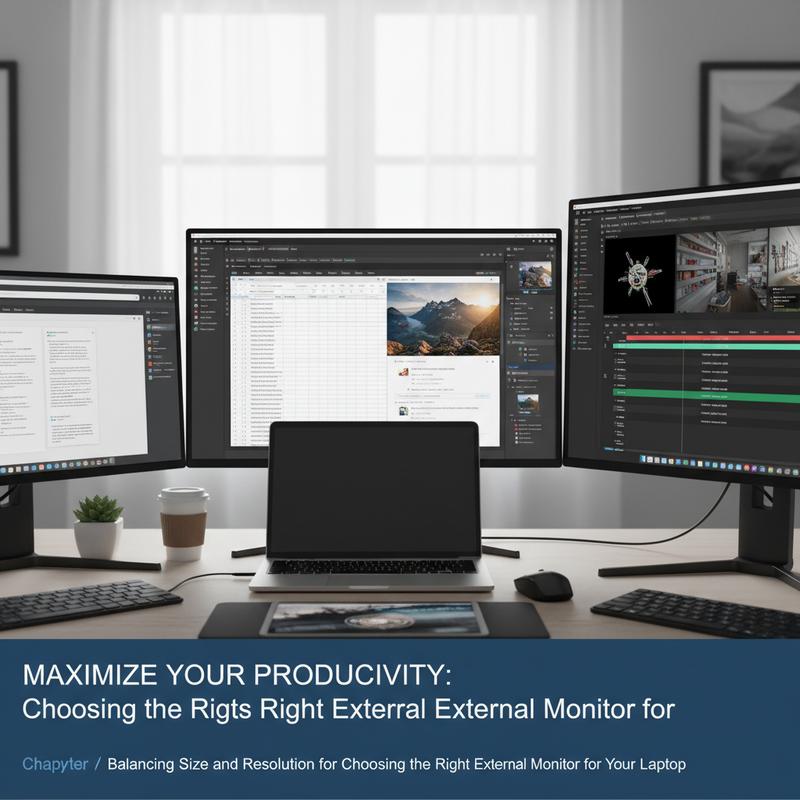
Picking a monitor is a bit like picking the right frame for a picture. Size and resolution have to work together, or the screen either looks rough or feels like overkill. When they’re balanced, text looks clean, your eyes get a break, and you get more usable space for work.
The key idea here is pixel density (PPI, or pixels per inch). It’s what decides how sharp text and images look. Under 90 PPI can make text look a little jagged, which gets annoying fast if you’re staring at it all day. Over 150 PPI can look super crisp, which is great for detail-heavy work like design or photo editing.
Here are a couple common examples. A 21.5″ screen with 1920×1080 lands around 102 PPI, which works well for office tasks and doesn’t cost much. A 27″ monitor at 3840×2160 (4K) is around 163 PPI, which looks very sharp and gives you lots of room for timelines, tool panels, and multiple windows.
Viewing distance is another big factor. If you sit close—around 18–24 inches—you’ll notice low PPI more, so higher PPI helps. If you sit farther back (over 30 inches), you can get away with a little less pixel density and still feel comfortable. The goal is simple: keep things easy to read so you’re not squinting through long work sessions.
Also check laptop connectivity considerations. USB-C with DisplayPort is common on newer laptops and can handle high resolutions like 4K while keeping the setup clean with a single cable. HDMI is still important too, but you’ll want HDMI 2.0 or higher if you need 4K at 60Hz.
Scaling by operating systems can help when size and resolution don’t line up perfectly, but it isn’t always perfect. Windows lets you use fractional scaling, and macOS generally handles scaling smoothly, though either one can affect performance or make some elements look slightly soft. Still, if you can run the monitor at its native resolution with comfortable scaling, that usually looks best.
So, it comes down to what you do and how you sit. For many people, a 24″ 1920×1080 or a 27″ 2560×1440 hits a nice middle ground for cost and comfort. But if your work depends on fine detail, a 27″ 4K screen can be a big upgrade without feeling wasteful.
Panel Types: Choosing the Right Display
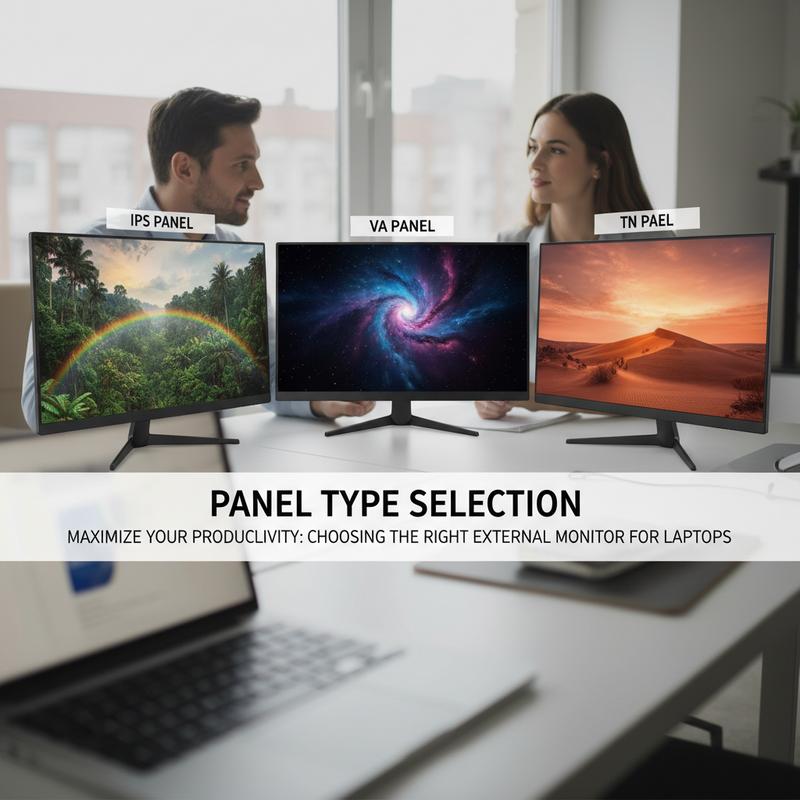
Panel type has a bigger impact than most people expect. It affects color, contrast, viewing angles, and how motion looks. The main ones you’ll run into are IPS, OLED, VA, and TN, and each one has its own trade-offs.
IPS panels are a go-to for most people. They’re known for steady color and wide viewing angles, which makes them great for office work, coding, and casual creative tasks. The downside is contrast—blacks can look a bit gray compared to other panel types—though IPS Black improves that, pushing contrast to about 2000:1. Still, IPS is a safe pick with no burn-in worries, but it often costs a bit more than basic VA or TN screens.
OLED panels deliver the best-looking picture for a lot of people, with true blacks and strong HDR. They’re excellent for movies, high-end gaming, and color-focused creative work. But there’s a catch: burn-in can happen if you leave static images up for long stretches. They can also be less bright than some high-end VA or IPS panels in very bright rooms, and they tend to be pricey. On the flip side, if image quality is your top priority, OLED is hard to beat.
VA panels sit in the middle. They give you better contrast than IPS, which is nice for movies and darker scenes, and they can work well for a mix of work and entertainment. The trade-off is response time—some VA screens can show smearing in fast motion—and viewing angles aren’t as wide, so colors can shift when you’re not sitting straight on. Still, VA is often a great value if you want deeper blacks without paying OLED prices or worrying about burn-in.
TN panels are mostly about speed and price. They’re still popular in competitive gaming because response times are very fast, and they’re usually cheaper. But colors and viewing angles are the weakest here, so they’re rarely the first choice unless budget and speed matter more than picture quality.
And if your needs are a bit different—like lots of reading and writing—E-Ink monitors can help reduce eye strain, though they’re limited on refresh rate and color.
Panel choice isn’t one-size-fits-all. Think about contrast, color accuracy, motion clarity, price, and your room lighting, then pick what matches how you actually use your screen. If you’re curious about what’s coming next, take a look at emerging trends in monitor technology for a peek at newer options.
Final thoughts
Picking the right external monitor can make remote work or school feel a lot less cramped and a lot more comfortable. If you’re clear on what you need it for, confirm your laptop can support it, choose a size and resolution that make sense, and pick the right panel type, you’ll end up with a setup that’s easier to use every day. Use what you’ve learned here as a simple checklist, and you’ll be in a good spot to buy confidently.
Need help choosing a monitor that won’t make your setup a headache? Get your screen sorted out and make your workspace feel way better.
Learn more: https://itcarolina.com/about/
About us
IT Carolina helps remote workers and students upgrade their laptop setups with the right external monitors. Our team can help you pick a monitor that fits your needs and get everything connected and working the way it should. Whether you’re stuck on specs or just want a clean, easy setup, IT Carolina makes sure your tech supports your work and learning without the hassle.