A clean, well-kept computer runs better and usually lasts longer, too. Dust, dirt, and plain old clutter can slow things down and, in some cases, even cause parts to fail. This guide walks you through both sides of cleanup: the physical stuff you can see and the digital mess you can’t. You’ll start with the outside, then move to the inside. After that, you’ll tidy up software and finish with simple upkeep habits. Stick with it, and keeping your computer clean and fast will feel a lot less intimidating.
Cleaning the Exterior
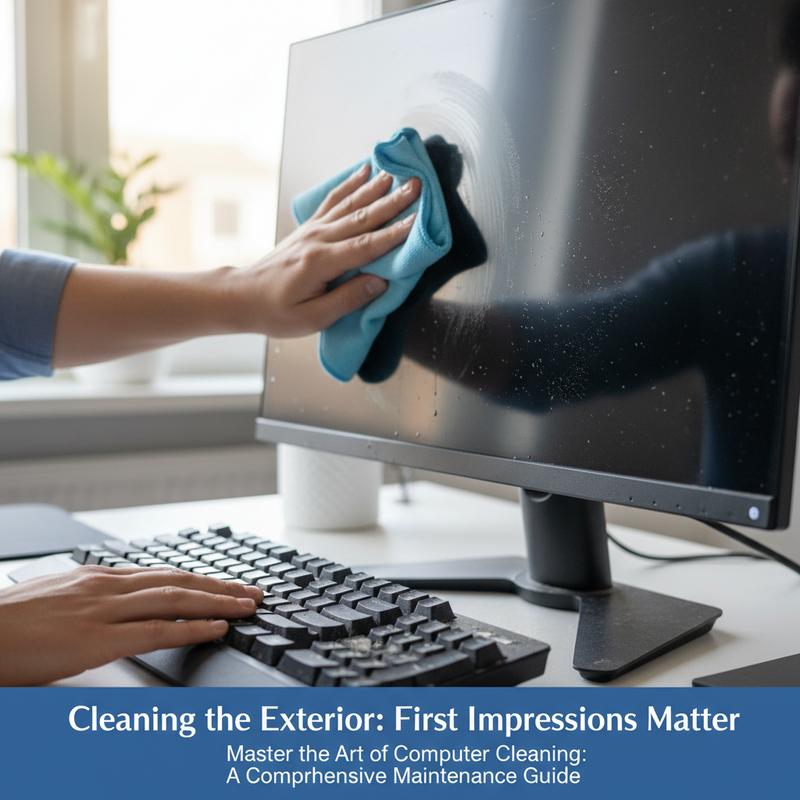
Cleaning the outside of your computer can feel like it’s just about looks. But keeping the surface free of dust and grime helps it stay in good shape over time. It’s not only wiping things down—it’s also about keeping dirt from working its way into sensitive spots and causing trouble later.
Before you start, take a minute to do it safely. Power the computer fully off, unplug it, and disconnect all cables so you’re not dealing with any electrical risk. Then wait 5-10 minutes for leftover charge to fade. Pressing the power button a few times can also help drain any lingering electricity, which makes the whole process safer.
Next, pull together your supplies: compressed air for tight areas, microfiber cloths, 70% isopropyl alcohol or an electronics-safe cleaner, and (if your keyboard is really grimy) soft anti-static brushes and cotton swabs. Thing is, you want cleaners that won’t leave residue or mess up delicate finishes.
Starting with the Screen
Start with your monitor. A dirty screen makes everything look worse and can make your eyes work harder than they need to. Don’t spray anything straight onto the screen. Instead, dampen a microfiber cloth with distilled water or a screen-safe solution and wipe with gentle circular motions. Keep the pressure light so you don’t wear down the screen coating.
Keyboards and Touchpads Are Next
Keyboards and touchpads get touched all day, so they pick up oils, dust, and crumbs fast. Flip the keyboard upside down and give it a gentle tap to knock loose debris out. Then use short bursts of compressed air from about one inch away to clear out what’s hiding. For sticky spots, lightly dampen a microfiber cloth with isopropyl alcohol and carefully wipe the keys and surfaces. If you’re comfortable doing it, removing keycaps can help you clean more thoroughly.
Touchpads can be cleaned the same way—just keep the cloth barely damp so you don’t risk damaging the sensors.
Attention to the Computer Case
The outside of the computer, including laptop bodies, should be wiped with a microfiber cloth lightly moistened with isopropyl alcohol. This gets rid of fingerprints and smudges and also helps sanitize the spots you touch the most. For ports and vents, use short, controlled bursts of compressed air and angle the can so you lift dust out instead of blasting it deeper inside.
Peripheral Cleaning: Don’t Forget the Basics
Don’t skip your peripherals, like mice and headphones. Wipe them down with a dry cloth, or use a slightly damp cloth if they need more work—especially on rubber and plastic parts that can get sticky over time.
Now, the easiest way to keep things under control is to clean a little on a schedule. A quick weekly wipe-down and a monthly deeper clean for vents and peripherals usually does the trick. A clean exterior also just makes your setup feel better to use. And while it’s tempting to rush, taking a few extra minutes now helps your computer stay dependable for years.
Inside Your PC: Dust Cleanup
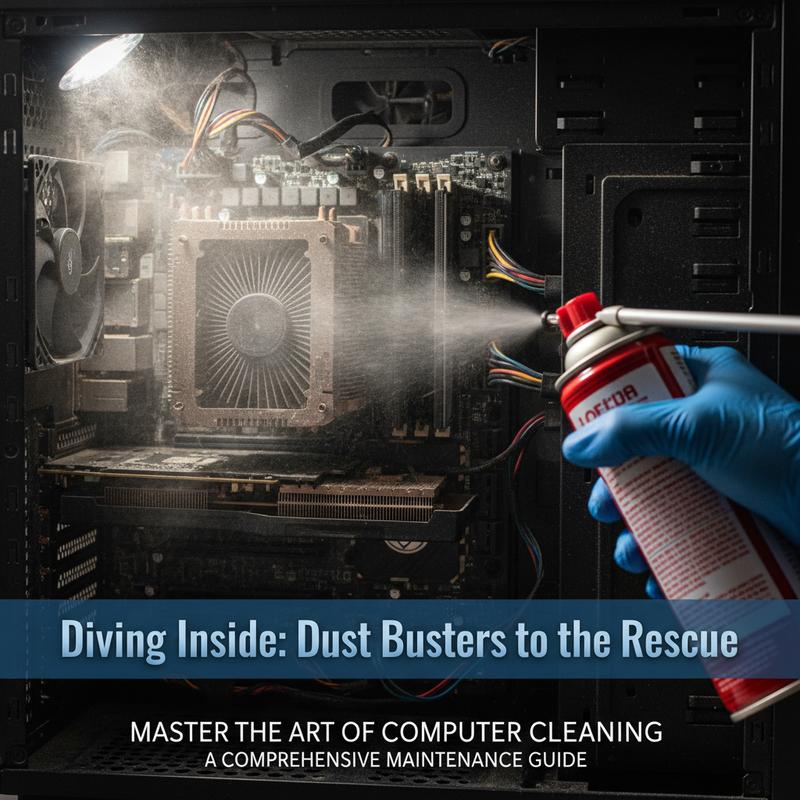
Cleaning inside your computer matters if you want it to run well and last. Dust buildup can lead to overheating and weird performance issues over time. Before you do anything, power the computer down and unplug it from the mains so you don’t risk shock or accidental damage.
To keep things safer for your components, ground yourself with an anti-static wrist strap to lower the chance of static discharge. Work in a clean, bright area where dust won’t just fall right back in. For tools, have a compressed air canister or air blower, microfiber cloths, and 70% isopropyl alcohol or an electronics-safe solution. Skip household cleaners and regular vacuums—they can create static or leave residue you don’t want inside your PC.
When you’re ready to clean, go slow and be thorough. For desktops, open the case based on the manufacturer’s guidelines and set the side panel aside. Taking a quick reference photo of the internals can make reassembly less stressful. Start with key areas: fans, heatsinks, the motherboard, GPU, RAM slots, and the power supply. Use short bursts of compressed air to push dust out, and hold fans in place so they don’t spin wildly and wear out the bearings.
If you use a handheld vacuum, like a BLACK+DECKER DustBuster, make sure it’s meant for dry use only so you don’t accidentally damage anything around electrical components. Models with cyclonic filtration tend to separate dirt from the filter more consistently and keep suction steady. They’re light and easy to maneuver, which helps in tight spaces where dust collects. Still, they work best as a helper tool alongside compressed air—not as a replacement.
For extra-sensitive spots like circuit boards or RAM slots, use an anti-static brush gently. Wipe flat surfaces with a cloth that’s only slightly damp so you’re not leaving moisture behind. And for laptops, it’s usually smartest to stick to ports and external vents unless you’re experienced with taking them apart.
Once you’re done, put everything back together carefully (use that reference photo if you took one) and boot up to make sure everything runs normally. Then set a simple routine: dust the keyboard and exterior weekly, clean vents and fans monthly, and do a full inside clean every three to six months. If your space is dusty or you use the machine heavily, you may want to do it more often.
For especially dusty environments or high-performance setups like gaming PCs, cleaning every two to three weeks might make sense. Keeping up with it helps your hardware last longer and keeps your system running smoothly throughout its life span.
Software Cleanup Strategies
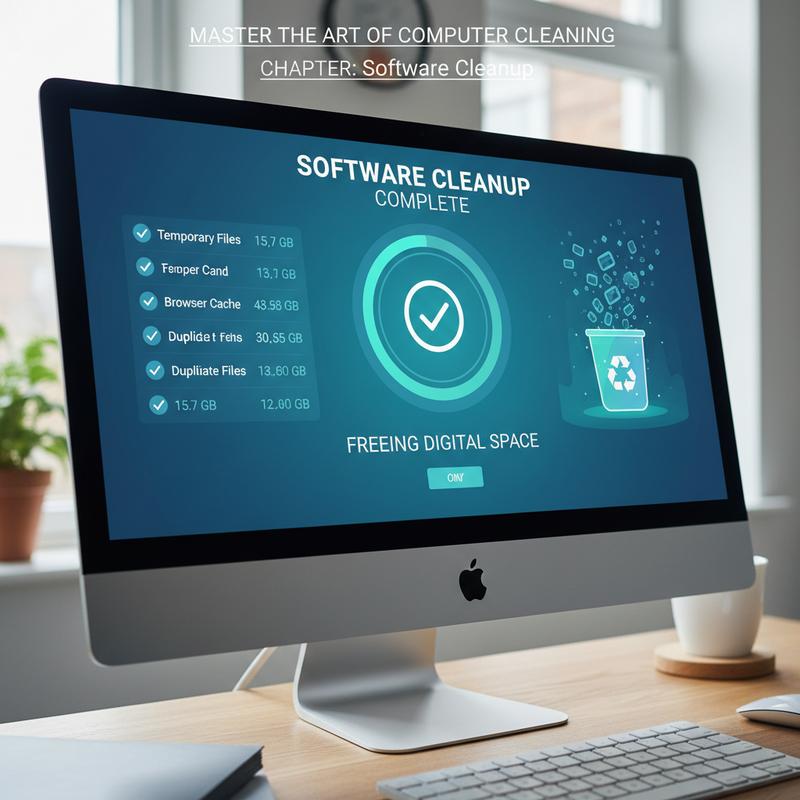
If you want your computer to stay fast, you can’t ignore software maintenance. Physical cleaning helps, but digital clutter can quietly slow your system down, too. This section covers software cleanup—freeing up space and boosting performance with solid free tools.
There are plenty of free programs that can clear junk files, temporary caches, browser leftovers, and duplicate files so your computer runs better without costing you anything. Tools like CCleaner, BleachBit, Wise Disk Cleaner, and Glary Utilities are popular because they’re simple to use, effective, and often include privacy options.
CCleaner is a common go-to because it’s easy and handles junk files and browser history cleanup well. The layout is simple, so even beginners can knock out basic cleanup fast. But if you want more control over what gets removed, BleachBit is a strong open-source option. It includes file shredding for privacy and lets you choose exactly what you want to clean.
Wise Disk Cleaner is another good pick, combining temp file and cache cleanup with disk defragmentation in one place. It helps keep things both clean and organized so your drive can access data more efficiently. And Glary Utilities bundles a lot into its free version—things like registry repair and startup management—so you can handle several system annoyances in one pass.
If you want to mix tools, that can work well. Start with Microsoft PC Manager, which is Microsoft’s own option for Windows and is generally a safe bet. It focuses on system cleanup and app uninstallations so leftover files don’t pile up. Then, once things are stable, you can add BleachBit for the extra privacy-focused cleanup that goes beyond basic junk removal.
But don’t just click “clean” and walk away. Always look at what the tool plans to delete so you don’t accidentally remove something you need. Be extra careful around system files, since deleting the wrong thing can cause issues later. And keep backups of important data—then even if you make a mistake, you’re still covered.
Finally, set a schedule that matches how you use your computer. If you’re online a lot, install and uninstall programs often, or use your PC heavily, you’ll probably want to run cleanups more regularly. Think of it like a tune-up for the software side of your system. Paired with regular physical cleaning, it keeps things from getting slow and helps your computer stay responsive even when you’re pushing it hard.
Routine Maintenance for Longevity
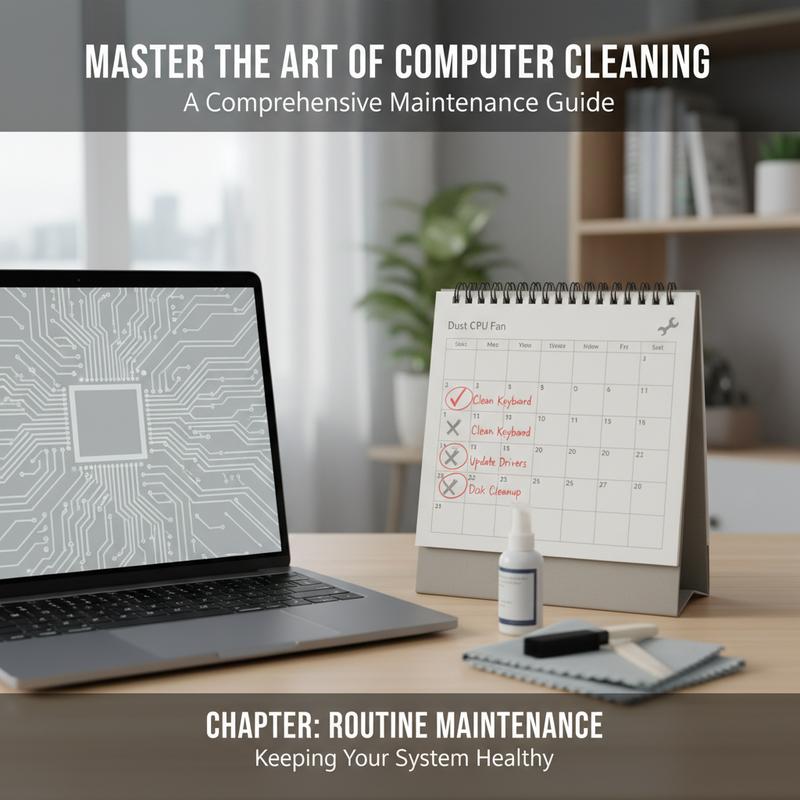
Keeping your computer in good shape isn’t just about dusting it off or making it look nice. Routine maintenance is what keeps it running smoothly, staying reliable, and lasting longer. That includes regular checks, basic servicing, cleaning, and testing.
Start with inspections. This might sound like something you’d do for HVAC systems, but it applies to computers too. Checking things like cooling fans and power supplies on a regular basis helps you spot dust buildup, loose connections, or early wear before it turns into a bigger problem. Even a quick look once a week can help prevent overheating or sudden shut-downs caused by clogged airflow.
Then there’s servicing, which a lot of people skip. For a computer, that can mean cleaning filters, vents, and ducts. It might also include small adjustments, like checking fan bearings or moving parts such as swivels, depending on your setup. It can sound like a lot, but the manufacturer’s service guide usually makes it pretty straightforward if you want to handle it yourself.
Cleaning is a big one for both looks and function. Dust can settle in all kinds of places—panels, guides, exhaust areas, and anywhere air moves. And dust isn’t just ugly; it traps heat and reduces cooling, which can lead to failed components. Stick with safe tools like microfiber cloths and compressed air so you’re not damaging anything delicate.
Finally, calibration and testing help you confirm everything’s working the way it should. For computers, that can mean running diagnostics, updating firmware, and checking that components are behaving normally. It can also include verifying sensors, battery health, and alert systems. Regular testing helps you avoid surprises and keeps performance where it should be.
To make this doable, set a schedule you’ll actually follow. Daily checks can be as simple as making sure vents aren’t blocked and nothing looks off. Weekly tasks can include wiping surfaces and checking ports and peripherals for dust. Once a month or once a quarter, go deeper—clean fan blades, vents, and internal connectors, and open the case if you’re comfortable working inside. Follow the manufacturer’s guidance for a yearly full tear-down and reassembly, especially to confirm CPU paste or GPU thermal pads haven’t degraded.
And don’t forget the software side while you’re at it. Pairing physical care with regular updates and cleanups helps your computer stay fast and stable.
If you like staying organized, keep a maintenance log. Some people even use a CMMS for reminders and tracking. Still, a simple checklist works fine. The goal is catching small issues early, saving money over time, and keeping your computer ready for whatever you throw at it.
Final thoughts
Regular computer maintenance helps your device last longer and run better. If you keep up with both physical cleaning and software cleanup, your computer will stay faster, smoother, and more reliable. From wiping down the outside to clearing dust inside and keeping your software tidy, all of it adds up. Make these habits part of your routine, and your computer will be a lot more enjoyable to use day to day.
Ready to get your computer back in shape? IT Carolina can help you clean things up, speed things up, and upgrade what needs upgrading—inside and out. If you want, you can schedule a tune-up and let them handle the details.
Learn more: https://itcarolina.com/about/
About us
At IT Carolina, we handle more than gaming and entertainment—we’re here for full computer maintenance, too. If you’re dealing with dust build-up, slow performance, or aging parts, our team can help with quick, reliable support to refresh and tune up your system. From physical cleaning to performance tweaks, we’ll help your PC run like new. Count on IT Carolina to keep your tech clean, cool, and working well, so you don’t have to worry about the little stuff.