Keeping your computer running well comes down to a few simple habits. Do a little regular upkeep and you’ll avoid surprise crashes, slowdowns, and other headaches. This guide lays out an easy monthly checklist for any computer user. It covers system updates, security checks, backups, and quick hardware inspections. Stick with it, and your computer will stay faster, safer, and a lot more reliable—plus you’ll feel better knowing you’re on top of it.
System & Software Updates
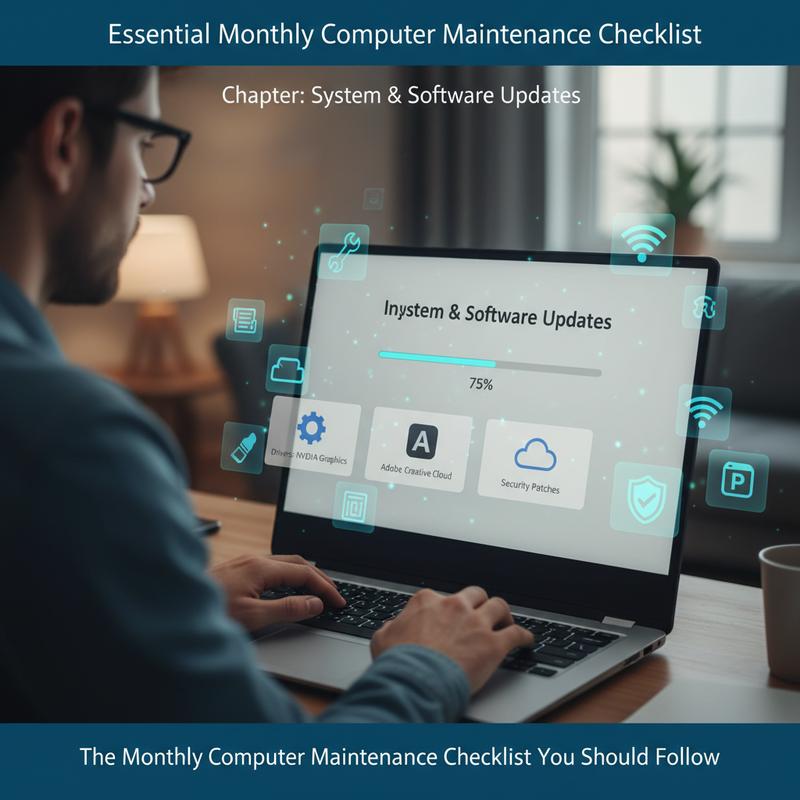
If you want your computer to stay fast and stable, updates matter. Keeping your system, software, and apps current helps things run better and closes security holes too. As part of a monthly checklist, taking care of updates in a consistent way can prevent annoying problems and help your machine last longer. This section is all about keeping your computer’s software in good shape with regular updates.
Your operating system is the core of your setup—it keeps the hardware and software working together. So start by checking for any pending OS updates, especially security patches. Those patches fix weak spots that attackers love to take advantage of. But don’t ignore stability and bug-fix updates either, since they can clean up glitches and improve performance. If your system supports automatic updates for key security fixes, turning that on can save you time. And it helps to schedule updates for off-hours so you’re not forced into a restart in the middle of work. After updates install, do a quick check that things like Wi‑Fi and connected devices still work; sometimes a simple reconnect or reinstall is all it takes.
Now check your drivers and firmware. These updates help your hardware keep working properly and can also improve performance. Graphics, chipset, network, and peripheral drivers are worth reviewing regularly—especially if you run graphics-heavy apps. Stick to manufacturer sites or official vendor tools instead of random third-party driver updaters, since those can cause compatibility issues. Before a major driver change, create a restore point or run a backup so you can roll back if something goes sideways. BIOS or UEFI updates come up less often, but they can improve stability—only do them when the manufacturer recommends it.
Next up: your apps. Office tools, browsers, and everyday programs need updates just like the OS does. Most apps have built-in updates, so it’s usually easy to fold this into your routine. After updating, take a minute to test the stuff you rely on most—open key files, run important tasks, and make sure everything still behaves the way you expect.
Security software updates deserve their own quick check. Antivirus and endpoint protection tools need both engine updates and fresh malware definitions to catch new threats. After big updates, run a quick scan—it’s a simple step that can catch problems early. And don’t forget to confirm your subscription is active so you don’t lose protection without realizing it.
Browsers and plugins are another big one. Since browsers get used constantly for work and personal stuff, they’re a common target for attacks. Keep your browser on the latest stable version, and clean up your extensions by removing anything you don’t use. Extra plugins can slow things down and sometimes create security risks. Also, double-check your browser sync and sign-in settings so bookmarks and passwords stay backed up safely.
After updates, a quick cleanup helps. Rebooting makes sure changes fully apply, and it gives you a chance to notice any weird slowdowns or new alerts. Clearing old update files and temporary caches can free up space and keep storage from turning into a mess over time.
Last thing: keep a simple update log. It doesn’t have to be fancy—just enough to track what changed and when, and to note any issues that pop up. Set a monthly reminder so you don’t forget. When updates become part of your routine, you’ll spend less time reacting to problems and more time actually getting stuff done.
Security & Privacy Checks
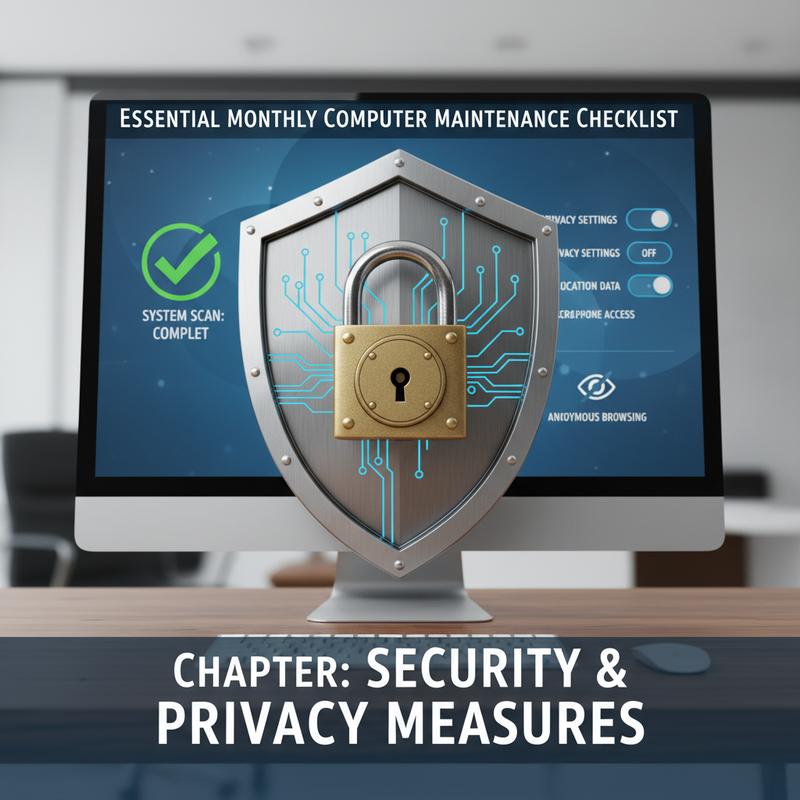
Security and privacy aren’t “set it and forget it.” Things change fast, and new threats show up all the time. A quick monthly review of your security basics helps protect your data and keeps your privacy settings from drifting into unsafe territory.
Running Full-System Scans should be a regular habit. Real-time protection is great, but it doesn’t always catch everything right away. Scheduling a full antivirus and anti-malware scan once a month helps uncover threats that might be sitting quietly. After the scan, check your quarantine/history and deal with anything flagged. It can also help to run a trusted on-demand scanner alongside your main antivirus for a second opinion.
Keeping your operating system and applications up to date is one of the easiest ways to stay protected. Security patches fix known weak points, and skipping them leaves the door open. That includes your OS, browsers, and any apps that connect to the internet. Still, updates aren’t the whole story—take time to remove software that’s no longer supported, since outdated programs are an easy target.
Authentication Practices matter more than most people think. Each month, review important passwords (OS login, email, password manager) and change them if needed. Use unique, hard-to-guess passwords, and turn on multi-factor authentication (MFA) anywhere you can. And check your user accounts too—remove old local users and drop permissions that people (or apps) don’t really need.
Don’t ignore your privacy settings. Review app permissions, especially access to your camera, microphone, and location. Do the same for your browser by tightening cookie settings, reducing tracking where you can, and cleaning up extensions you don’t trust or don’t use anymore.
Your network security needs a monthly check as well. Make sure your firewall is on and your inbound rules make sense. Update your router firmware when available, set a strong admin password, and confirm your Wi‑Fi encryption settings are solid. Turning off WPS and changing your Wi‑Fi password once in a while also helps.
Backups are part of security, too. Confirm automatic backups are still running, and actually test a restore so you know it works. If you store backups off-site or in the cloud, encrypt them so someone can’t snoop if they ever get access.
Lastly, keep an access and device inventory for your major accounts. Review which devices are signed in, sign out anything you don’t recognize, and remove old app connections that aren’t needed. If you share a computer, check that guest and child accounts are still set up the way you want.
When you build these security and privacy checks into your monthly routine, you’re doing two things: lowering your risk and keeping your personal info more private. If you want extra reading on protecting your tech, take a look at this tech manual for further insights. Small steps add up fast.
Backups & Recovery
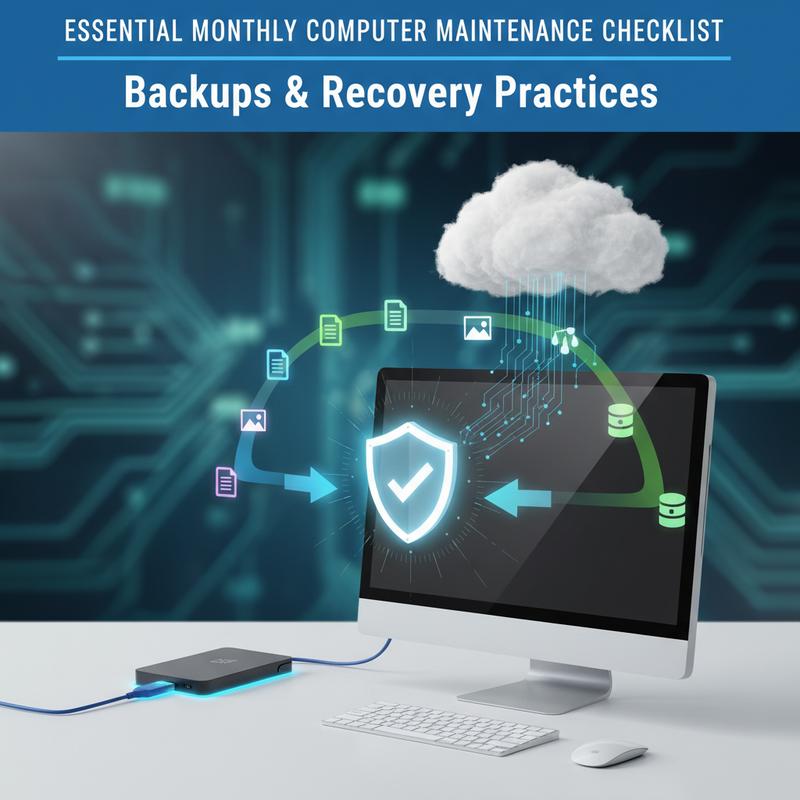
Backups only matter if they actually restore when you need them. Thing is, a lot of people run backups and assume everything’s fine without ever checking. This section walks through a monthly routine that helps make sure your backups are working, complete, and ready if something goes wrong.
Each month, verify that your backup jobs completed successfully. Check the logs for system images, file backups, and cloud backups, and look for errors or skipped files. Also confirm your schedules (daily/weekly) are still running as planned. Skipping this step can leave you thinking you’re protected when you’re not.
Next, check the backup coverage. Your data changes over time, and your backup plan should keep up. Make sure key locations are included—user folders, app data, email archives, and configuration files. And if you use a full system image, confirm it’s still set up correctly, especially after OS upgrades or drive changes.
The 3-2-1 backup rule is still one of the best approaches: three copies of your data, on two different types of storage, with one copy off-site (like the cloud). Do a monthly check to confirm your setup still meets this—especially if you’ve added hardware like a new SSD or external drive.
Testing of restores is just as important as running the backup. At least once a month, restore a file to a test folder from your main backup. Also test a cloud restore so you know it’s accessible when you need it. If you rely on system images, do as much of a “bare-metal recovery” practice run as you can without risking your current setup—at minimum, confirm your recovery media works and the image isn’t corrupted.
Don’t skip backup integrity and health checks. If your backup software offers verification or checksum features, run them. And check the health of your backup drives too, watching SMART stats for red flags like reallocated or pending sectors.
As your setup changes, review your backup scope. New apps, new files, or changes in where things save can all create gaps. Update your backup settings so the new important stuff is included.
Monitor storage capacity on your backup targets monthly. If a drive fills up, new backups or restore points can fail quietly. If space is getting tight, adjust retention in a sensible way—for example, daily backups for 14 days, weekly backups for up to three months, and monthly backups for one to two years.
Finally, review and update your recovery plan. Keep a short written checklist of where backups live, how to access them, and what you’d restore first. And make sure encryption is enabled (especially for off-site backups), with access limited to the right accounts.
If you write down what you checked and what the results were, troubleshooting gets way easier later. And you’ll have proof your backup plan isn’t just “hope.” Keep the routine, and you’ll have a real safety net when you need it.
Hardware Cleaning & Inspection
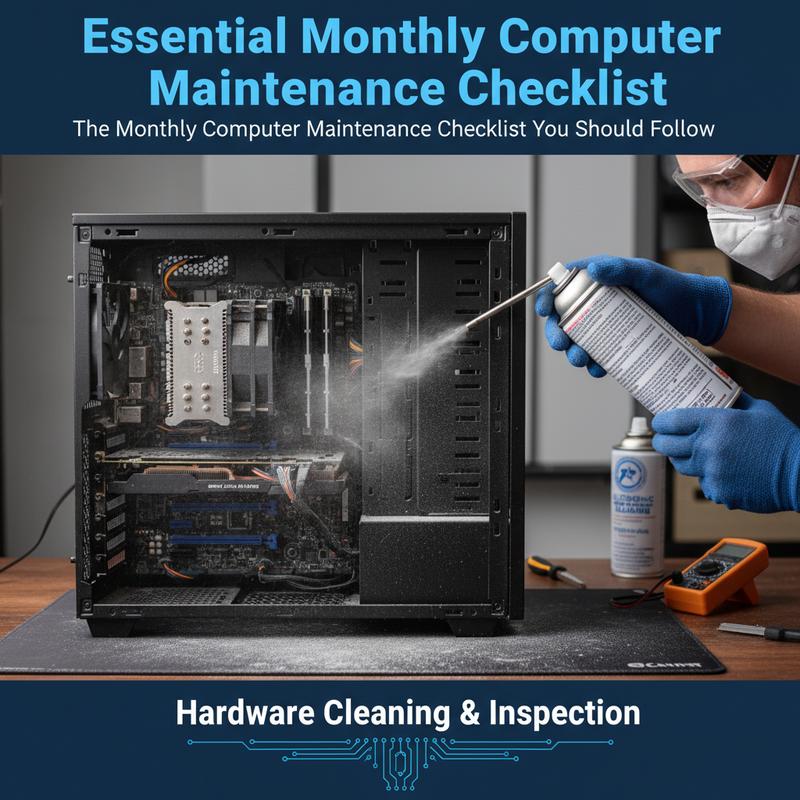
To keep your computer working well for the long haul, you’ve got to take care of the physical side too. Dust, heat, and loose connections can slowly drag performance down and sometimes cause failures. A quick monthly clean and inspection goes a long way toward avoiding downtime and unnecessary repair costs.
Importance of Regular Maintenance: The main goal here is stopping dust buildup before it becomes a problem. Dust blocks airflow, traps heat, and can push internal parts to run hotter than they should. That can slow your system down and shorten hardware life over time. A monthly check also helps you spot early wear before it turns into something expensive. Set aside a few minutes each month, and you’ll keep your machine healthier and more reliable.
Key Cleaning and Inspection Steps: Start with the keyboard and screen. A microfiber cloth (and a little care) can clear off dust and grime fast. It keeps things looking nice, but it also helps avoid stuck keys and screen scratches that make the computer harder to use. And look around your workspace too—less dust around the computer usually means less dust inside it. Good airflow starts with a clean area.
Next, check the ventilation system. Bad airflow leads to overheating, which can hurt performance right away and also wear parts down over time. Make sure vents aren’t blocked, and listen to your fans. If you hear new rattling, grinding, or inconsistent fan noise, that can be an early warning sign of fan trouble—which can quickly turn into heat problems.
Advanced Inspection Practices: If you use a laptop, add battery checks to your routine. Watch for swelling, rapid drain, or unusual heat, and keep an eye on overall charge health. Also pay attention to the room temperature and where the device sits—tight spaces and heavy workloads can raise temps fast.
Finally, check cable connections and ports. Look for loose plugs, worn cables, or damaged ports. This helps prevent flaky connections and lowers the risk of data issues during transfers. While you’re at it, confirm your cooling system is doing its job—fans should run smoothly and not sound like they’re struggling.
This monthly routine catches most common issues, but it’s smart to do occasional deeper checks too, like SMART status checks for drives. Those can warn you about drive problems before things fail outright.
Spend a little time each month cleaning and checking hardware, and you’ll usually get a computer that runs better and lasts longer. If you also want tips on budget-friendly devices that balance price and performance, you can visit here.
Final thoughts
Keeping your computer in good shape doesn’t have to be a big project. If you stick to this monthly checklist, you’ll help your system last longer and run better. Updates, security checks, backups, and basic hardware care cover most of what causes slowdowns and surprise problems. Make it a routine, and you’ll spend less time troubleshooting and more time just using your computer without the frustration.
Want your computer to stay smooth all year? Use these tips as your monthly reset, and don’t wait for a slowdown to start paying attention.
Learn more: https://itcarolina.com/about/
About us
IT Carolina is your go-to tech partner for gamers and everyday computer users. We help with PC performance, new tech setup, and troubleshooting that keeps your devices running the way they should. Whether it’s hardware tuning or network improvements, we’ll help you get more out of your computer and entertainment setup without the usual headaches.