Finding reliable computer support near me can make it a lot easier to set up parental controls on several devices without wasting hours. If you want to protect your kids online, it helps to know how to turn on controls for Android, iOS, Windows, Chromebooks, and Xbox. This guide walks you through the steps for tools like Google Family Link, Screen Time, and Microsoft Family Safety. It also covers basic security habits that help keep those settings from getting bypassed. Use the sections below to get everything set up in a way that’s clear, practical, and easy to maintain.
Google Family Link on Android
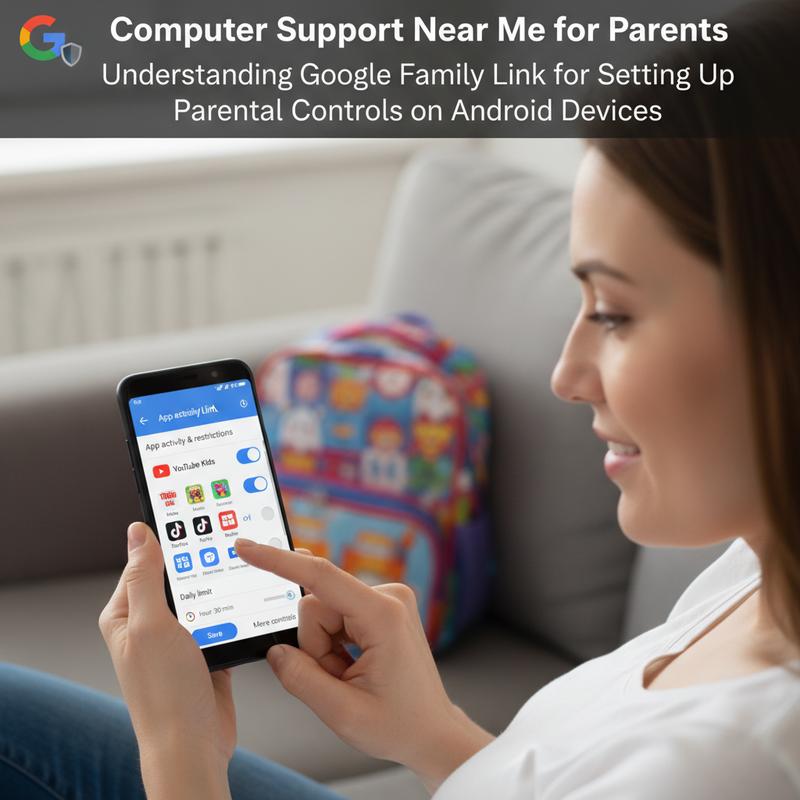
Google Family Link is Google’s built-in parental control tool for Android. It lets you manage apps, set screen time limits, and track location, so you can shape the rules around what each child actually needs.
Key Features of Google Family Link
| Feature Category | Description |
|---|---|
| Content and App Management |
App activity reports provide daily, weekly, or monthly usage per app
|
| Screen Time Controls |
Set daily limits on device use
|
| Location and Communication |
See the device location when it’s online and active
|
Setting Up Family Link on Android
On most Android devices running Android 5 (Lollipop) or newer, you’ll install the Family Link app on the parent’s phone (Android or iPhone) and manage everything from there. But if you’re using a Google Pixel with Android 16 or later, you can use the built-in parental controls inside the Settings app under “Digital Wellbeing & parental controls,” which can speed things up since there’s no extra app to install.
Step-by-Step Setup Process
- Create or connect a Google account for your child.
- Install and open the Family Link app on your device.
- Follow the prompts to link your child’s device with parental supervision.
- Set app restrictions, screen time limits, and content filters.
- Turn on location tracking and communication supervision if you want those features.
Limitations to Consider
Family Link works well, but it isn’t perfect:
- Some kids may get around certain limits by clearing Google Play Store data or resetting settings.
- Parents can’t disable some pre-installed apps.
- Once an app is approved, it may not need approval again for updates or reinstalling.
Knowing the weak spots helps you keep supervision consistent.
Security Tips
Parental controls are only part of the story. Strong passwords, automatic updates, and even basic Wi-Fi rules all add another layer of protection.
If you’re searching for “computer support near me” or “IT support near me,” a provider that offers computer setup service can help install and fine-tune Family Link so nothing gets missed.
Family Link also plays nicely with other Google services, which makes it easier to manage day to day. And the activity reports are especially useful when you want a quick reality check on how the device is being used.
For more on staying on top of device issues, check out our common computer problems and solutions every user should know resource, which includes helpful setup and maintenance tips.
For official guidance on Google Family Link, visit the Google Family Link Help Center.
This section gives you a solid starting point for Android. Next, you can apply the same idea to iOS, Windows, Chromebooks, and Xbox.
Screen Time and Family Sharing on iOS
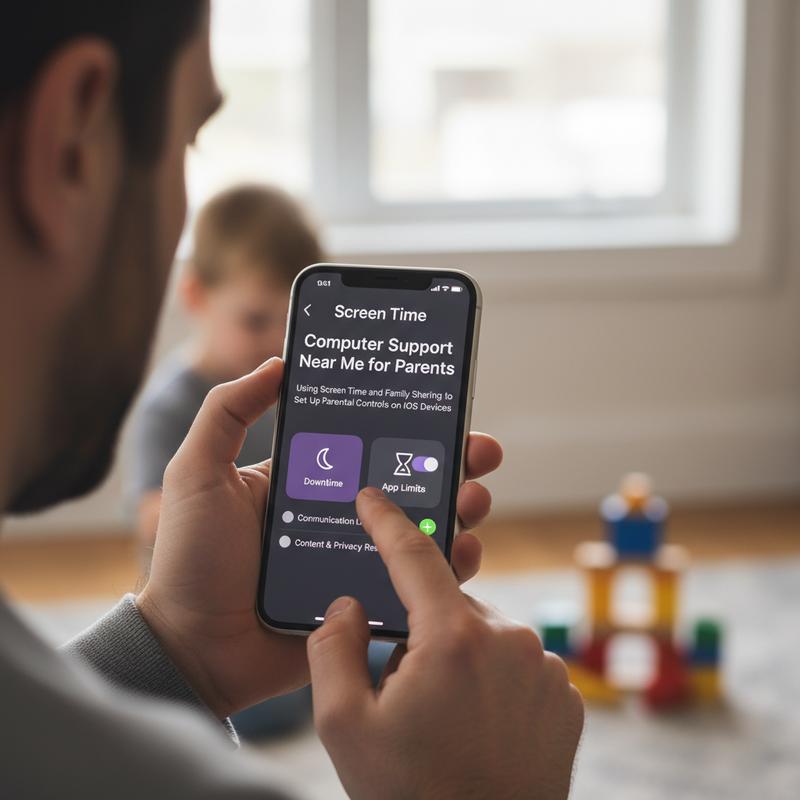
On iPhones and iPads, Apple makes this pretty straightforward with Screen Time and Family Sharing. Together, they let you control app access, set limits, and filter content—without needing extra apps.
Step 1: Set Up Family Sharing
Family Sharing ties your child’s Apple account to your family group, so you can approve purchases, keep an eye on downloads, and manage Screen Time requests.
- On your iPhone or iPad, open Settings and tap your name.
- Select Family Sharing and then Add Member.
- Follow the prompts to add your child’s Apple ID or create one for children under 13, which requires parental consent.
- Optionally, enable Purchase Sharing to monitor app purchases and subscriptions.
Step 2: Enable Screen Time
Screen Time (iOS 12 and later) tracks usage and lets you set limits without third-party tools. You can set it up directly on your child’s device or adjust it from your own phone.
- On your child’s device, go to Settings > Screen Time > select your child’s name under Family.
- On your device, go to Settings > Screen Time, scroll to Family, and select your child.
- Turn on Screen Time and set a unique Screen Time passcode to prevent changes by your child.
Step 3: Configure Parental Controls
Now you can tailor the rules to your child. Here’s a quick overview of what the main options do:
| Feature | Purpose | Setup Steps |
|---|---|---|
| Downtime | Blocks non-essential apps during scheduled hours | Tap Downtime > Enable Scheduled > Set start/end times > Turn on Block at Downtime |
| App Limits | Limits daily usage of specific apps or categories | Tap App Limits > Add Limit > Select apps or categories > Set daily time limit |
| Always Allowed | Allows essential apps even during downtime | Tap Always Allowed > Add apps like Phone or Messages |
| Communication Limits | Controls who your child can contact during and outside downtime | Tap Communication Limits > Set limits for downtime and allowed screen time |
| Content & Privacy Restrictions | Blocks explicit content, purchases, and more | Enable this setting > Enter passcode > Adjust restrictions for purchases, web content, location, etc. |
Additional Tips
- Check activity reports and approve time extensions or app requests from your phone when needed.
- Keep everyone in the same Apple family group so reporting and controls stay in one place.
- Set a Screen Time passcode your child won’t guess, or they’ll change settings the moment you turn around.
A lot of parents stick with Apple’s built-in controls because they’re simple and they work. And from supporting families in Charlotte, setting these up early usually prevents later headaches—especially when kids start asking for more apps and more screen time.
For detailed official information, see Apple’s Screen Time support.
If you get stuck or want someone to handle it for you, our team offers reliable computer setup service and IT support near me to help keep your family’s devices secure and organized.
Once Screen Time is dialed in, you’ve got a clean, easy system for building better tech habits at home.
Google Family Link on Chromebooks
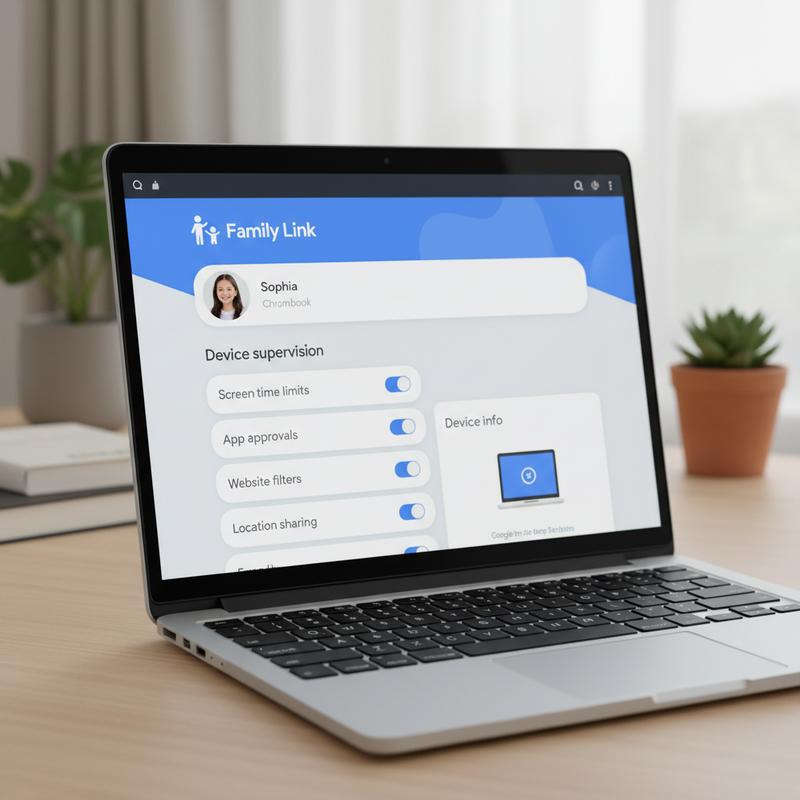
On Chromebooks, Family Link can give kids a more locked-down, supervised experience. It connects your child’s Google Account to your account so you can manage browsing, apps, and screen time on Chrome OS.
Prerequisites Before Setup
- Make sure the Chromebook is updated to the latest Chrome OS version and connected to Wi-Fi.
- Install the Family Link app on your Android or iOS device.
- Sign in to the Family Link app using your Google account.
- Create a child Google Account through the app or add an existing one to your family group.
Step-by-Step Chromebook Setup
- On the Chromebook sign-in screen, select Add person.
- Sign in with your child’s Google Account and follow the prompts to enable Family Link supervision.
- Alternatively, sign in with the device owner account first, then go to Settings > People > Parental controls to link the child’s account.
- Set permissions and restrictions for screen time, app access, web filtering, and bedtime schedules.
After setup, log into the child’s profile and double-check that key limits (like blocked sites or app installs) are actually working. If something doesn’t apply right away, sync in the Family Link app and restart the Chromebook—Chrome OS can be picky about refreshing settings. You can still manage everything remotely from the parent’s device.
Managing Controls via the Family Link App
In the Family Link app, open your child’s profile and tap Controls to adjust the main settings:
| Control Category | Features | Management Location |
|---|---|---|
| Web Filtering | Approve specific sites, enable SafeSearch | Controls > Google Chrome and Web |
| Screen Time | Set daily limits, bedtime blocks, and remote lock | Controls > Screen time |
| Apps and Content | Approve or block apps, manage permissions, restrict Google Play purchases | Controls > Google Play |
| Location & Privacy | Track Chromebook location, receive 2-Step Verification alerts | Controls > Account Settings > Privacy |
Tips for Secure and Reliable Operation
- Turn on 2-Step Verification for linked accounts so settings can’t be changed easily.
- Recheck web rules and app permissions once in a while since kids will test limits.
- Family Link disables Chrome’s Incognito Mode and notifies you about certain major changes.
- If things act weird, update Chrome OS and reconnect the Family Link app.
- Keep an eye on apps—some that were previously approved might update without extra approval.
From working with families in Charlotte, the most common Chromebook problems come down to outdated Chrome OS versions or account permission mix-ups. Fix those first and you’ll save yourself a lot of frustration.
For more security help (including Wi-Fi rules and password tips), see IT Carolina’s guide on protecting home Wi-Fi networks.
Family Link on Chromebooks gives you solid control without being a constant hassle. And if you’d rather not troubleshoot it yourself, professional tech support near me can take the guesswork out of setup.
For official details and troubleshooting, visit Google Family Link Help.
With these steps in place, you can manage Chromebook time and access in a way that feels fair, consistent, and safe.
Microsoft Family Safety on Windows and Xbox
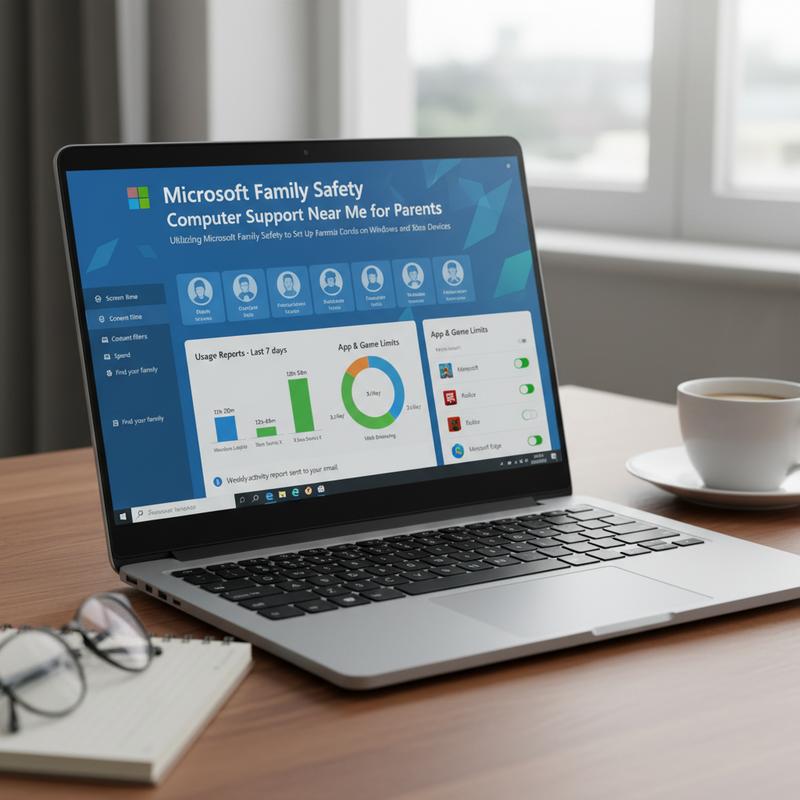
Microsoft Family Safety helps you track and manage your child’s activity on Windows computers and Xbox consoles. Once you set up a family group and link accounts correctly, you can handle screen time, content filters, app limits, and activity reporting across devices.
Setting Up Microsoft Family Safety
- Create a Microsoft Family Group
- Sign in at family.microsoft.com with your Microsoft account.
- Create a family group if you don’t already have one.
- Add your child’s Microsoft account as a Member (or create one if needed).
- On Xbox, make sure the child’s account is tied to the same family group so the settings apply.
- For simpler management, install the Microsoft Family Safety app on both parent and child Windows devices.
- Configure Parental Controls on Windows
- Open Settings (Windows key + I) > Accounts > Family & other users.
- Select your child’s account under “Your family.”
- Set screen time limits, adjust app/content filters, and manage sign-in rules.
- Or manage everything at family.microsoft.com so changes sync across devices.
- Ensure Correct Account Permissions
| Method | Steps |
|---|---|
| Settings | Settings > Accounts > Family & other users > Select child > Change account type to Standard User. |
| Control Panel | Search “Control Panel” > User Accounts > Manage another account > Select child > Change to Standard User. |
| netplwiz shortcut | Windows key + R > type netplwiz > Select child account > Properties > Group Membership > Standard User. |
| Command Prompt | Run CMD as admin > net localgroup Administrators "ChildUsername" /delete (replace with actual username). |
Important: Your child’s account needs to be a Standard User (not an Administrator) or Family Safety limits may not work correctly.
- Apply Controls on Xbox
- When setting up Xbox, sign in with the child’s Microsoft account that’s linked to your family group.
- Settings like screen time, game/app limits, and purchase approvals should sync automatically.
- You can adjust everything at family.microsoft.com under your child’s profile.
Additional Tips for Effective Control
- Web filtering only works in Microsoft Edge, so other browsers will need their own controls.
- Screen time and app limits work best when they match your household routine.
- Sign-in limits can stop after-hours use without wiping anything.
- Sync can take a few minutes; a restart or app update often fixes delays.
Families looking for computer setup service or tech support near me often find that getting Microsoft Family Safety set up the right way makes a noticeable difference. Microsoft reports these controls can cut unauthorized device access by up to 20% when configured properly.
For detailed instructions and updates, visit Microsoft’s official documentation on the Family Safety portal.
Once Family Safety is in place across Windows and Xbox, you get consistent rules, better visibility, and fewer surprises.
Device Security Tips to Use Alongside Parental Controls
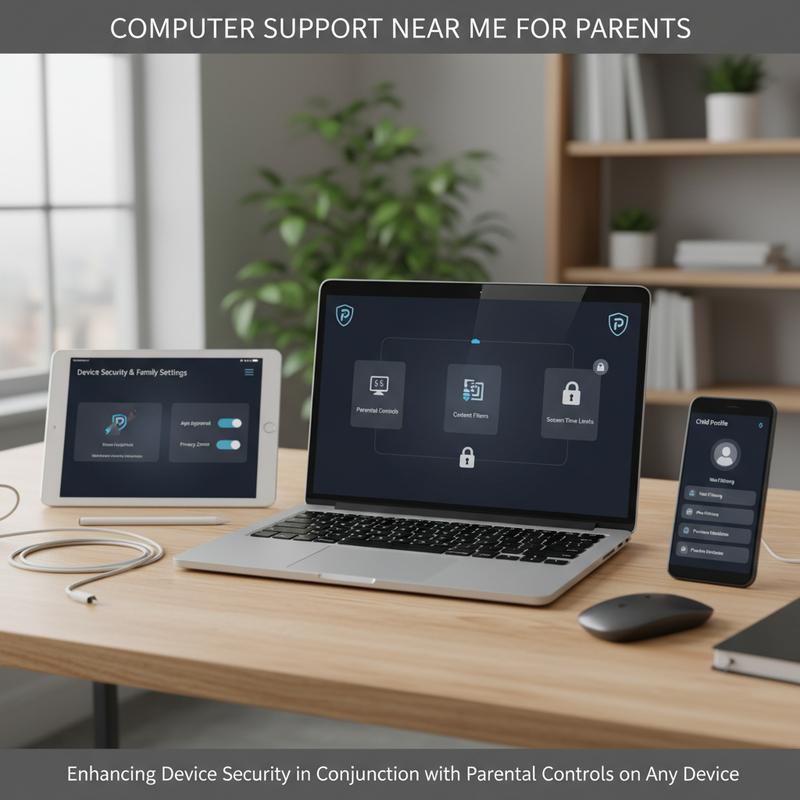
Parental controls matter, but they work best when the devices themselves are locked down too. A few security basics can cut down on workarounds and reduce risks from outdated software or sloppy account settings.
Key Security Measures Across Devices
These habits help parental controls stick:
- Use Strong, Unique Passwords with Two-Factor Authentication (2FA)
- Lock down every account (parent and child) with strong passwords.
- Turn on 2FA—especially for Google and Apple accounts—to block unauthorized logins.
- Keep Operating Systems and Apps Updated
- Let devices install security updates automatically.
- Updates patch holes that could be used to get around restrictions.
- Configure Device-Specific Security Features
- Use fingerprint or face unlock when available to prevent tampering.
- Protect parental control settings with a PIN or password.
- Implement Network Restrictions
- If your Wi-Fi router has parental controls or a guest network, use them.
- You can also block unsafe sites or set up DNS filtering for safer browsing.
- Use Built-in Parental Controls Before Third-Party Apps
- Start with built-in tools like Google Family Link (Android/Chromebooks) or Apple Screen Time (iOS).
- Built-in options usually work better with the system and are less likely to cause conflicts.
Combining Native and Third-Party Tools
Third-party apps like Aura or Qustodio can add extras like real-time alerts and stronger filtering. But they work best as a backup layer, not a replacement for the built-in controls. That two-layer setup makes it harder for kids to slip around the rules and gives you better visibility.
| Security Feature | Native Controls | Third-Party Apps |
|---|---|---|
| Screen Time Management | ✔️ | ✔️ |
| Content Filtering | ✔️ (Google Play, Apple Store) | ✔️ (Custom filters, web blocking) |
| Real-time Alerts | ❌ | ✔️ |
| Location Tracking | ✔️ (Family Link, Screen Time) | ✔️ |
| Remote Management | ✔️ | ✔️ |
| Anti-Circumvention Features | Limited | Advanced |
Practical Steps from Our Experience
At IT Carolina, when we help families lock things down, we see the same issues over and over: weak passwords and out-of-date software. In fact, more than 65% of parental control problems we run into come from those two things. Start with the built-in tools, tighten account security, turn on 2FA, and only add third-party apps if you really need the extra features.
And yes—clear household rules and regular conversations about online safety still matter. Settings can’t replace that part.
Additional Tips for Comprehensive Protection
- Revisit parental controls as your child gets older and needs change.
- Store unused devices offline, and turn off guest modes if they can be used to get around limits.
- Set up backups and basic data protection so family info doesn’t get lost if a device is stolen or breaks.
Trusted Resources for Further Guidance
- Google Family Link Help Center
- Apple Screen Time User Guide
- Microsoft Family Safety Overview
If you want hands-on help, local IT providers can walk you through it or set everything up for you. Searching for “computer support near me” or “tech support near me” is usually the fastest way to find someone nearby. And for more Windows security basics, see our article on 15 computer tips and tricks to master your Windows laptop.
So the real goal is simple: set up parental controls properly, lock down the accounts and devices, and keep checking in as your kids grow. That combination keeps things safer and a lot less stressful.
Key Takeaways
When parental controls are set up correctly—with help from computer support near me if you need it—kids can use their devices with fewer risks and fewer surprises. Android, iOS, Windows, Chromebooks, and Xbox each have their own tools, including Google Family Link, Screen Time, and Microsoft Family Safety. But those controls work best when your overall device security is solid too. Keep the settings updated, keep the accounts protected, and adjust the rules as your family’s needs change.
Frequently Asked Questions
What do I need to start setting up parental controls on Android?
You’ll need Google accounts for you and your child, plus the Google Family Link app. Once both are in place, you can link devices and start setting limits right away.
Can parental controls be set on guest devices like laptops and tablets?
Yes. Tools like Google Family Link and Microsoft Family Safety can work across multiple devices, as long as your child signs in with the supervised account.
Why is integrating device security with parental controls important?
Because weak passwords and outdated software make it easier to bypass restrictions. Basic security steps help parental controls stay in place and do what they’re supposed to do.