A factory reset can make a device feel new again by putting it back to its original settings. If you’re dealing with a slow phone, a buggy laptop, or even a console that’s acting up, knowing the right reset steps can save you a lot of time—and help you avoid losing stuff you meant to keep. This guide walks you through how to back up what matters, reset different kinds of devices the right way, fix common problems afterward, and make sure your data is actually wiped. Each section focuses on a specific type of device, so you’ll know exactly what to do and feel comfortable hitting that reset button.
Back Up Your Data Before a Factory Reset

A factory reset takes your device back to factory settings and clears out your personal settings, apps, and data along the way. It’s often the easiest fix for stubborn software problems, and it’s also the right move if you’re selling or giving the device away. But here’s the deal: once you reset, you can’t undo it. If you don’t back up first, you could lose photos, files, and app data for good.
Before getting into device-specific steps, it helps to understand why backing up matters so much. A good backup protects you from accidental loss and lets you bring back only what you actually want after the reset. Whether you’re trying to fix issues or protect private info, this part isn’t optional.
Start by writing down the logins you’ll need later. Save passwords for accounts like Google, Apple ID, and Microsoft, since you’ll have to sign back in after the reset. Also, make sure you’ve got enough storage space for the backup. Using both cloud storage and a local backup (like an external drive or USB) is a solid way to lower the risk of losing anything important.
On Android, most backups run through Google. Contacts, calendars, and email can sync through Google Account Sync. For photos and videos (usually the biggest space hogs), Google Photos can handle it, with up to the first 15GB free and paid upgrades after that. Apps and settings can be saved by turning on “Back up to Google Drive.” If you want another option, Samsung users can use Samsung Smart Switch for full backups, and more advanced users may prefer ADB for deeper backup control.
Apple devices make this pretty simple with iCloud. Turning on iCloud Backup saves most things, including photos, contacts, and messages across your Apple devices. If you need more space, Apple’s paid plans give you more room. And if you’d rather keep it local, you can back up using Finder on Mac or iTunes on Windows with encrypted backups, which is especially helpful for health and fitness data.
On Windows, OneDrive is a good pick for ongoing file sync so your important documents stay available even if something goes wrong. You can also do fuller backups with File History or by creating a system image. Mac users should stick with Time Machine, which backs up files, settings, and apps in one place.
If you’re selling your device, do a quick final check before you reset. Make sure your backup covers what’s on the device, test it by restoring something small (like a photo), and think about signing out of accounts to remove leftover access. And make sure the device is charged and on stable Wi-Fi so the reset doesn’t get interrupted.
Once your backup is done, you can reset without worrying. If you want more ways to keep your Windows laptop running well, take a look at these computer tips.
How to Reset a Smartphone
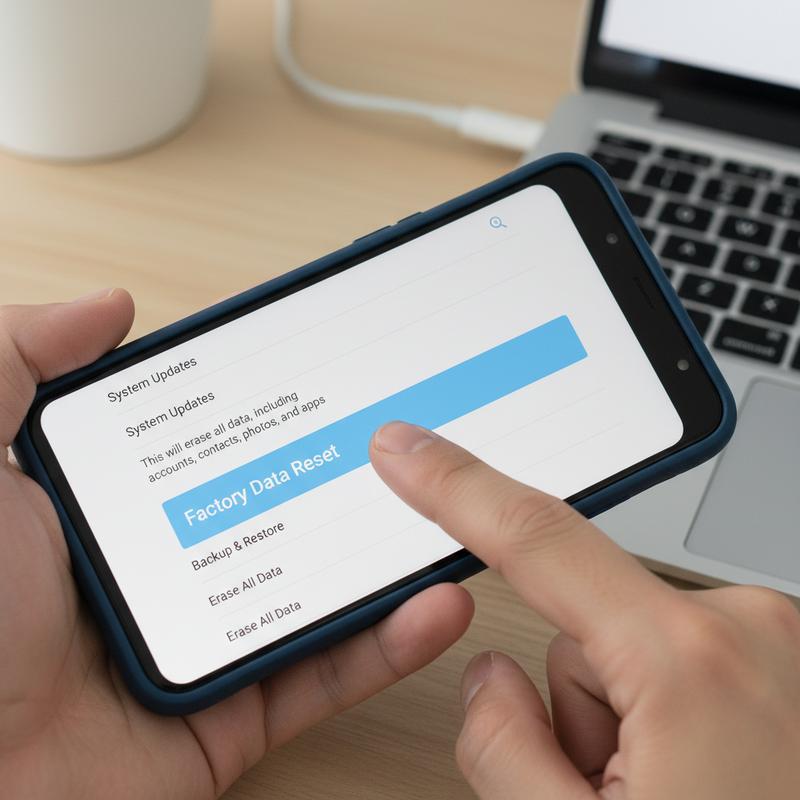
Resetting a smartphone is a simple process, but it’s a serious one. It puts your phone back to its original state and removes your personal data, apps, and settings. People usually do it to fix ongoing problems, get the phone ready to sell, or just start over. Thing is, the data loss is permanent unless you prep first.
Before you reset any phone, handle a few basics. Charge it to at least 70-80% so it doesn’t shut off mid-reset (or just leave it plugged in). Next, make a backup so you don’t lose anything important—use iCloud for iOS or Google Drive for Android. And if there’s anything you don’t want to trust to the cloud, like certain photos or messages, copy it over with USB too.
Also, sign out of big accounts like Google or Apple IDs before you start. This helps you avoid activation locks after the reset, which can stop you from setting the phone up again. It’s smart to log out of services like Apple Music and remove SIM or SD cards as well. And write down key details like Wi-Fi passwords and two-factor authentication codes so setup afterward doesn’t turn into a headache.
On Android, you can reset through settings or recovery mode. If the phone still works normally, go to Settings > System > Reset options, or on some phones General Management, then choose Erase all data (factory reset). Follow the prompts, enter your security info, and wait while the phone wipes and restarts. If the phone is stuck or you can’t get in, use recovery mode: power it off, then hold the right button combo (often Power + Volume buttons, depending on the brand). Use the volume keys to select Wipe data/factory reset, then confirm.
On Apple devices, go to Settings > General > Transfer or Reset iPhone. Tap Erase All Content and Settings, then enter your passcode and Apple ID details if ‘Find My’ is on. The device will reset and reboot. If it won’t respond, connect it to a computer and use recovery mode with Finder or iTunes.
After the reset, your phone will start up like it’s brand new. You’ll pick a language and region, connect to Wi-Fi, and then you can choose whether to restore from a backup. From there, sign back in, reinstall your apps, and you’re back in business.
So, resetting a phone is mostly about prep, following the steps carefully, and taking a few minutes afterward to get everything set up again. If anything looks different for your exact model, check your phone maker’s support site for the most accurate steps.
How to Factory Reset a Computer or Laptop
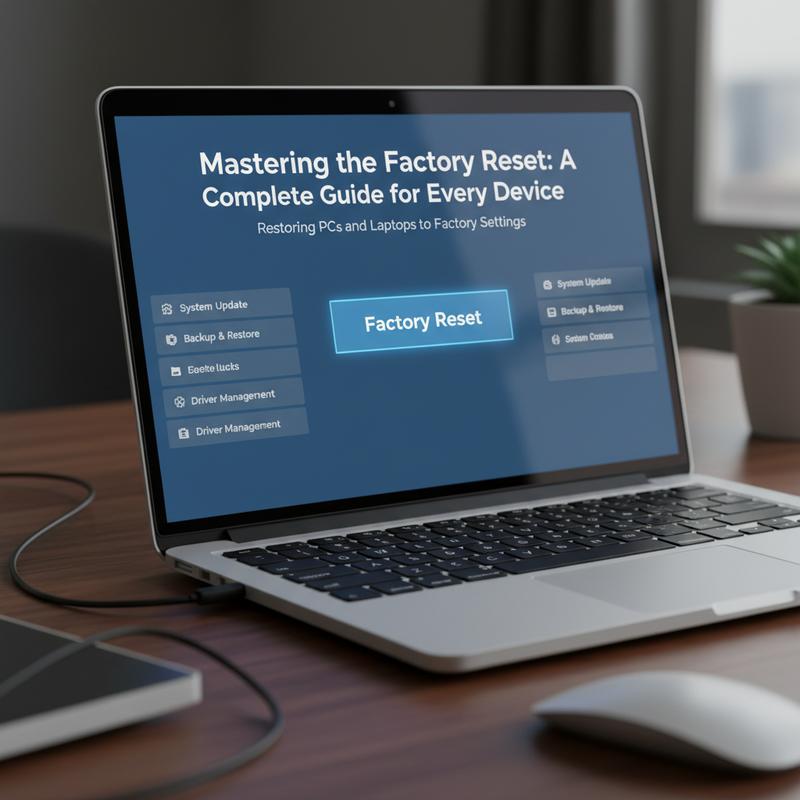
Resetting a PC or laptop can fix ongoing issues, remove personal data before you sell it, or just give you a clean start. It brings the system back to its original setup and can help performance. Below is a clear walkthrough for both Windows and macOS, plus the prep steps that matter most.
Windows PCs
On Windows 10 and 11, you can do a factory reset using the built-in tool. Open Settings, then go to System > Recovery. Choose “Reset this PC” and you’ll see two options: “Keep my files” and “Remove everything.” “Keep my files” can fix problems without deleting your personal files, while “Remove everything” is the better pick if you want a full wipe (especially before giving the device to someone else).
You’ll also choose between a cloud download and a local reinstall. Cloud download pulls fresh Windows files from Microsoft, which helps if your current install is messy or corrupted. Local reinstall uses files already on your computer, which is handy if your internet is slow or limited.
If you want the cleanest possible start, you can reinstall Windows using a USB drive or DVD. That means booting from the installation media, formatting the drive, and following the setup steps to install the operating system again.
macOS Systems
On a Mac, resetting usually means wiping the drive and reinstalling macOS. First, back up your files with Time Machine so nothing important gets left behind. Then sign out of accounts like iCloud and iTunes, and turn off any services you don’t want tied to the device anymore, such as two-factor authentication.
Recovery Mode depends on the type of Mac you have. On Intel Macs, hold Command + R while it starts up. On Apple Silicon Macs, hold the power button until startup options show up. From there, use Disk Utility to erase the startup drive and pick the right format: APFS for newer Macs, and Mac OS Extended for older ones. After the drive is wiped, go back and reinstall macOS by following the prompts.
Preparation and Security Considerations
Before any reset, backup first—no shortcuts. Use an external drive and/or cloud storage like OneDrive or iCloud, and make sure the backup actually finished and includes what you need. Also, sign out everywhere and deactivate software licenses so nobody else can use your accounts or paid software after the reset.
If you’re selling or giving away a Windows PC, choose “Remove everything” and then “Remove files and clean the drive.” That extra cleaning step overwrites unused space, making it harder for someone to recover old data. And if you want more Windows help, check out these tips and tricks to master their laptop.
Troubleshooting and Time Expectations
Most Windows resets take 30 minutes to 2 hours. On macOS, expect 1 to 3 hours depending on internet speed and your hardware. If the reset gets stuck, a forced restart or checking available storage can fix a lot of common hiccups.
Once you’re done, reinstall the software you need, restore your backup, and set things up the way you like. You’ll end up with a cleaner system and more peace of mind about where your personal data ended up.
How to Reset a Gaming Console

Consoles can get weird over time—slow menus, random crashes, storage glitches. A reset can help, whether you just need a quick restart or you’re ready to wipe everything and start over. Knowing which option to pick keeps you from losing data when you don’t need to.
Understanding Hard Reset vs. Factory Reset
If you’re dealing with something temporary, like a frozen screen or controls that won’t respond, a hard reset (power cycle) might be enough. It restarts the console without deleting anything. On a PlayStation 5 (PS5), you can do this by holding the power button until you hear a second beep, waiting a few seconds, and turning it back on. It’s a quick fix for smaller glitches and won’t touch your saves.
But if the issues keep coming back—lag, corrupted storage, constant errors—a factory reset may be the better option. This wipes user data, accounts, apps, and saves, and returns the console to factory settings. It can clear out deeper problems, but it’s permanent. So, back up your saves to the cloud or another safe place first.
Executing a Factory Reset on Popular Consoles
On the PS5, go to Settings, then System, System Software, and Reset Options, then select Reset Your Console. If the PS5 won’t boot normally, you can reset in Safe Mode: power it off, hold the power button until the second beep, connect the DualSense controller with USB, and pick the reset option from the menu.
On the Nintendo Switch, close any running games, open System Settings, scroll to System, then go to Data Management or Data Clear Options to start a factory reset. It usually takes a few minutes, but can take longer depending on how much data is on the system.
For other consoles, including retro emulators like the KinHank SuperConsole X5 Pro, disconnect external storage first to avoid issues. Then use the manufacturer’s settings menu to run the reset.
Essential Considerations and Alternatives
Backing up matters because a factory reset clears everything—accounts, games, saves—so you’ll be downloading and setting up again afterward. If problems continue even after a reset, check for system updates or look into possible hardware issues.
If you don’t want to wipe the whole console yet, try clearing the cache first. On the Nintendo Switch, you can do this through System Settings and Data Clear Options. It can fix issues caused by temporary buildup without deleting personal data.
So, the real choice is simple: if it’s a minor glitch, try the lighter options first. If it’s a bigger problem that won’t quit, then a factory reset might be worth the hassle.
Fixing Problems After a Reset
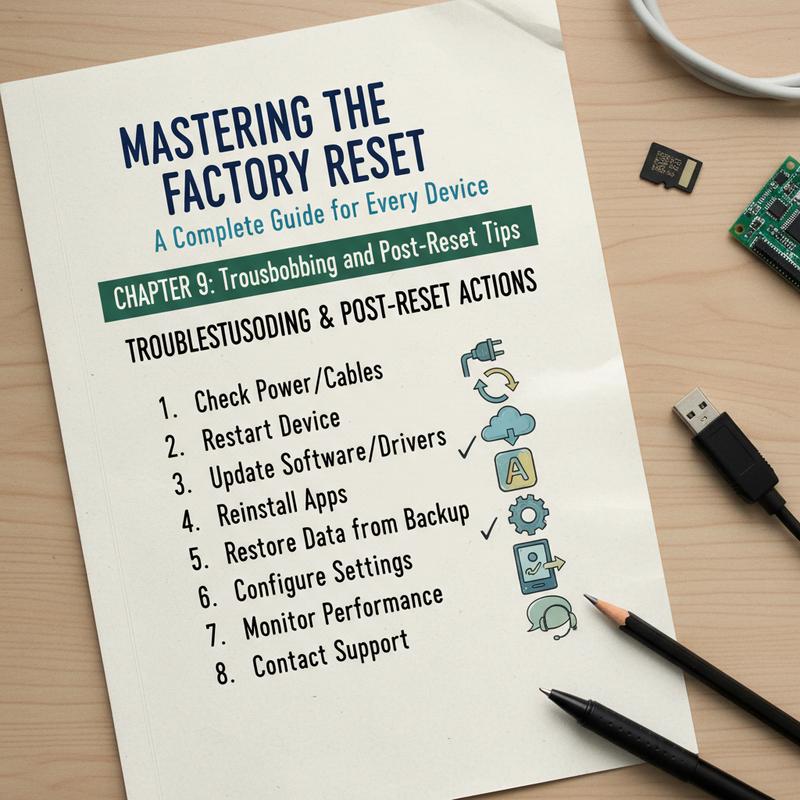
A factory reset gives you a clean slate, but the setup afterward can bring its own problems. A few simple post-reset checks can get your device running smoothly again and help you avoid common headaches.
Start by thinking about what kind of device you reset, because the usual problems vary. Computers, smartphones, and smart TVs all have their own quirks. But connectivity issues are common across the board—Wi-Fi won’t connect, Bluetooth won’t pair, stuff like that. Often, the fix is as simple as installing the latest updates or drivers. Still, if it won’t cooperate, device-specific forums can be useful since people often share fixes that aren’t in the official manuals.
Next, get clear on the specific issue. If the device won’t boot after a reset, it could be damaged system files or a bad reinstall. Try safe mode, since it starts only the basics and makes it easier to run repairs. On computers, disk checks can spot drive issues. Phones have their own tools too, depending on the platform.
A reset doesn’t always solve the original problem, and that’s frustrating. But it happens. Installing system updates or firmware updates right after the reset can fix bugs that come from running an older version out of the box.
Some devices also need a little setup “tuning” after a reset. Smart home devices often need you to sign in again and rebuild your network settings. Wearables may need to re-pair with their apps, especially if there was an OS change involved.
Checking for software update checks after a reset matters more than most people think. Devices often ship with older stable versions, and updates are what fix security issues and performance bugs. Keeping up with them helps prevent problems later.
If you want to make your Windows setup feel better after a reset, you can also check these computer tips and tricks. A few small changes can make day-to-day use smoother.
Now, the easiest way to stay calm after a reset is to follow a basic systematic checklist: networking, hardware, updates, and app setup. If something still isn’t right, stick with official support resources first, then use forums when you need real-world fixes from people who’ve run into the same issue.
Final thoughts
If you reset a device the right way, it can run better and clear up problems that won’t go away. Back up your data, follow the steps for your specific device, and handle the common issues that can pop up afterward. Keeping your software updated and knowing a few troubleshooting basics will also make resets way less stressful. This guide gives you what you need to reset and restore without throwing your tech life into chaos.
Want a hand factory resetting your device without turning it into a whole project? Get in touch with our team and we’ll help you sort it out.
Learn more: https://itcarolina.com/about/
About us
IT Carolina provides IT support to help you factory reset, clean up, and speed up all kinds of devices. We work with gaming PCs, consoles, and smart home gear, and we focus on practical, hands-on help that fixes problems fast. Whether you’re setting up a new console or trying to restore the right settings after a reset, IT Carolina can help you get things working again without the frustration.