Unlocking the hidden potential of Windows shortcuts and commands can boost your efficiency and earn you the admiration of your peers. While most users only scratch the surface of what Windows offers, there’s a treasure trove of hidden features waiting to be discovered. Each chapter will take you deeper into this digital wizardry, from essential shortcuts that streamline daily tasks to advanced run commands that give you powerful control over your system. Whether you’re looking to enhance your multitasking skills, customize your workspace, or gain faster access to critical settings, mastering these techniques will transform how you interact with your computer. Get ready to become the IT wizard in your home or office as we unfold the secrets of Windows.
Mastering Hidden Windows Shortcuts: The IT Wizard’s Toolkit
In the realm of IT wizardry, mastering the art of hidden Windows shortcuts can transform mundane tasks into an impressive showcase of efficiency and expertise. These often-overlooked combinations and commands provide a gateway to Windows’ inner workings, enabling rapid access to powerful tools, system settings, and productivity enhancements that are typically concealed from the average user.
Imagine harnessing the power of Windows + X, a shortcut that unveils the Power User menu. Here, you gain swift access to essential components like Device Manager and Disk Management, crucial for troubleshooting and system maintenance. Combined with Windows + R, which opens the Run dialog, these tools become your trusted allies in navigating complex system environments efficiently.
For multitasking mastery, the Alt + Tab shortcut allows you to seamlessly switch between open windows, displaying live previews of each application. Complement this with Windows + D, which instantly reveals or hides your desktop, streamlining your workflow by minimizing all open windows with a single command.
In the world of Run commands, precision is key. Using commands like control to access the classic Control Panel or ncpa.cpl for Network Connections elevates your capability to diagnose and resolve issues quickly. These commands open doors to system utilities not readily visible, making you the go-to professional for advanced system configurations.
By integrating these hidden shortcuts into your daily routine, you’ll not only boost your productivity but also impress your peers with the depth of your Windows knowledge. Dive into this digital toolkit, and let these shortcuts redefine your professional edge.
Advanced Windows Run Commands: Elevate Your IT Wizardry
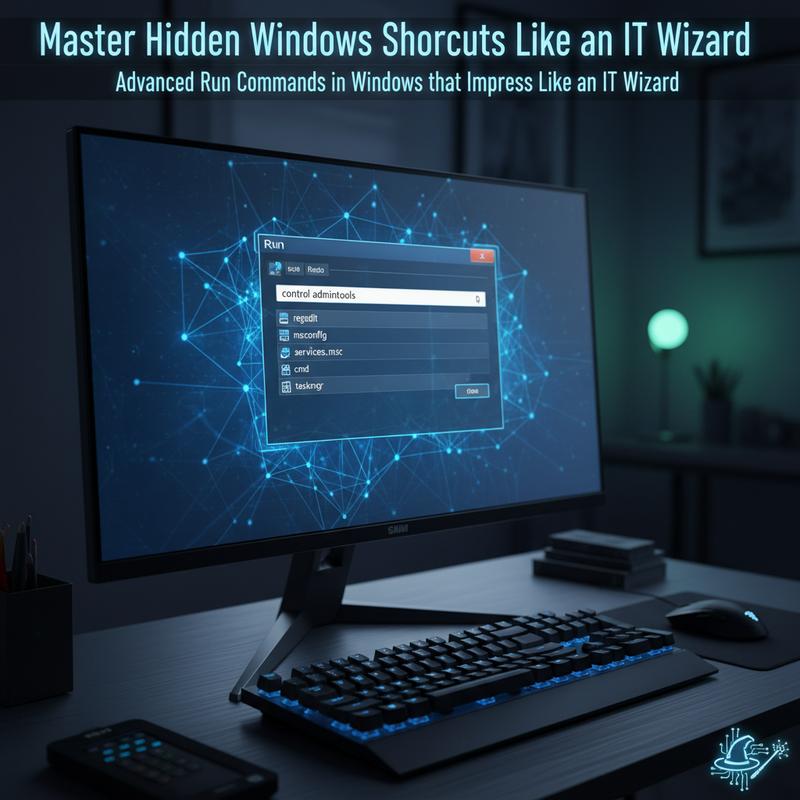
Unleashing the potential of Windows becomes second nature once you master its advanced Run commands. These commands grant swift access to system diagnostics, network and security tools, command-line power, and hidden settings, leaving onlookers in awe of your IT expertise.
Delving into system diagnostics and deep settings, commands like perfmon /report generate a detailed system health report, while msinfo32 and eventvwr provide comprehensive hardware, software, and event log insights crucial for advanced analysis. Opening the gates to in-depth system management, compmgmt.msc offers a hub for device and disk oversight. Meanwhile, the Group Policy Editor and Local Security Policy editor (gpedit.msc, secpol.msc) available on pro editions, allow tailored security configurations.
When it comes to networking and security, commands such as wf.msc open Windows Firewall for intricate security adjustments, and certmgr.msc manages digital certificates with ease. For those keen on real-time monitoring, tasklist and driverquery in the command-line space reveal active processes and driver details, providing a live snapshot for meticulous control.
Unlocking hidden control panels like user account management (control userpasswords2), system properties (sysdm.cpl), and scheduled tasks (schtasks) emphasizes not only functionality but efficiency. The rundll32 commands add a layer of automation magic, masking complexity with simplicity in tasks like instantaneously locking your PC or accessing the “Safely Remove Hardware” dialog.
Armed with these commands, you don’t just navigate Windows—you own it, manifesting your prowess with a few keystrokes. Explore the intricate world of IT solutions to further elevate your technical game.
Unleashing Efficiency with Windows Productivity Shortcuts
Keyboard shortcuts are potent tools that can dramatically improve productivity in Windows environments, particularly for IT professionals who need to manage tasks swiftly and efficiently. Mastering these shortcuts positions one as an IT wizard, effortlessly navigating through the complexities of Windows management.
Core productivity shortcuts such as Ctrl + C for copy, Ctrl + V for paste, and Ctrl + S for quick saving are fundamental yet powerful. They define the basic muscle memory required for speed. More dynamic combinations like Alt + Tab to switch between active applications and Ctrl + Shift + Esc to open the Task Manager directly allow for rapid multitasking and quick responses to system issues.
Effective window management can further enhance productivity. By using Windows + Arrow Keys, users can snap windows to different sections of the screen, promoting an organized and clutter-free workspace. Windows + D allows for an immediate overview of the desktop, hiding all active windows, and can be invaluable during busy workloads. Furthermore, the combined use of Windows + Ctrl + D creates a new virtual desktop, essential for organizing multiple projects simultaneously.
File management and browser shortcuts are equally important in maintaining productivity levels. Commands like Win + E open File Explorer, and Ctrl + Shift + N creates new folders on the fly, enabling efficient file organization. Within browsers, Ctrl + Shift + T will reopen the last closed tab, a lifesaver when accidental closures occur.
These integrated shortcuts minimize reliance on the mouse, streamline operations, and support a seamless digital ecosystem, making an IT professional’s life significantly easier. For additional insights, check out IT Solution Support to further optimize your Windows experience.
Harnessing System Tray Customization for Seamless IT Wizardry
The Windows system tray is an underestimated powerhouse for any IT aficionado aiming to streamline workflows and amplify efficiency. While the untrained eye might see merely a collection of icons, a savvy IT wizard sees the ultimate command center for quick access and customization. By decluttering and organizing the tray, professionals can reduce friction in daily tasks, keeping crucial tools at their fingertips with just a glance.
One elementary yet profound trick is controlling icon visibility. Instead of enduring a chaos of icons, right-click the taskbar to open Taskbar settings, where you can toggle visibility of each system function and application. This not only declutters your tray but also ensures that only the most critical tools are immediately accessible, promoting a smoother workflow.
For quick reorganization, take advantage of Windows’ drag-and-drop feature. Easily drag icons between the visible tray and the overflow area for on-the-fly optimization without delving into settings menus. Complement this with keyboard shortcuts like Windows + N for notifications and Windows + A for quick settings, allowing rapid navigation across needed functionalities.
Moreover, controlling startup programs is essential for maintaining system efficiency. Use Task Manager by pressing Ctrl + Shift + Esc and navigating to the Startup tab to disable non-essential programs, reducing clutter and enhancing performance. By adding toolbars in taskbar settings, you can access scripts and network locations even faster.
These customization tricks transform your system tray from a passive display to a proactive efficiency hub. If you wish for broader integrations and seamless workflow support, consider exploring our IT solutions for more advanced productivity tools.
Harnessing Windows Management Shortcuts for Expert Control

Mastery over Windows management shortcuts is an indispensable skill that sets apart aspiring IT wizards from the average user. These shortcuts not only boost productivity but also enhance one’s ability to seamlessly control various aspects of the Windows environment.
Initiating with the Win + Tab combination opens the Task View, a versatile tool for managing open windows and virtual desktops. This feature allows you to visualize all running applications at a glance, swiftly switching between them or creating new virtual desktops when multitasking. Meanwhile, Alt + Tab serves as a quick-access portal between applications, offering live thumbnails for each, perfect for those working extensively across multiple apps simultaneously.
Organization is further refined through the use of window snapping. The Win + Left/Right Arrow keys enable users to align active windows to either side of the screen, an invaluable tactic for efficient multitasking. Additionally, maximizing windows can be promptly achieved with Win + Up Arrow, while Win + Down Arrow restores or minimizes them, facilitating smooth transitions between tasks.
The prowess of these shortcuts isn’t limited to basic navigation. Advanced controls include Win + X for accessing the Power User menu, which provides immediate entry to utilities like the Device Manager. Display management is equally streamlined with Win + P, allowing instant configuration of multiple monitor setups, perfectly tailored for professional environments.
These shortcuts are not mere time savers; they are keys to an empowered, proficient command over your Windows operations, setting a foundation for true IT wizardry. For more insights into multitasking and efficiency tools, visit this resource.
Final thoughts
By mastering these hidden Windows shortcuts and commands, you elevate your productivity and command respect as an IT wizard. Each chapter in this guide has equipped you with actionable ways to streamline your tasks, customize your workspace, and take full control of your computing experience. Whether optimizing your workflow with powerful commands or personalizing your system tray for efficiency, these insider tips and techniques give you the edge you need. Embrace these skills to transform your digital interactions and impress those around you with your newfound expertise.
Unlock pro-level productivity — master hidden Windows shortcuts and let IT Carolina handle the tech hassle so you can focus on what you do best.
Learn more: https://itcarolina.com/about/
About us
IT Carolina delivers expert IT support for home and office users, helping you optimize your devices and systems for peak performance. Whether you’re tired of lagging systems, need help integrating new tech, or want to streamline your digital workspace, our team provides hands-on, local assistance tailored to your needs. From configuring shortcuts and improving workflow efficiency to troubleshooting complex issues, trust IT Carolina to simplify your technology — so you can enjoy a smoother, stress-free day at home or in the office.