These days, locking down your home network isn’t optional—it’s just part of living online. Your network connects everything in your house to the internet, and that convenience can also bring security headaches. This guide walks you through the key steps to protect your setup, starting with your router and Wi-Fi—two of the biggest pieces of a safer home network. You’ll also learn about access control, authentication, and simple ways to split your network up so one problem doesn’t spread everywhere. Each section builds on the last and ends with practical things you can do right away to keep your devices safer. From watching network activity to building better day-to-day habits, you’ll finish with clear, usable steps to help protect your digital life.
Router and Wi-Fi Security Steps
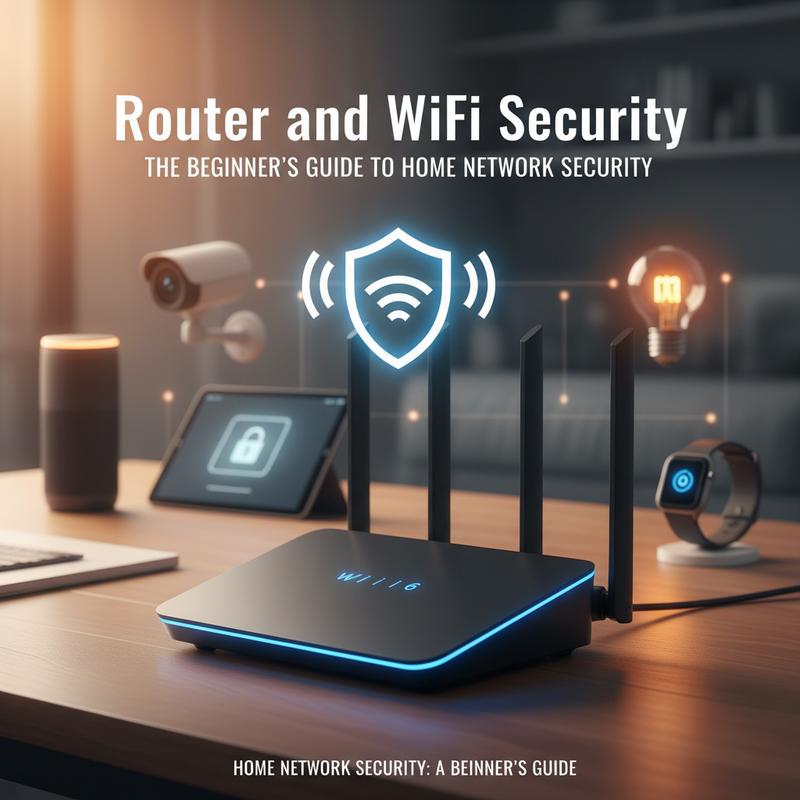
Your router is the front door to your home network. If it’s not locked down, everything connected to it is easier to mess with. So, getting your router and Wi-Fi settings right is the starting point for solid home network security. When you tighten up these basics, you do a lot to protect your devices and personal info.
Wireless networks have some built-in weak spots, mainly because signals travel through the air. That means someone nearby could try to intercept traffic or grab authentication handshakes. Thing is, you can cut down that risk a lot by using strong encryption. WPA3 is the current best option, and it’s a big step up from WPA2—and miles better than the outdated WEP.
When you set up your router, start by changing the default admin credentials. Routers often ship with logins that are easy to guess, and attackers know them. Pick a new admin username and a long, unique password to make brute-force attempts far less likely. And do the same for your Wi-Fi password. Aim for at least 20 characters, with a mix of letters, numbers, and symbols, and you’ll make your network much harder to crack.
Network visibility matters more than people think. Changing the default SSID (Service Set Identifier)—your network’s public name—to something not tied to the router brand or your address makes you less of an easy target. Keep the firewall enabled too, since it adds another layer of protection. And yes, you should disable risky features like WPS (Wi-Fi Protected Setup) and UPnP (Universal Plug and Play) to reduce exposure to known issues. Still, don’t forget the big one: updated firmware. Router updates often fix security holes, so staying current really matters.
If your household has lots of devices or you want to offer guest access, network segmentation is worth doing. It means separating devices into different virtual networks so one infected device doesn’t automatically put everything else at risk. For example, keeping Internet of Things (IoT) devices away from laptops and phones helps prevent problems from spreading.
Monitoring network activity with tools like ntopng can give you a clearer picture of what’s going on. You can spot unfamiliar devices, strange traffic patterns, or unusual spikes. And when something looks off, you can react quickly. That kind of regular check-in helps keep your home network in good shape.
When you’re using public Wi-Fi, be extra careful. A VPN (Virtual Private Network) can encrypt your traffic so other people on the same network can’t easily snoop on what you’re doing. That said, the bigger theme here is simple: stay aware, and keep up with basic maintenance.
If you’re curious and want to learn how common attacks work without risking your real network, you can build an ethical lab using Kali Linux inside a virtual machine like VirtualBox. It’s a safer way to learn hands-on.
If you follow these steps, you’ll put your network in a much stronger position against intrusions. And if you want more ways to stay safe online, take a look at Essential Online Security Tips for Everyone. These habits can go a long way toward feeling more secure at home.
Access Control and Authentication for a Secure Home Network
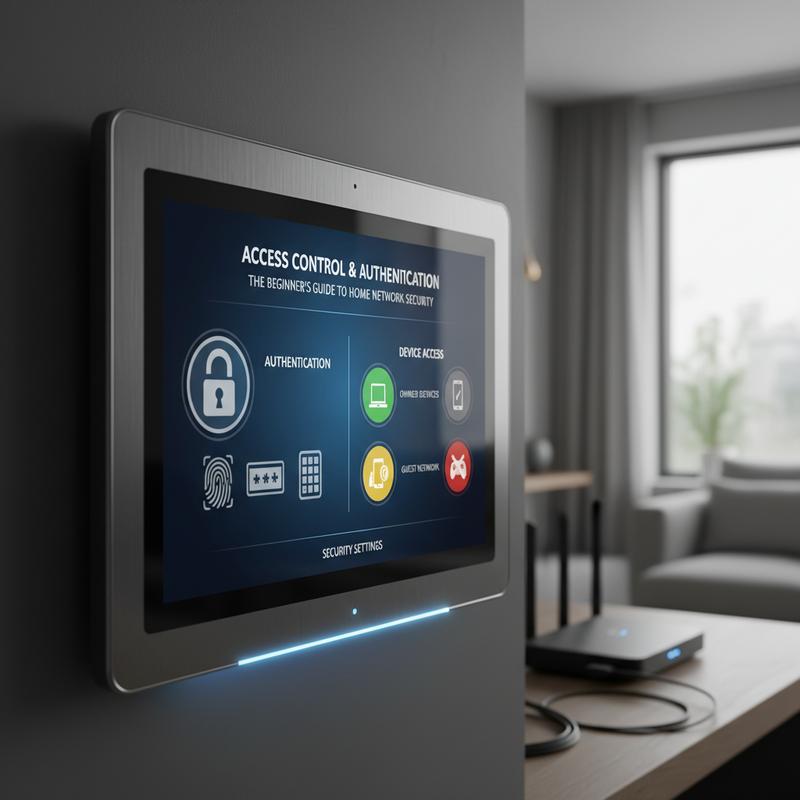
Access control and authentication are the basic “who gets in” rules for your home network. They decide who can connect and what they’re allowed to do once they’re in. When you set them up well, you make it much harder for strangers to get access—especially through your router. If you want a safer home network, these are must-have fundamentals.
In home networking, authentication is how you prove who you are—basically answering “Who are you?” with a password (or something stronger). Access control comes right after that and decides what that person or device can reach. For example, you might let a guest use Wi-Fi but block access to your personal file storage. Weak authentication is a common reason people get hit. A 2024 Verizon report found that 80% of home network breaches happened because default credentials weren’t changed.
Defense in depth means stacking multiple security layers instead of relying on just one. Start with your router admin login. Log into your router using common IPs like 192.168.0.1 or 192.168.1.1 and change the defaults right away. Pick a username that isn’t ‘admin’ and use a long password that isn’t reused anywhere else. A password generator can help you create something strong without having to think too hard about it. And if your router supports Multi-Factor Authentication (MFA), turn it on for an extra hurdle attackers have to clear.
Your Wi-Fi settings matter just as much. Set the network to WPA3 so you’re using the newest standard. WPA3 makes brute-force attacks harder than older options. Also, separate SSIDs for trusted devices and guests is a simple way to add segmentation and reduce risk.
Beyond Wi-Fi, you can also use device-level access controls like MAC address filtering or client isolation on guest networks to keep devices from talking to each other when they shouldn’t. If you’re more technical, VLANs (Virtual Local Area Networks) let you split traffic more cleanly between device groups. And even on many consumer routers, an “IoT Network” mode can separate smart devices from computers and servers, which is a big win for safety.
When these basics get ignored, attackers can take advantage of weak spots—sometimes even using your network for things like ransomware or cryptojacking. So, putting these protections in place isn’t just “nice to have.” It helps keep your privacy intact and your devices safer. Mix good settings with regular check-ins, and your home network will be much harder to mess with.
If you want more ways to protect yourself online, you can also check out Essential Online Security Tips for Everyone for broader guidance.
Network Segmentation for Better Home Network Security
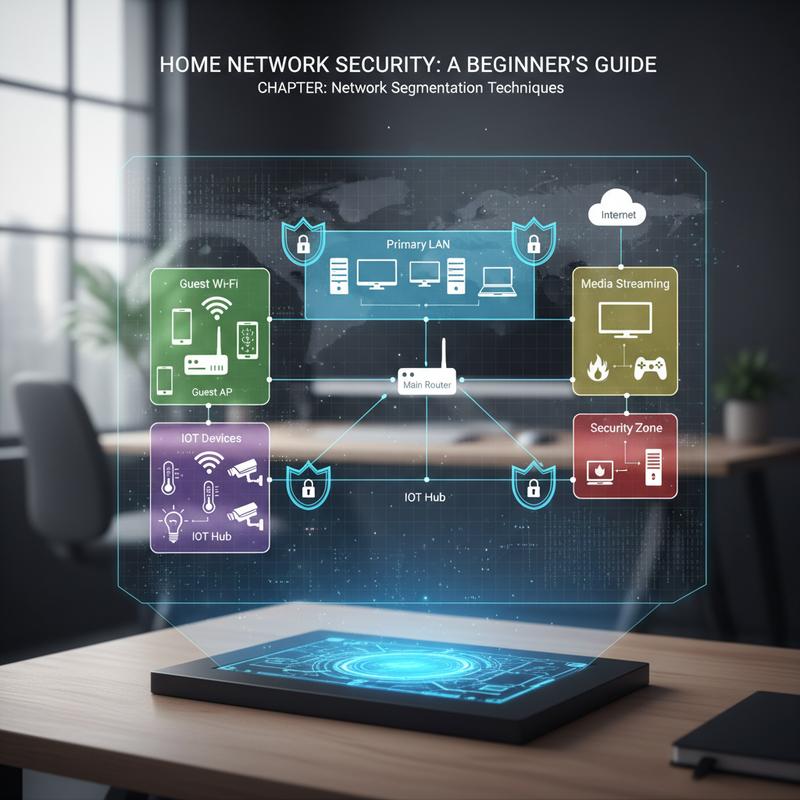
Network segmentation is one of the best ways to limit damage if something goes wrong. Instead of having every device on the same “flat” network, you split things into separate sections. That makes it harder for an attacker (or malware) to move from one device to everything else.
Think of your home network like a house with rooms. If there are no doors, someone who gets in can roam everywhere. Segmentation adds those doors by controlling what devices can reach. This matters a lot when you’ve got laptops, IoT devices, and guest devices all sharing the same internet. If a weak link—like a smart bulb or a guest phone—gets compromised, segmentation helps keep the attacker away from more sensitive stuff like your computers or network-attached storage (NAS).
Beginner-Friendly Techniques for Network Segmentation
A lot of modern routers make segmentation pretty approachable, even if you’re not technical. One of the simplest options is using separate SSIDs for different types of devices. For example, you can create one network for trusted devices like laptops and phones, another for low-trust IoT gadgets, and a third for guests. And once those groups are separated, you reduce the chances of one infected device spreading trouble to others.
Guest network isolation is another helpful setting. Most routers let you create a guest network that’s separate from your main one, so visitors can use the internet without poking around your personal devices. But guest networks aren’t perfect on their own, so it’s smart to pair them with other settings like time limits and bandwidth caps.
If you’re comfortable with a bit more setup, VLANs (Virtual LANs) give you tighter control. VLANs let you create separate zones on the same physical network and decide what traffic can pass between them. This is especially useful in homes with lots of devices, since it improves security without forcing you to buy a bunch of extra hardware.
Client isolation can help too by blocking device-to-device communication, but it isn’t foolproof. Some advanced attacks (like MAC spoofing) can get around weaker controls, so it’s best used along with stronger segmentation methods.
The hardest part is usually getting started. Logging into your router and setting up separate SSIDs or VLANs can feel like a lot at first. But once it’s configured, it’s mostly hands-off. You can even run basic tests, like trying to ping a device across segments, to confirm traffic isn’t allowed where it shouldn’t be.
If you want to go a step further, you can borrow ideas from Zero Trust by always verifying devices before trusting them. And keep your firmware updated too, since patches help close known security gaps and keep your segmented setup working as intended.
Some consumer routers limit how advanced you can get with segmentation and monitoring. On the flip side, upgrading to more capable gear can give you more control without dragging you into enterprise-level complexity. If you want more general security help, you can also read essential online security tips.
Monitoring Home Network Activity Basics
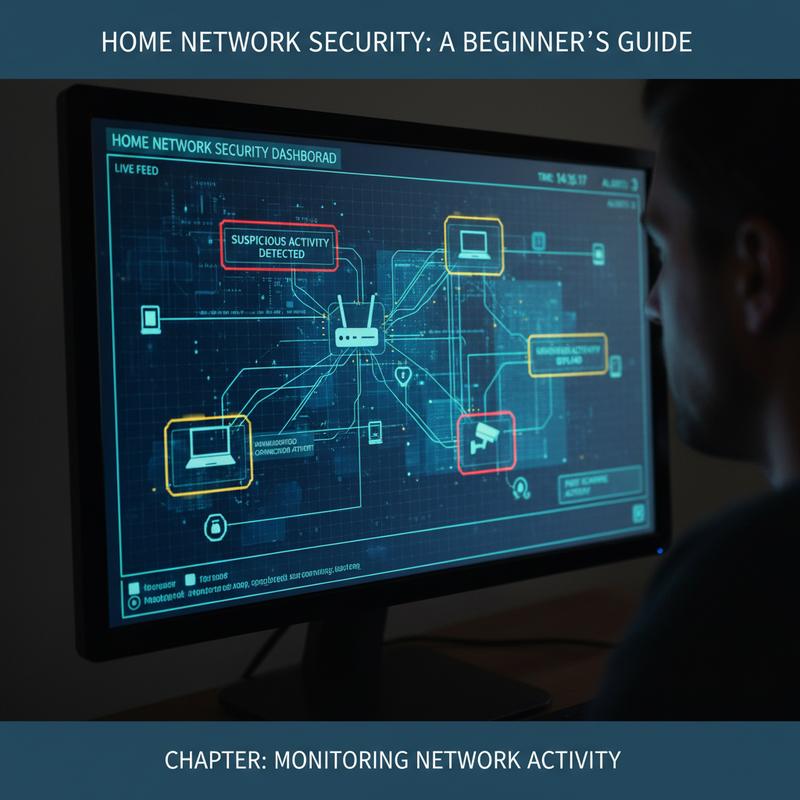
Keeping tabs on your home network can help you catch threats early. It also helps you spot performance issues and keep internet use in check across the household. And yes, it can be the difference between noticing a problem quickly and finding out after real damage is done.
Why Monitoring Matters
Monitoring helps you notice suspicious behavior, keep devices running smoothly, and understand what’s connected at any given time. You’ll usually look at things like connected devices (and their IP or MAC addresses), upload/download usage, and traffic destinations that might hint at something sketchy.
Easy Starts with Router Tools
Your router already has basic monitoring tools built in. You can log into the dashboard—often through 192.168.0.1 or routerlogin.net—and check device lists, traffic info, and logs (features vary by brand). If you make a habit of checking those logs now and then, you’re more likely to catch something off before it becomes a bigger issue.
Employ Free Monitoring Software
If you want more detail, you can run free tools on a computer in your network. Wireshark and GlassWire can help you analyze traffic, and Pi-hole can block ads while also cutting off known bad domains. Wireshark can feel like a lot at first, so if you’re new, starting with the simpler alerts and dashboards in GlassWire can be an easier way in.
Mobile Monitoring On-the-Go
Phone apps make quick checks simple. Tools like Fing and Network Analyzer let you scan devices and run network tests right from your smartphone. So if you’re away from home but want to see what’s connected, you can still take a look.
Best Practices for Beginners
Set a simple routine. Check for unknown devices, and turn on alerts when possible so you’re told when something changes. If you notice weird behavior—like a sudden spike in uploads—don’t ignore it. Run malware scans and review your settings right away.
Monitoring isn’t only about stopping attacks. It’s about staying aware of what your devices are doing and responding quickly when something looks wrong. If you want more general online safety advice, you can read more essential online security tips.
Device Protection Strategies
Every device on your network matters. Even if your router settings are solid, one unprotected laptop or poorly secured IoT gadget can still cause problems. So, beyond the router basics, you’ll want to protect the devices themselves with smart settings, strong logins, and regular upkeep.
First and foremost is the concept of network segmentation. Put Internet of Things (IoT) devices on a separate VLAN or a dedicated guest WiFi network. It creates a barrier between the risky stuff and your main devices. Now, treat smart gadgets like untrusted visitors—give them only what they need. That way, if a smart bulb gets compromised, it can’t easily become a shortcut to your personal files or banking info.
In tandem, your router and WiFi settings form another line of defense. Change default router passwords, and turn off features like WPS since it has a history of security problems. Use WPA3 when it’s available, and keep router firmware updated so known holes get patched. These basics do way more than the default settings ever will.
Another layer involves device authentication and access control. Any device you add should have unique, strong passwords (not defaults), and you should use multi-factor authentication (MFA) when it’s offered. Keep permissions tight too—like making sure a smart thermostat only talks to what it needs to function. And check your router’s admin panel from time to time to remove devices you don’t recognize.
Regular patching and software updates matter for everything—laptops, phones, and IoT devices. Updates fix known security issues, and skipping them leaves you exposed. Turn on automatic updates when you can, and keep a basic list of what’s connected so nothing slips through the cracks.
Visibility through monitoring activity is also vital. Use router dashboards or apps to spot unusual behavior like unexpected data spikes. Alerts help too, since you don’t want to manually watch everything. If a device starts acting weird—like trying to reach parts of the network it shouldn’t—deal with it right away.
For extra protection, use VPNs when you’re on shared networks. And using TLS to encrypt data in transit also helps reduce the chance of someone intercepting what you’re doing.
Before you buy new smart devices, take a minute to look into the vendor’s security track record. Choosing brands that take security seriously lowers the odds you’re adding a new weak spot to your home.
So, if you put these device protection steps in place, you’ll be in a much better spot to handle modern threats. Isolate risky IoT devices, keep authentication strong, and stay on top of updates, and your home setup will be a lot harder to compromise.
Final thoughts
Protecting your home network is one of the best things you can do for your digital life. If you start with router and Wi-Fi security, then add segmentation and regular monitoring, you’ll build a strong defense against common threats. Device protection matters too, because every phone, laptop, and smart gadget is part of the bigger picture. When these steps work together, your network gets safer and easier to manage. Keep up with the basics, and you’ll do a lot to protect your family and personal information at home.
Need a hand getting your home network locked down and running smoothly? Contact IT Carolina and we’ll help you sort it out.
Learn more: https://itcarolina.com/about/
About us
IT Carolina helps homeowners secure and fine-tune their home networks. We handle advanced network diagnostics and technology integration so your home setup stays safe and runs well. From protecting devices to improving performance, IT Carolina offers practical solutions that help you keep a secure, reliable home network.