Why Basic Internet Troubleshooting Saves Time and Frustration

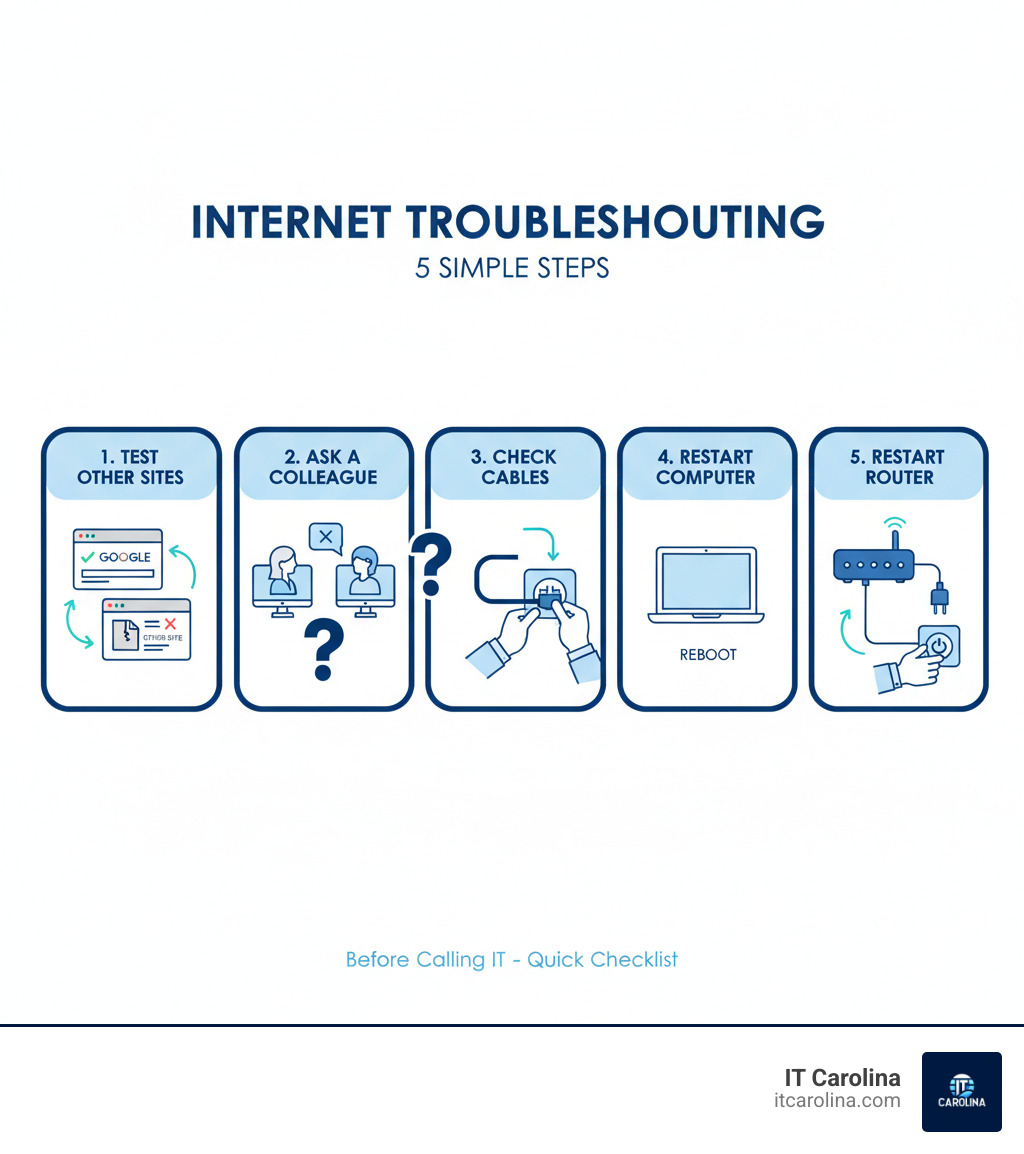
Before calling IT, first check if other websites like Google are working to see if the problem is a specific site or your internet connection. Ask a colleague if they have the same issue to determine if it’s just your computer or a wider network problem. Finally, check your physical cables, restart your computer, and if the issue affects everyone, restart the main office router.
Here’s your quick troubleshooting checklist:
- Test other websites – Try Google, YouTube, or another popular site to see if they load
- Ask a colleague – Find out if they’re having the same problem
- Check physical cables – Make sure everything is plugged in securely
- Restart your computer – A simple reboot clears many temporary issues
- Restart the office router – If everyone is affected, power cycle the main router for 20 seconds
Hearing “The internet is down!” can disrupt your entire operation. The good news is that most internet connectivity issues can be solved in minutes with a few simple checks, no tech-savvy skills required.
This guide walks you through the same five straightforward steps IT professionals use to diagnose problems. Following them will help you get back online faster and provide valuable information if you do need to call for help.
Step 1: Isolate the Problem – Is It the Website, the Network, or Just You?
When a website won’t load, the key is to play detective and narrow down where the problem lives. Is it the specific website, your internet connection, or just your computer? Answering this question will point you toward the right solution.
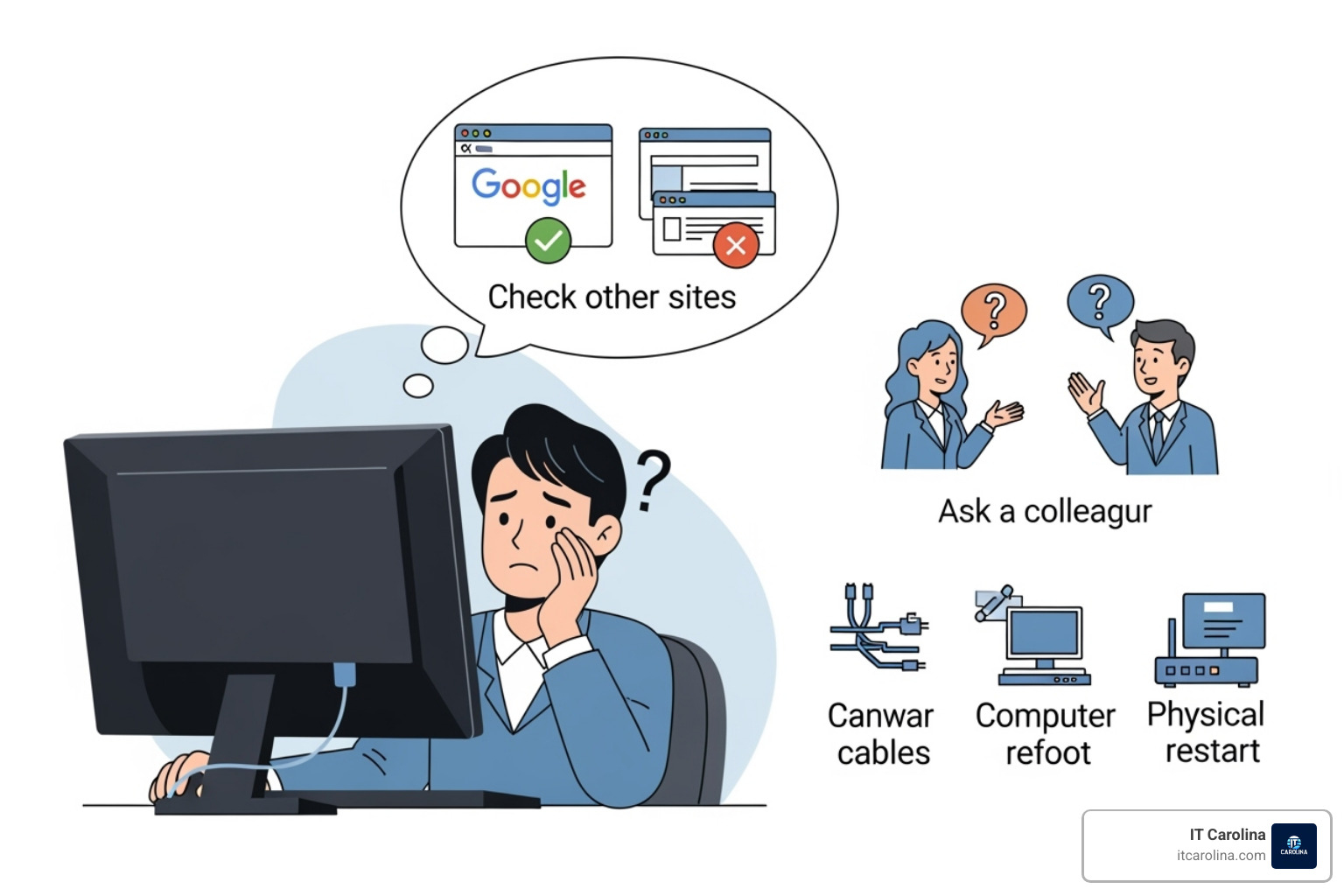
Here’s what to do: Before calling IT, first check if other websites like Google are working to see if the problem is a specific site or your internet connection. Open a new browser tab and try visiting a major site like Google or YouTube. If they load, your internet is working, and the problem is likely with the specific website you were trying to reach. That site’s servers may be down, which is not something you can fix. For extra confirmation, you can use a tool like Down For Everyone Or Just Me to check a site’s global status.
If other sites don’t load, the next question is whether the issue is just your computer or the whole office. This is where you become a reporter. Ask a colleague if they have the same issue to determine if it’s just your computer or a wider network problem. If their computer works fine, the problem is isolated to your machine. You can also check your phone (on office Wi-Fi, not cellular data); if it connects, that’s more evidence the issue is with your computer. Our guide on what to do when a Laptop Won’t Connect to Internet: Your Ultimate Fix Guide can help with device-specific issues.
If multiple people are having the same problem, you’re likely looking at a network-wide issue. This distinction is crucial because it determines your next steps, saving you from wasting time on the wrong fixes.
Step 2: The “Turn It Off and On Again” Toolkit
The classic “turn it off and on again” approach works so reliably because it gives a device a fresh start, clearing temporary glitches and resetting network configurations that may be causing problems. Before diving into more complex steps, let’s cover these fundamental physical checks and reboots.

Check Your Physical Connections
It sounds simple, but a loose cable is a common culprit. Finally, check your physical cables. Give each connection a gentle push to ensure it’s secure.
- Ethernet Cable: If you’re using a wired connection, check that it’s firmly plugged into both your computer and the router.
- Power Cords: Verify that your computer, router, and modem are all securely plugged into a working power outlet.
- Indicator Lights: Look at the lights on your router and modem. Steady green lights usually mean everything is working, while flashing orange or red lights often indicate a problem.
Restart Your Computer and Router
If all cables are secure, it’s time for a reboot. Restart your computer if the problem only affects your machine. This clears temporary files and resolves many software-related hiccups. For more tips, see our guide on Common Computer Problems and Solutions Every User Should Know.
If the issue affects multiple people, it’s time to restart the main office router. Your router and modem are the gatekeepers of your internet. Power cycling them clears their memory and forces them to re-establish a fresh connection with your Internet Service Provider.
To do this correctly, unplug the power cords from both the router and modem. Wait at least 20-30 seconds to ensure they fully power down. Then, plug the modem back in first and wait a minute or two for its lights to stabilize. Once the modem is ready, plug the router back in and wait for it to finish booting up. This five-minute process resolves a surprising number of connection errors.
Before calling IT, first check if other websites like Google are working to see if the problem is a specific site or your internet connection. Ask a colleague if they have the same issue to determine if it’s just your computer or a wider network problem. Finally, check your physical cables, restart your computer, and if the issue affects everyone, restart the main office router.
By following this sequence, you’re not just randomly trying fixes—you’re systematically ruling out common issues and gathering vital information like a detective.

Why This Troubleshooting Order is So Effective
This logical flow is effective because it prevents you from wasting time on the wrong solution. By first checking if other sites work and asking a colleague, you immediately determine the scope of the problem. This saves you from restarting your computer when the website itself is down for everyone. Each step empowers you to solve common problems in minutes and saves time and frustration.
Should you need to call for support, you’ll have a clear report of what you’ve tried. Knowing that other sites work or that everyone in the office is affected allows our technicians to skip basic checks and jump straight to diagnosing more complex issues like DNS problems or network configuration errors.
A quick recap for your team: Before calling IT, first check if other websites like Google are working to see if the problem is a specific site or your internet connection. Ask a colleague if they have the same issue to determine if it’s just your computer or a wider network problem. Finally, check your physical cables, restart your computer, and if the issue affects everyone, restart the main office router.
Here’s a quick summary to share with your team. Building a self-help culture where everyone knows the first line of defense against internet problems will save your business a significant amount of time.
- Check other sites to see if it’s a site-specific or connection issue.
- Ask a colleague to see if it’s just you or the whole office.
- Check physical cables to ensure everything is plugged in.
- Restart your computer to clear temporary software glitches.
- Restart the office router if everyone is affected to refresh the network.
Step 3: Advanced Self-Help Steps Before You Make the Call
You’ve checked the basics and restarted everything, but the problem persists. Before calling for help, here are a couple of deeper tricks worth trying.
Flushing Your DNS Cache
DNS, the internet’s phone directory, translates website names into numerical addresses. Your computer keeps a local copy of this directory (a DNS cache), which can become outdated or corrupted. Flushing your DNS cache can fix issues where outdated DNS information prevents website access by forcing your computer to get fresh data.
To do this on Windows, search for “cmd” in your Start menu, right-click “Command Prompt,” and choose “Run as administrator.” In the black window that appears, type ipconfig /flushdns and press Enter. You should see a success message. Now, try the website again.
Checking Your Firewall and Antivirus
Your firewall and antivirus software are essential security guards, but they can sometimes be overprotective and block legitimate websites. To test this, you can temporarily disable your security software. If the website loads, you’ve found the culprit. Microsoft provides instructions on How to Disable the Windows firewall.
A critical reminder: Always turn your security software back on immediately after testing. Leaving your computer unprotected is a significant security risk.
The final checkpoint: Before calling IT, first check if other websites like Google are working to see if the problem is a specific site or your internet connection. Ask a colleague if they have the same issue to determine if it’s just your computer or a wider network problem. Finally, check your physical cables, restart your computer, and if the issue affects everyone, restart the main office router.
If you’re still having trouble after these advanced steps, it’s time to call in reinforcements. The detective work you’ve done is incredibly valuable, as it allows us to skip the basics and get straight to solving the real problem.
For persistent issues, or if you’re not comfortable with these steps, our team is ready to help. We provide dedicated IT Support for Small Business Charlotte and can tackle the tricky stuff so you can get back to running your business.
Frequently Asked Questions about Internet Troubleshooting
We know internet issues can be overwhelming. Here are answers to some of the most common questions we hear.
How can you quickly determine if a website is down for everyone or just for you?
Try loading a major website like Google or YouTube. If they work, the problem is likely the specific site you’re trying to visit. For confirmation, use an online tool like Down For Everyone Or Just Me. Also, ask a colleague if they have the same issue; if they can access the site, the problem is on your end.
Why is restarting my computer and router so effective for fixing website access issues?
Restarting your computer clears temporary glitches, resets network configurations, and flushes corrupted data from memory. Power cycling your router does something similar for your network: it clears the router’s memory and forces it to establish a new, clean connection with your Internet Service Provider, which can resolve many common network errors.
What information should I have ready when I finally call IT support?
Having the right information helps us diagnose the problem much faster. When you call, please be ready to tell us:
- Which specific website or service is failing.
- If other websites (like Google) are working.
- If others in the office are affected, or if it’s just your computer.
- The troubleshooting steps you’ve already tried (e.g., checked cables, restarted devices).
This information transforms a vague support call into a focused troubleshooting session. If you’re ever unsure, that’s what our team is here for—we provide friendly, jargon-free Charlotte tech support for exactly these situations.
Get Back Online and Back to Business
By working through these steps, you’ve not only solved your immediate problem (or gathered crucial information for a support call), but you’ve also gained valuable skills for handling future connectivity hiccups. This approach empowers you to take control of common tech issues instead of feeling helpless.
Before calling IT, first check if other websites like Google are working to see if the problem is a specific site or your internet connection. Ask a colleague if they have the same issue to determine if it’s just your computer or a wider network problem. Finally, check your physical cables, restart your computer, and if the issue affects everyone, restart the main office router. This simple sequence has saved countless hours of downtime for businesses just like yours.
There’s no shame in reaching out for professional help. Some problems—complex network configurations, hardware failures, or ISP issues—require expert diagnosis. That’s what we’re here for.
For persistent issues, or if you’re not comfortable with these steps, our friendly team is here to help with expert Charlotte tech support. We speak plain English, offer transparent flat-rate pricing, and provide fast, local response times. Our goal at IT Carolina is to make technology work for you, so you can run your business without unnecessary frustration.