iPhone storage fills up fast, and photos are usually the first thing people worry about losing. The good news is you can clear space without deleting the pictures you care about. This guide walks through ten practical ways to do it. You’ll learn how to use iCloud the right way, try other cloud options, manage apps better, and deal with cache buildup. Each section builds on the last, so by the end you’ll know how to keep your iPhone light on storage while keeping your photos safe.
iPhone Storage Tips: Keep Photos and Get Space Back
iPhones are great cameras and they’re basically our everyday tool for everything, which means storage gets tight quickly—especially if you like keeping every photo and video. Then that annoying “storage full” message pops up, and a lot of people feel like deleting photos is the only option. But it isn’t. There are a few solid ways to free space without tossing your favorite memories.
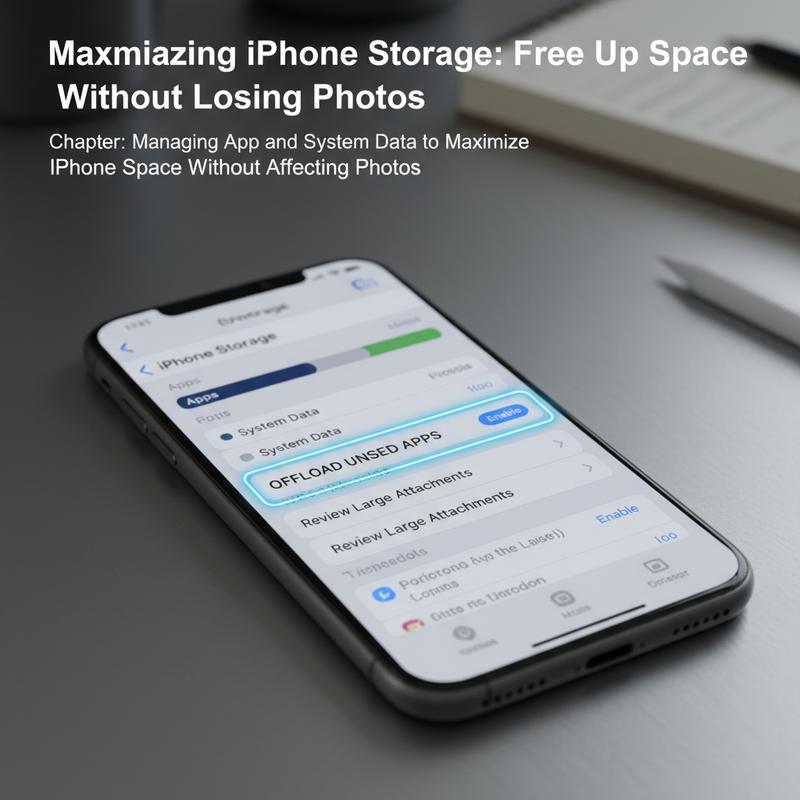
One of the best ways to clear a lot of space is offloading unused apps. Apps you haven’t opened in months can still take up a big chunk of storage. Apple’s offload feature helps because it removes the app but keeps its data, so you can reinstall later without losing your settings or progress. You’ll find it in Settings > General > iPhone Storage, then tap the apps you rarely use. Some people have saved as much as 15GB this way, especially with big apps like games.
Another sneaky space hog is caches and temporary data. Safari and apps like Chrome can build up a lot of cached files over time. Clearing them can bring back more space than you’d expect. For Safari, go to Settings > Safari > Clear History and Website Data. And in many other apps, you can clear cache inside the app’s settings. This can even free up to 20GB in some cases, especially when apps like WhatsApp have stored tons of media.
Messages are another place where storage disappears without you noticing. If you have lots of threads full of photos, videos, and voice notes, they add up fast. Apple lets you auto-delete older messages and attachments: Settings > Messages > Keep Messages, then pick 30 days or 1 year. Heavy texters have said they’ve gotten back 10GB or more with this alone. You can also check what’s taking up space in Settings > General > iPhone Storage > Messages and remove large attachments.
The Files app can also pile up junk—duplicate files, old downloads, and random stuff you forgot you saved. Using iOS 18’s built-in tools to spot and remove duplicates can free a surprising amount of space. And it helps to review anything stored locally from apps like Podcasts or big document apps, since those downloads can quietly grow over time.
And if you want the easiest way to scale storage up without constantly managing your phone, cloud storage is worth looking at. It might cost a small monthly fee, but iCloud or other cloud services can move large files (especially videos) off your device while still keeping them easy to access. If you’re new to this, this beginner’s guide to cloud storage is a helpful place to start.
You’ve got plenty of options for managing iPhone storage while keeping your photo library intact. And as a bonus, clearing out the clutter often makes your phone run better too—less lag, fewer issues, and more room for whatever you want to capture next.
Manage App and System Data to Save iPhone Space
iPhone storage can disappear in no time, and trying to free up space without touching your photos can feel frustrating. But iOS actually gives you a lot of useful tools to manage app and system data, so you can clear room without messing with the memories you want to keep.
Start with Settings > General > iPhone Storage. That screen shows exactly what’s using space and gives you a few built-in options to clean things up. If you check it once in a while, it’s much easier to stay ahead of the problem.
An easy win is to offload unused apps. In iPhone Storage, sort apps by “Last Used” so the ones you never open are easy to spot. Offloading removes the app but keeps its data, so it’s safe if you think you’ll want it again later. This can save a lot of space (sometimes up to 90% for certain apps). And if you’re sure you don’t need an app anymore, deleting it completely saves even more.
Managing app caches and data matters too. Some apps are known for building up a lot of stored data over time. Safari, Messages, and WhatsApp are common offenders because they hang onto browsing data, message history, and media. Clearing browser history and cache won’t magically make your phone feel brand new, but it does help free storage. With messaging apps, the biggest impact usually comes from removing large attachments. In Messages, you can review and delete big media items so your conversations don’t turn into a storage sink.
But it’s not just apps. System-wide data management can make a difference too. Updates, downloads, and leftover temporary files can quietly take up space. Checking Apple’s storage recommendations can point out large 1GB+ apps that might be worth removing, or apps that keep heavy download caches. And yes—sometimes a simple restart helps, since it can clear out temporary files the system no longer needs.
Now, about the confusing “Other” category: a lot of people stress over it. Thing is, it’s mostly caches and system logs that iOS manages on its own. People often spend hours trying to “clean” it and see almost no change. You’ll usually get better results by focusing on specific apps, downloads, and attachments instead of chasing “Other.”
Built-in tools are usually enough for most people, but some third-party tools can help you look deeper if you need to. And iOS is rumored to add AI-driven “Smart Cleanup” features in updates beyond 2026, which could make this kind of cleanup even easier.
If you want to learn more about cloud storage (since that can take pressure off local storage), this beginner’s guide to cloud storage breaks it down in a clear way.
When you combine iOS tools with a few smart habits, it’s much easier to keep storage under control—and you can free up a lot of space without touching your photo library.
Cloud Storage Options for iPhone
High-resolution photos and videos are great—until they eat up your iPhone storage. The goal is keeping everything easy to access without lowering quality or deleting pictures you care about. That’s where cloud storage helps. It lets you move the heavy stuff off your phone while keeping your photo library safe and easy to get to.
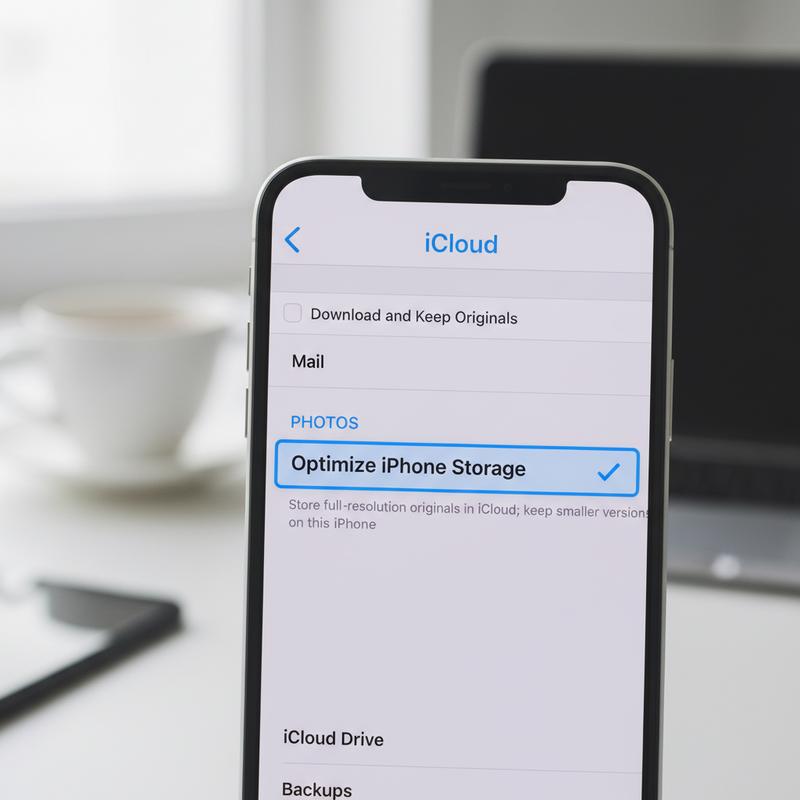
Cloud services are built for this: store your originals online, keep your phone lighter, and pull files down when you need them. iCloud Photos is the most straightforward option for Apple users because it fits right into the iPhone experience. It saves full-resolution originals in iCloud and keeps smaller, space-saving versions on your device when needed. Turn it on in Settings, tap your Apple ID, then go to iCloud Photos. Choose “Optimize iPhone Storage” and your phone will start managing space automatically while the full versions stay in iCloud. Live Photos, memories, and shared albums will sync across devices too.
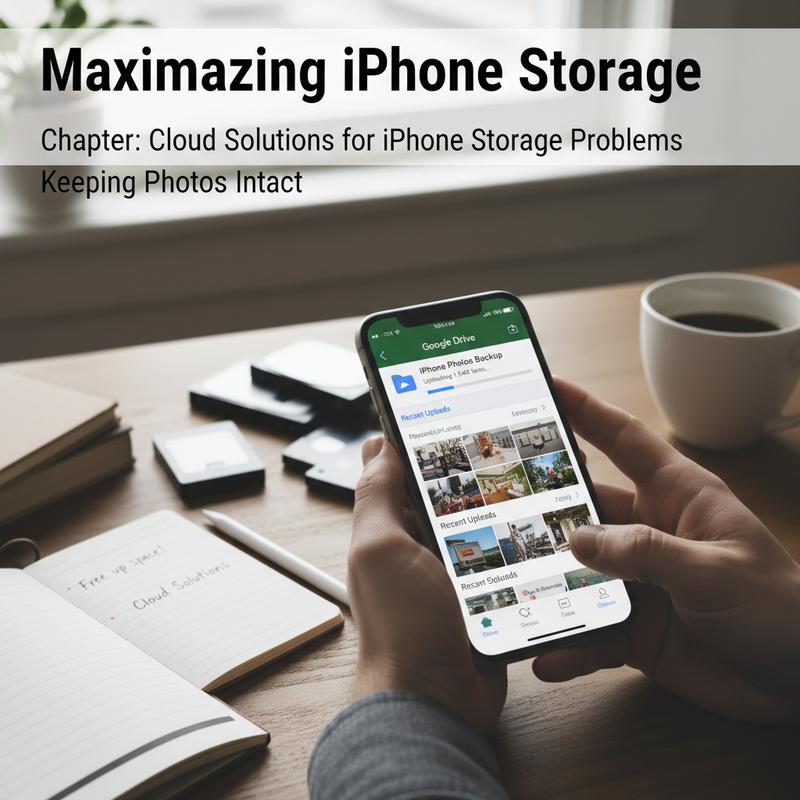
If you want something outside Apple, Google Photos is a popular choice. It has a generous free tier and offers plenty of storage for high-quality images that still look great. You can pick between “Storage Saver” and “Original Quality” when backing up. After you back everything up, you can use the “Free up space” feature to remove local copies from your iPhone while keeping them safely in Google’s cloud.
OneDrive is a good fit if you already use Microsoft tools. It handles photo and video uploads and works nicely with the iPhone’s Files app. OneDrive’s Personal Vault adds extra privacy and security, which is useful if you want a bit more protection for certain files.
If you like staying organized and want more control, Dropbox is another strong option. Its Smart Sync feature helps keep local storage lower by keeping files in the cloud while still letting you access them when you need to. Dropbox also keeps photo quality and offers version history, which can be handy if you manage a lot of files and folders.
Amazon Photos is especially useful for Amazon Prime members since it includes unlimited full-resolution photo storage at no extra cost. It can back up photos automatically and supports shared family vaults, which is helpful if multiple people in the household want to store and share photos together.
Using cloud storage is one of the simplest ways to keep photo quality high without letting your iPhone run out of space. Whether you stick with iCloud for the Apple-friendly setup or go with Google Photos, OneDrive, Dropbox, or Amazon Photos for extra features, the main benefit is the same: your photos stay safe and your phone stays usable. If you’re just getting started, this guide can help you get comfortable with the basics.
Cache Cleanup: Get More iPhone Space Without Deleting Photos
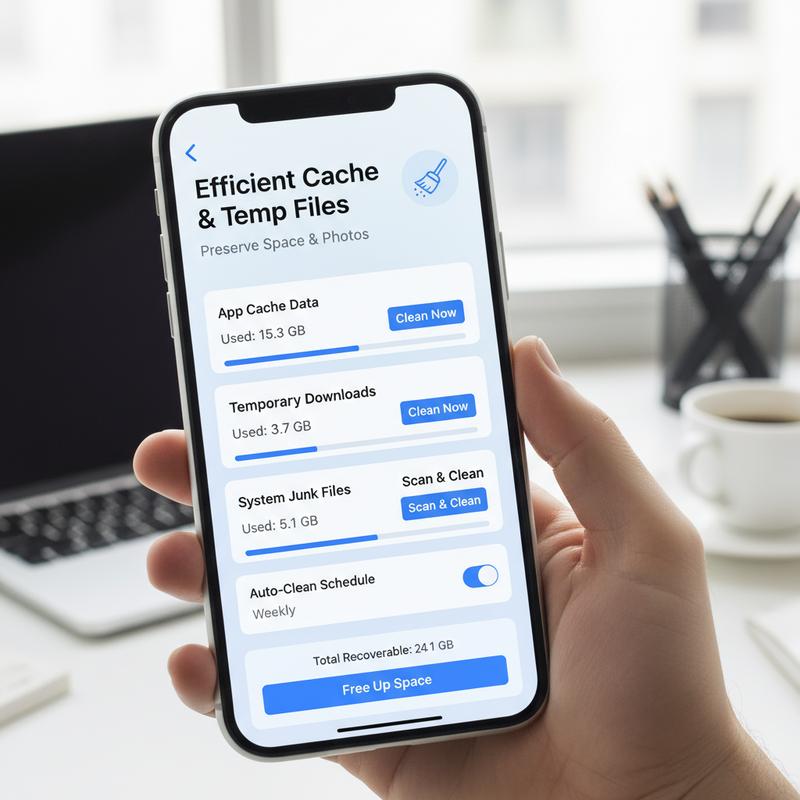
As we store more and more on our phones, iPhone storage needs a little upkeep—especially if you’re trying to protect your photo collection. Clearing cache and temporary files is one of the easiest ways to get space back. iOS doesn’t give you a single “clear all cache” button, but a few targeted cleanups can still make a big difference.
Clear App Cache Effectively
Start with app caches. Safari, in particular, can build up a lot of stored website data. Clearing it is simple: go to Settings, tap Safari, then hit Clear History and Website Data. That removes cached files, cookies, and browsing history in one go.
For other apps, check their settings—some include a cache option, some don’t. If there’s no cache setting, deleting and reinstalling the app is often the quickest workaround. That wipes the cached data, and in many cases your info will come back once you sign in again.
Offload Unused Apps
On the flip side, offloading apps can still help a lot even if it doesn’t target cache directly. Go to Settings > General > iPhone Storage and offload apps you rarely use. Offloading removes the app but keeps its data, so it’s a safe middle ground. Still, keep in mind it won’t always remove every bit of cached data the app created.
Manage Downloads and Temporary Files
Now check the Files app. The Downloads folder is where large files love to pile up. Open Files, tap Browse, then On My iPhone, and sort by size to find the biggest offenders. Delete anything you don’t need anymore and you’ll often get a nice chunk of space back.
Delete Message Attachments
Message attachments are another quiet storage drain. The texts themselves don’t take much room, but photos and videos inside threads definitely do. You can set messages to delete automatically after a set time (like 30 days), or remove attachments manually in Settings > General > iPhone Storage > Messages. From there, you can delete specific attachment types without touching your main Photos library.
Regular Attention to Recently Deleted Folders
Don’t forget the Recently Deleted folders. Photos, videos, and files you “deleted” can sit there for up to 30 days and still take up space. Clearing Recently Deleted in both the Photos and Files apps makes sure the storage is actually freed.
So, if you stay on top of cache, downloads, message attachments, and Recently Deleted folders, you can usually avoid deleting photos just to make room. A little regular cleanup keeps your iPhone running smoothly and leaves you space for new memories instead of stressing over storage warnings.
Final thoughts
Keeping iPhone storage under control doesn’t have to mean deleting photos. If you use iCloud the right way, clean up apps, and lean on cloud storage when needed, you can get a lot of space back without losing the pictures you care about. Check your storage settings once in a while and you’ll avoid the last-minute “storage full” scramble.
Need a hand sorting out your iPhone storage and keeping things running smoothly? IT Carolina can help with that.
Learn more: https://itcarolina.com/about/
About us
IT Carolina helps keep your tech working the way it should, from storage and device performance to connectivity. Our technicians can help your devices run smoothly so you get the most out of them for entertainment, work, and staying in touch. Whether you need hardware tuning or network setup, IT Carolina helps make sure your technology fits your day-to-day life without the headaches.