Online threats keep changing, so picking an operating system with solid security really matters. macOS and Windows both come with built-in protections, but they tend to get hit in different ways. Here we’ll walk through the security tools each one includes, how user habits affect safety, how encryption is handled, and what third-party antivirus can (and can’t) do. With that in mind, you can make a safer call between macOS and Windows when you’re shopping for a new computer.
Built-in Security Features: macOS vs Windows
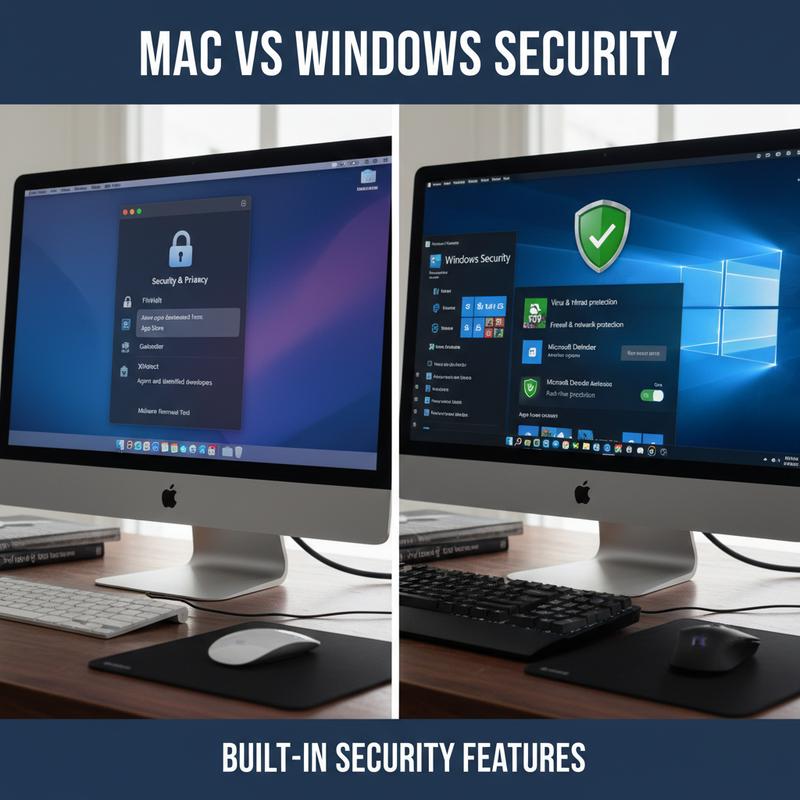
Most people choose between macOS and Windows based on what they like using. But security should be part of the decision, too. Both systems come with built-in tools meant to protect you from common online threats. Now let’s look at how macOS and Windows compare when you stick to what they offer out of the box.
macOS uses a layered approach to security. A big piece of that is Gatekeeper, which works like a checkpoint for apps by checking signatures and making sure software is notarized by Apple before it runs. Starting with Ventura, Gatekeeper also checks for post-launch changes, which helps catch tampering after an app is installed. And then there’s System Integrity Protection (SIP), which helps block changes to key system files, making it tougher for attackers to mess with the core of the OS.
macOS also includes XProtect, which runs quietly in the background and looks for known malicious files using signature and heuristic methods. Alongside that, FileVault encrypts the whole drive, so if someone gets physical access to the device, the data is still locked down without the right login.
For privacy, macOS does a good job keeping app access in check, so only approved apps can use things like your camera or microphone. Safari helps too by blocking a lot of tracking. And security updates are tightly integrated, so most users get the latest fixes without having to think much about it.
On the Windows side, the main built-in tool is Windows Defender Antivirus. It gives real-time protection and uses cloud-enhanced detection to keep up with new threats. Defender also leans on behavioral analysis, which helps it spot suspicious activity instead of only looking for known malware files.
Windows Hello brings login security to the front with biometrics and passkeys, so your sign-in can be tied directly to you. BitLocker is Windows’ answer to FileVault, encrypting the drive to protect local data—especially useful if you work with sensitive files. But one real risk is where BitLocker recovery keys end up. If they’re stored in the cloud, that can create exposure, and there have been cases where data requests and key access created security concerns.
Windows also uses SmartScreen, which is reputation-based protection that checks apps and downloads before they run, similar in spirit to Gatekeeper. And with Secure Boot plus Virtualization-based Security (VBS), Windows works to protect the kernel and keep the system more resistant to low-level attacks, in a way that lines up with what SIP aims to do on macOS.
All of this is managed through the Windows Security dashboard, which puts the main security settings and alerts in one place. Windows Update handles automatic updates so systems can stay patched and current.
So, macOS tends to focus on quiet, simple protection that doesn’t demand much from the user, while Windows leans more into enterprise-style controls and cross-platform support, as mentioned in Proactive IT. Either way, your habits still matter a lot, and that’s what we’ll get into next.
How User Habits Affect Mac and Windows Security
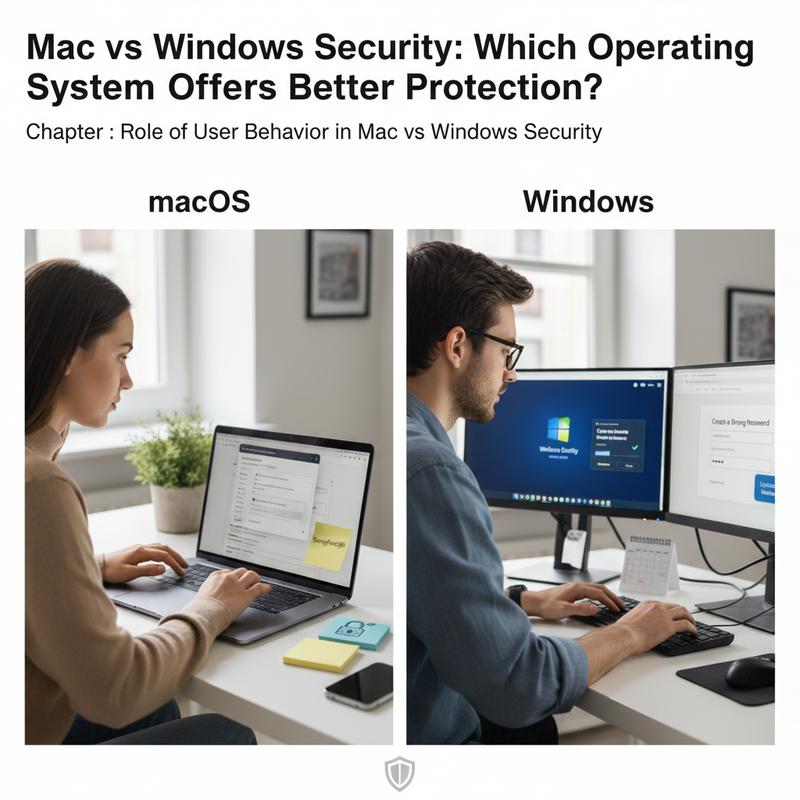
When people argue about Mac versus Windows security, they often miss the biggest factor: what the user does. Even the best built-in protections won’t help much if someone clicks the wrong thing or ignores basic safety steps. No matter which OS you’re on, your daily habits can either strengthen your security or punch holes right through it.
Phishing Vulnerability and Password Practice
Phishing is still one of the most common ways attackers get in, and it hits both platforms. The goal is simple: trick you into clicking a bad link or opening a harmful attachment. These scams can look convincing, which is why they work. macOS users might run into them through Safari and iMessage, and Windows users through Edge and Outlook. Thing is, the best defense is paying attention—plus using multi-factor authentication (MFA) so a stolen password alone isn’t enough.
Password habits are another big weak spot. People still reuse easy passwords, even though everyone knows better by now. That risk shows up on both sides: Mac users may tie multiple logins through iCloud or Keychain, and Windows users often depend on Microsoft accounts. The fix is pretty simple: use unique, strong passphrases, and lean on a trustworthy password manager so you don’t end up cutting corners.
Privilege Misuse and System Monitoring
Admin privileges are also a common problem. If a user has more access than they really need, one compromised account can turn into a much bigger incident. On macOS, Gatekeeper helps reduce risky installs, but users can still click through prompts and override warnings. Windows deals with plenty of User Account Control (UAC) bypass attempts, including ones that use PowerShell injections. A least-privilege policy—giving people only the access they need—plus dedicated admin workstations (DAWs) can lower the odds of a bad day turning into a disaster.
And then there’s monitoring. Lots of users brush off weird signs—unexpected pop-ups, strange logins, settings that changed—so threats stick around longer than they should. Both macOS and Windows environments can benefit from stronger logging and auditing. Tools like User and Entity Behavior Analytics (UEBA) can help too, since they look for unusual behavior rather than relying on the operating system alone.
Behavior Overrides Built-In Security
Even with solid built-in tools like macOS sandboxing and Windows Defender, user choices often decide what happens next. Studies show insider threats—tied directly to user behavior—make up a large share of breaches. That’s why more security teams are leaning on behavioral analysis, not just signature-based detection. Still, technical protections matter, but they only go so far if people ignore the basics.
At the end of the day, safer computing comes down to everyday habits: staying alert, using least privilege, and reporting anything that looks off. That human piece matters as much as any built-in feature. If you want practical steps that apply to both personal and work devices, take a look at cybersecurity tips for small businesses.
Encryption and Privacy: Mac vs Windows
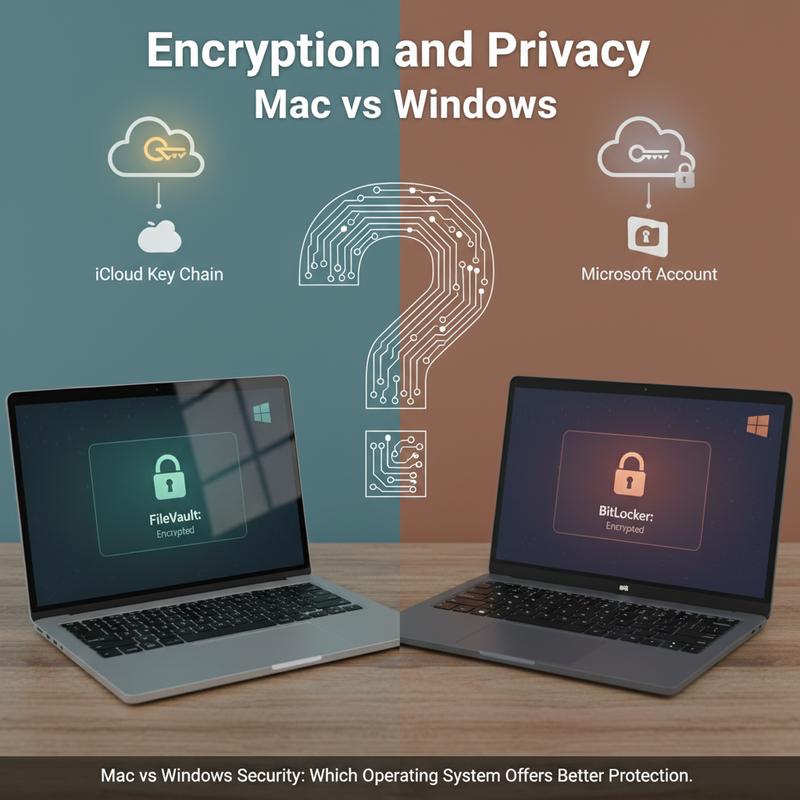
If you’re trying to figure out whether Mac or Windows is “more secure,” encryption and privacy settings are a huge part of the answer. Threats keep getting nastier, and knowing how each system protects your data helps you make a smarter choice.
Both macOS and Windows support strong encryption, but they handle it differently in practice. On macOS, FileVault 2 is the main encryption tool. It’s built to be easy for regular users—enabled by default on all startup disks—and it uses strong encryption (XTS-AES-128 with 256-bit keys) behind the scenes. So you get protection without having to babysit settings or take a performance hit.
Windows uses BitLocker, which is available on Pro and Enterprise editions. It’s powerful too, supporting AES-128/256-bit encryption. But you usually have to turn it on yourself, and computers aren’t automatically protected by default. That means data can be exposed if someone never enables it. And configuration matters. For example, storing recovery keys in the cloud can be risky, and there have been cases where agencies accessed data because keys were cloud-stored.
For privacy and system protection, macOS leans on its Unix-based foundation and built-in tools like Gatekeeper and System Integrity Protection (SIP). These help reduce malware exposure by limiting risky installs and protecting core system files. Apple has also made it clear in high-profile situations that it won’t hand over encryption keys to outside agencies when faced with legal pressure.
Windows has a tougher job simply because it’s used so widely, which makes it a bigger target. But Microsoft’s Defender is strong and built with business needs in mind. The tradeoff is that it often needs more hands-on attention—keeping updates current and making sure settings don’t drift over time.
One thing many people overlook is management transparency. macOS usually stays quieter and interrupts you less. Windows tends to require more user interaction, and that can lead to fatigue or mistakes when people start ignoring prompts. So, both systems work best when users understand what the settings do and actually keep them in good shape.
If you want options beyond built-in tools, third-party encryption like VeraCrypt works across platforms and can be a solid choice for people who need extra control.
For businesses, the decision isn’t only about which OS has the “better” security tools—it also comes down to what users can handle day to day and what the organization needs. Still, the big takeaway is simple: encryption and privacy settings are a major line of defense, and knowing how they work can change the outcome. And yes, neither operating system can rest solely on its defaults to ensure comprehensive security.
Explore more about the nuances of system security in our small business data protection guide.
Third-Party Antivirus on Mac and Windows
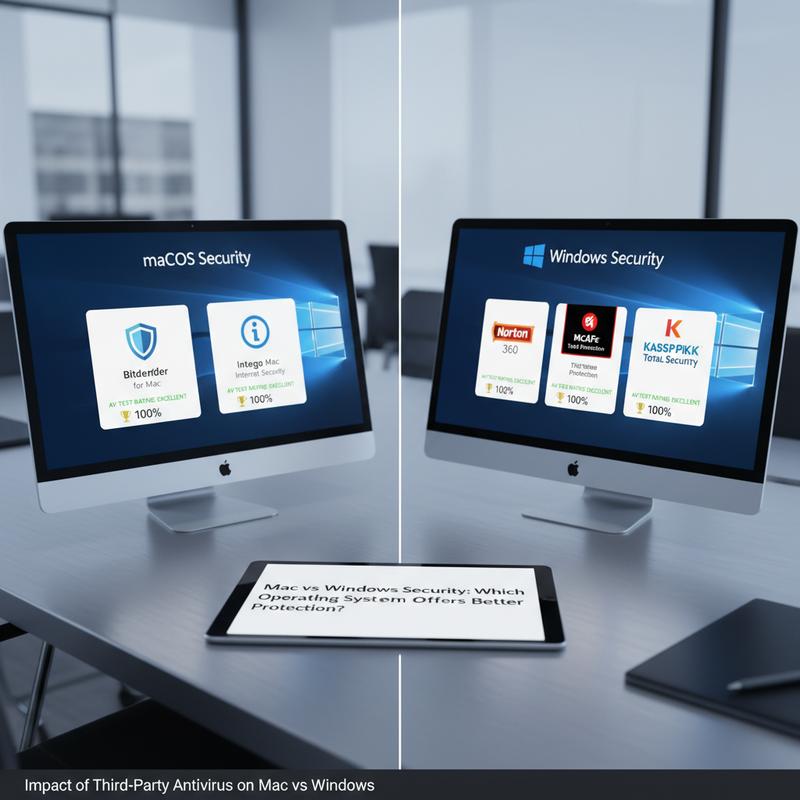
Third-party antivirus can add a helpful extra layer for both macOS and Windows. But how useful it is—and what it costs you in performance—depends a lot on the platform, the threat level, and how the device is used.
Adoption and Necessity on Mac vs Windows
There’s a big gap in how often people install third-party antivirus. About 69% of Windows users use one, mostly because Windows faces a wider range of malware and many people still don’t fully trust built-in protection like Microsoft Defender. Defender has improved a lot, but Windows is also the biggest target because of how many people use it. That helps explain the 7.6% malware incidence rate among Windows users and why extra layers are common.
macOS users install third-party antivirus less often—around 37%. A lot of that comes from confidence in built-in tools like XProtect and Gatekeeper. But, as myth-busted points out, Macs aren’t immune. As macOS has grown in popularity, it’s seen more targeted attacks, including ransomware and adware. That’s why many businesses still add third-party tools for things like real-time monitoring and deeper threat intelligence.
Resource Utilization and Performance Impact
On Windows, full scans can hit performance hard. Some tools, including Bitdefender, can spike CPU usage during scanning. So people often schedule scans for off-hours to keep things usable during the day.
On macOS, third-party antivirus tends to aim for a lighter footprint so it doesn’t slow down the system too much. Many products use cloud-based scanning and machine learning to spot threats with less local strain. That can help users stay productive, even when security checks are running.
Effectiveness and Integration of Features
On either platform, leading antivirus tools from companies like Norton and Bitdefender are tested heavily and usually score well for detection. On Windows, third-party software can matter more because the overall malware volume is higher, and many products work closely with the firewall to add more layers of protection.
On macOS, built-in tools often cover what everyday users need, but third-party products can bring extra value—especially for companies. Things like compliance reporting, real-time threat analytics, and enterprise-grade data protection are often the reason organizations install them.
So, third-party antivirus can help on both macOS and Windows, but it doesn’t play the same role everywhere. Windows users often rely on it more to handle the sheer volume of threats and to cover any perceived gaps. Mac users may not need it as often, but it can still be a smart add-on as attacks against macOS grow. The best setup really depends on how you use your device and how consistent you are with basic security habits.
Final thoughts
Security is a mix of what the system gives you and what you do day to day. macOS starts off with strong protections, but good habits and, in some cases, extra antivirus can make a real difference. Windows has strong built-in tools like Defender, but it also attracts more general threats simply because it’s so widely used. The safest choice is the one you’ll keep updated, set up correctly, and use carefully.
Still deciding between Mac or Windows for your next computer? Need help sorting out the safest option for how you actually work (and what you want to spend)? We can help.
Learn more: https://itcarolina.com/about/
About us
At IT Carolina, we help people choose and set up secure, fast tech that fits how they really use their computers. If you want a Mac for a simpler day-to-day experience or a Windows PC for gaming and flexibility, our team will make sure it’s configured for strong security and solid performance from day one. And if you ever get stuck, we’re here with hands-on support so you don’t have to guess your way through important decisions.