Locking down your home Wi-Fi matters if you want to keep strangers out and your personal info private. The good news: you can make a few quick changes that boost security fast, and you don’t need to be a tech expert to do it. This guide covers the basics you’ll need, how to protect router access, how to turn on better encryption, and how to keep things safe over time. Follow along and you’ll cut down the chances of anyone sneaking onto your network. It’s a clear, doable 15-minute checklist that helps you feel more in control of your home internet.
Before You Start: What You’ll Need
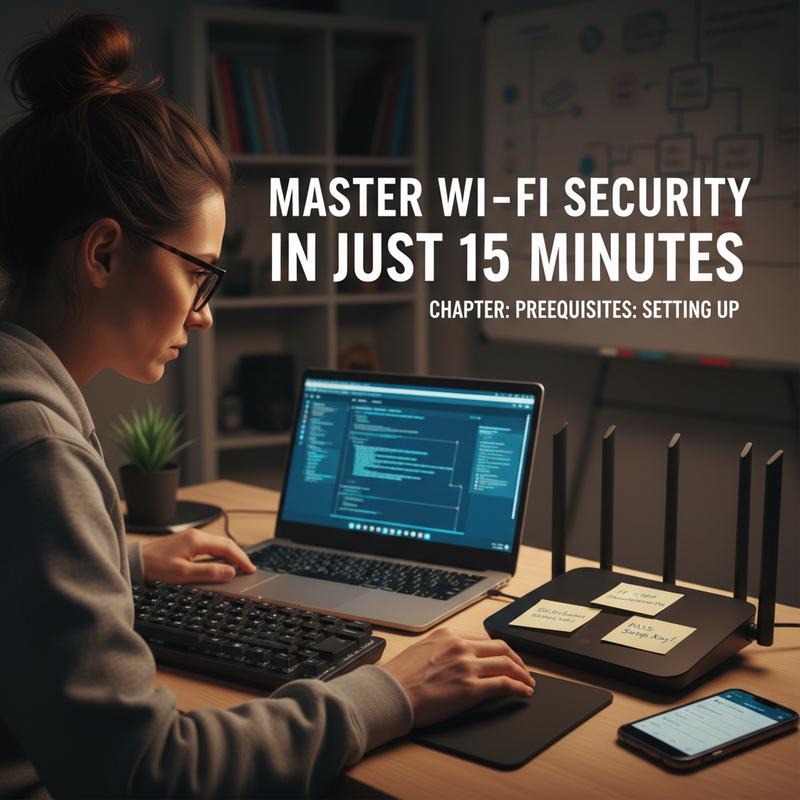
Before you try to secure your home Wi-Fi network in just 15 minutes, it helps to get a few basics lined up first. Skipping these quick checks can lead to simple mistakes—like leaving old settings in place or missing an easy fix. In this section, we’ll make sure you’re ready to tighten things up the right way.
Gathering Essential Access Information
First, find your router (usually the box connected to your modem, often with antennas). You’ll need the router’s IP address so you can log into its admin page. Common defaults include 192.168.0.1, 192.168.1.1, or 10.0.0.1. Type that into any web browser to open the router settings. Check the router itself too—there’s often a sticker with default login info like “admin/admin” or “admin/password.” If that’s still in place, changing it should be at the top of your list.
If you can, plug a laptop or tablet into the router with an Ethernet cable. It’s more stable while you’re changing settings, so you’re less likely to get kicked off mid-update. But if wired isn’t an option, using a device connected over Wi-Fi is still fine for this process.
Audit Your Current Network Status
Once you’re in the router’s admin page, do a quick check of the basics. Make sure your Wi-Fi security is set to WPA2 or, even better, WPA3. Older options like WEP are easy to crack. Also confirm the admin password isn’t still the default, and make sure your SSID (your Wi-Fi name) doesn’t advertise the router model, which can make it easier for people to target known weak spots.
Look at the list of connected devices and see if anything looks unfamiliar. If you spot something you don’t recognize, disconnect it. And now’s a smart time to check whether your router firmware is current, since old firmware can be an easy way in for attackers. Most routers let you check this right inside the admin interface, often with a link to the manufacturer’s update page.
Equipped With Tools, Not Downloads
You don’t need any special programs to do these updates. A web browser is enough, plus a way to create strong passwords and maybe your router manual if the menus are confusing. Many phones and computers include password generators, and browser extensions can help too. Try for at least 12 characters, mixing letters, numbers, and symbols—skip obvious stuff like birthdays or pet names.
One last prep step: if your router supports a guest network, plan to turn it on—it helps keep visitors off your main devices. Also check whether your model supports WPA3 so you can use the stronger option. With these basics set, the rest of the setup goes a lot smoother.
If you run into connection issues along the way, this resource can help you troubleshoot quickly. Once these basics are done, you’re ready for the next steps—updating passwords, tweaking settings, and locking the network down.
Router Setup: Secure Your Home Wi-Fi in 15 Minutes
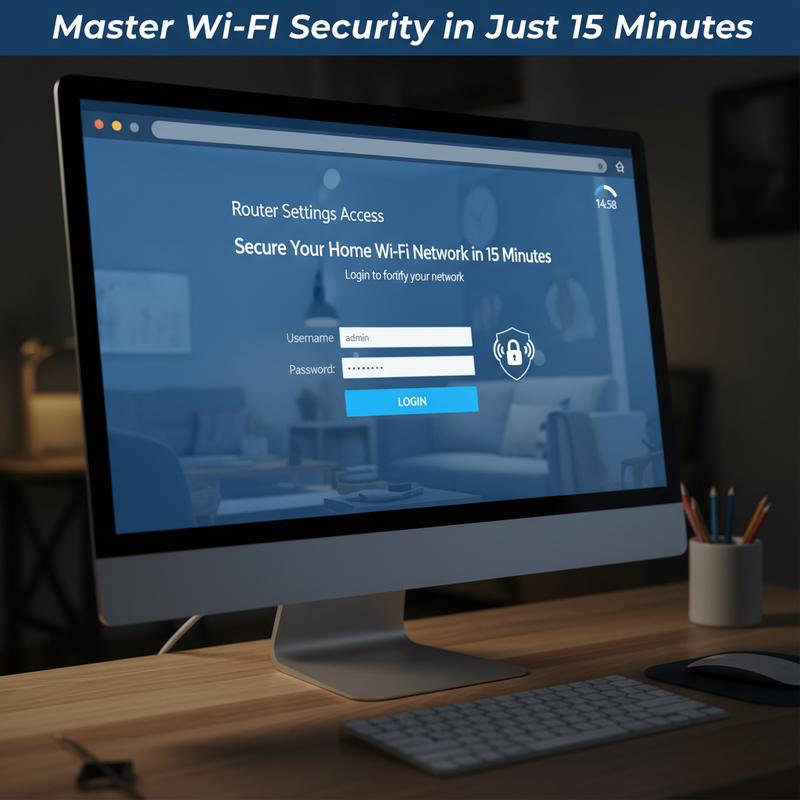
Getting into your router settings is the key to protecting your whole home network. And in about 15 minutes, you can go from “wide open” to much harder to mess with. This section walks through the changes that make the biggest difference—without needing advanced skills.
Start by logging into your router’s web interface. In most cases, you just type something like 192.168.1.1 or 192.168.0.1 into your browser. Once you’re in, go straight to changing both the admin login and the Wi-Fi password. Default credentials are usually easy to guess, which makes unauthorized access much more likely. Set an admin password that’s unique and strong, using uppercase and lowercase letters, numbers, and symbols, and make it longer than eight characters. And for your Wi-Fi password, go even longer and harder to guess to slow down brute-force attempts.
Next, turn on encryption for your Wi-Fi. Encryption protects the data moving across your network so only approved devices can read it. If your router supports it, pick WPA3 since it’s the strongest common option right now and does a better job blocking snooping and unwanted access.
Now, make sure the router’s firewall is on. You’ll usually find it somewhere in the settings menu. Think of it like a basic filter that watches traffic coming in and out and blocks sketchy connections. It can slightly affect speed in some cases, but the extra protection is usually worth it.
Another big one: turn off remote management. Many routers have settings like Web Management or Remote Management that allow the router to be managed from outside your home. Thing is, that also gives attackers another opening. Unless you truly need it, switch it off in the advanced settings.
Finally, check for firmware updates. Router makers release updates to fix security holes and improve performance. Use the admin panel to check and install the latest version. If you can schedule updates, pick a low-traffic time so you’re less likely to get interrupted.
Do these steps and you’ll have a strong baseline in about 15 minutes. If you also want help keeping your devices running smoothly, you can check out common computer problems and solutions every user should know. When you stack these changes together, your network becomes much harder to break into.
Modern Encryption
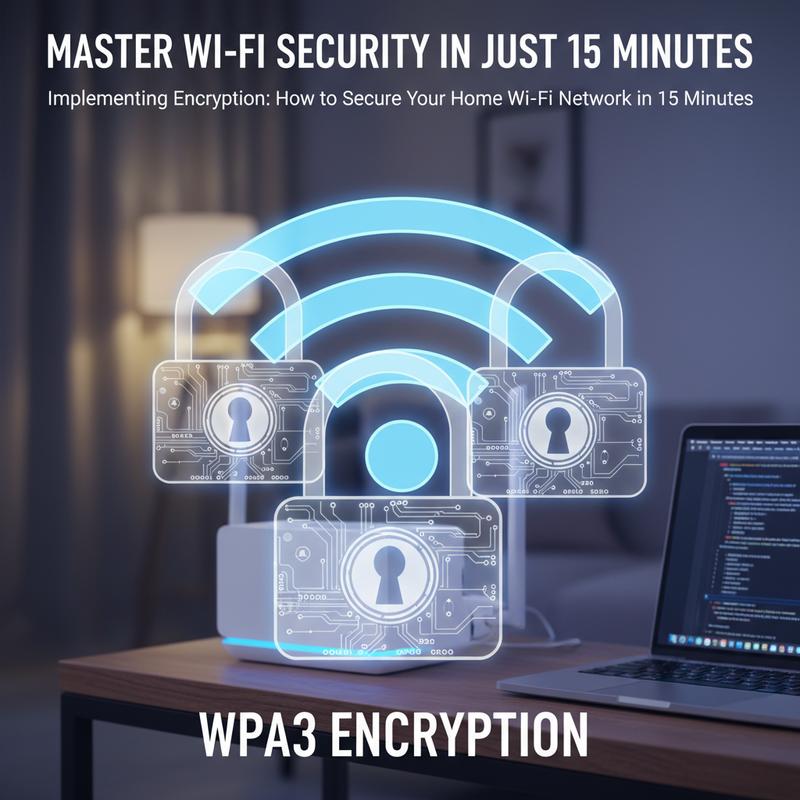
Encryption is what keeps other people from reading what’s traveling over your Wi-Fi. If you want a safer home network, this is one of the biggest upgrades you can make. Old options like WEP don’t hold up anymore. Now, the goal is WPA3 whenever you can.
Step into WPA3: Switching your network to WPA3 helps block unauthorized access and makes it harder for someone to guess your password. WPA3 is built to resist offline dictionary attacks using the Simultaneous Authentication of Equals (SAE) handshake. That means even if someone tries to “crack” the password, it’s a lot tougher than with older methods.
Here’s how to do it. Connect to your router, then open a browser and type the router’s IP address, often something like 192.168.0.1. In the admin interface, find the wireless security settings and select WPA3-Personal if it’s available. If some older devices won’t connect, try WPA2/WPA3 mixed mode so you can keep compatibility without dropping to weaker security.
Securing Your Digital Perimeter: Once encryption is set, you can add a couple extra layers. One option is hiding your SSID by turning off the network name broadcast. It won’t stop a determined attacker, but it can reduce casual poking around. You can also enable MAC address filtering, which limits connections to approved devices—basically a “known devices only” list.
Your passphrase still matters a lot. Aim for at least 20 characters and mix letters, numbers, and symbols. After you save the changes, the router may reboot. Give it a minute, then reconnect your devices as needed.
If you want to double-check that everything stuck, reconnect your devices and confirm they’re using the updated security settings. You can also use network tools to verify WPA3 is active. Tools like Wireshark can inspect traffic and help confirm your network is using the encryption you selected.
Stick with these steps and your Wi-Fi will be in much better shape going forward. As new threats pop up, keeping encryption strong is one of the simplest ways to stay ahead. For more help locking things down, check out common solutions to potential vulnerabilities.
Keep Your Wi-Fi Safe: Quick Steps That Work
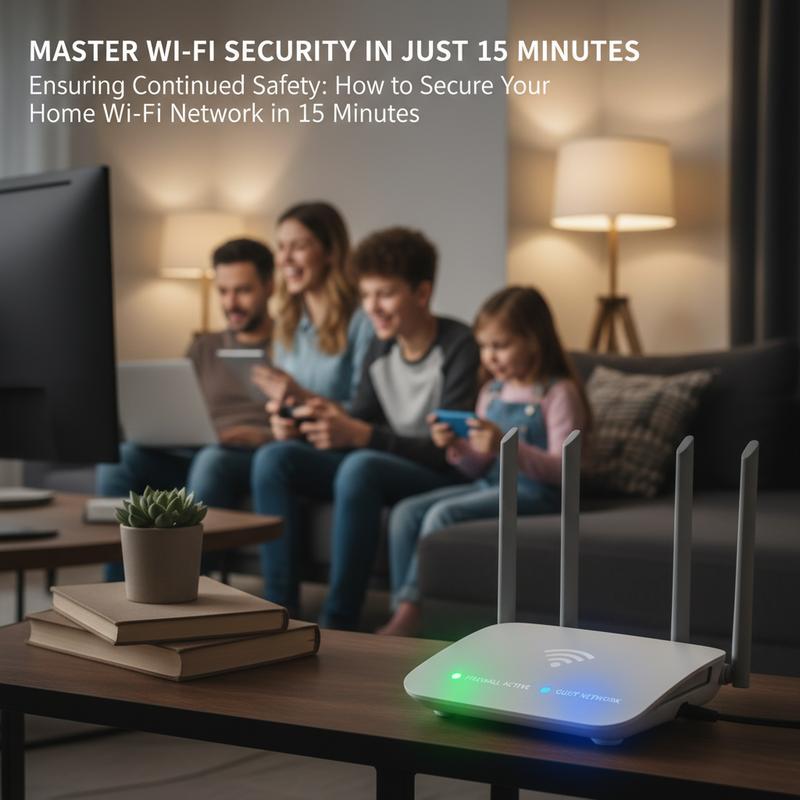
Securing your home Wi-Fi doesn’t have to be a big project. With a few smart changes, you can make your network much harder to break into in under 15 minutes. Here’s a straightforward way to lock things down fast.
Start by opening your router’s settings page—this is where everything gets controlled. On a connected device, open a browser and enter your router’s IP address, usually 192.168.1.1 or 192.168.0.1. The login info is often printed on a sticker on the router. Once you’re in, change those defaults right away since they’re one of the easiest ways for someone to get access.
Next, update the admin password. In the Administration or System menu, set a strong password with letters, numbers, and symbols. And if your router lets you, change the username from “admin” to something else. Still, the password matters more, so don’t skip it.
For Wi-Fi encryption, choose WPA3 if your devices support it. In the wireless security section, enable either WPA2-PSK (AES) or WPA3. Then change your SSID to something that doesn’t include personal details, and set a strong Wi-Fi password.
Turn on a guest network if you have people visiting often. It keeps guests separate from your main devices. Set a different strong password for the guest network, and enable AP isolation so guest devices can’t talk to your other devices.
Now check firmware updates. Updates fix security problems and help protect your router from known attacks. If your router supports automatic updates, switch it on and schedule them for off-peak hours. Also, disable risky extras like WPS, UPnP, and remote management unless you truly need them.
After that, do a quick review. Reboot the router if needed to apply changes, then check the connected device list for anything you don’t recognize and remove it. And keep an eye on that list now and then—odd devices showing up can be an early warning sign.
These steps can protect your home network from 90% of common cyber threats. Check your settings from time to time and stay on top of updates. That way your Wi-Fi stays not just convenient, but safer too.
For more tips on keeping your devices and accounts protected, you can also look at this guide on common computer problems and solutions.
Final thoughts
Securing your home Wi-Fi in 15 minutes really is doable, and it’s one of the easiest ways to protect your devices and personal data. Update passwords, use strong encryption, keep firmware current, and turn off features you don’t need. Now, don’t treat it as a one-time task—checking in every so often keeps your network in good shape as threats change. These basics go a long way toward keeping your household’s online activity private and safe.
Need a hand securing your Wi-Fi? IT Carolina can help you get it set up the right way.
Learn more: https://itcarolina.com/about/
About us
IT Carolina provides fast, reliable home network tuning for homeowners. In about 15 minutes, our technicians can help secure your Wi-Fi against intrusions, adjust router settings for better coverage, and make sure your connected devices are protected. We’re experienced with advanced network troubleshooting and smart home setups, so your home stays safer and your internet runs better—whether you’re streaming, gaming, or just browsing. If you want help getting it all dialed in, IT Carolina is here for you.