Smartphones are a big part of everyday life, and they often hold personal and financial info. But if your security settings are weak, your phone can be an easy target for hackers, spyware, or someone snooping around. This checklist is for both iPhone and Android users and walks you through practical ways to tighten things up. The four chapters cover the key areas—device lock and sign-in, updates, and more—with clear steps to help protect your privacy. Go through the settings below to lock down your data and feel a lot more at ease.
Device Lock & Authentication
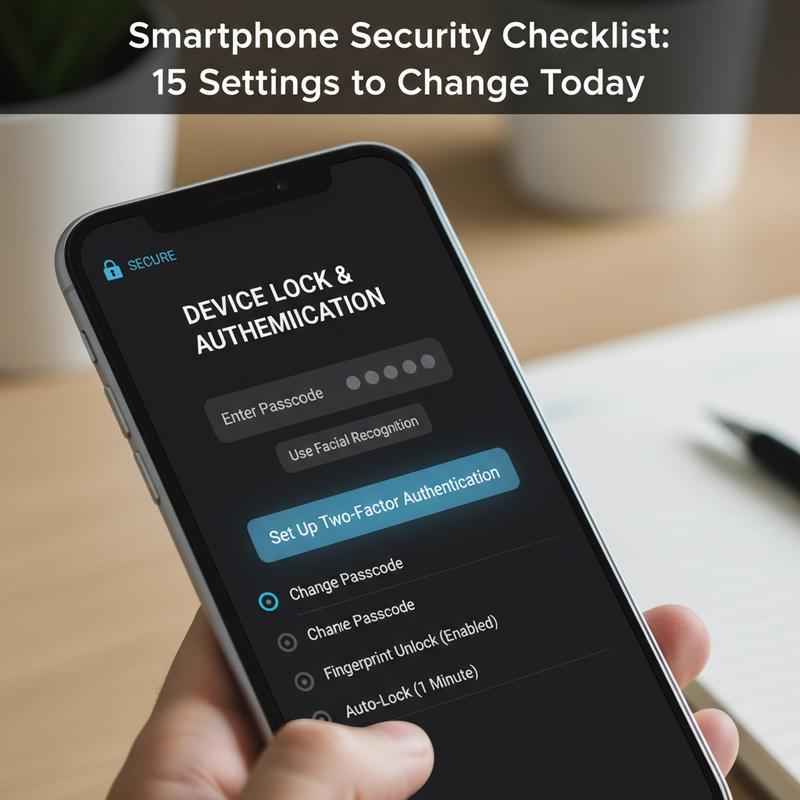
Your smartphone holds a lot of your personal and financial info, so locking it down matters. The main place to start is your device lock and sign-in settings. Thing is, a strong lock screen does most of the heavy lifting. Head to your phone’s Security & Privacy settings and pick a PIN, password, or pattern. They don’t all offer the same protection, but a code with at least six digits is a solid baseline.
Once that’s set, turn on biometric authentication if your phone supports it. Fingerprint and face unlock add another layer without making your phone annoying to use. And if you’re on Android 16 or higher, check out failed authentication lock. When it’s enabled, your phone will lock down after a set number of wrong attempts, which makes brute-force guessing a lot harder.
Now, there are a couple of extra theft-focused tools worth enabling too, like AI-powered theft detection. This feature can notice suspicious movement—like a quick grab-and-run—and lock the phone fast to stop someone from changing settings. On the flip side, Offline Device Lock helps in a different way by securing your phone if it loses connectivity or if the SIM card gets pulled. These settings run quietly in the background, but they can make a real difference.
It’s also smart to set up remote access and recovery options. Remote Lock lets you lock your phone from any browser if it goes missing. Newer Android versions also add extra security checks to confirm it’s really you before allowing a remote lock. And Find My Device builds on that by improving location help and offering quick recovery options using just your phone number.
Don’t overlook how much your Google account ties into all of this. When it’s linked correctly, you get important theft protection features, including Factory Reset Protection, which helps stop someone from wiping the phone and claiming it as their own. So, make sure your Google account security settings are locked down too, since a lot of these protections depend on it.
Advanced authentication options can tighten things up even more. It’s worth checking these from time to time, since you may want to adjust how your phone unlocks or add extra challenge steps when something looks suspicious. And yes, turning on two-factor authentication for your Google account is a must, especially if a password ever gets exposed.
Finally, keep an eye on things by monitoring active sessions in your Google account settings. It’s an easy way to spot logins you don’t recognize and act quickly if something looks off.
If you follow this device lock and authentication setup, you’re protecting more than just the phone—you’re protecting everything connected to it. Explore how these practices compare to other digital safety measures in our resources.
Browser and Tracking Protection
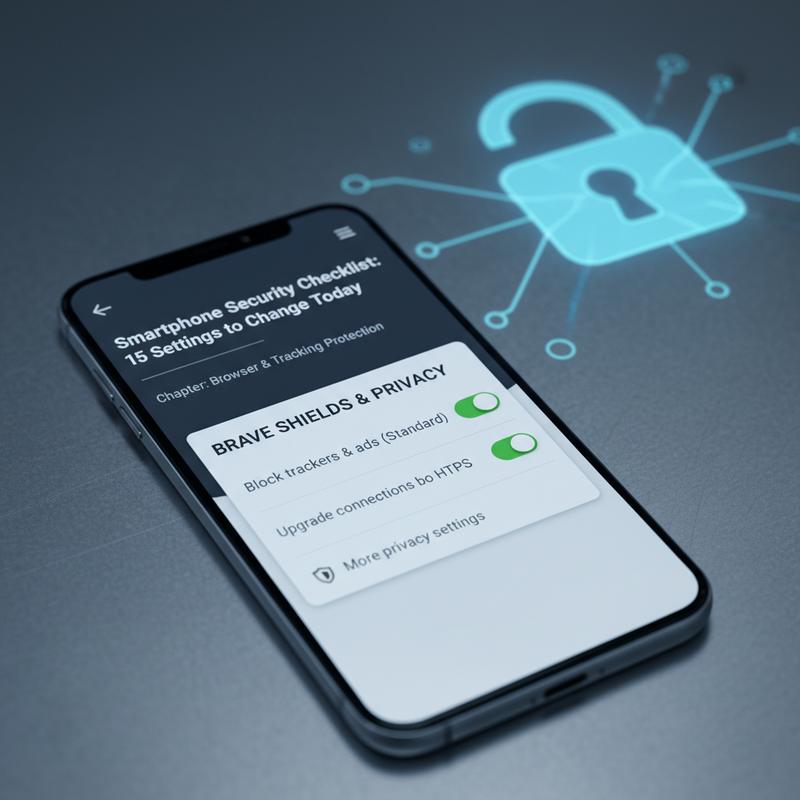
Your phone is basically always online, which also means it’s easy for advertisers and other services to track what you do. This section covers browser and tracking settings you can change to cut down on that and keep more of your browsing private.
A good starting point is your browser. Picking a privacy-first option like Brave, Vivaldi, or DuckDuckGo’s Private Browser can help right away. These browsers try to block trackers, cookies, and scripts so you leave behind less data. And they also push HTTPS by default, which helps keep your traffic encrypted while it’s moving between you and a site.
After you choose a browser, go into its settings and tighten things up. Turn on “Do Not Track” requests, block third-party cookies (a common way sites track you across the web), and clear your browsing data and cookies regularly. It’s a small habit, but it helps wipe out stored tracking info that can stack up over time.
But browser settings aren’t the whole story. For wider app tracking protection, the DuckDuckGo app can block third-party trackers from major players like Google and Facebook across apps at the network level. And if you want a system-wide option, set Private DNS to something like dns.adguard.com or 1dot1dot1dot1.cloudflare-dns.com. That can filter a lot of ads and trackers across your device, not just in your browser.
Next, take a hard look at app permissions. Open your Permission Manager and review access to location, camera, microphone, contacts, and anything else that feels sensitive. For most apps, “Deny” or “Ask every time” is the safer choice. And for location, switching to “Only while using” helps stop background tracking when you’re not even in the app.
Google services can collect a lot of activity data too. To reduce that, turn off personalized ads and pause Google activity tracking. In your Google Account’s Data & Privacy section, pause Web & App Activity, Location History, and YouTube History. These changes won’t break your phone, but they will cut down on what gets logged.
If you want another layer, set up a private space on stock Android for apps you’d rather keep separated. And using a VPN app can encrypt your traffic and hide your IP address from your internet provider and many trackers.
Still, no single setting blocks everything. These steps mostly reduce tracking and make it harder to build a full profile on you. If you want to go further, you could look into custom ROMs like GrapheneOS, though you should keep in mind security patches may arrive later than on mainstream builds. The biggest win is staying consistent—recheck permissions and privacy settings now and then, especially after app updates.
If you want more detail on how services like Google collect and connect your data, this comprehensive guide breaks down the idea of digital dossiers. Every tweak helps, and over time they add up to a much more private phone.
App and Location Permissions
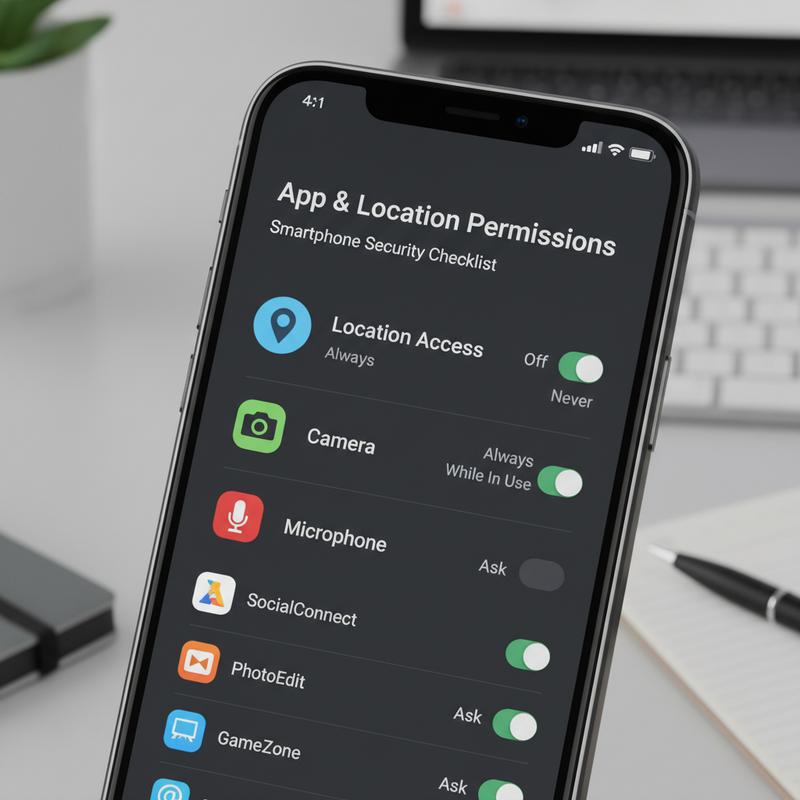
When app and location permissions aren’t managed well, you’re basically leaving doors open for extra data access and tracking. So it’s worth checking which apps can use sensitive features like your camera, microphone, and especially your location.
A big part of staying secure is auditing and restricting app permissions. Go into your iOS or Android privacy settings and remove access for apps that don’t truly need it. If you’re not using an app anymore, delete it. And before you grant a permission, ask yourself if it’s actually required for the app to work—every permission is a trust call.
Many phones now use just-in-time permission requests, where an app asks for access only when you try to use a feature. That’s helpful because you get context in the moment, instead of approving everything up front and forgetting about it later. It also makes it easier to say no when a request feels unnecessary.
Location deserves extra attention because it can reveal so much about you. Try to restrict location access to apps that truly need it. And for apps that don’t need precise data, switch to approximate location instead of exact GPS. It’s a simple change that can lower your exposure without messing with everyday use.
If you’re setting up phones for kids or other family members, make sure parental controls and privacy settings are dialed in. Use screen time limits, restrict app store purchases, and turn off location tracking when it’s not needed. And while you’re at it, keep your browsing clean too—review and remove browser extensions and trackers that ask for permissions they don’t really need.
Permission settings aren’t a one-and-done thing. They need occasional checkups as apps change and update. If you stick with these habits, you’ll be much better protected and more in control of managing app and location permissions. For a bigger picture on tracking and privacy, Google’s digital dossier guide is a helpful read.
This section builds on the browser and tracking steps from earlier and sets you up for the next part: keeping your device healthy and secure over time. Add these to your smartphone security checklist and you’ll lower your chances of unwanted access while improving your overall digital well-being.
System Updates and Device Maintenance
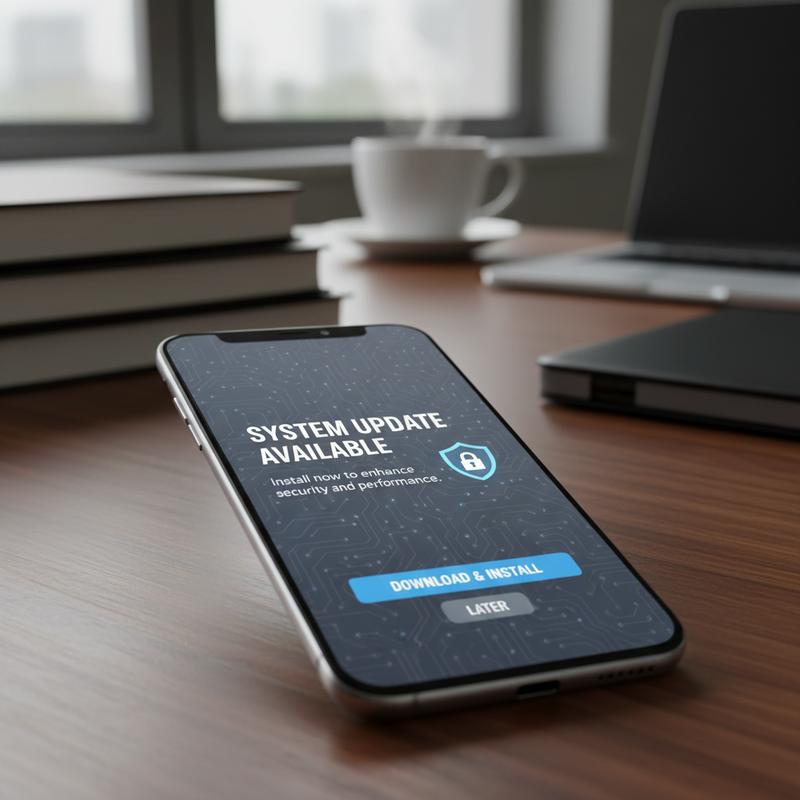
Keeping your phone updated and in good shape is one of the easiest ways to protect your data. New features get all the attention, but regular updates and basic maintenance are what keep a lot of real threats out. These tasks feel routine, sure, but they’re doing real security work in the background.
Start by turning on automatic OS and security updates. That way, your phone installs patches as soon as they’re available, closing holes attackers might try to use. On Android, look under Settings → System → Software Update. On iPhone, go to Settings → General → Software Update. It’s low effort, and it protects you around the clock.
And don’t stop at the operating system—turn on automatic app updates too. Apps can have security issues just like the OS, and outdated versions are a common target. Android users can enable this in the Google Play Store and select Auto-update apps, and iOS users can do the same under the App Store settings. Keeping apps current removes a lot of easy openings.
It also helps to check the security patch level once in a while. For Android, a patch level of 2026-01-05 or later is recommended. You can confirm this under Settings → Security & Privacy → Updates.
Maintenance is more than updates, though. Clearing unused apps and data frees up space and shrinks your attack surface at the same time. Fewer apps means fewer places for malware to sneak in. So, take a minute now and then to review your app list and uninstall what you don’t use.
Backups matter too. Set up encrypted backups through Google Drive or iCloud, run them regularly, and test them so you know they’ll work if you ever need them. A good backup plan protects you from loss, damage, and worst-case situations like theft.
You can also lean on built-in tools like Google’s Play Protect. It scans for suspicious behavior and can warn you about risky apps. It won’t catch everything, but it’s a helpful extra layer.
When updates and basic maintenance become a habit, your phone is a lot harder to mess with. And if you want to understand how scammers try to get around these protections, this guide on scammer strategies is a good next step.
Keep your system and apps updated, clean out what you don’t need, and stay on top of backups. Do that, and you’ll have a safer phone that also runs better day to day.
Final thoughts
These 15 key settings can make your smartphone a lot safer by lowering the odds of hacking attempts and helping keep your personal data private. From stronger device locks and sign-in options to smarter app permissions and regular updates, each step improves your overall security. Stick with these changes, and you’ll be in a much better place with your digital privacy.
Want to lock things down today? Run through the 15-step checklist and adjust your settings as you go.
Learn more: https://itcarolina.com/about/
About us
At IT Carolina, we know personal security matters just as much as gaming performance. That’s why our technicians don’t only tune up gaming PCs and entertainment setups—we also help make sure smartphones are set up with strong security. From privacy settings to network safety, we help iPhone and Android users find and fix weak spots. Whether you’re gaming or just scrolling, IT Carolina offers hands-on help to protect your devices and your data without the headache.