Screen sharing on platforms like Teams and Zoom is integral to modern remote work, but it comes with risks. Whether it’s an unsolicited notification or a private message, these interruptions can compromise privacy and professionalism. This article offers practical advice on managing these risks. The first chapter explores simple settings changes that ensure your focus remains on business. Next, we share tips for a clean desktop free from distracting content. Finally, learn about technology and tools that can automate your privacy measures. Together, these chapters form a comprehensive guide to mastering the art of secure screen sharing, keeping your confidential information just that—confidential.
Mastering Privacy: Fine-Tuning Your Screen Sharing Settings for Confidentiality
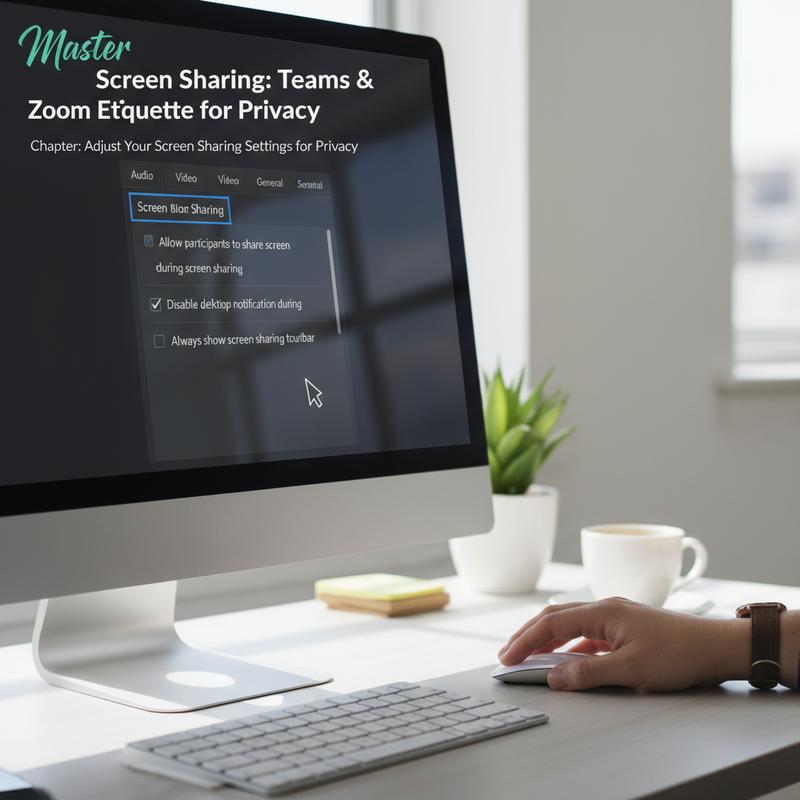
In the world of virtual meetings, ensuring your privacy while screen sharing is paramount. Regardless if you’re hosting a team sync-up on Zoom or presenting a project on Teams, the inadvertent exposure of personal notifications or private conversations can be more than just embarrassing; it can have serious repercussions. Thus, mastering privacy starts with understanding and adjusting your screen sharing settings effectively.
Begin with the simplest yet most crucial step: Share only what’s necessary. This golden rule helps prevent accidental display of unrelated or sensitive content. Instead of sharing your entire screen, select a specific window or application for sharing. This practice not only safeguards your privacy but also maintains a professional appearance by highlighting only the relevant documents.
Before you initiate screen sharing, make a habit of closing confidential documents and apps. This preparation might seem basic, but it’s one of the most effective ways to keep sensitive information under wraps. Additionally, don’t overlook your browser settings. Hiding your bookmarks and closing unused tabs limit the risk of revealing personal information unintentionally.
Another practical privacy tool is disabling notifications. By setting your device to “Do Not Disturb” or using equivalent features, you can keep pop-up notifications from becoming public. This step is crucial in maintaining a seamless and interruption-free presentation.
Managing app access is also essential. On macOS, navigate to System Settings > Privacy & Security > Screen & System Audio Recording to manage permissions, removing any unauthorized app access. Similarly, on Windows, you can review and adjust settings through Settings > Privacy to ensure tighter control over what each application can access.
Once your session is complete, always turn off screen sharing. Leaving it active unnecessarily can inadvertently allow others access when you least expect it. This, coupled with regular monitoring of access logs in professional settings, reinforces accountability and control.
For comprehensive control, consider embedding screen sharing policies within your organization’s endpoint management or MDM strategies, especially for business or enterprise contexts. Such policies ensure adherence to privacy norms and enhance overall security.
To dive deeper and explore efficient remote working tips, visit IT Carolina’s remote work blog. Engaging with expert resources not only strengthens your privacy practices but also enriches your digital communication skills, preparing you for any virtual interaction with confidence and professionalism.
Craft a Clutter-Free Workspace to Elevate Focus and Privacy
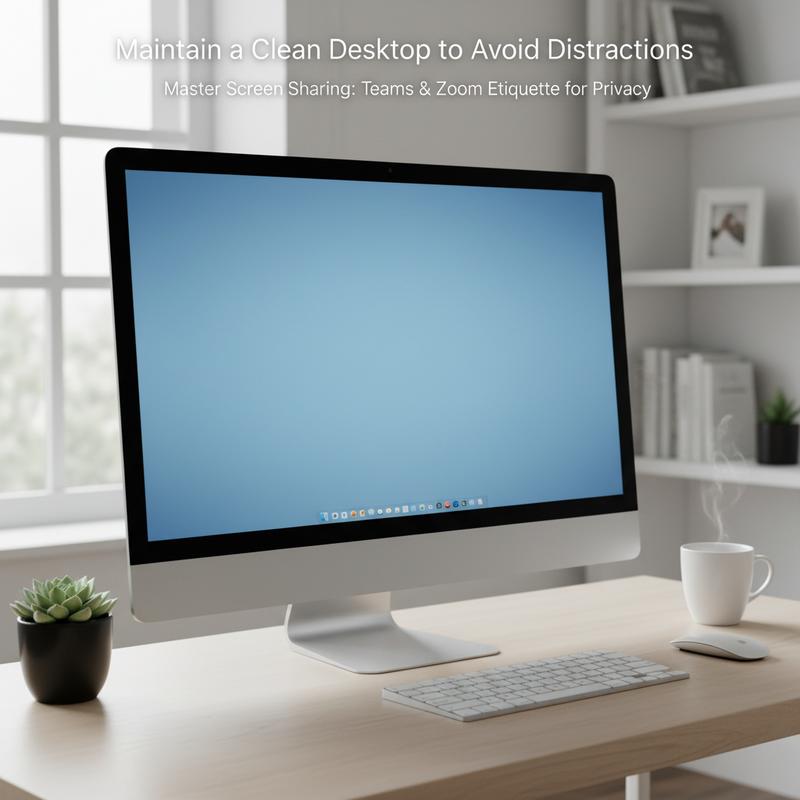
In the era of digital meetings and remote work, maintaining a clean workspace is more crucial than ever. A clutter-free environment, both physically on your desk and digitally on your computer, not only supports an uncluttered mind but also helps prevent the inadvertent exposure of personal data during screen sharing sessions.
A chaotic workspace can overwhelm your senses, making it more difficult to focus on the task at hand. This is particularly significant when engaging in screen sharing on platforms like Teams or Zoom. By ensuring that only essential files and applications are visible and accessible, you minimize visual noise and reduce the risk of accidentally displaying sensitive information. Removing unnecessary items from your desktop can begin with the regular clearance of your physical desk of items and paperwork that no longer serve your immediate needs. Archived documents, once scanned and digitally stored, free up considerable space and alleviate the influx of distractions. In terms of digital organization, make sure to delete or relocate files to appropriate folders to prevent clutter from infiltrating your computer desktop.
Organizing the essentials is a crucial follow-up. This involves keeping only the tools and materials that are immediately required for your work—like your computer, a notepad, and a pen. Correspondingly, rearrange your digital desktop to maintain only the most pertinent shortcuts and files. Consider employing folders to group related items, thus simplifying navigation and minimizing the risk of disclosing private data during shared sessions. Additionally, take advantage of built-in system tools to tidy up your digital workspace periodically.
It’s also beneficial to use effective storage solutions like cable management systems and under-desk organizers to maintain a tidy physical environment. These not only enhance the aesthetic of your workspace but also contribute to a clearer mindset, enhancing focus and boosting productivity. In your digital domain, adopt similar strategies by leveraging folder hierarchies and cloud storage solutions to keep your files systematically arranged.
While personalization can make your workspace more inviting, it’s important to add personal touches thoughtfully. A couple of carefully chosen elements, like a small plant or a picture, can elevate your space without leading to unnecessary overstimulation. Over time, maintaining such an organized environment can support a sense of control, enhance mood, and promote concentration on priority tasks.
By adopting these strategies, you’ll cultivate a workspace that not only elevates your productivity but also safeguards your privacy, especially when sharing your screen. For more insights and tips on optimizing your digital workspace, check out the top tech tips for remote work.
Privacy Automation: Empowering Screen Sharing Privacy with Cutting-Edge Technology

As organizations navigate the increasing complexity of digital communications, especially in platforms like Teams and Zoom, leveraging technology to safeguard privacy is becoming indispensable. Automation tools and AI-driven platforms provide a robust solution to help professionals avoid inadvertently displaying sensitive information during screen sharing sessions.
By utilizing AI agents for privacy assessments, businesses can streamline processes that traditionally take weeks, like privacy impact assessments and vendor evaluations, into mere minutes. These tools not only hasten validation but also reduce room for human error—ensuring screen share sessions on platforms such as Zoom and Teams remain secure. The efficacy of these AI agents lies in their ability to provide detailed reasoning and evidence for compliance decisions, safeguarding communications from unwarranted exposure.
Automated data discovery and mapping play a critical role too. These platforms scan organizational databases and cloud environments to meticulously map personal data, ensuring any data inadvertently displayed during screen sharing is quickly identified and managed. Such proactive mapping prevents breaches and supports the integrity of meetings held over Teams or Zoom.
Moreover, the automation of Data Subject Access Requests (DSAR) workflows expedites processing, from identity verification to data discovery. This ensures compliant and rapid responses, reducing potential oversights during screen sharing. Similarly, automated consent and policy management platforms continuously monitor regulatory compliance, effectively ensuring the privacy policies align with organizational practices.
Incident response and risk analysis are further improved with automation tools that provide real-time risk alerts, precluding the chance of unauthorized data exposure during screen shares. These tools empower professionals to handle data breaches swiftly and preventively—key when sharing screens in high-stakes business settings.
Integration of privacy automation platforms with existing organizational systems centralizes privacy governance. Such measures make it simpler for users to ensure critical data isn’t displayed accidentally when sharing screens. Continuous monitoring and reporting dashboards further facilitate privacy management by offering real-time visibility and alerts.
Overall, these privacy automation tools are not only about matching compliance requirements but also about allowing users to focus on strategic tasks rather than repetitive verification processes. Their integration into screen sharing practices in Teams and Zooms ensures a fine balance between accessibility and privacy, aiding professionals in maintaining the highest standards of confidentiality without compromising on efficiency.
For businesses looking to delve deeper into effective IT solutions, resources like the IT support for small businesses in Charlotte provide further insights into integrating modern technological tools for effective compliance and privacy management.
Final thoughts
Securing your screen during virtual meetings is essential in today’s digital landscape. Implementing robust privacy settings, maintaining a clean desktop, and utilizing technology can significantly minimize the risk of accidental oversharing. As you integrate these tips, your online interactions will not only become more professional but also more secure. Remember, safeguarding your privacy is not just a preventative measure—it’s a reflection of courtesy and competence in your remote professional life.
Don’t risk oversharing—protect your privacy during video calls with expert screen sharing setup. Let IT Carolina make your remote meetings seamless and secure.
Learn more: https://itcarolina.com/about/
About us
IT Carolina extends its technical expertise beyond gaming to support today’s remote professionals and small business owners. We provide hands-on setup for virtual meeting tools like Zoom and Teams, ensuring your shared screens are professionally configured and your private information stays private. From notification control to app visibility settings, we eliminate the digital distractions that can interrupt your online presentations and collaborations. Trust IT Carolina to optimize your remote work technology—for meetings that are just as sharp and secure as your ideas.