Spam calls and texts are more than just irritating. They break your focus, waste your time, and can even put your security at risk. This guide walks you through the built-in tools on both Android and iPhone that can help cut down on the noise. It also shares a few general tips that work no matter what phone you use, plus third-party apps and carrier options that can add extra protection. The goal is simple: fewer interruptions, less risk, and a phone that feels like it’s actually for real people again.
Android Spam Blocking Tools
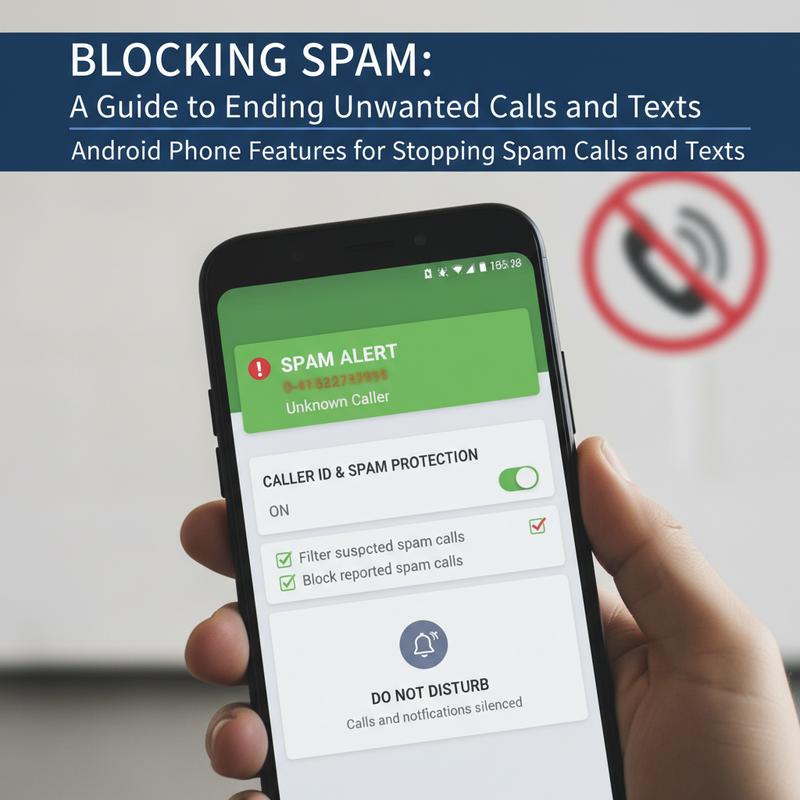
Spam calls and texts can feel nonstop, but Android phones already have a lot of built-in options to help. If you take a few minutes to turn them on, you can cut down the number of junk calls and messages you get and make your phone way less distracting.
One of the main tools is Caller ID & Spam Protection. It helps flag suspicious calls and filter out known spam. To turn it on, open the Phone app, tap the three dots for More options, then go to Settings. Look for Caller ID & Spam, then switch on “See caller ID & spam” and “Filter spam calls.” Your phone will warn you about sketchy calls and log them in your call history without constantly bugging you.
Some spam will still sneak through. When it does, you can block it yourself. In the Recents tab of the Phone app, press and hold the number, then choose Block/Report Spam. And yes, reporting helps other people too, because it feeds into the shared spam detection system.
Android also lets you Silence Unknown or Private Numbers so calls from numbers not in your contacts don’t keep interrupting you. In the Phone app settings, you can turn on the option that sends these calls straight to voicemail, while still showing them in your missed calls list.
Do Not Disturb (DND) Mode is another easy win, especially when you’re working or trying to unplug. You can set it to block calls from unknown numbers and only allow calls or notifications from the people you choose. Head to Settings > Sound > Do Not Disturb > People to set up who can still reach you.
If you’re on a Google Pixel (or another supported device), Call Screen gives you even more control. In the Phone app, go to More > Settings > Spam and Call Screen, then turn it on. Google Assistant can answer unknown callers for you, ask who they are, and show you a transcript. Then you decide whether to pick up or hang up.
For spam texts, Android’s Messages App can automatically flag suspicious messages. When you open a conversation, you can block or report the sender. That helps clean up your inbox and improves spam detection over time.
One last thing: keep your phone updated. Updates often include better spam filtering and security fixes. You won’t get rid of spam forever (spammers keep changing tactics), but using a mix of these tools will make a big difference.
iPhone Spam Blocking Tools
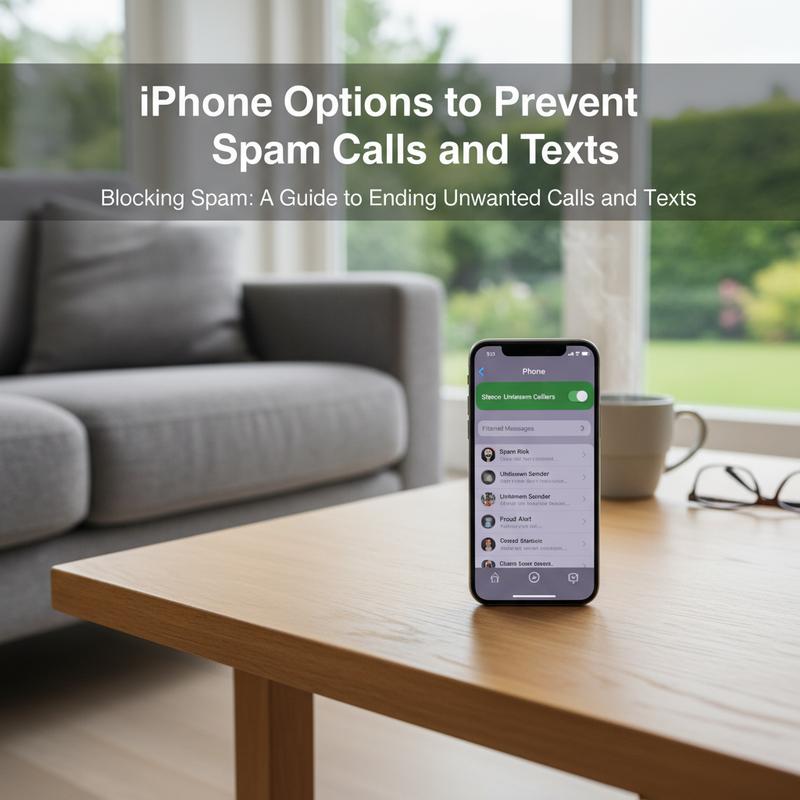
Spam calls and texts are everywhere, and iPhones get hit just as much as anything else. The good news is iOS has several built-in settings that can quiet things down a lot if you turn them on and use them together.
Silence Unknown Callers is one of the most helpful starting points. Go to Settings > Phone > Silence Unknown Callers and switch it on. Calls from numbers that aren’t in your Contacts, recent calls, or Siri Suggestions go straight to voicemail. You won’t get interrupted, but you can still check the voicemail transcript later in the Phone app. This feature (added in iOS 13) has been reported by carriers as blocking up to 90% of spam calls, though it can also silence legitimate one-time calls.
For spam texts, turn on Filter Unknown Senders under Settings > Messages > Filter Unknown Senders. This puts messages from unknown numbers into a separate “Unknown Senders” tab and keeps them from triggering notifications. Thing is, it doesn’t fully block them—they still arrive, just away from your main inbox so you’re less likely to reply or click something risky.
If a specific number keeps bothering you, you can block it manually. In Recents or in a message thread, tap the info (i) icon and choose Block this Caller. You can review and manage blocked numbers anytime under Settings > Phone > Blocked Contacts or Settings > Messages > Blocked Contacts. Reporting messages or numbers as junk can also help improve Apple’s spam detection over time.
Your carrier can help too. AT&T, Verizon, and T-Mobile all offer extra spam filtering that works alongside iOS. Depending on the service, calls can get labeled “Spam Likely” or high-risk numbers can be blocked automatically. Networks using STIR/SHAKEN have helped cut spoofed calls by about 70%, which pairs nicely with iPhone’s built-in settings.
Apple’s newer tools keep expanding as well. iOS 18.1 and later includes Live Caller ID and Silence Junk Callers, which uses real-time AI to label incoming calls. And features like Communication Limits and Safety Check can help you tighten who can contact you, especially when you want fewer distractions.
If you want even stronger filtering, third-party apps like Truecaller and RoboKiller are popular picks. They often catch more spam than default settings alone. That said, the best results usually come from stacking tools: iPhone settings + carrier protections + an app if you need it.
Putting it all together gives you a solid shield against spam. It won’t be perfect, but it’ll be quieter. Keep iOS updated, check your settings once in a while, and adjust based on what’s still getting through.
General Ways to Cut Down Spam Calls and Texts
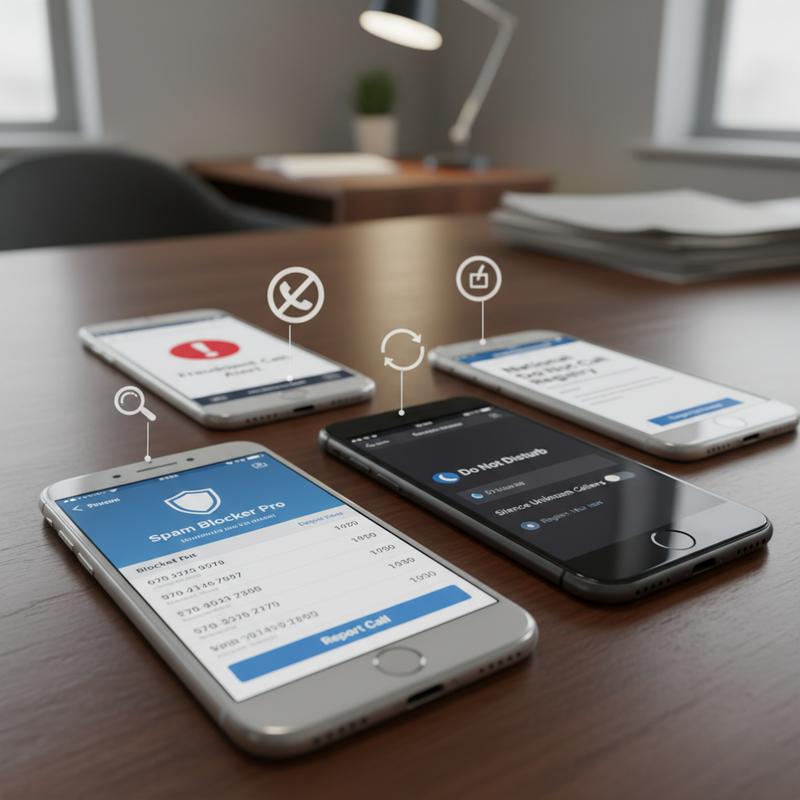
Spam calls and texts are the annoying tradeoff of how easy it is to reach people now. The best way to reduce them is to mix phone settings, carrier tools, and a few smart habits.
Start with built-in device features because they’re free and already on your phone. Android and iPhone both include options to filter spam calls and separate unknown messages. On Android, you can turn on spam protection in the Google Phone app by going to Settings and enabling ‘See caller and spam ID’ plus ‘Filter spam calls.’ Pixel phones also offer scam detection and call screening that can interact with callers before you deal with them. On iPhone, ‘Silence Unknown Callers’ helps keep random calls from interrupting you. And both Phone and Messages apps have filters that help keep suspicious texts away from your main inbox.
Carrier-specific tools matter too, because they can stop spam before it even hits your phone. Options like AT&T’s ActiveArmor, Verizon’s Call Filter, and T-Mobile’s Scam Shield can flag likely spam, block suspected junk, and let you manage your own block lists. Many of these also use STIR/SHAKEN to verify caller ID info, which makes spoofing harder.
If you want more control, third-party apps can help you get picky about what you allow through. Some apps can block calls and texts based on patterns or number ranges, not just individual numbers. Android apps like Call Blocker and SMS Blocker can be set to reject private numbers or allow only contacts. iPhone apps have fewer deep controls because of iOS limits, but apps like Simple Call Blocker can still help with number range restrictions.
Then there are preventive habits that reduce how often your number ends up on spam lists. Put your number on government Do Not Call lists (it won’t stop criminals, but it can cut down legit telemarketing). Use a secondary number for sign-ups and one-off purchases when you can. It also helps to check your public profiles and data broker listings and remove your number where possible. And for work, VOIP services or virtual numbers can keep your personal line from getting exposed.
Even with all of that, nothing blocks everything. Still, if you keep your phone updated and report repeat offenders to your carrier, you’ll see a real drop in spam. A layered setup is the best way to stay in control in an always-connected world.
Third-Party Apps and Carrier Tools
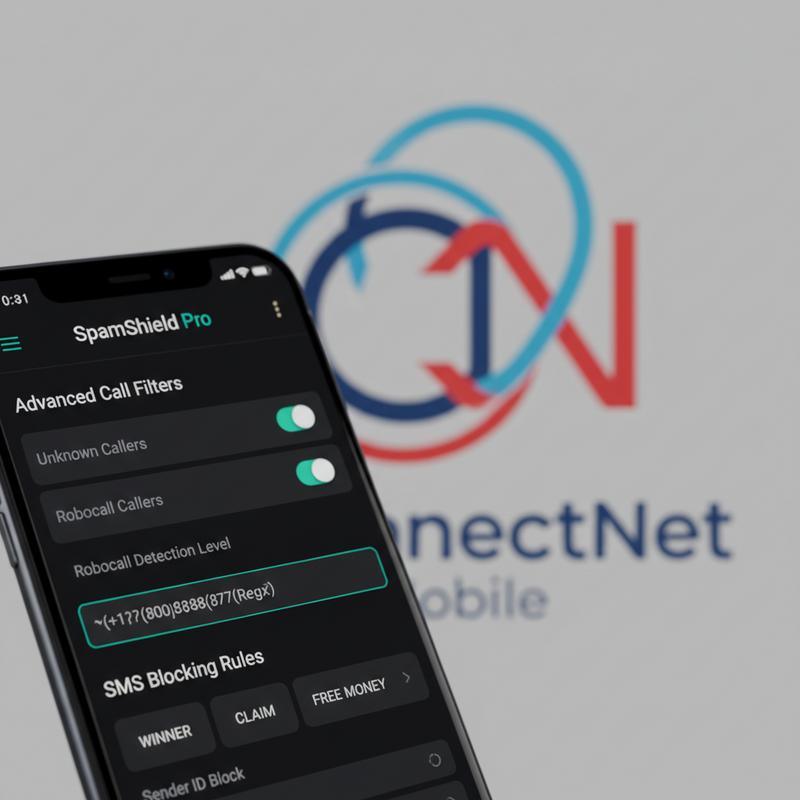
Spam calls and texts can feel endless. Built-in phone settings help a lot, but carrier tools and third-party apps can take things further if you’re still getting hammered by junk calls.
Most carriers offer their own spam controls. Verizon, AT&T, and T-Mobile all have filtering tools that try to spot spam before you answer. Turning these on can noticeably cut down what gets through. Verizon’s Call Filter and AT&T’s ActiveArmor can label suspicious calls so you get a heads-up before picking up, and they often let you block quickly. T-Mobile’s Scam Shield does labeling too, and includes options to block calls outright. These systems work best when their spam number lists stay current, which is why updates matter.
Signing up for the National Do Not Call Registry (via donotcall.gov) can help reduce legitimate telemarketing calls. But scammers usually ignore rules and often operate outside the reach of local enforcement. So, it’s a good step, just not the only step.
Third-party apps can add more control, especially if your spam problem is specific. On iPhone, apps like Simple Call Blocker can block number ranges, which can help if you’re getting hit by a bunch of similar numbers. Call Ranger uses a large database and lets you customize blocking rules based on what you care about most.
Android users usually get more flexibility here. Some apps support regex rules, which lets you block patterns (like certain prefixes or international formats) or only allow selected contacts at certain times.
Now, it’s smart to start with your phone’s built-in tools first, then add extras only if you need them. If you’re trying apps, free trials are useful so you can see what actually works for your situation. It can take a little tweaking, but once it’s dialed in, the quiet is worth it.
Spam won’t disappear completely, because spammers keep changing how they operate. But with carrier filters plus the right app (and a bit of monitoring), you can keep most of it out of your day.
Wrap-up
Stopping spam calls and texts works best when you stack a few methods. Use your phone’s built-in tools first, add general habits that reduce exposure, and bring in carrier or third-party options if you need extra help. Nothing blocks everything, but if you stay on top of updates and keep adjusting what you use, you’ll cut way down on the interruptions and stay ahead of new spam tactics.
Want a hand getting your phone set up to block spam calls and texts? Reach out to IT Carolina and we’ll help you sort it out.
Learn more: https://itcarolina.com/about/
About us
IT Carolina helps people set up and improve their tech when they’re fed up with constant spam interruptions. Along with gaming and entertainment optimizations, we also offer guidance and tech setup support to keep your phone and digital life easier to manage. You can count on IT Carolina to tune more than just your entertainment devices—we’ll help clean up your overall tech setup so it stays smooth and a lot quieter.