Two-Factor Authentication (2FA) adds an extra step that helps keep your digital identity safe. Online threats change all the time, so it’s smart to lock down your accounts before someone else tries to get in. This guide walks you through what 2FA is, how to set it up, and how to use it on your everyday accounts. You’ll also find out why it matters, how to turn it on for different platforms, what to try if something goes wrong, and a few habits that help you stay protected long-term. Each section builds on the last, so you end up with a clear, practical understanding of how to tighten up your online security.
Why Two-Factor Authentication Matters
Understanding and Implementing Two-Factor Authentication (2FA) is one of the simplest ways to make your accounts harder to break into. The idea is pretty basic: you need two separate proofs it’s really you. Usually that’s something you know (your password) and something you have (a code on your phone) or something you are (like a fingerprint). So even if someone gets your password, they still hit a wall.
2FA helps because passwords alone are easy to mess up. They get leaked, guessed, reused, or stolen through phishing. With 2FA turned on, a stolen password isn’t enough. The second step might be a knowledge factor (password or PIN) plus a possession factor (SMS code, authenticator app code, or a hardware key) or an inherence factor (fingerprint or face ID). If the attacker only has the password, they’re stuck.
How it works is simple: you enter your password, then you confirm with a second factor within a short window, usually 30 to 90 seconds. This slows down credential stuffing attacks (where bots try leaked passwords at scale) because the attacker still can’t get past the second check. And it can help against phishing too, especially if you use physical keys that support FIDO2, since those check the site is legit before finishing the sign-in.
2FA isn’t just about your personal accounts, either. It can cut down the odds of break-ins on email and cloud accounts, and it can help protect sensitive data—especially when breach costs can climb past $4 million. For businesses, turning on 2FA shows customers and users you take security seriously. And if you work remotely, it’s a big help because it keeps access to company tools safer no matter what network you’re on.
Still, 2FA isn’t perfect. SMS codes can be targeted with SIM-swapping, which is why app-based codes or hardware keys are usually the better pick when you have the option. For the best results, turn 2FA on for your important accounts, watch for high-risk sign-ins (new devices or locations), and pair it with strong, unique passwords.
Want more ways to protect your accounts from newer scams, including AI-powered ones? Take a look at our guide on AI voice cloning family scam protection. Keeping up with what’s changing online really does matter.
So no, 2FA won’t fix everything. But as threats keep growing, it’s one of the most useful and practical ways to strengthen your account security. You’re not just protecting data—you’re protecting your peace of mind.
How to Turn On Two-Factor Authentication
Online threats are everywhere, and two-factor authentication (2FA) is one of the easiest ways to make sure a stolen password doesn’t turn into a stolen account. It asks for two kinds of proof: something you know (your password) and something you have (like a one-time code from an app). Once it’s on, it becomes a big speed bump for anyone trying to break in.
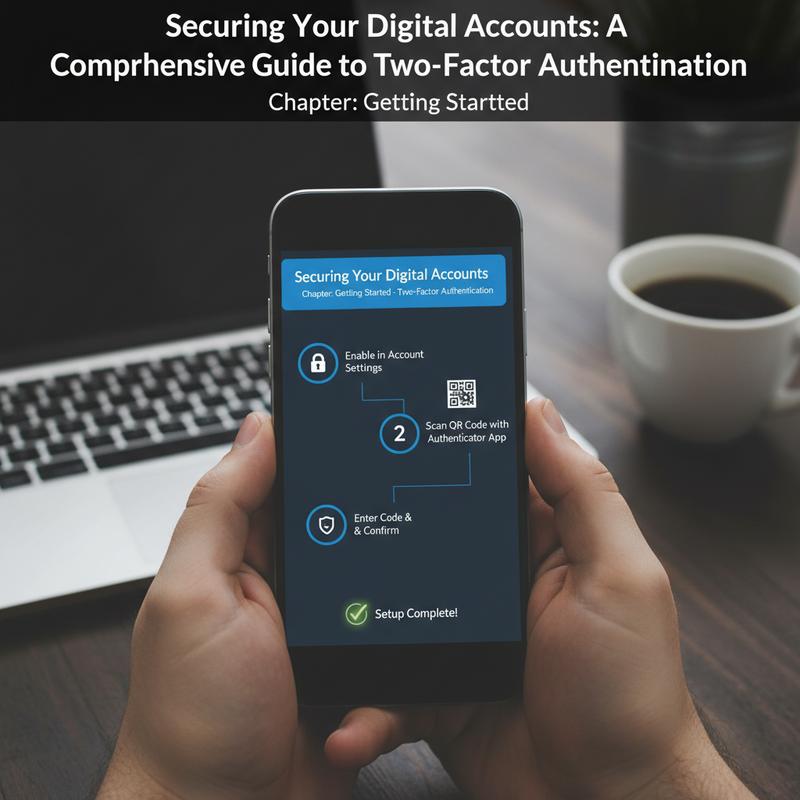
To get started, head to your account settings. After you log in, look for areas like “Security” or “Privacy.” The option might show up as “two-step verification” or “multi-factor authentication.” Turn it on, and you’re already in a better spot than most people.
Next comes picking your method, and this part matters. An authenticator app (like Google Authenticator or Microsoft Authenticator) is usually the safest everyday option because it uses time-based, one-time passwords (TOTP) that constantly change. Text message or email codes can work too, but they’re easier to intercept. If you want the strongest option available, go with security keys. They’re physical devices that use encryption and avoid a lot of the usual software-based risks.
One setup step you’ll see a lot is the QR code scan. If you’re using an authenticator app, you’ll scan a QR code (or type in a setup key). That links your app to the account so it can generate the login codes going forward.
To finish, you’ll enter a verification code—usually a six-digit number—to confirm everything is working. And don’t skip the recovery codes. Those are your backup if you lose your phone or can’t get a code. Store them somewhere safe, like a trusted password manager.
Now, do a test of your setup. Log out, then sign back in. After your password, you should be asked for the second code. If that happens, you’re good.
Start with your most sensitive accounts first—anything tied to money or identity. That usually means banking, credit cards, your main email, and social media. If someone gets into those, it can snowball fast.
A few habits help a lot. If you’re using email codes, make sure 2FA is also turned on for your email account. And treat verification codes like passwords: never share them, even if someone claims they’re support.
Once you build this into your routine, it stops feeling like a hassle and starts feeling normal. And while nothing is 100% secure, 2FA makes you a much harder target. If you want more email security tips, you can also read is your ex reading Gmail.
Set Up 2FA on Different Platforms
Better Security on Common Platforms
Keeping accounts safe matters, and two-factor authentication (2FA) is one of the most effective ways to do it. It adds a second check on top of your password, so even if your password gets exposed, someone still can’t just log in. That second step might be a code from an app, an SMS message, or an email.
Setting up 2FA is usually pretty quick, but the exact clicks vary by platform. Most sites keep it under “Security” or “Account Settings.” Look for labels like “Two-Factor Authentication”, “2FA”, or “Multi-Factor Authentication.” From there, you’ll typically scan a QR code with an authenticator app or type in a secret key by hand.
General Steps for Setting Up 2FA
Log into your account and open the security settings. Find the 2FA option and enable it. You’ll be guided to scan a QR code using an authenticator app like Google Authenticator or Authy, or to enter a secret key manually. Then you’ll type in the six-digit code from the app to confirm. Save the backup codes you’re given, or set up recovery options like a backup phone number or email, so you don’t get locked out if you lose your device.
And don’t forget to test it. Log out, then log in again. You should be asked for your password and the app’s code. If that works, you’re set.
Platform-Specific Insights
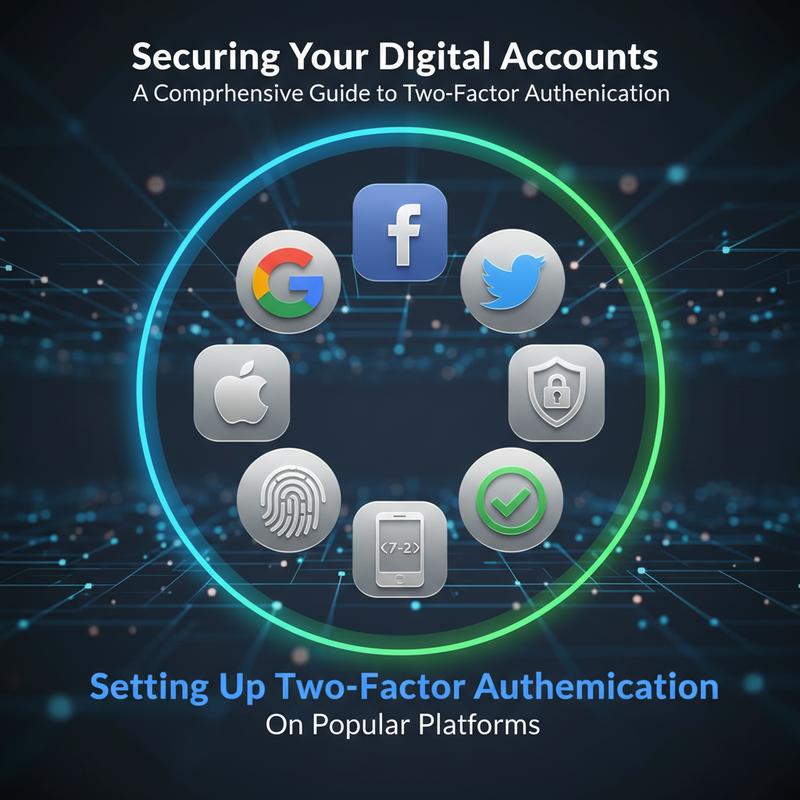
Different platforms handle the flow a little differently based on their layout. CivicPlus/SeeClickFix, for example, has you switch from email-based to app-based authentication using TOTP apps, under the ‘Password & Security’ tab. Upmetrics has a similar process under the ‘Profile icon’ in ‘Account Settings’, where you scan a QR code and can use a fallback email if you run into problems. Splashtop users go to ‘my.splashtop.com/account_info’, and it supports several authenticator apps and requires a backup phone number. Built allows either SMS or app-based authentication through ‘id.getbuilt.com’. And on WordPress, plugins like Loginizer let admins set up options like email OTPs or app authentication, sometimes based on user roles.
For the best protection, turn on 2FA wherever you can. If there’s an app-based option, pick that over SMS since SMS is more exposed to SIM-swapping. If a platform doesn’t explain it well, check their official help center under security settings. And keep your backup codes somewhere safe (a password manager works well) so you don’t get locked out. If you hit a wall, support can usually help reset 2FA after they verify it’s you.
If you want a better sense of how your online activity can create risk—and how 2FA helps reduce it—check out this guide on digital dossiers and privacy risks.
Fixing Common 2FA Problems
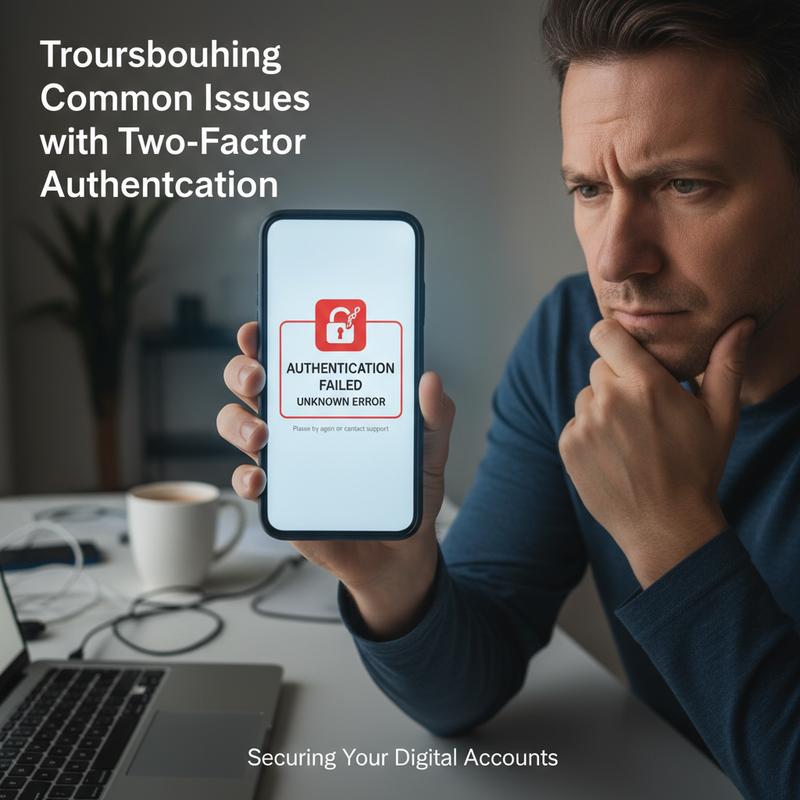
Two-factor authentication (2FA) is a big win for security, but it can be annoying when something doesn’t work. Thing is, most issues have simple fixes. Knowing what to check makes the whole experience way less stressful.
One of the most common problems is time sync. Authenticator apps (like Google Authenticator) depend on accurate time to generate valid codes. If your phone’s clock is off, codes can get rejected over and over. On an iPhone, go to Settings > General > Date & Time and make sure “Set Automatically” is on. Android users can check under Settings > General Management > Date & Time. On Windows or Mac, make sure your system clock is set to update automatically too. Once your time matches the server, code errors usually stop.
Expired or incorrect codes are another frequent issue. Most codes only last 30 seconds, so an older one won’t work. Use the newest code your app shows. And if you have multiple accounts in the same app, double-check you’re looking at the code for the right account. It’s an easy mistake.
Sometimes the problem is the authenticator app or your browser. Apps can glitch after updates. Try restarting the app, or reinstalling it if needed. If you’re still stuck, remove any service-specific tokens and clear your browser cache and cookies. That can fix laggy or broken verification screens. And in the browser, try clicking “Verify” instead of pressing Enter—Enter can refresh the page and mess up the login flow.
Your connection can also be the culprit. A weak or unstable internet connection can interrupt the verification step. Switch networks (Wi-Fi to mobile data, or the other way around) and try again.
Then there are the situations where you don’t have your main verification method—like losing your phone. That’s exactly what backup codes are for. If you saved them during setup, use one to get back in. Keep those codes somewhere secure (a password manager is a good option). If you don’t have backup codes and your alternate methods (SMS/email) aren’t working, you’ll likely need to contact the service’s customer support for help or a 2FA reset.
To prevent headaches later, avoid leaning on SMS if you can, since it’s more exposed to attacks like SIM-swapping. App-based codes or hardware keys are usually safer. And yes, disabling 2FA can be tempting when you’re frustrated—but treat that as a last resort and turn it back on as soon as you can.
If you’ve tried the basics and it’s still not working, support from the service itself is usually the fastest path forward. Once you know the common fixes, 2FA gets a lot easier to live with—and you keep the stronger protection in place.
2FA Best Practices
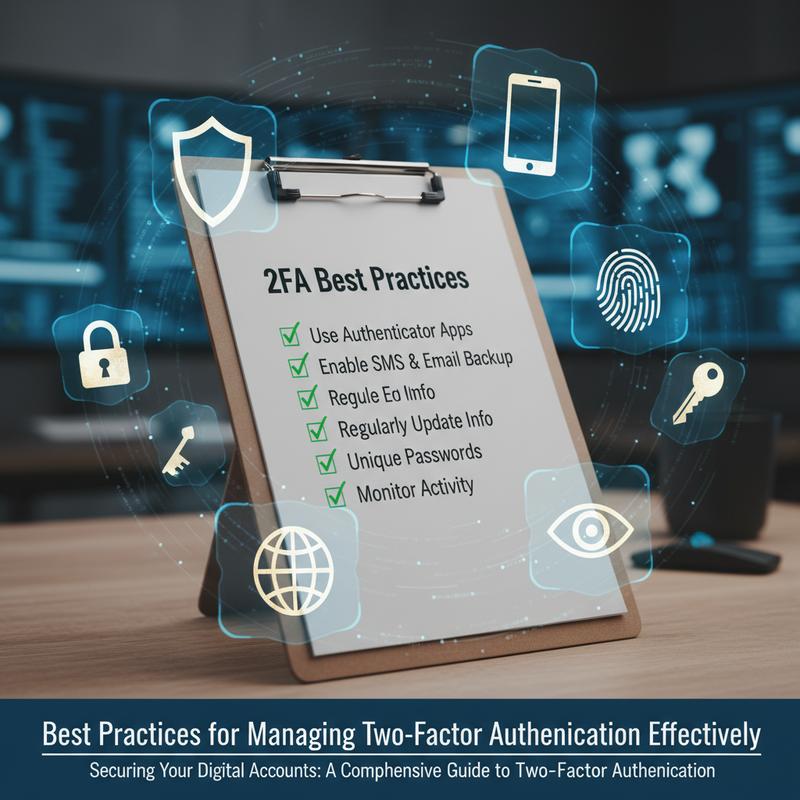
Cyber threats keep changing, and two-factor authentication (2FA) is one of the best defenses against someone sneaking into your accounts. But getting the most out of 2FA isn’t just about turning it on once and forgetting it. It’s about picking the right method, setting it up smartly, and keeping your recovery options in order.
First up: choose the safest method you can. SMS is common, but it can be hijacked through SIM swapping or phishing tricks. If you have the option, go with authenticator apps or hardware security keys instead. Apps like Google Authenticator or Microsoft Authenticator generate time-based codes offline, which helps avoid carrier issues and reduces exposure. Hardware security keys (including ones that use FIDO2 or NFC) are even better in many cases. They use encryption and don’t rely on codes that can be intercepted.
When you’re setting up 2FA, start with accounts that could cause the most damage if someone gets in—email, banking, social media, and payment platforms. Follow the prompts in account settings and turn on 2FA. Many services also offer trusted device options, which can reduce how often you’re asked for a code on your personal devices. That said, don’t use trusted devices on shared or public computers.
Recovery options matter just as much as setup. Backup codes should be protected like passwords and stored securely, ideally offline. If your main 2FA method stops working, recovery options like a secondary email or support verification can help you get back in. Setting up more than one backup method (like a second device) can also help avoid getting locked out.
It’s also worth checking your security settings now and then. Review account access, remove old devices you don’t use anymore, and revoke app permissions that don’t need to be there. And stay alert for phishing—never share verification codes, no matter how official the message looks.
Now and then, take a minute to read the security tips inside the apps you use and keep your settings updated. In a business setting, it’s smart to require multi-factor authentication for sensitive systems (especially admin and financial access) and to get feedback from users so the process doesn’t become a daily headache.
When you stack smart choices—better authentication methods, good setup habits, and regular check-ins—2FA becomes a strong barrier against stolen passwords and automated attacks. If you also want to understand how your broader online footprint can raise your risk, take a look at this guide on managing your digital dossier.
Done right, 2FA protects your accounts without turning every login into a chore—and it helps make your overall online life a lot safer.
Final thoughts
Turning on Two-Factor Authentication adds a real layer of protection to your online life. This guide covered the basics, why it matters, how to set it up, what to do when it breaks, and the habits that keep it working smoothly. Threats aren’t slowing down, so putting 2FA on your accounts isn’t just a nice extra—it’s something you really should do. Keep it on, keep your recovery options safe, and you’ll be in a much better place.
Want a hand getting 2FA set up everywhere? IT Carolina can help you get it sorted without the hassle. Don’t wait until something goes wrong.
Learn more: https://itcarolina.com/about/
About us
At IT Carolina, we’re here to help you lock down your digital life. We can walk you through setting up two-factor authentication across your accounts, so your data and devices are better protected from hackers and online threats. Whether you’re a gamer, a remote worker, or just someone who wants fewer worries online, we keep things simple and help you get it working without the frustration. Count on IT Carolina to keep you protected and keep your tech running smoothly.