Is your Windows PC starting to feel slow? The good news is you can usually speed up an older system with free tools that help clean things up and cut down on background junk. By tackling common problems like telemetry and too many startup apps, these tools work well on Windows 7 through 11. In this guide, we’ll go over a few useful options that can turn off annoying services, help your PC handle multitasking better, and improve day-to-day speed. Whether you’re new to this or you’ve done it before, these fixes can make troubleshooting and software installs a lot less painful, and help your PC run faster and more smoothly.
Free Tools to Speed Up an Old PC
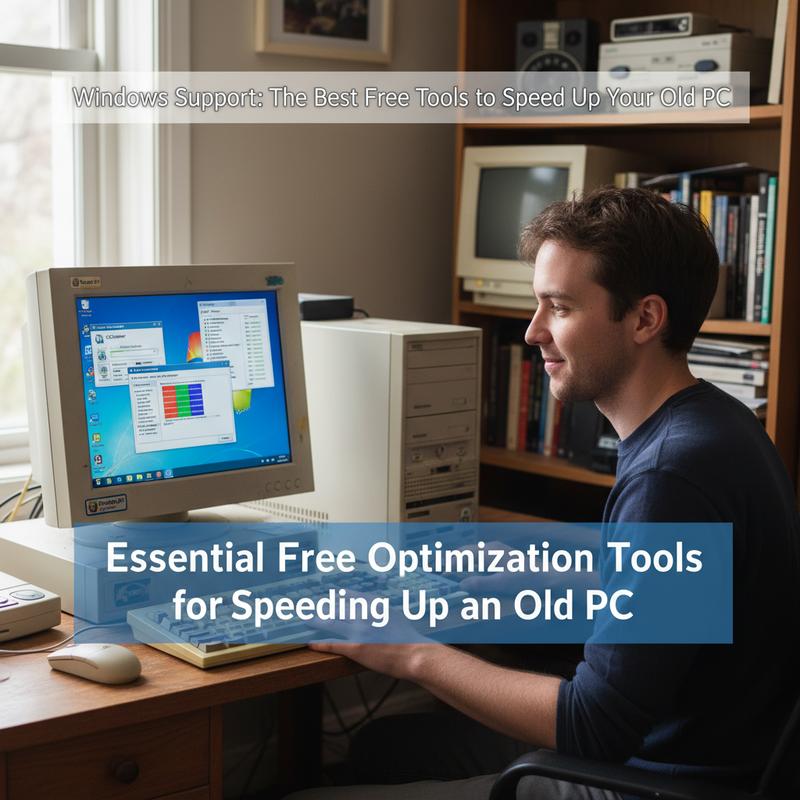
Speeding up an older PC usually comes down to using a few focused tools that improve performance without eating up the limited resources you’ve got. The best free utilities let you shut off stuff you don’t need, reduce background telemetry, and clear out system clutter—exactly the kind of cleanup that can make an older Windows machine feel snappy again.
One solid open-source tool can automatically disable telemetry, Cortana, and other heavy background services most people never even notice. It can also remove pre-installed bloatware, cut down your startup list, and clean the registry, which helps reduce boot time and can improve stability on Windows 7 through 11.
On top of that, there are simple tweak tools that apply common Windows changes for you and help remove software you don’t want. Thing is, they’re built for people who don’t want to dig through settings for hours. You get a safer way to improve Windows support and performance while keeping the system stable, which matters a lot during troubleshooting.
Microsoft’s built-in Performance Monitor can also help, with quick performance checks plus storage and file cleanup tools. It clears caches and removes old files that can slow things down, and it’s a dependable option if you’d rather stick with Windows features instead of third-party apps. Pair it with a debloating tool and you can usually see a real improvement in responsiveness.
Other helpful basics include lightweight memory tools that free up RAM on the fly when multitasking starts to drag. Hardware monitors can track temps and fan speeds so your PC doesn’t throttle from heat, which is common on older machines. And disk cleaners can clear temporary files and cached data, which can speed up startup and general load times.
If you want the smoothest results, do things in order: start with cleanup, then deal with services and startup programs, and then move on to hardware monitoring. But skip aggressive registry cleaners—they can cause weird instability. You’ll get more value by limiting background apps, keeping drivers updated, and turning off telemetry-heavy features you don’t need.
These free tools—especially the open-source and official ones—can deliver noticeable speed improvements and give you more control than many paid options. And since you can see exactly what they change, it’s easier to tune things to your PC while also cutting down on bloat and improving privacy.
To avoid problems, only download tools from official sources like trusted repositories. And after you make changes, check Task Manager before and after so you can confirm what actually improved.
And for extra safety, set a system restore point before you start. You can follow the steps in this article on how to set up a Windows restore point.
When you mix the right free tools with a few smart habits, you can make an old Windows PC feel faster again and keep it going longer—without buying new hardware.
Using Free Tools Together for Better Performance
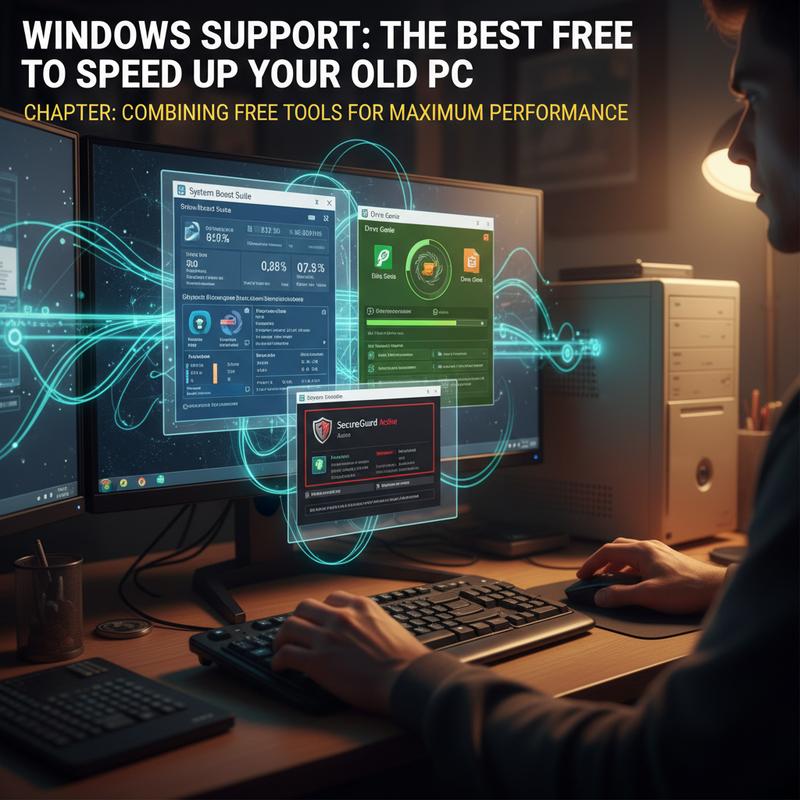
You can get a lot more out of an aging PC when you combine the right free tools instead of relying on just one. A simple layered approach—bloat removal, junk cleanup, light hardware tuning, and memory cleanup—tends to bring the best results without spending money on upgrades.
Start with debloating and basic system tweaks using lightweight open-source tools that disable telemetry, turn off unnecessary services, and manage startup programs. They can also shut down background processes like Cortana, OneDrive, and certain automatic update triggers that run quietly in the background. Running these tools one after the other can improve privacy and give you more control, while still keeping the system stable and responsive.
Next, run a trusted cleanup utility to remove temporary files and carefully tidy up the Windows registry. This clears out clutter that can slow file access and drag down background performance. Many of these tools also make it easy to review startup items and background tasks, which helps you do more focused maintenance than you’d get from standard Windows support features alone.
For hardware-level gains—especially on older CPUs and GPUs—some free apps can help you tune safely. Tweaking GPU clock speeds and fan curves can reduce thermal throttling, which is often what causes sudden lag and frame drops. And adding a lightweight memory optimizer can help keep RAM use under control so multitasking feels smoother.
You can also squeeze out extra improvement by disabling startup entries that the first tools missed. Autorun viewers show everything that launches at boot, so you can fine-tune boot time and reduce background load. If heat is the issue, fan control tools can help keep temperatures steady so performance doesn’t dip.
In most cases, you’ll want to debloat and clean first, then do any hardware tuning after. And don’t guess—measure. Check CPU, RAM, disk usage, and even frame rates before and after so you know what worked. Always create a system restore point before you make changes, just in case something doesn’t play nice.
With the right mix of free tools, Windows users can get real speed gains by cutting background waste and improving hardware efficiency. That means you can often skip pricey software and avoid upgrades, and just focus on simple changes that carry low risk. For extra safety during changes or troubleshooting, use how to set up a Windows restore point to protect your system.
Done right, these steps can make an older PC feel quicker and easier to live with, while also making troubleshooting and software installs a lot simpler.
File Management Tools That Help Speed Up an Old PC
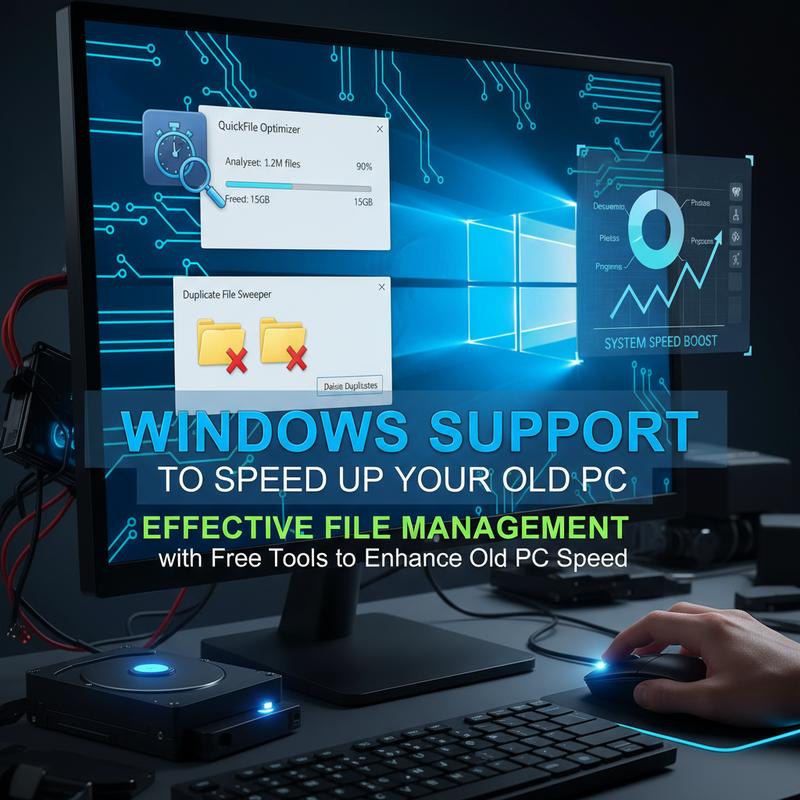
Good file management can make a bigger difference than people expect, especially on older PCs. Over time, storage gets packed with duplicates, old downloads, and random files spread everywhere, and that mess can slow even a decent system down. Luckily, there are free, lightweight tools that help you organize and clean up without putting extra strain on older hardware.
Some file managers are much faster than the default Windows File Explorer, and they’re built for bulk tasks. Batch renaming, mass deletes, and duplicate file searches can free up space and cut down on fragmentation—two things that can hurt performance on older computers. Many of these tools also use multi-core processing and advanced search options like regular expressions, so they can sort through thousands of files quickly.
Dual-pane and tabbed layouts help too, since you won’t be opening and closing a bunch of windows. That can reduce CPU and memory use and keep multitasking smoother. And if you use a portable version that runs without installation, you avoid changing system files and keep resource use low.
When you delete junk and organize your folders, your hard drive has less work to do. That speeds up file access and can shorten boot times. Some tools even include secure wipe options, so deleted files don’t linger in ways that can cause issues later. Used alongside Windows’ own cleanup and defragmentation tools, you may even recover 20% to 50% of disk space, which is a big deal on older systems.
To get going, download a trusted portable file manager, look for large or unused folders, and use bulk actions to remove duplicates and files you don’t need. Tags and advanced search features can also make it easier to keep things organized over time.
Keeping storage clean is a simple but often ignored part of troubleshooting. It supports other performance tweaks and helps prevent slowdowns caused by messy, overloaded drives. If you want extra protection while making changes, setting up a Windows restore point is a smart move.
Once your files are under control, older PCs usually feel faster in daily use, and your other optimization work tends to stick better too.
Free Tools for Privacy and Speed on an Old PC
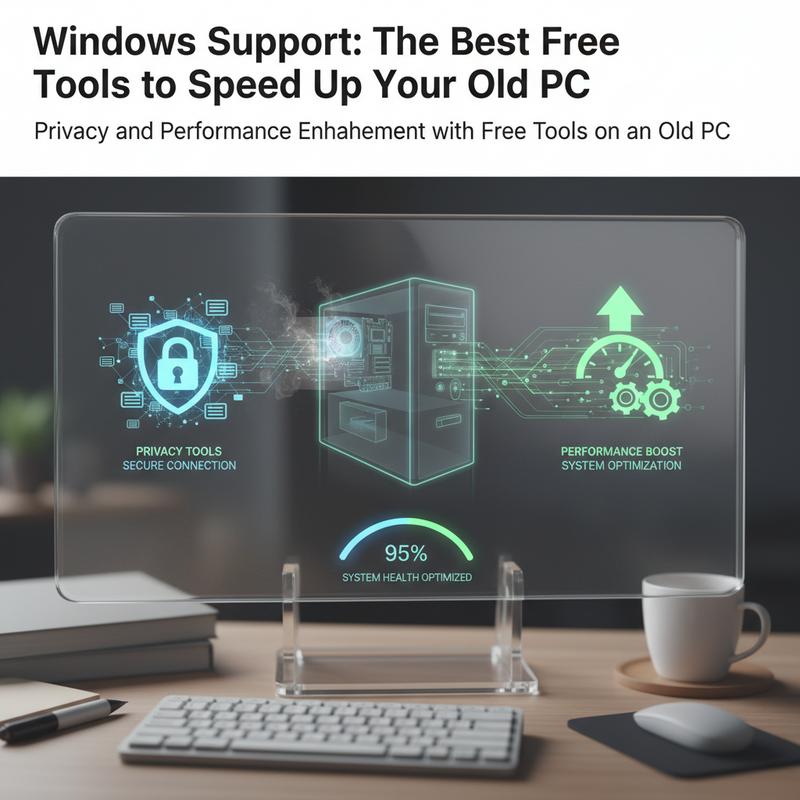
Older PCs can struggle with constant background activity that eats resources and can put your personal data at risk. Still, you don’t have to spend money or wrestle with complicated installs to improve things—there are free, lightweight tools that help with both privacy and performance.
Encrypting important data is one of the most reliable privacy upgrades you can make. Free, open-source encryption tools can protect your files with very little performance hit. For example, disk or container encryption commonly uses AES standards to keep data safe if the device is lost or stolen. And file-level encryption lets you lock down individual files quickly, which helps keep older systems responsive.
For online privacy, switching to a browser that’s built to be lighter and more private can help right away. Many privacy-focused browsers block trackers and ads by default and use less memory than bigger mainstream browsers. Pairing that with a non-tracking search engine reduces data logging and sharing. And using anonymizing networks can hide your IP address and cut down on unwanted tracking without hammering the CPU.
Before you repurpose or get rid of an old PC, Windows also includes built-in commands to securely wipe free space so deleted files can’t be easily recovered. That’s a good fit for older machines since it avoids the extra overhead that some third-party tools bring.
You’ll also notice speed improvements when you combine privacy tweaks with basic cleanup tools that remove junk files, old caches, and unnecessary startup apps. Less background work means lower RAM and CPU use, quicker boot times, and smoother performance overall.
Browsers that block trackers also reduce slowdowns caused by heavy scripts and ads. And tools that disable telemetry and background syncing can free up CPU time, sometimes cutting boot times by up to 40%. It also reduces constant network activity that can drag performance down.
For regular upkeep, Windows’ Disk Cleanup tool is still a solid option and doesn’t add extra bloat. When you combine it with encryption and a lightweight private browser, you can keep a good balance between speed and protection.
With a few of these changes, an older PC can stay quicker and better protected from tracking and data exposure. And since they’re free and light on resources, they fit nicely alongside standard troubleshooting steps.
Final thoughts
Using the right free tools can go a long way in speeding up an older PC and making it more reliable. If you focus on both privacy and performance, tools like Optimizer, O&O ShutUp10++, and PowerToys can help you cut down on bloat, tighten settings, and keep Windows running smoother without spending a dime. With a bit of setup, troubleshooting and software installs get easier too. And once you see the difference, it’s hard to go back.
Is your old Windows PC starting to drag? Try a few of these free tools and see what kind of speed you can get back.
Learn more: https://itcarolina.com/about/
About us
At IT Carolina, we help older Windows PCs run better without pushing you into expensive upgrades. Our team can help you clean out bloatware, speed up startup, and tighten things up using trusted tools and practical steps. Whether you’re trying to keep a home office machine going a little longer or just want your everyday computer to feel less sluggish, we handle the messy technical stuff and focus on real, noticeable improvements. If you want more out of the devices you already own, we can help you get there.