
Benefits of All-in-One Printers for Home Offices
The transition to remote work and the rise of the entrepreneurial home office have fundamentally changed how we design our workspaces. A few years ago, a home office might have consisted of a simple laptop on a dining table. Today, professionals require a fully functional hub capable of handling contracts, invoices, creative mockups, and administrative paperwork. Central to this productivity hub is the modern document management system: the printer with scanner and copier.
Gone are the days when you needed a massive, clunky machine taking up half your room just to print a single document, alongside a separate flatbed scanner and a standalone copying machine. Today’s technology has merged these necessities into sleek, efficient units. Investing in a multifunction printer is no longer just a luxury; it is a strategic decision that saves time, reduces overhead, and streamlines your entire daily workflow.
In this comprehensive guide, we will explore the myriad benefits of integrating a unified printing, scanning, and copying device into your home office. We will dive deep into choosing the right technology for your specific needs, walk through advanced setup techniques, and provide expert maintenance tips to keep your device running smoothly for years to come.
The Evolution of the Home Office Printer
Historically, home printers were single-function devices. If you needed to digitize a signed contract or make a copy of your tax returns, you either had to purchase additional hardware or make a time-consuming trip to a local print shop.
The introduction of the multifunction printer (MFP) revolutionized this dynamic. By combining a printer, scanner, and copier (and occasionally a fax machine) into one single chassis, manufacturers created the ultimate productivity tool.
But why exactly is this convergence so beneficial for the modern professional? Let’s break down the primary advantages.
1. Ultimate Space Efficiency
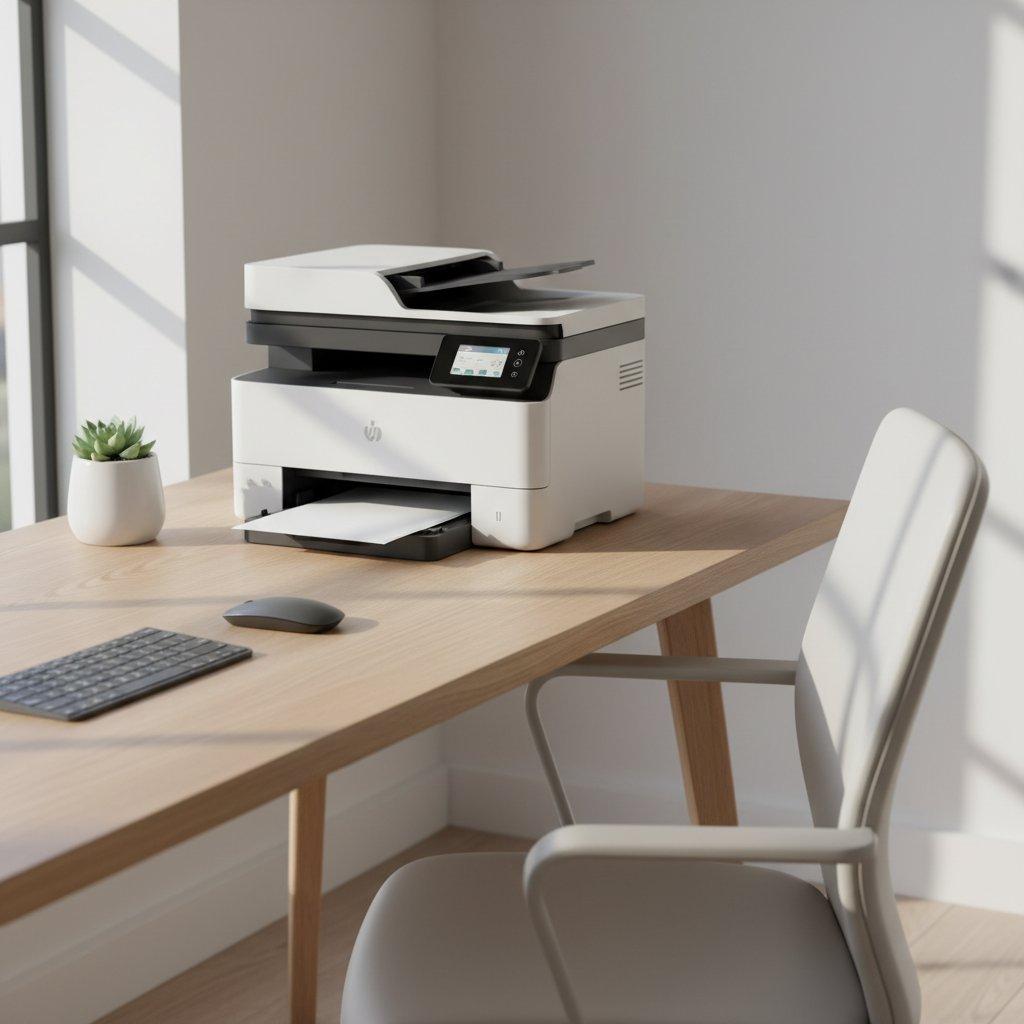
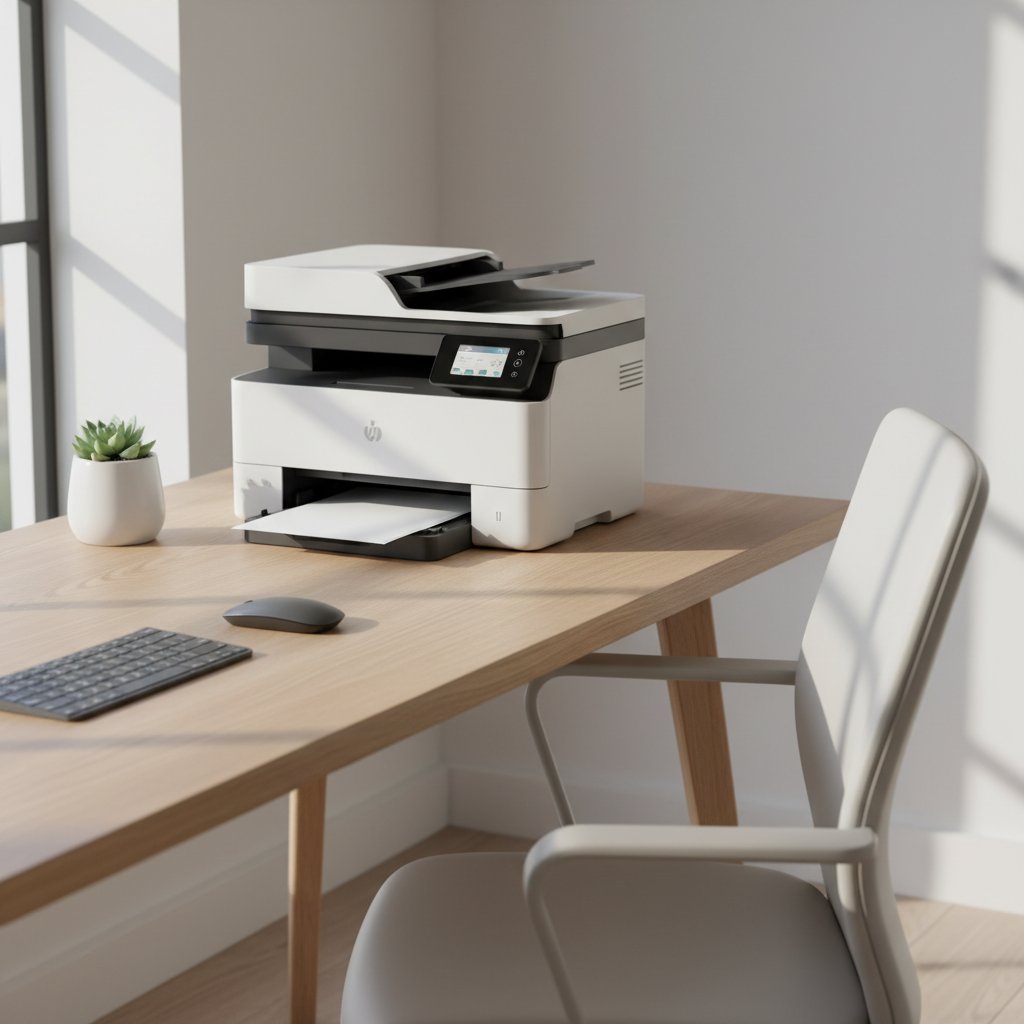
Space is often the most limited resource in a home office. Whether you are working out of a dedicated spare bedroom or a converted closet, real estate matters. Opting for a unified printer scanner copier eliminates the need for three separate bulky machines. Modern engineering has allowed manufacturers to create incredibly compact devices for small workspaces without sacrificing speed or output quality. You can easily tuck a high-performing all-in-one unit onto a bookshelf, a small filing cabinet, or the corner of your desk.
2. Significant Cost Savings
Purchasing three separate devices—a printer, a standalone scanner, and a copier—requires a significant upfront investment. Furthermore, powering three separate machines increases your energy consumption. A unified device requires only one power outlet, draws less electricity overall, and shares the same internal components to perform multiple tasks, making it vastly more economical from day one.
3. Streamlined Workflow and Convenience
Imagine receiving an urgent contract via email. With an all-in-one device, you can print it, sign it with a pen, scan it back into your computer, and email it to your client—all without leaving your chair. This frictionless workflow minimizes distractions and keeps your focus where it belongs: on your actual work.
Choosing the Best Multifunction Printer for Home Office Use
When you begin shopping for an all-in-one device, you will quickly realize that the market is flooded with options. Finding the best multifunction printer for home office use requires understanding your specific printing habits, volume, and quality requirements.
Understanding Printer Technologies: Inkjet vs. Laser vs. Ink Tank
The most critical decision you will make is choosing the right underlying print technology. This decision dictates not only the upfront cost of the machine but also your long-term operating expenses.
Traditional Cartridge Inkjet
Traditional inkjet printers are incredibly cheap to purchase upfront. They use liquid ink sprayed through microscopic nozzles onto the paper. They are excellent for casual home use and are generally quite compact. However, the replacement cartridges can be notoriously expensive, and the ink can dry out if not used regularly.
Laser Printers
Laser printers use a powdery substance called toner, which is fused onto the paper using a heated drum. Laser printers are champions of text. If you print hundreds of pages of text-heavy documents (like manuscripts, legal briefs, or contracts) per month, a laser printer offers unmatched speed and razor-sharp text. But what about color? When evaluating color laser vs inkjet for photo printing, inkjet almost always wins. Color laser printers are fantastic for business graphics, pie charts, and flyers, but they cannot replicate the deep, nuanced color blends required for high-quality glossy photography.
Continuous Ink Supply Systems (Ink Tanks)
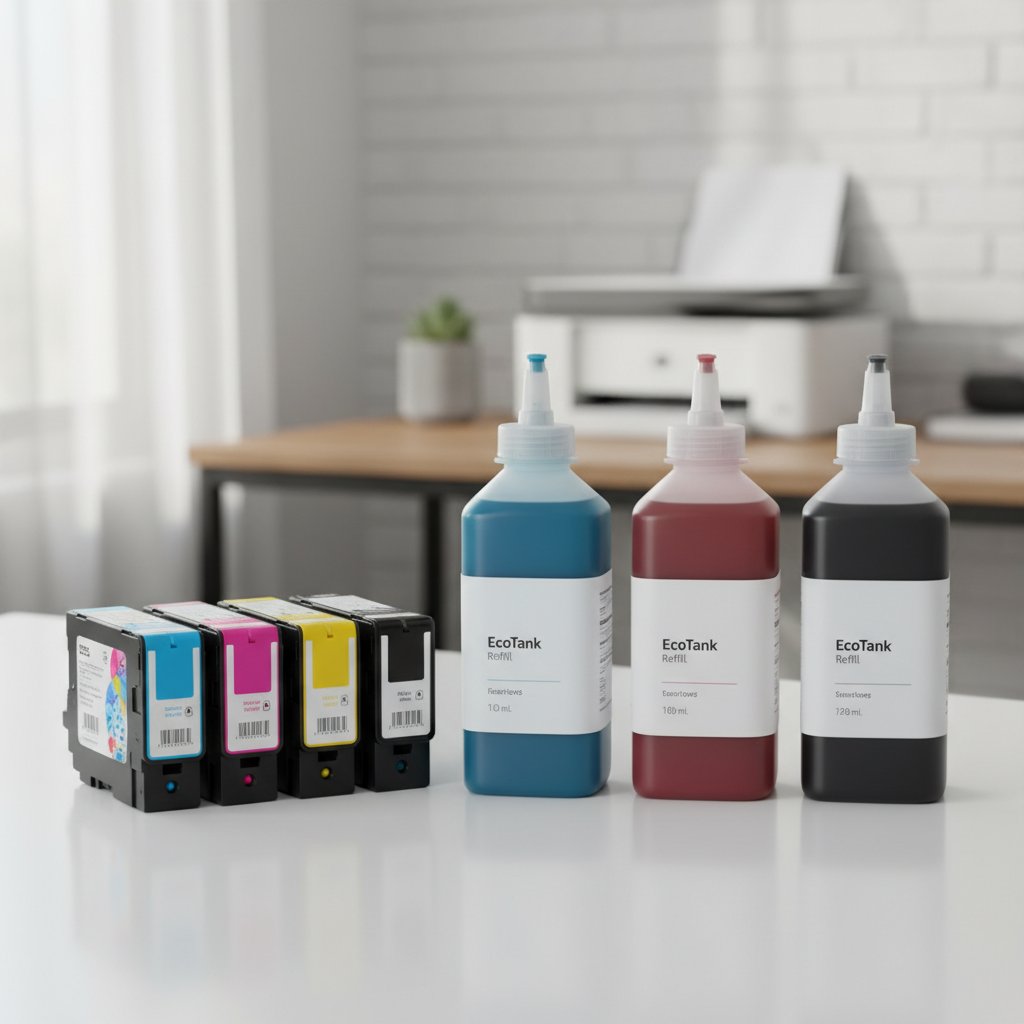
In recent years, “ink tank” printers (often branded as MegaTank, EcoTank, or Smart Tank) have disrupted the market. Instead of using small, expensive cartridges, these printers feature large, refillable reservoirs that you fill with inexpensive bottles of liquid ink.
When analyzing the inktank vs cartridge cost per page, the difference is staggering. A standard inkjet cartridge might yield 200 pages and cost $30, resulting in a cost of roughly 15 cents per page. In contrast, an ink tank bottle might cost $15 and yield 6,000 pages, bringing the cost per page down to a fraction of a single cent. If you are wondering which all-in-one printer has the cheapest ink, an ink tank model is undeniably the winner for long-term economy, even if the initial purchase price of the printer is slightly higher.
Essential Features to Look For
Beyond the print engine itself, the best home office printers are defined by their supplementary features. Make sure your chosen model includes the following capabilities:
- Automatic Document Feeder (ADF): If you frequently scan or copy multi-page documents, an automatic document feeder for scanning is an absolute lifesaver. Instead of manually lifting the scanner lid and placing pages on the glass one by one, you simply drop a stack of up to 50 pages into the ADF tray, press a button, and let the machine do the work.
- Automatic Two-Sided Printing: Utilizing duplex printing to save paper is one of the easiest ways to cut your consumable costs in half and reduce your environmental footprint. Look for an “Auto-Duplex” feature, meaning the printer flips the page internally without requiring you to manually re-insert the paper.
- High-Resolution Scanning: While 300 DPI (dots per inch) is fine for basic text documents, look for a scanner capable of at least 1200 DPI if you plan on archiving photos or detailed graphics. High resolution scanning for digitizing documents ensures that subtle details, watermarks, and fine print are perfectly preserved in your digital archives.
Mastering Your Printer Scanner Copier Setup
Once you have selected and purchased your ideal device, setting it up correctly is paramount for a seamless daily experience. Modern printers have shifted away from clunky USB cables toward completely wireless environments.
The Wireless Setup Process
A robust wireless printing setup from mobile devices and laptops ensures that anyone in your household or home office can print from anywhere. Here is a general best-practice guide for setting up your wireless all-in-one printer:
- Placement: Place the printer in a location with a strong Wi-Fi signal. Dead zones will cause print jobs to stall or fail completely.
- Network Connection: Use the printer’s touchscreen panel to navigate to network settings. Select your home office Wi-Fi network and enter the password. Ensure you are connecting to a 2.4GHz band if your printer does not support 5GHz (a common requirement for older or budget models).
- Software Configuration: While modern operating systems (like macOS and Windows 11) often detect printers automatically, it is highly recommended to perform a proper driver installation for wireless multifunction devices. Downloading the official driver package from the manufacturer’s website ensures you get the full suite of scanning utilities, ink monitoring software, and color profiles, rather than just the generic OS drivers.
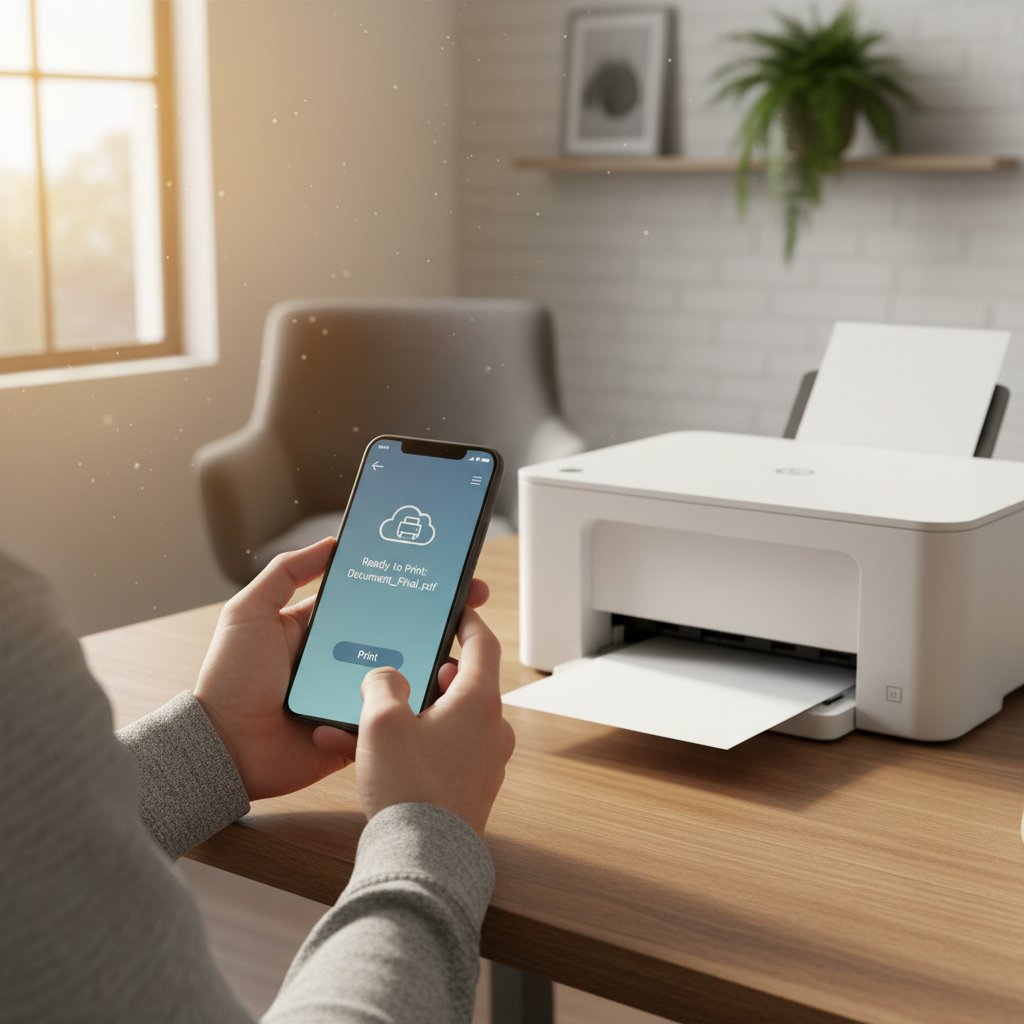
- Mobile Integration: Download the manufacturer’s dedicated mobile app (e.g., HP Smart, Epson iPrint, Canon PRINT). These apps allow you to print PDFs directly from your phone, check ink levels, and even initiate scans from the printer straight to your mobile device’s local storage or cloud services like Google Drive.
Advanced Scanning Techniques for the Home Office
While printing is straightforward, scanning often causes frustration for home office workers. Mastering your scanner’s capabilities can drastically improve your digital filing system.
Creating Unified Digital Documents
One of the most common questions from new all-in-one owners is how to scan multiple pages into one PDF. Sending a client five separate JPEG image files for a five-page contract looks unprofessional and is difficult to manage. Here is how to create a single, unified PDF:
Method 1: Using the Automatic Document Feeder (ADF) If your printer has an ADF, this is incredibly simple.
- Load your multi-page document into the ADF tray.
- Open your printer’s scanning software on your computer.
- Select “PDF” as the output format.
- Ensure the option “Save all pages to a single file” (or similar phrasing depending on the brand) is checked.
- Hit scan. The software will pull each page through and bundle them into a single, neat PDF document.
Method 2: Using the Flatbed Scanner If you do not have an ADF, you can still achieve this.
- Place the first page on the scanner glass.
- In your scanning software, select PDF and initiate the scan.
- Instead of hitting “Save” or “Finish,” look for an “Add Page” or “+” icon in the software preview window.
- Replace the page on the glass with page two, and click “Add Page.”
- Repeat this process for all pages, and only click “Save” when you are finished.
Making Your Scans Searchable and Editable
Digitizing documents is great, but what if you need to edit the text of a scanned contract, or search for a specific keyword within a massive digital archive? This is where optical character recognition comes in.
Using OCR software for editable scanned text transforms an image of text into actual, selectable, and editable digital text. Many premium multifunction printers include basic OCR software in their installation discs or driver downloads. When you scan a document using OCR, the software analyzes the shapes of the letters and converts them into text that can be pasted into Microsoft Word or saved as a “Searchable PDF.” If your printer does not come with OCR, third-party applications like Adobe Acrobat Pro or even free cloud tools like Google Drive (which automatically applies OCR to uploaded images) can perform this vital function.
Maximizing Efficiency and Reducing Overhead Costs
Running a home office means being mindful of your bottom line. Even if you have purchased an economical ink tank printer, there are always additional ways to stretch your dollar and reduce waste.
Utilize Eco-Mode and Draft Settings
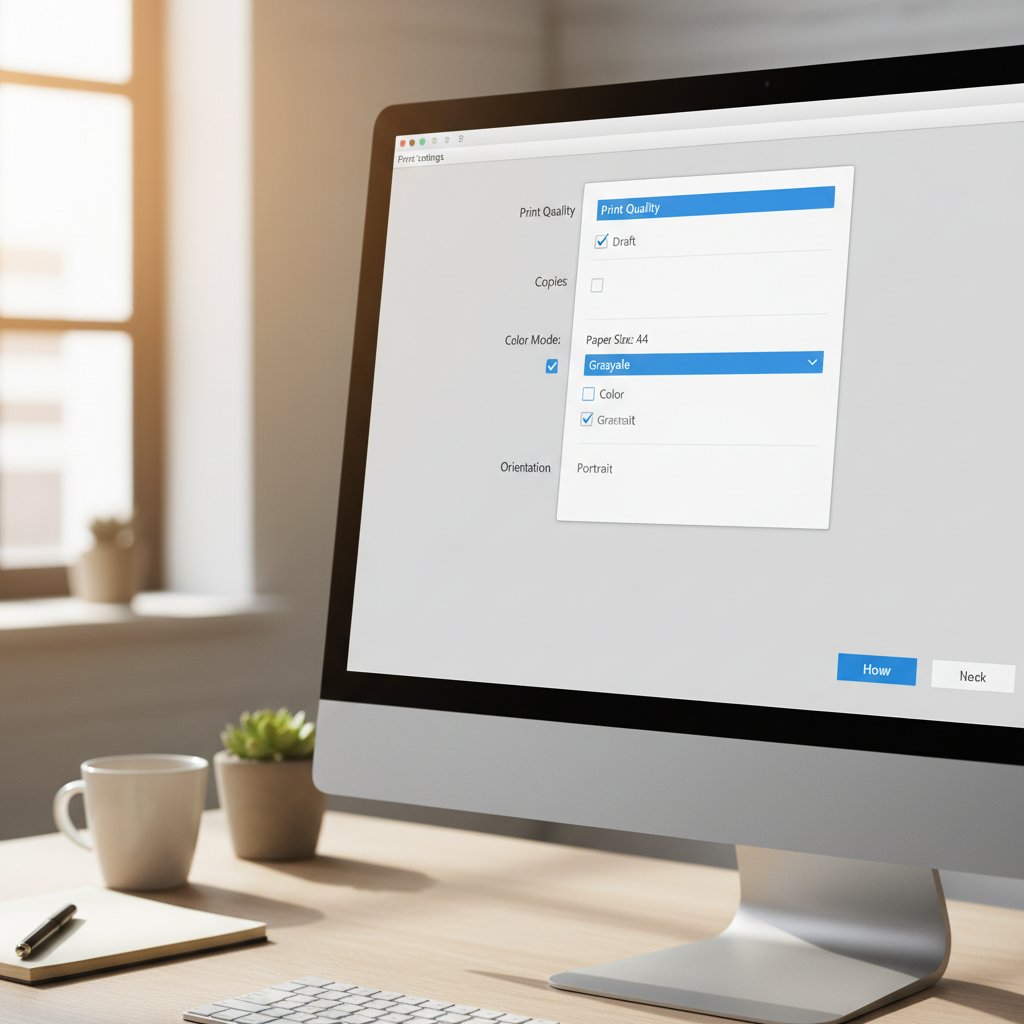
Almost all modern printers feature energy-saving and ink-saving modes. Reducing printing costs with eco-mode is a simple tweak that yields massive annual savings.
- Draft Mode: When printing internal documents, meeting notes, or rough drafts that do not require presentation-quality crispness, switch your print settings to “Draft” or “Fast” mode. This uses significantly less ink/toner and prints the page much faster.
- Grayscale Printing: Get into the habit of printing in black and white by default. Color ink is generally more expensive than black ink. Force your computer to default to “Grayscale” or “Black and White,” and only select color when absolutely necessary for a final presentation.
- Sleep/Eco Mode: Configure your printer’s hardware settings to enter sleep mode after 5 to 10 minutes of inactivity. This reduces power consumption while keeping the printer connected to the network, ready to wake up the moment you send a wireless print job.
Paper Management
We already touched upon duplex printing to save paper, but it bears repeating. By making double-sided printing your default setting, you instantly cut your paper budget in half. Furthermore, consider buying paper in bulk from office supply wholesalers rather than picking up single reams at local retail stores.
Troubleshooting and Maintenance Guide
Even the most advanced technology occasionally encounters hiccups. A printer with scanner and copier functionality has many moving parts—both physical and digital. Knowing how to maintain your device and fix common issues will prevent workflow bottlenecks and save you money on unnecessary tech support calls.
Solving Digital Hiccups: Scanner Connectivity
One of the most frustrating experiences is when your computer can print perfectly fine, but refuses to communicate with the scanner. Troubleshooting common scanner connectivity issues usually involves a few straightforward steps:
- Restart the Spooler and Services: Often, the background service that manages scanning gets stuck. Restarting your computer and your printer simultaneously is the age-old, yet highly effective, first step.
- Check IP Address Changes: If you are on a wireless network, your router might have assigned a new IP address to your printer, confusing your computer’s scanning software. Go into your router settings and assign a “Static IP” to your printer. This locks the address in place permanently.
- Firewall Interference: Sometimes, an overzealous antivirus or firewall program blocks the specific port required for scanning data to transfer over the network. Temporarily disable your firewall to see if the scan goes through. If it does, you will need to add an exception for your printer’s software in your firewall settings.
- Reinstall Drivers: If the scanner is entirely unresponsive, the scanning driver may have become corrupted. Completely uninstall the printer software, download the latest version from the manufacturer, and perform a fresh installation.
Keeping the Hardware Healthy: Print Heads and Rollers
To ensure your multifunction printer lasts for years, physical maintenance is required.
For inkjet and ink tank models, the print head is the most critical and delicate component. If you notice streaks, banding, or missing colors in your printouts, the microscopic nozzles in the print head are likely clogged with dried ink. Following proper maintenance tips for long-lasting print heads will keep your documents looking professional:
- Print Regularly: The number one cause of clogged print heads is inactivity. Even if you don’t have anything official to print, run a full-color test page at least once every week to keep the liquid ink flowing through the nozzles.
- Use the Built-in Cleaning Utility: Every inkjet printer has a software utility called “Print Head Cleaning” or “Nozzle Check.” Run this utility if you see streaks. It forces a surge of ink through the nozzles to clear blockages. (Note: Only use this when necessary, as it consumes a fair amount of ink).
- Turn the Printer Off Correctly: Always use the power button on the printer to turn it off, rather than yanking the plug or turning off a power strip. Using the power button allows the printer to properly “park” and cap the print head, preventing it from drying out in the open air.
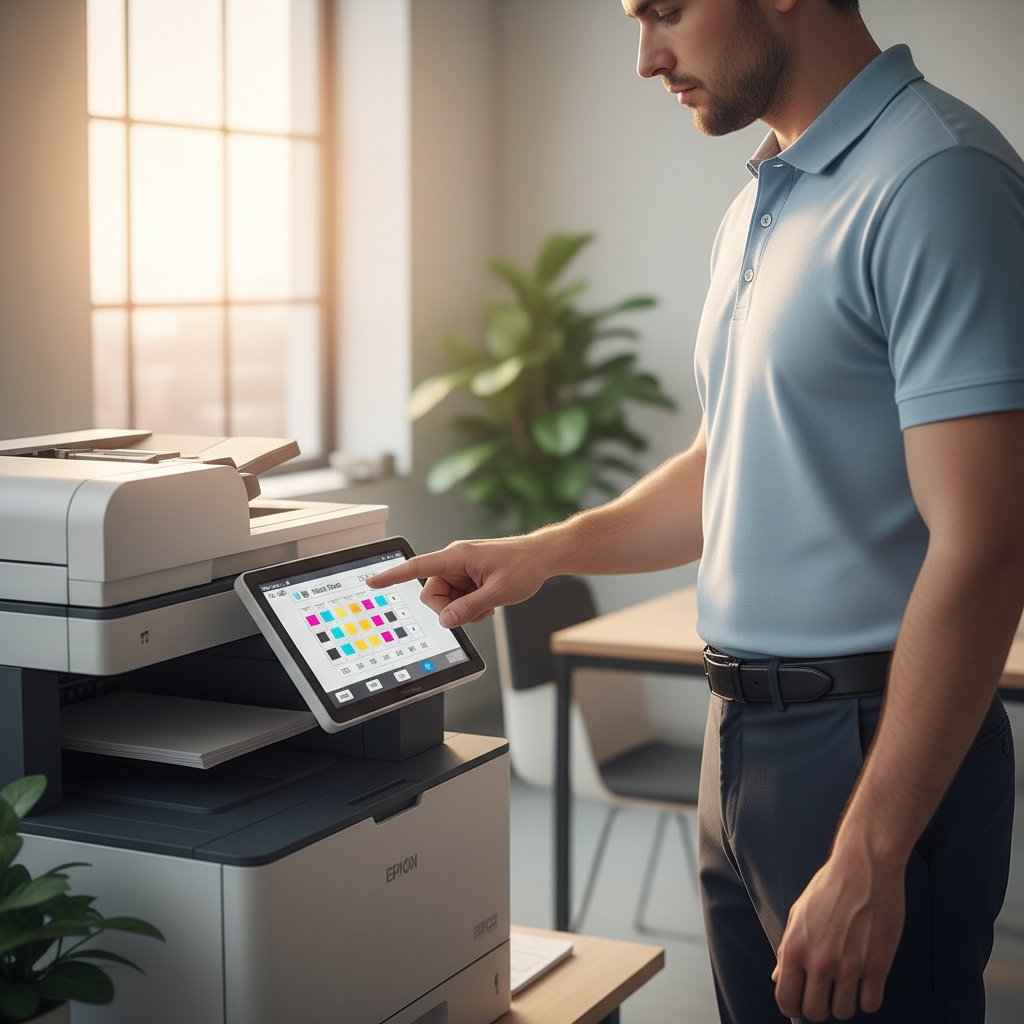
For the scanner and copier components, keep the flatbed glass immaculately clean. A single smudge or piece of dust on the glass will result in a long, unsightly line running down the entirety of your scanned documents or copies. Use a microfiber cloth and a small amount of non-ammonia glass cleaner sprayed directly onto the cloth (never directly onto the glass) to gently wipe the surface.
Finally, if your ADF begins to jam frequently or pull multiple pages at once, the rubber pick-up rollers have likely gathered paper dust and lost their grip. Wipe these rubber rollers down with a lint-free cloth lightly dampened with distilled water to restore their traction.
The Future-Proof Home Office
Integrating a high-quality printer with scanner and copier into your workspace is one of the highest-yield investments you can make for your home office. By carefully evaluating your needs—whether that means prioritizing laser-sharp text, prioritizing the lowest cost per page with an ink tank system, or requiring high-resolution scanning for creative work—you can select a device that acts as a silent, reliable partner in your daily business operations.
Remember that hardware is only half the battle. By mastering the software settings, utilizing eco-modes, setting up seamless mobile printing, and performing routine maintenance, you transform a standard piece of office equipment into a powerful productivity engine.
Say goodbye to cluttered desks, tangled cords, and trips to the local print shop. With the right all-in-one printer, your home office will be fully equipped to handle whatever the modern business world throws your way.