Picking a backup option for home use usually comes down to cost, convenience, and how much control you want over your data. If you’re searching for computer support near me, you’ll hear strong arguments for both. External hard drives give you offline access and direct ownership, while cloud storage makes it easy to reach your files from anywhere and scale up over time. Below is a side-by-side look at cost, speed, capacity, and risk so you can choose what fits your setup.
Costs: External Drives vs Cloud Storage
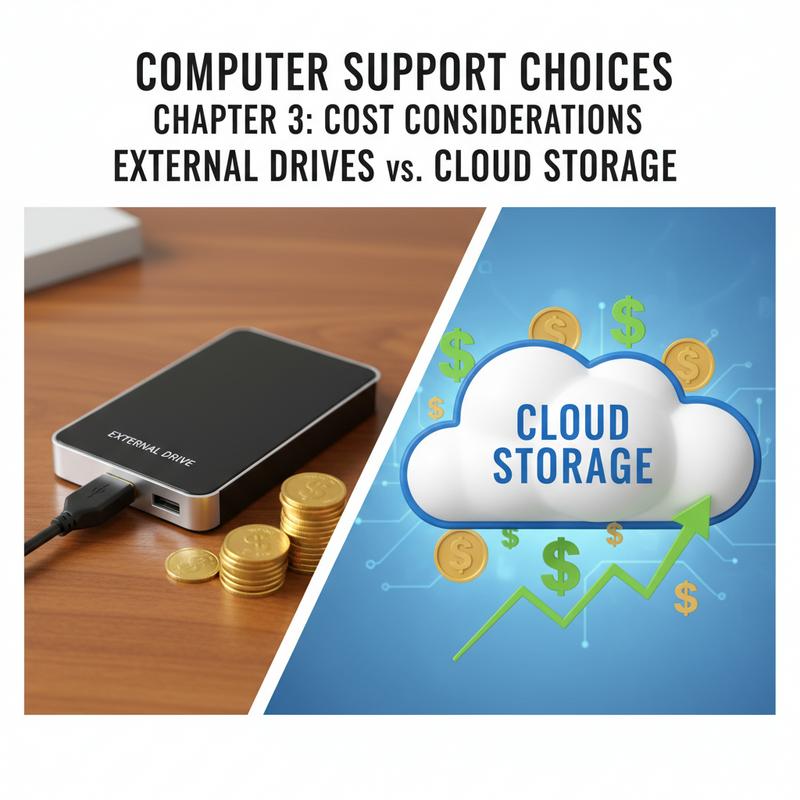
Cost is often the deciding factor. But it’s not just about what you pay today—it’s also what you’ll keep paying over time, and how much effort you’re willing to put into managing backups.
Upfront vs Ongoing Costs
| Storage Type | Cost Range | Payment Model | Scalability | Notes |
|---|---|---|---|---|
| External Drives | $50–$300 per drive | One-time purchase | Limited; add drives to increase capacity | No ongoing fees, but replacements needed due to lifespan |
| Cloud Storage | $2–$12/month ($24–$144/year) | Subscription-based | Flexible; upgrade plans without hardware | Includes automatic updates, sharing, and remote access |
External hard drives usually cost more upfront, but you don’t have a monthly bill. A 2TB external HDD is often $50 to $100, while SSDs can run $300 or more. Thing is, drives don’t last forever—you may end up replacing older ones or adding more as your storage needs grow.
Cloud storage is usually a monthly or yearly subscription based on how much space you need. Pricing varies quite a bit:
- IDrive Mini offers 10TB for as low as $2.95/year (promotion), making it a low-cost way to get started.
- Google One starts at $1.99/month ($23.88/year) for 100GB, with options up to 30TB.
- Providers like OneDrive and pCloud offer plans in the $12–$100/year range for 1–2TB capacities.
Subscriptions add up, but you’re paying for extras too—remote access, file history/versioning, and backups that run in the background.
Long-Term Costs (5 Years, 2TB Example)
| Factor | External Drives | Cloud Storage |
|---|---|---|
| Total Cost | $100–$600 (purchase + spares) | $60–$500 (subscription fees) |
| Scalability | Purchase new drives ($50–$300) | Upgrade storage tier ($10–$100+/yr) |
| Power Consumption | Minimal (only when connected) | Included (server-side, no local power) |
| Hidden/Indirect Costs | Hardware failure risk, manual backup effort | Potential bandwidth costs, privacy concerns |
From what we see while providing “computer support near me” services, people with mostly “set it and forget it” archives often spend less with external drives since there’s no ongoing fee. But if you’re constantly syncing across devices or need access from anywhere, cloud storage can end up being the better value.
Other Cost Trade-offs
- External Drives Advantages:
- You pay once—no monthly bill.
- No internet needed to back up or restore files.
- You keep physical control of your data, which some people prefer for privacy.
- External Drives Drawbacks:
- Drives can fail; many last around 3–10 years.
- You have to manage the backups yourself.
- When you run out of space, you’re buying more hardware.
- Cloud Storage Advantages:
- Backups can run automatically, and upgrading storage is simple.
- Easy remote access and file sharing.
- Versioning can save you if you delete something or overwrite a file.
- Cloud Storage Drawbacks:
- The bill keeps coming, and long-term costs can climb.
- You need reliable internet and a dependable provider.
- Privacy depends on who you’re trusting with your data.
A lot of clients looking for dependable “IT support near me” end up going hybrid—external drives for big backups, and cloud storage for the files they need most often.
To learn more about managing local backups and saving costs, see IT Carolina’s guide on how to set up a Windows Restore Point.
For further details on storage pricing, consult Microsoft’s official OneDrive pricing page or PCMag’s cloud storage reviews.
In summary: If you want a one-time cost and hands-on control, external hard drives are usually cheaper long-term. If you want easy access everywhere and simple upgrades (even with ongoing fees), cloud storage tends to fit better. Match the choice to what you’re backing up and how you actually use your files.
Speed and Access: External Drives vs Cloud Storage
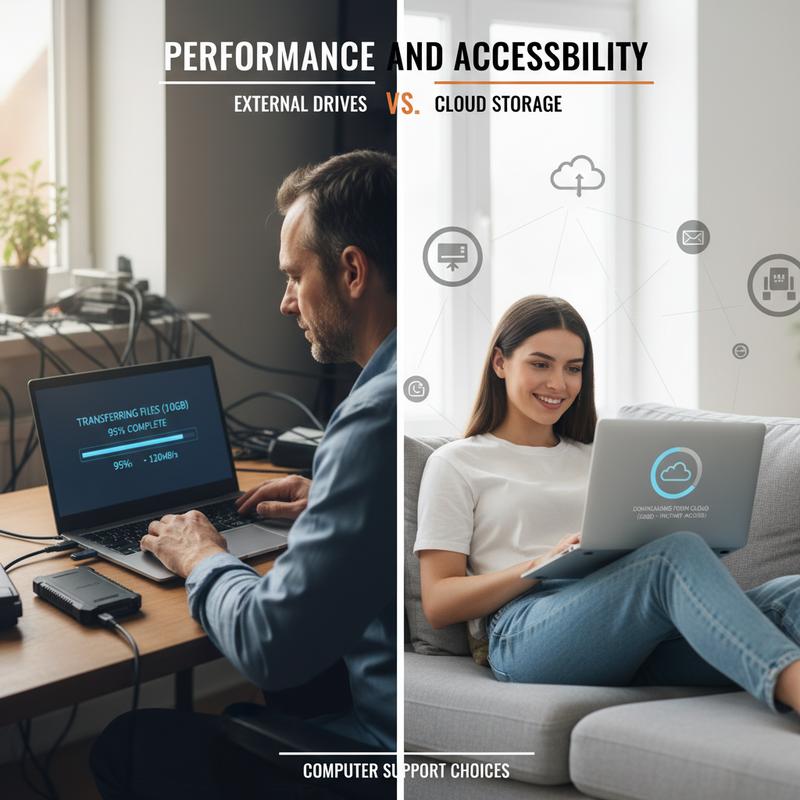
Speed and access can matter just as much as price. Some people want fast local transfers, and others care more about being able to grab files from anywhere.
Performance Comparison
External drives—especially SSDs—are fast and responsive. They’re a good fit for work that needs quick reads and writes, like video editing, AI training, or working with large databases. HDDs are slower, but still fine for archiving, big folders of photos, and general backups.
Cloud storage speed depends on your internet connection. It can be perfectly fine for everyday files, but large uploads/downloads may drag, and speeds can bounce around when networks get busy.
| Aspect | External Drives (SSD) | External Drives (HDD) | Cloud Storage |
|---|---|---|---|
| Speed (IOPS/Throughput) | High, consistent | Moderate, suitable for sequential | Dependent on network, generally lower |
| Latency | Ultra-low (local access) | Higher than SSD | Variable, often higher |
| Ideal Use Cases | Real-time tasks, analytics, editing | Bulk backup, media storage | Scalable backup, remote collaboration |
Accessibility Comparison
External drives need to be plugged in, which means you can access them without the internet. That’s helpful if you’ve got spotty service or you want a true offline (air-gapped) backup for security. But you only have the drive where the drive physically is.
Cloud storage is built for access. If you’ve got internet, you can pull files from almost any device, keep multiple devices in sync, and share files easily—great for remote or hybrid work.
| Aspect | External Drives | Cloud Storage |
|---|---|---|
| Availability | Offline, immediate access | Anywhere internet is available |
| Portability | Physical device transport | Syncs across devices |
| Dependency | None (works offline) | Requires internet connection |
Additional Considerations
- Durability & Security: External drives can be damaged, lost, or stolen, but they’re less exposed to online attacks when unplugged. Cloud storage usually includes redundancy and recovery options, but you’re relying on the provider’s security.
- Cost: External drives are a one-time purchase. SSDs cost more per terabyte, but they can be worth it if you move large files often. Cloud storage has ongoing fees, and some plans may add charges for transfers or overages.
- Scalability: Cloud storage grows with a few clicks. External drives grow when you buy and manage more devices.
People searching for computer support near me in Charlotte often find that users who need quick access for heavy workloads lean toward external SSDs. But teams that need “grab it from anywhere” access usually go cloud—or mix both.
For more details on optimizing local storage, resources like PCMag’s guides on SSD advantages and Microsoft documentation on cloud storage reliability are helpful.
So if speed is your priority, external drives usually win. If access and syncing matter more, cloud storage is hard to beat. Still, many setups work best when you pair the two.
If you want to enhance your device protection, our IT team recommends users explore how to set up a Windows restore point to support their backup strategy.
Storage Size and Growth: Hard Drives vs Cloud
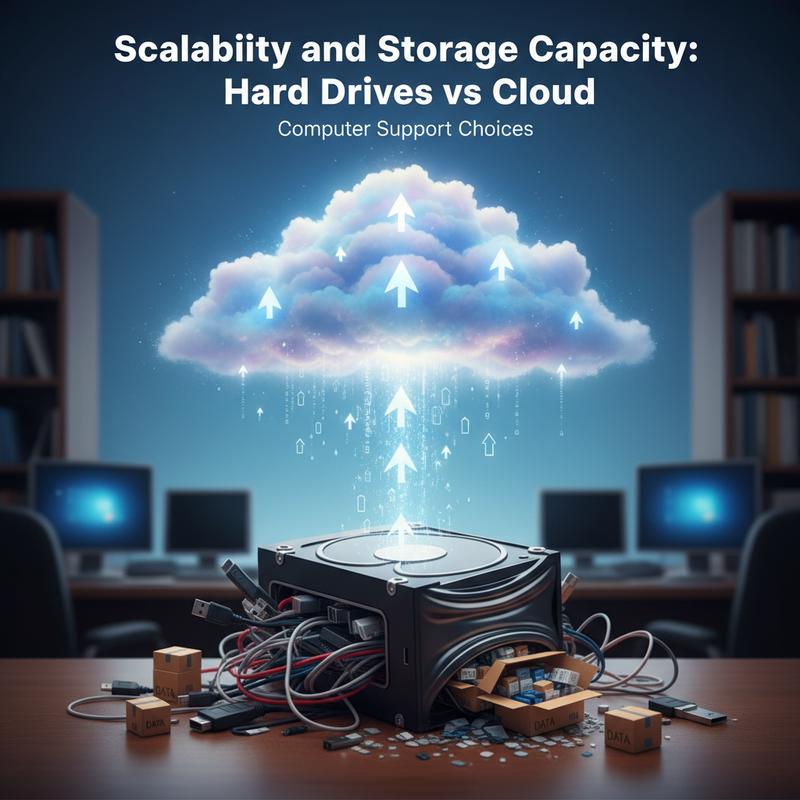
Storage needs tend to creep up over time. So it helps to think about what happens when you run out of space—and how painful (or easy) it is to expand.
Scalability: Instant vs Physical Expansion
Cloud storage scales quickly. You can bump up your plan in minutes, which is handy if your storage needs change a lot or you’re dealing with spikes in data. You’re basically paying for what you need as you go, without buying more hardware.
External hard drives scale the old-fashioned way: you buy another drive and set it up. That takes time, and you need space to store it safely. HDDs can hold a lot for the money (even huge setups in storage clusters like Ceph), while SSDs are faster but usually top out at smaller capacities per device.
| Aspect | Hard Drives (HDD/SSD) | Cloud Storage |
|---|---|---|
| Scaling Speed | Slow; depends on acquiring and installing hardware | Instant; upgrade through subscription |
| Flexibility | Limited by physical constraints and upfront costs | Near-infinite, adapts to demand |
| Examples | HDDs for petabyte archives; SSDs for performance tiers | Distributed global data centers for redundancy |
Storage Capacity and Cost Efficiency
For raw capacity per dollar, HDDs still win. They’re often around six times cheaper upfront per terabyte than flash storage, which is why they’re common for backups and long-term archives. SSDs usually hold less, but they’re faster and better for files you work with all the time.
Cloud storage can grow almost without limit, as long as you’re willing to pay for the next tier. That convenience is real, but subscription costs can add up over the years, and some providers may charge extra to retrieve large amounts of data.
| Aspect | Hard Drives (HDD/SSD) | Cloud Storage |
|---|---|---|
| Max Capacity | HDDs: Highest per drive, suitable for bulk storage (PB scale) | Unlimited through on-demand tiers |
| Cost per TB | Lower upfront for HDDs; higher but cost-effective for SSDs | Ongoing pay-as-you-go; costs may accumulate |
| Best For | Long-term archives/backups (HDD); performance-sensitive workloads (SSD) | Growing storage needs, remote access |
Using Both (Often the Best Option)
A mixed setup can give you the best balance. An external SSD or HDD handles big, regular backups quickly with no monthly fee. Then cloud storage covers your most important files with offsite protection and remote access, which helps if a drive fails.
For users in Charlotte seeking computer support near me, a common path is starting with a reasonably priced external drive, then adding cloud storage later for flexibility and disaster recovery. When remote access becomes a must, cloud storage is tough to ignore.
If you’re interested in improving system performance alongside storage upgrades, our guide on top reasons to upgrade to an SSD offers helpful information.
Additional Considerations
- Latency & Speed: External drives are usually faster for local transfers and don’t depend on your internet speed.
- Maintenance: Cloud providers maintain their systems; you’re responsible for monitoring and replacing physical drives.
- Cost Planning: Buying HDDs is a one-time hardware spend (CapEx); cloud storage costs can change month to month.
Taking these points into account makes it easier to build a backup plan that can grow with you without surprises.
For detailed information on storage scalability and capacity best practices, consult resources like Microsoft Azure Storage Documentation and PCMag’s cloud storage reviews.
Risk and Backup Copies: External Drives vs Cloud Storage
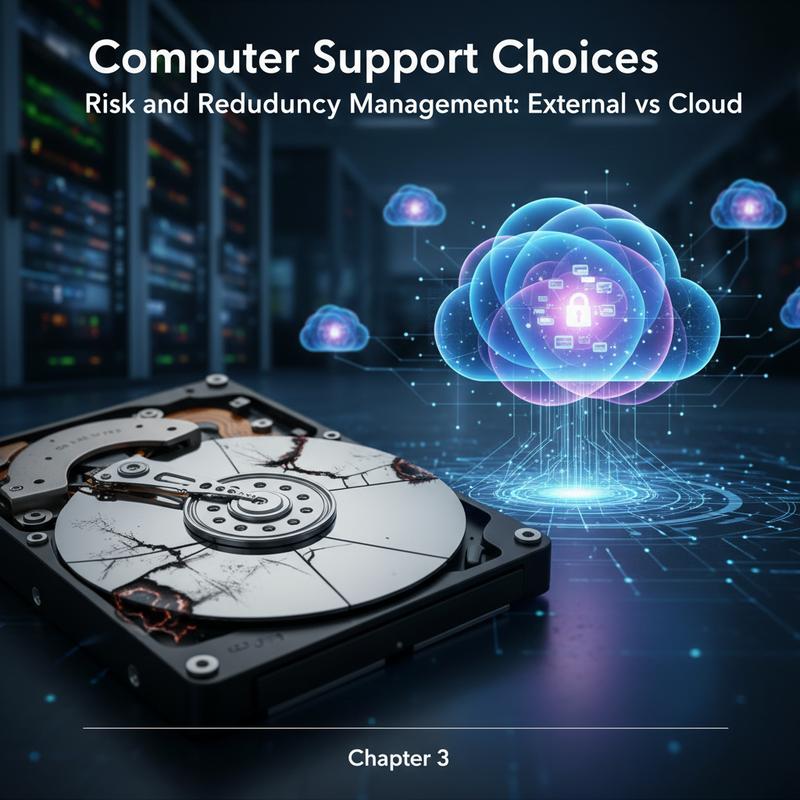
Risk is the other big piece. It’s not just “will I lose files,” but how quickly you can get them back after a drive failure, a mistake, or something worse.
Risk Management Overview
| Aspect | External Hard Drives (On-Premise) | Cloud Storage |
|---|---|---|
| Data Loss | Vulnerable to hardware failure, aging devices, or onsite disasters without built-in redundancy. | Low risk due to automatic backups across multiple geographic data centers and disaster recovery protocols. |
| Cybersecurity | Lower external hacking risk if offline; full control via firewalls and physical isolation. | Higher risk tied to compromised credentials or provider breaches; data sovereignty concerns may apply. |
| Availability | Accessible offline without internet; limited by physical access. | Dependent on provider uptime; benefits from continuous monitoring and faster recovery (12 vs. 42 days DIY). |
| Compliance & Control | Strong control suited for regulated environments; no need to trust third parties. | Compliance depends on provider certifications like ISO 27001, SOC 2, GDPR; co-managed models allow oversight. |
| Scalability | Limited by hardware capacity and local resources; difficult to scale quickly. | Easily scalable with low IT overhead but depends on third-party platform reliability. |
Redundancy: Manual vs Automatic
With external drives, redundancy is on you. You have to run backups, keep extra copies, and ideally store one copy offsite so you’re protected from theft or damage. The downside is it’s easy to miss a backup or forget to rotate drives.
Cloud storage usually includes built-in replication across locations, managed by the provider. That automatic duplication cuts down the chances of a total loss, and restores can be quicker because everything’s already stored offsite.
Balancing Risk and Redundancy
In Charlotte, people with strict rules to follow or unreliable internet often stick with external drives for control and offline access. On the flip side, people who want easy growth and built-in recovery usually lean toward cloud storage.
A hybrid setup can cover both sides:
- Use external drives for frequent backups of large files for fast local transfers and no subscription fees.
- Store essential data in the cloud for offsite copies, remote access, and quick recovery.
- Apply co-managed approaches so you keep oversight while still getting the provider’s redundancy and tooling.
This keeps you safer from hardware problems and location-based disasters without forcing you to pick just one approach.
Practical Tips for Managing Risk
- Test restores regularly for both local drives and cloud backups.
- Keep more than one external drive, and rotate one offsite when possible.
- Pick cloud providers with solid security and compliance certifications.
- Use Cloud Security Posture Management (CSPM) tools to catch cloud misconfigurations and weak spots.
- Set Recovery Time Objectives (RTO) and Recovery Point Objectives (RPO) so your backup plan matches your real needs.
External hard drives give you offline control, but they need upkeep. Cloud storage gives you offsite redundancy and easy growth, but it depends on internet access and the provider. The right answer is the one that matches your risks and how you work.
For more details on maintaining your backup setup, see our article on protect your PC: how to set up a Windows restore point.
For additional cybersecurity guidance related to backups and data protection, the Cybersecurity and Infrastructure Security Agency (CISA) offers valuable resources.
Knowing the trade-offs makes it much easier to set up backups you can actually count on—especially when you’re getting help from local IT pros who’ve seen what goes wrong in the real world.
Bottom Line
When you’re choosing between external hard drives and cloud storage, focus on what you really need: what you can afford, how often you’ll access files, how much storage you expect to grow into, and how much risk you can tolerate. If you’re searching for computer support near me, you’ll usually hear the same advice: a mix of local drives and cloud storage often works best. You get fast backups and quick restores, plus an offsite copy if something happens at home.
Frequently Asked Questions
What are the biggest factors to consider when choosing a backup solution?
Start with budget, how much storage you need, and whether you want remote access. Then think about risk—like drive failure, ransomware, or losing a device—and how quickly you’d need to recover your files.
How do I maintain data integrity over time with external hard drives?
Check drives for errors once in a while, and make sure you can actually restore files from your backups. And don’t wait for a failure—plan to replace drives every 3-5 years.
Can hybrid backup solutions be set up by tech support near me?
Yes. Local tech support can set up a hybrid plan that backs up large data to an external drive and keeps important files synced to the cloud. They can also help automate the schedule so it doesn’t rely on you remembering.