That Sinking Feeling of a Forgotten Password
I forgot my password and need it reset is one of the most common tech frustrations we all face. The good news? Resetting a forgotten password is usually straightforward if you follow the right steps.
Quick Password Reset Steps
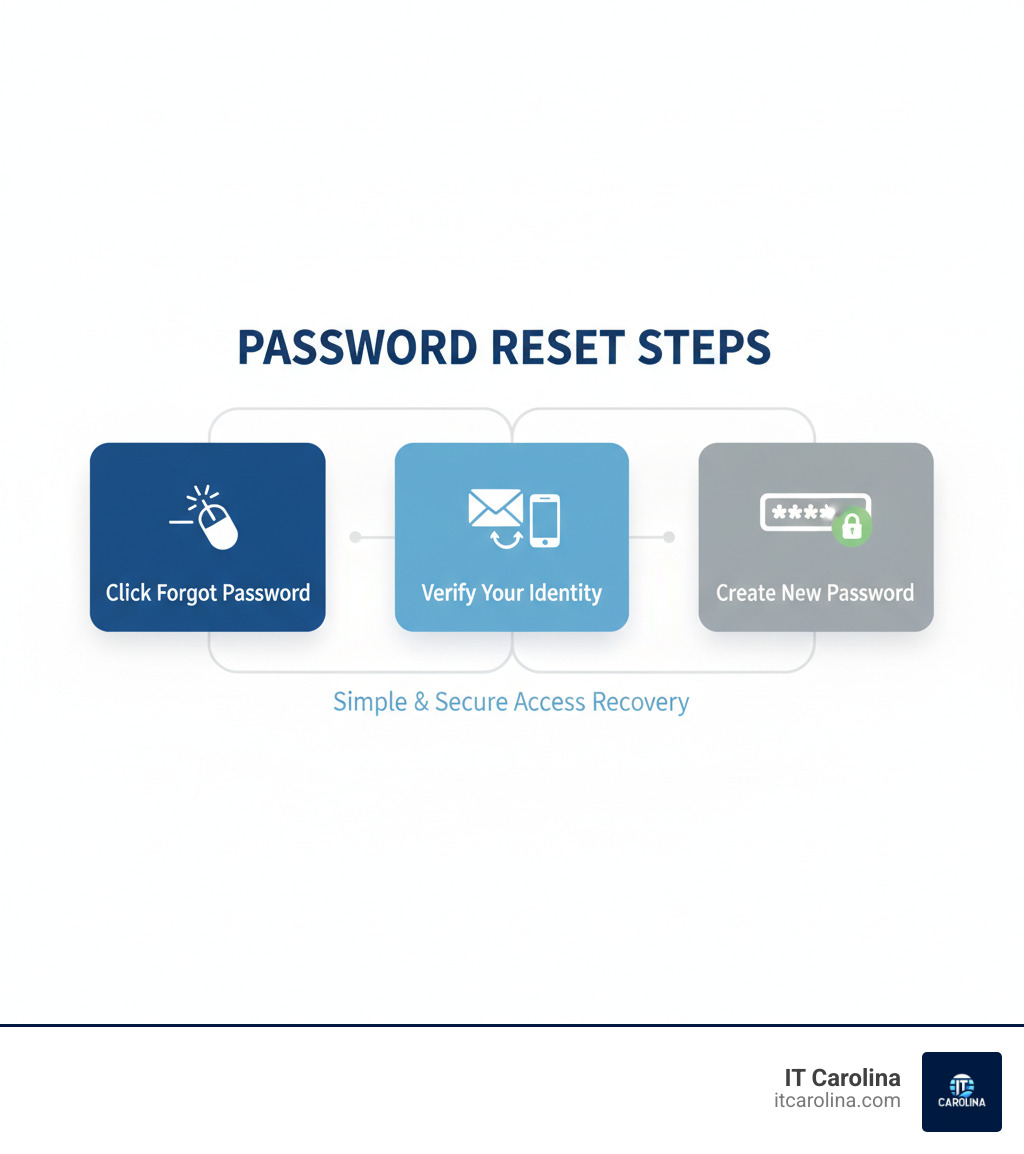
For most accounts, follow these three simple steps:
- Click “Forgot Password?” – Look for this link on the login screen of any service (Gmail, Apple, Microsoft, etc.)
- Verify Your Identity – Check your email or phone for a verification code or link
- Create a New Password – Choose a strong password you haven’t used before
Time needed: Usually 5-10 minutes, depending on how quickly you can access your recovery email or phone.
We’ve all been there. You’re trying to sign into your email, bank account, or work system, and suddenly your brain goes blank. Was it the password with the exclamation point? Or the one with the number 2?
According to the FBI, more than 100,000 people report password-related scams every year. And with approximately 70 million smartphones lost or stolen annually, the stakes for password security have never been higher.
Whether you’re a Charlotte small business owner trying to access your accounting software or just trying to check your personal email, this guide will walk you through exactly how to reset your password safely and securely for any major service.
We’ll cover the standard reset process that works for almost every account, give you step-by-step instructions for Google, Apple, and Microsoft accounts, and show you what to do when things don’t go as planned. Plus, we’ll help you avoid phishing scams that prey on people in exactly this situation.
The Universal Password Reset Process
You’re staring at the login screen, and it hits you: I forgot my password and need it reset. Take a deep breath. This happens to everyone, and there’s good news—nearly every online service uses a similar, straightforward process to help you get back in.
The first step is finding that “Forgot password?” link. It’s usually right below the login fields, sometimes in small text. You might also see it worded as “Can’t access your account?” or “Reset password.” Whatever it says, that’s your starting point.
When you click that link, you’re beginning an identity verification process. The system needs to confirm that you’re the real account owner, not someone trying to break in. This is why the process can feel like a bit of a digital quiz show—but it’s all designed to protect your information.
Here’s what typically happens: You’ll enter your username or email address so the system knows which account you’re trying to recover. Then comes the verification step, which is the heart of the process.
Key Steps for When “I forgot my password and need it reset”
Most services will offer you several ways to prove you’re really you. The most common is an email link—they’ll send a special link to your recovery email address. Click it, and you’ll land on a page where you can create a new password. These links expire after a while for security reasons, so don’t wait too long to use them.
SMS codes are another popular option. A temporary code arrives on your phone via text message, and you enter it on the website to verify your identity. It’s quick and effective, as long as you have your phone handy.
Some older systems still use security questions—you know, the ones asking about your first pet’s name or your mother’s maiden name. If you set these up years ago, hopefully you remember the exact answers you used (and hopefully you didn’t lie about having a pet named “Fluffy” when it was really “Princess Sparklepaws”).
If you’ve set up two-factor authentication, you might use a code from an authenticator app on your phone. This is actually one of the most secure methods.
Once you’ve proven your identity, you’ll create a fresh password. Choose wisely—we’ll talk about how to make a strong one later in this article.
What Information Is Typically Required?
Your primary email address is usually the key to everything. This is the email you used when you signed up, and it’s where most services will send their reset links. If you no longer have access to this email, things get trickier (but not impossible—we’ll cover that scenario later).
A recovery phone number is your backup plan. Many services let you add a phone number specifically for situations like this. If you can’t get to your email, they’ll text you instead.
Backup codes are like emergency keys. When you set up two-factor authentication, most services give you a set of one-time codes to print out and keep somewhere safe. If you lose your phone, these codes can save the day. The trick is actually keeping them somewhere you can find them later.
Security questions and personal details like your date of birth might also come into play, especially for sensitive accounts like banking or government services.
The more recovery options you’ve set up, the easier your life will be when you need to reset a password. It’s worth taking five minutes now to make sure your recovery information is current. For more general troubleshooting tips, check out our guide on Common Computer Problems and Solutions Every User Should Know.
What Happens After You Reset Your Password?
You’ve created your new password—now what? First, you’ll probably be signed out of the account on all your other devices. This is actually a good thing. If someone somehow had access to your account with the old password, they’re immediately kicked out.
You’ll get a notification email or text confirming the password change. Don’t ignore these! If you see one and you didn’t just reset your password, that’s a red flag that someone else might be trying to access your account.
Third-party apps might lose access too. If you’ve connected apps to your account (like using your Google account to sign into other services), some of these connections might be revoked for security. You’ll need to reconnect them with your new password.
Finally, you’ll need to log back in everywhere. Your laptop, your phone, your tablet—anywhere you were previously logged in will need your new password. It’s a bit tedious, but think of it as spring cleaning for your digital life.
This whole process might feel like jumping through hoops, but each step exists to protect your information. And once you’ve done it a few times, you’ll steer it like a pro.
Step-by-Step Guides for Major Services
While the universal reset process we covered earlier works across most platforms, each major tech company has its own personality when it comes to password recovery. Think of it like this: they all speak the same language, but with different accents. Let’s walk through exactly what to do when I forgot my password and need it reset for the big three—Google, Apple, and Microsoft.
One important thing to know before we dive in: personal accounts and work accounts often have different recovery procedures. Your work Google or Microsoft account might have extra security layers controlled by your IT department. Similarly, a Microsoft account that lives in the cloud is very different from a local Windows account that only exists on your computer. We’ll help you steer these differences.
Resetting Your Google Account Password
Your Google account is probably one of the most important passwords in your digital life. It open ups Gmail, YouTube, Google Drive, Google Photos, and countless other services. When you realize you can’t get in, here’s your path back.
Start by heading to the official Google account recovery page. This is where Google’s security team wants you to begin, and it’s the safest route. You’ll first need to enter the email address or phone number associated with your account—the one you used when you first signed up.
Next comes the identity verification dance. Google will ask you to prove you’re really you, and they have several ways to do this. They might send a verification code to your recovery phone number, or email a special link to your backup email address. Sometimes they’ll ask you to confirm recent account activity or the last password you remember. If you’re already logged into Google on another device—like your phone sitting on the desk next to you—Google might send a prompt to that device asking you to approve the reset attempt. Pretty clever, right?
Here’s a tip that saves a lot of frustration: check your spam folder. Recovery emails from Google come from [email protected], and sometimes overzealous spam filters catch them. If you don’t see the email within a few minutes, peek in your Spam or Junk folder. To prevent this headache in the future, add [email protected] to your contacts or address book right now.
Once Google is satisfied you’re the real account owner, you’ll create your new password. Choose something strong and unique—we’ll talk more about creating good passwords later. After you reset it, Google will sign you out of most devices for security, though you’ll stay logged in on devices you used for verification and some connected smart home devices. You’ll need to log back in everywhere else with your fresh password.
Resetting Your Apple ID (Apple Account) Password
Apple has recently started calling this your “Apple Account,” but many of us still know it as an Apple ID. Whatever the name, it’s your gateway to iCloud, the App Store, iMessage, FaceTime, and everything else in the Apple ecosystem.
The easiest path to recovery depends on whether you have a trusted Apple device handy—one where you’re already signed in. If you have your iPhone, iPad, or Mac nearby, you’re in luck. On an iPhone or iPad, open Settings, tap your name at the top, then go to Sign-In & Security, and select Change Password. Follow the prompts, and you’ll be back in business. On a Mac, click the Apple menu, go to System Settings (or System Preferences on older systems), click your name, then Sign-In & Security, and finally Change Password.
Don’t have access to your own devices? No problem. You can borrow a friend’s iPhone or iPad and use the Apple Support app. Open the app, scroll to “Support Tools,” tap “Reset Password,” then tap “Help Someone Else.” Enter your Apple Account email or phone number and follow the instructions. Apple will need to verify your identity, usually by sending a code to your trusted phone number.
You can also reset everything through a web browser by visiting iforgot.apple.com. Enter your Apple ID, and Apple will guide you through verification. This usually involves either sending a notification to a trusted device or texting a code to your trusted phone number.
The key thing to understand about Apple’s system is that it leans heavily on trusted devices and phone numbers. If you don’t have access to any trusted device and you’ve lost your phone number, the recovery process becomes more challenging. This is why keeping your trusted phone number current is so important.
Resetting Your Microsoft & Windows Password
Microsoft’s password situation can be a bit confusing because there are actually two different types of accounts, and they work quite differently. Understanding which one you have makes all the difference.
A Microsoft account is the online account you use for Outlook.com, Xbox, Office 365, OneDrive, and signing into Windows. It’s tied to an email address and lives in the cloud. A local Windows account, on the other hand, only exists on your specific computer and isn’t connected to any online services.
For a Microsoft account, start at the Microsoft password reset page. Enter the email, phone number, or Skype name linked to your account. Microsoft will offer ways to verify your identity, typically by sending a code to a recovery email or phone number you’ve registered. Enter that code, create your new password, and you’re back in. If you’re not seeing any options for where to send a code, or you no longer have access to your recovery methods, Microsoft offers a helpful sign-in helper tool that can walk you through additional options.
Local Windows accounts are trickier because they’re not connected to the internet. If you set up security questions when you created the account, you’ll see a “Reset password” link on the Windows login screen (usually after you enter a wrong password). Click it, answer your security questions, and you can set a new password right there.
Some people create a password reset disk—a USB drive that acts like a master key for their local account. If you made one of these (and kudos if you did), just insert it and follow the prompts on the login screen.
There’s also a backdoor if you have another administrator account on the same computer. Log in with that admin account, right-click the Start button, select “Computer Management,” expand “Local Users and Groups,” then “Users,” right-click the locked-out account, and select “Set Password.” This lets you create a new password for the other account.
If none of these options work for a local account, you’re in a tough spot. Recovery can require advanced technical steps, and sometimes the only solution is reinstalling Windows—which is why we generally recommend using a Microsoft account instead. It’s also why we always suggest creating a Windows Restore Point before problems arise. Learn more about protecting your PC with our guide on how to set up a Windows Restore Point.
The differences between these account types matter, and knowing which one you have is the first step to getting back in.
What to Do When “I forgot my password and need it reset” Goes Wrong
Let’s be honest—sometimes the password reset process doesn’t go smoothly. Maybe you’ve changed phone numbers since you set up the account, or that recovery email address you used five years ago? Long gone. When the usual steps fail and you’re still locked out, it’s easy to feel defeated. But take a breath. There are still options, even when things get complicated.
The automated systems are built with security as the top priority, which is great for keeping hackers out—but it can make things frustrating when you’re the legitimate owner trying to get back in. When standard recovery methods aren’t working, you’ll need to dig a bit deeper and be prepared for a process that might take more time and patience. If you’re feeling overwhelmed or just want someone to walk you through it, our Online PC Support Services team is always ready to help.
I’ve Lost Access to My Recovery Email and Phone
This is the scenario that makes most people panic. When you realize I forgot my password and need it reset but you’ve also lost access to both your recovery email and phone number, it feels like you’re completely locked out. The good news? Most major services have a backup plan for this exact situation, though it’s not quick or automatic.
Google, Apple, and Microsoft all offer account recovery forms as a last resort. These forms ask you detailed questions about your account that only the real owner would know. They might ask about recent emails you’ve sent, when you created the account, what payment methods you have on file, or even specific files or folders in your cloud storage. The more accurately and thoroughly you can answer these questions, the better your chances of recovery.
You’ll typically need to provide an alternate email address or phone number that you currently have access to. This is where the service will send updates about your recovery request. Don’t expect instant results here—these requests often require manual review by actual humans, which means the process can take anywhere from a few days to several weeks. Yes, it’s frustrating, but this careful verification is what keeps your account secure from people who shouldn’t have access.
Patience really is your best friend during this process. Resist the temptation to submit multiple recovery requests or contact support repeatedly—this can actually slow things down or get your requests flagged as suspicious. Submit one thorough request and then wait for a response.
Advanced Recovery When “I forgot my password and need it reset”
For local Windows accounts specifically, there are a few more technical solutions that might save the day, especially if you planned ahead or have another user on the same computer.
If you created a password reset disk before you got locked out, you’re in luck. This is a special file saved to a USB drive that acts like a master key for your local Windows account. When you’re at the login screen and click “Reset password,” you can insert this disk and follow the prompts to create a brand new password without needing the old one. It’s one of those things that seems unnecessary until you desperately need it.
For those who set up security questions when creating a local Windows account, these can be your ticket back in. After entering an incorrect password on the login screen, Windows will offer you the option to answer your security questions. Get them right, and you can set a new password on the spot. The trick is remembering exactly how you answered them—”Fluffy” and “fluffy” aren’t the same to a computer.
Another option is using another administrator account on the same PC. If someone else in your household or office has an administrator account on the same computer, they can reset your local account password for you. They would log in with their account, open Computer Management, steer to Local Users and Groups, find your account, and reset the password. This is a common solution in family computers or small business settings where multiple people have access.
Where to Find Additional Help
When you’ve exhausted the automated options and you’re still stuck, it’s time to reach out for human assistance. But it’s important to understand what support can—and can’t—do for you.
Official help communities like Ask the Microsoft Community are goldmines of information. These forums are filled with experienced users who’ve encountered similar problems and can offer advice or workarounds you might not have considered. Google and Apple have similar community forums where real people share real solutions.
Here’s something crucial to understand: support agents at major companies cannot directly reset your password for you. This isn’t because they’re being difficult—it’s actually a security protocol designed to protect you. Microsoft, Google, and Apple support staff are not allowed to send password reset links, access your account details, or bypass the automated recovery systems. If they could, then a hacker pretending to be you could potentially do the same thing. As Microsoft explicitly states, “To protect your account and its contents, our support agents are not allowed to send password reset links, or access/change account details.”
What support agents can do is guide you through the recovery process, explain your options, and help you understand what information you need to provide. They can also confirm whether your recovery request was received and is being processed.
If you’re in the Charlotte area and feeling overwhelmed by the whole process, that’s where we come in. At IT Carolina, we specialize in helping folks steer these frustrating tech situations with friendly, jargon-free support. Sometimes having someone sit down with you and work through the recovery process step-by-step makes all the difference. We can’t break the security protocols for you (nobody can), but we can help you present your recovery information in the most effective way possible and explore all available options.
Password Security: Prevention and Protection
The best way to handle I forgot my password and need it reset situations? Don’t get into them in the first place. Or at least, make the recovery process smooth when it inevitably happens. Think of it like locking your car doors—it’s a small habit that prevents big headaches down the road.
The truth is, when you’re frustrated and desperately trying to reset your password, you’re at your most vulnerable to scammers. They know exactly when to strike—right when you’re expecting that password reset email. According to the FBI, businesses have lost a staggering $26 billion through email wire fraud since 2016. That’s billion, with a B. These aren’t just corporate problems either; everyday people lose money and personal information to these schemes every single day.
For comprehensive protection beyond just passwords, take a look at The Ultimate Guide: How to Detect and Fight Computer Viruses.
How to Spot and Avoid Phishing Scams
Phishing is when criminals pretend to be a legitimate company to steal your personal information. Smishing is the same thing, but done through text messages instead of email. When you’re waiting for a password reset link, these scams can be especially convincing.
Here’s what to watch for: Unsolicited password reset messages are the biggest red flag. If you get an email or text about resetting your password but you didn’t ask for one, stop right there. Don’t click anything. This is how many scams begin.
Next, check the sender’s email address carefully. Scammers are clever—they’ll use addresses like [email protected] (notice the extra ‘o’) or [email protected] (that’s a zero, not an ‘o’). These look legitimate at first glance, but they’re fake. Real companies use their actual domains consistently.
Pay attention to how they address you. Legitimate services will usually use your actual name. If an email starts with “Dear Customer” or “Hello User,” that’s suspicious. Your bank knows your name. Google knows your name. Why wouldn’t they use it?
Watch out for urgent or threatening language. Phrases like “Your account will be deleted in 24 hours!” or “Immediate action required!” are designed to make you panic and click without thinking. Real companies rarely operate this way. Take a breath, slow down, and examine the message carefully.
Before clicking any link, hover your mouse over it (don’t click, just hover). A little box should appear showing you where that link actually goes. If it says something like definitely-not-google.ru instead of google.com, you’ve caught a phishing attempt. Close that email immediately.
If you encounter what looks like a full-screen browser page demanding your password and you can’t close it, you might have malware on your system. Try pressing ALT+TAB to switch windows or ALT+F4 to close the browser. If that doesn’t work, use CTRL+ALT+DELETE to open Task Manager and force-quit your browser. As a last resort, hold down your computer’s power button to restart.
How to Create a Strong (and Memorable) Password
Let’s be honest—creating a password you can actually remember while keeping it secure feels like an impossible balance. But it doesn’t have to be.
The secret is to think in phrases, not words. Instead of trying to remember “P@ssw0rd123,” try something like “MyFavoritePizzaPlace!Charlotte27.” It’s longer, easier to remember because it means something to you, and incredibly difficult for hackers to guess. Length truly matters more than complexity.
When you create your password, mix up your character types. Throw in some capital letters, lowercase letters, numbers, and symbols. “ILoveCharlotte&MyDog2!” is exponentially stronger than “charlotte.”
Here’s a rule that’s hard to follow but absolutely critical: avoid personal information. Don’t use your birthday, your kids’ names, your wedding anniversary, or anything else someone could find on your Facebook page. Hackers often start with this information because it’s surprisingly easy to find.
The hardest rule of all? Use a unique password for every single account. Yes, every one. We know what you’re thinking—”How am I supposed to remember 47 different passwords?” You’re not. That’s where password managers come in.
Beyond Passwords: Password Managers and MFA
If the idea of remembering dozens of complex, unique passwords makes your head spin, you’re not alone. This is exactly why password managers exist, and they’re genuinely game-changing.
A password manager is like a secure digital vault for all your passwords. You create one strong master password, and the manager handles everything else. It can generate super-strong random passwords for you, store them safely with encryption, and even auto-fill them when you need to log in. Popular options include LastPass, 1Password, and Bitwarden. Many are free or very affordable.
But here’s where security gets really interesting: Multi-Factor Authentication (MFA). You might also see it called Two-Factor Authentication or 2FA. Whatever you call it, this feature adds an extra layer of protection that makes your accounts dramatically more secure.
Here’s how it works: even if someone manages to steal your password, they still can’t get into your account without that second factor. This second factor is usually something you have (like your phone) or something you are (like your fingerprint).
The most common type is authenticator apps. Apps like Google Authenticator, Microsoft Authenticator, or Authy generate a new six-digit code every 30 seconds. When you log in, you enter your password, then enter the current code from your phone. Simple, but incredibly effective.
Some services send codes via text message to your phone. While this is better than nothing, it’s slightly less secure than an authenticator app because phones can be vulnerable to theft or SIM swap attacks. Still, it’s far better than just a password alone.
The most secure option is a physical security key—a small device you plug into your computer’s USB port or tap against your phone. Companies like Yubico make these. They’re nearly impossible to hack remotely.
Setting up MFA takes just a few minutes, and it stops the vast majority of hacking attempts cold. If you do nothing else after reading this article, enable MFA on your email, bank accounts, and social media. Future you will be grateful.
Frequently Asked Questions about Password Resets
We hear a lot of questions from folks in Charlotte, NC, and beyond when they suddenly realize I forgot my password and need it reset. You’re not alone in this! Here are some of the most common concerns we encounter, along with clear answers to help you out.
What should I do if I don’t receive the password reset email?
This happens more often than you’d think, and it’s frustrating when you’re already locked out of your account. First things first: check your Spam or Bulk Mail folders. It’s annoying, but many legitimate password reset emails get filtered there by overzealous spam detectors. If you spot it in spam, great! You’ve found it.
Next, add the sender’s address to your contacts or address book. For example, if you’re resetting a Google password, add [email protected] to your contacts. This tells your email provider that you trust emails from that sender, and future messages should land in your inbox where they belong.
If the email still hasn’t shown up after a few minutes, try requesting the reset link again. Sometimes there’s a delay in the system, or perhaps there was a small typo in the email address you entered during the initial request. Also, double-check that you entered the correct email address—make sure it’s the exact one associated with the account you’re trying to recover. A single wrong character can send the email into the void.
Can a support agent just reset my password for me?
This is a question we hear all the time, and the answer is no—but that’s actually a good thing for your security! For your protection, support agents at major companies like Microsoft, Google, and Apple are not allowed to access your account, change your details, or send you password reset links directly. This strict security protocol exists to prevent malicious actors from social engineering their way into your account by pretending to be you.
Think about it: if a support agent could simply reset your password on request, a clever scammer could call up, spin a convincing story, and gain access to your personal information. By requiring you to use the automated recovery tools, these companies ensure that only someone who can verify their identity through the proper channels gets back in.
If the automated tools aren’t working for you, support agents can sometimes guide you through the process or help you fill out account recovery forms. They’ll do their best to assist, but they won’t bypass the identity verification steps. It’s all about keeping your data safe.
What’s the difference between a Microsoft account and a local Windows account?
This is a key distinction that trips up a lot of people, especially Windows users here in Charlotte. Understanding which type of account you have makes all the difference when you need to reset your password.
A Microsoft account is an online account that you use to sign in to various Microsoft services like Outlook.com, OneDrive, Xbox, and the Microsoft Store. When you sign into your Windows PC with a Microsoft account, your settings and preferences sync across different Windows devices. You get access to cloud storage, your email, and all those linked services. The big advantage here is that your password is managed online through Microsoft’s website, so if you forget it, you can reset it from any device with internet access.
A local Windows account, on the other hand, exists only on your specific computer. It’s not tied to an email address or any online Microsoft services. Its password is only for signing into that one PC. If you forget the password for a local account, your recovery options are much more limited. You’ll need to rely on security questions you set up when you created the account, a password reset disk (if you had the foresight to create one), or another administrator account on the same PC. There’s no convenient online portal to reset it, which can make recovery trickier.
Understanding which type of account you’re using is crucial for choosing the correct password reset method and knowing what to expect during the recovery process.
Conclusion: Take Control of Your Digital Security
That sinking feeling when you think I forgot my password and need it reset doesn’t have to derail your day. Throughout this guide, we’ve walked through the entire journey—from that initial moment of panic at the login screen to successfully creating a new, secure password. You now have the tools and knowledge to handle password resets for any major service with confidence.
Remember the three core steps that work almost everywhere: click “Forgot Password?”, verify your identity through email or SMS, and create a strong new password. Whether you’re resetting your Google account, your Apple ID, or your Microsoft account, the process follows this fundamental pattern. And when things don’t go as planned—like when you’ve lost access to your recovery email—you know that account recovery forms and patience can still get you back in.
But here’s the real secret to avoiding this whole situation: proactive security is your best friend. Keep your recovery information current. Update that phone number when you get a new one. Make sure your recovery email is one you actually check. These small steps today can save you hours of frustration tomorrow.
Think about adopting a password manager to store those unique, complex passwords you’re creating for each account. Enable Multi-Factor Authentication wherever it’s offered—it’s like adding a deadbolt to your digital front door. And always stay alert for phishing scams, especially when you’re in the vulnerable position of resetting a password.
Your digital security isn’t just about keeping the bad guys out. It’s about giving yourself peace of mind and smooth access to the tools and services that make your life easier. Whether you’re a Charlotte small business owner protecting customer data or a home user safeguarding family photos, these practices matter.
If you ever find yourself truly stuck—maybe the automated systems aren’t cooperating, or you just want someone to walk you through the process—we’re right here in Charlotte to help. At IT Carolina, we believe tech support should be friendly, straightforward, and frustration-free. For hands-on assistance with password issues or securing your devices, find local, friendly help with our computer repair services. We’ll get you back up and running so you can focus on what really matters.