A slow Mac can drive anyone up the wall. It gets in the way, wastes time, and makes simple tasks feel harder than they should. The good news is there are usually clear reasons behind the slowdown—and a few practical fixes that can make a big difference. In this guide, you’ll see what to do first: restart to clear things out, use Activity Monitor to spot what’s eating resources, tidy up storage and stay on top of updates, and look at hardware upgrades when software fixes just aren’t enough. Each section focuses on real steps that help your Mac run the way it’s supposed to, so you can get back to work (or whatever you actually want to be doing).
Restart Your Mac
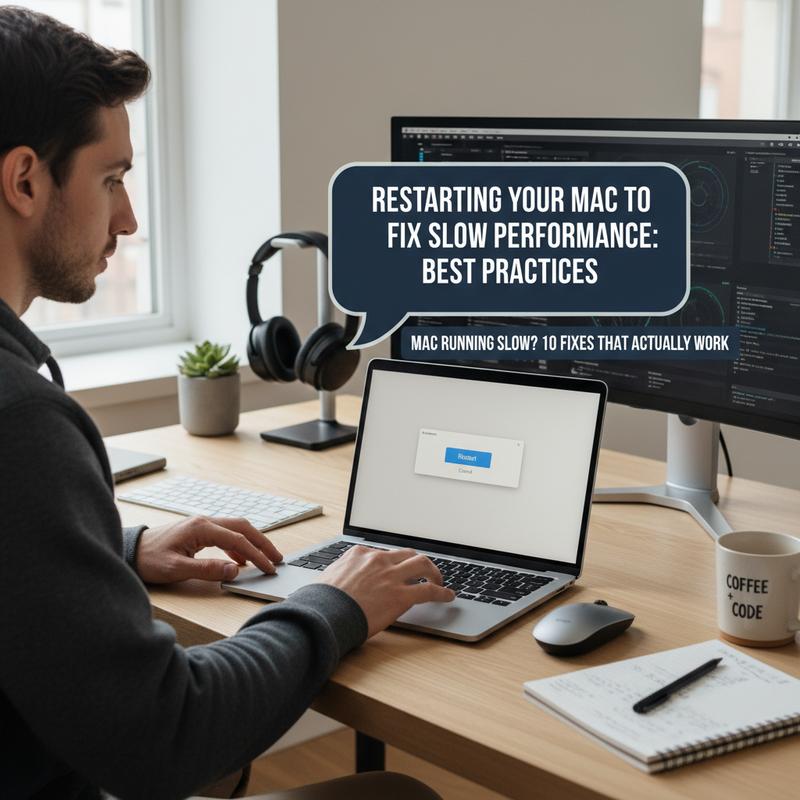
If you’re trying to get your Mac feeling fast again, a restart is one of the simplest fixes—and it’s surprisingly effective. A lot of people skip it, but restarting can clear out temporary files, reset system processes, and stop memory leaks that build up after days (or weeks) of use. Apple even points this out in its support docs, since regular restarts can help reduce sluggishness across modern macOS versions.
Think of a restart as a quick reset for the whole system. Over time, background jobs like Spotlight indexing or Time Machine snapshots can quietly grab CPU and RAM. After a reboot, those processes start fresh, and you often get back memory and processing power that was tied up. Some tech reviews, including benchmarks from AnandTech and Macworld, have even reported 20-50% speed gains on machines that were bogged down.
Thing is, it helps to know which type of restart you need. A normal restart is the everyday option and works well for general slowness or frozen apps—just click the Apple logo and choose ‘Restart’. If you like keyboard shortcuts, Control + Command + Power button does the same thing. And if your Mac won’t respond, you may need a force restart—press and hold the Power button on Apple Silicon Macs, or use Control + Command + Power on Intel models.
For tougher problems, Safe Mode can help narrow things down. It starts macOS with only the basics, clears some caches, and can help you figure out if a third-party extension is causing issues. On Apple Silicon, you start it by holding the Power button during startup. On Intel Macs, you hold the Shift key. Once you’ve sorted the issue out, restart normally to get everything back to full functionality.
Now, if you’re someone who leaves your Mac running nonstop, scheduling restarts can help keep things stable. You can set startup and shutdown times in Energy Saver, or use Terminal if you want more control. This is especially handy for power users or anyone running server-style workloads.
Before you restart, save your work and close apps so you don’t lose anything. After it boots back up, open Activity Monitor and make sure nothing is running wild in the background. Still, keeping macOS and apps updated matters too, since updates can fix bugs that cause slow performance.
So yes—restarting is simple, but it’s one of the best habits you can build for keeping your Mac healthy. It won’t fix everything (long-term slowness can point to hardware issues or malware), but it’s a solid first step you should always try. For more on speeding up older machines, check out this guide.
Use Activity Monitor to Find What’s Slowing Things Down
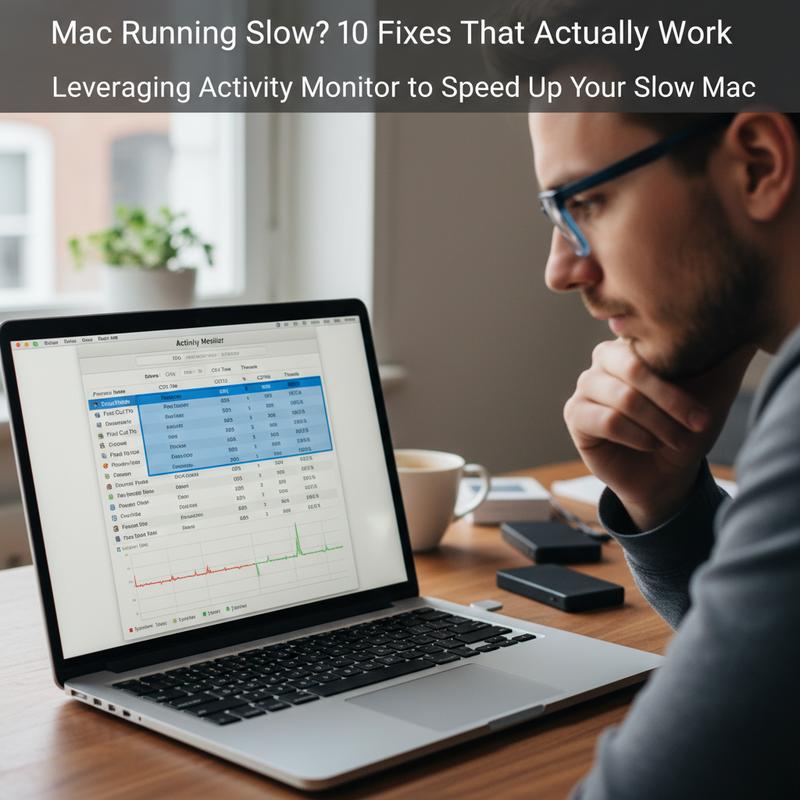
When your Mac starts dragging, Activity Monitor is the place to look. It’s built into macOS and shows what’s happening in real time—CPU, memory, energy, disk, and network usage. Once you understand what you’re seeing, it gets a lot easier to figure out what’s causing the slowdown and what to do next. And unlike third-party tools, it’s already on your Mac, costs nothing, and gives you solid info in a few clicks.
Unpacking the Dashboard
Activity Monitor has five main tabs—CPU, Memory, Energy, Disk, and Network—and each one tells you something different about your Mac’s workload. The CPU tab shows which processes are using the most processing power; if you’re sitting at 80-90% for a while, that’s often your bottleneck. The Memory tab includes a ‘Memory Pressure’ graph—if it’s yellow or red, your Mac is getting squeezed for RAM. In the Disk tab, heavy reads and writes can point to disk thrashing, which often happens during big file moves or when the system is short on space. The Network tab helps you see what’s using bandwidth, which is useful if everything feels slow online.
Identifying and Fixing Common Issues
To spot the real issue, watch Activity Monitor for 5-10 minutes while your Mac feels slow. High CPU usage is a common one, and sometimes it’s caused by kernel_task ramping up when the Mac is overheating—or by a single app doing way too much. On the memory side, if ‘Memory Used’ is high and ‘Swap Used’ keeps climbing, your Mac is leaning hard on swap, which usually means you’ve got too many apps or browser tabs open.
Disk slowdowns can show up after updates, especially if processes like mds_stores or spotlight are busy re-indexing. And while Energy Impact is mostly about battery, it can also point out apps that are constantly running hot and dragging performance down. Closing a few heavy apps or tabs in the CPU or Energy views can make a noticeable difference pretty quickly.
Actionable Fixes
If something is clearly chewing through resources, quitting that process is usually the fastest fix. You’ll often see things like Google Chrome Helper or cloudd near the top when a Mac is acting up. For longer-term improvement, clean up what launches at startup. You can use what you’re seeing in Activity Monitor and then head to System Settings > General > Login Items to trim the list and speed up boot times.
Still, Activity Monitor only tells part of the story. If you keep seeing disk pressure or memory strain, storage cleanup (and sometimes hardware changes) can help a lot. Updates matter too, since they often improve memory handling and fix bugs. And if the problem keeps coming back or you can’t pin it down, reaching out to tech support can save you a lot of trial and error before it turns into a bigger hardware issue.
At the end of the day, Activity Monitor isn’t just for one-time fixes. It’s a good habit to check in once in a while so your Mac stays fast and steady day to day.
Free Up Storage and Keep Software Updated
If your Mac is slow, two common causes are cramped storage and old software. And if you’re on macOS versions like Ventura, Sonoma, and Sequoia, staying on top of both can make a real difference. Clearing space and keeping things updated can bring speed back and help your Mac stay stable over time.
Optimizing Storage for Better Performance
One big reason Macs slow down is running low on storage. When your drive is nearly full, macOS has to rely more on slower virtual memory, which can drag down app launches and multitasking. A good target is keeping 20-30% of your drive free. On a 512GB drive, that usually means about 50-100GB open.
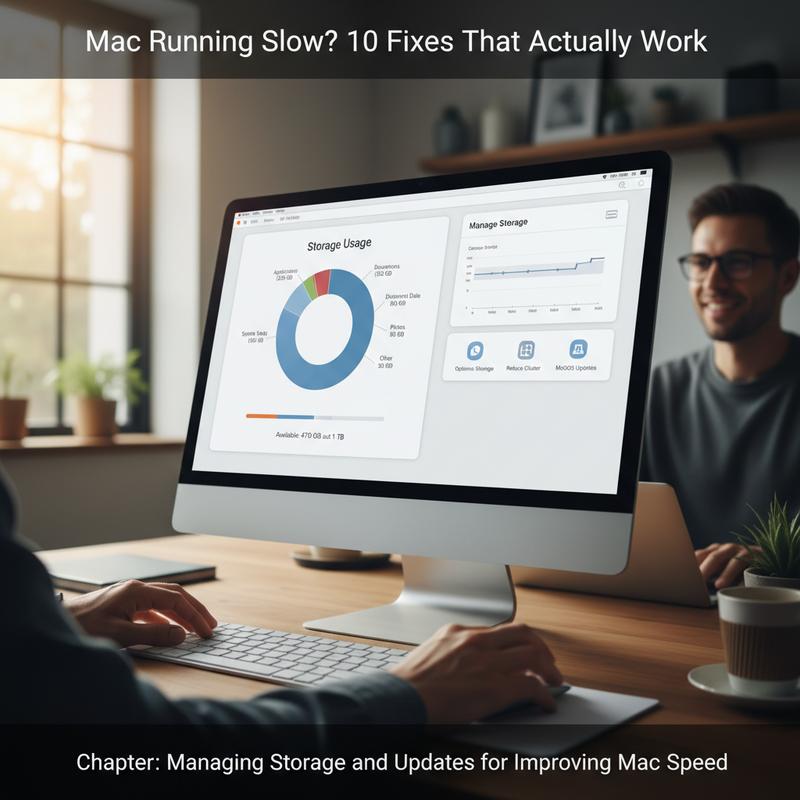
Start by checking what’s using space. Go to System Settings > General > Storage and wait for the breakdown to load. You’ll see categories like Photos or iOS backups, which helps you figure out what to tackle first. You can also use the built-in Optimize Storage options to automate some cleanup—like storing files in iCloud or emptying the trash automatically. Apple’s docs suggest these tools can recover up to 20-50% of storage in some cases.
If you’d rather do it by hand, you can hunt down large files in Finder by sorting folders by size. You can also clear caches and temporary files when needed. On the flip side, a lot of third-party “cleaner” apps aren’t really necessary since macOS already includes most of what you need.
Keeping Software Updated for Seamless Performance
Old software can mean bugs, messy resource use, and random slowdowns. Keeping macOS and your apps updated is one of the easiest ways to avoid that. For macOS, go to System Settings > General > Software Update and install the latest stable release. Turning on “Automatic Updates” helps you stay current, but you may want to avoid beta updates if you care about stability. Betas can be unpredictable, and benchmarking studies often show stable releases running up to 30% better.
Apps need updates too. Many update through the App Store, while others update inside the app itself. If you ignore updates for too long, some apps can start behaving badly and using more resources than they should.
If you like working in Terminal, you can run softwareupdate --list to check what’s available. And scheduling updates for off-hours can keep them from interrupting important work.
Do these consistently and you’ll usually see a real improvement, especially when you combine them with good habits like restarting regularly and checking Activity Monitor once in a while. If you’re thinking about moving files off your Mac to free space, take a look at cloud storage options that can help lighten the load.
Hardware Upgrades for Older Macs
Hardware Upgrades for Older Macs
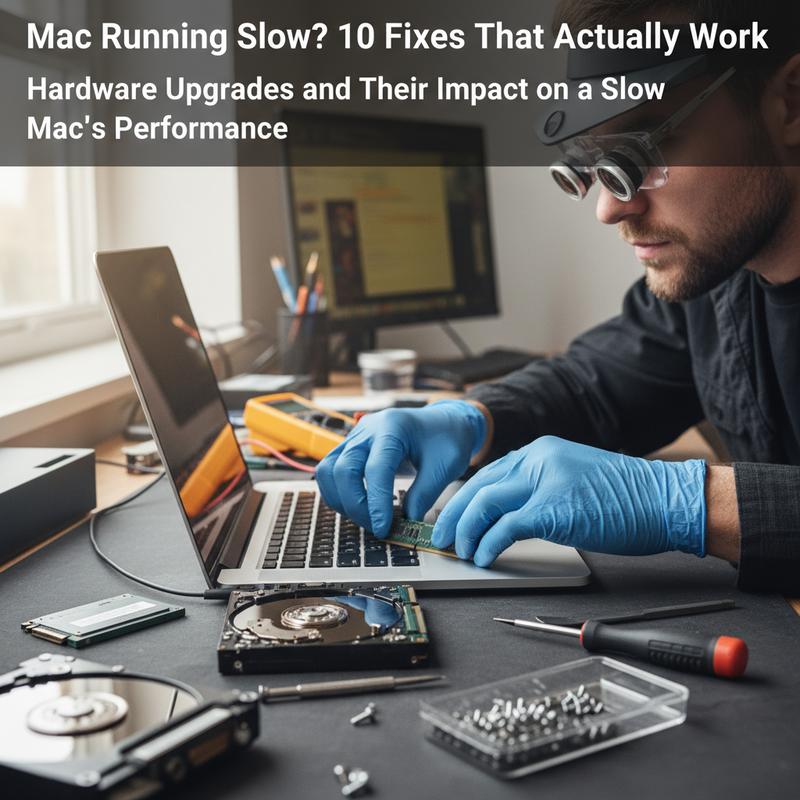
If your Mac still feels slow after you’ve tried the software fixes, it might be time to look at hardware—especially on older machines. As Macs age, heavier apps and steady macOS updates can push them past what they were built for. One key point: Apple Silicon Macs are mostly non-upgradable because the parts are soldered in place, so Intel-based Macs are usually the best candidates for upgrades.
Storage Upgrades: Speed and Snappiness
For many older Intel Macs, upgrading storage is the biggest speed boost you can get. Swapping a traditional HDD for an NVMe SSD can drastically cut boot times and app load times, and it can improve overall responsiveness by 50-80%. Even an external SSD over Thunderbolt can come close to internal performance in a lot of cases, which is helpful if your Mac is slowed down by a packed drive. Guides like iFixit can walk you through the process step by step. And faster read/write speeds really do help reduce those long “beach ball” pauses and make multitasking feel smoother.
Maximizing Memory: The Multitasking Marvel
RAM matters a lot if you keep tons of browser tabs open or run heavy apps like video editors. If your Mac supports it, moving from 16GB to 32GB—or even 64GB—can make switching between tasks feel much smoother. Some benchmarks show an Intel Mac Mini getting up to a 60% speed increase on memory-heavy work after a RAM upgrade. Not sure if you need more? Check Activity Monitor’s memory pressure to see if your system is constantly struggling.
Advanced Options: CPU and GPU Upgrades
CPU or GPU upgrades (often done through logic board swaps) are possible in some cases, but they usually aren’t worth the price compared to buying a newer Mac. That said, Intel Macs doing graphics-heavy work can sometimes benefit from an external GPU—rendering speeds can double or even triple for certain tasks, which can be a big deal for editors and designers. But eGPUs aren’t as useful now that Apple Silicon’s built-in graphics outperform many older external options.
Before spending money, compare the upgrade cost to what you’d get from a refurbished newer model. If the upgrade bill is close to the price of a replacement, trading in and moving on might be the smarter move. For more help thinking through tech purchases, see itcarolina.com/buying-the-right-business-laptop-3-common-mistakes-to-avoid. With the right upgrade path, an older Mac can feel responsive again and stay useful for years.
Final thoughts
Getting a slow Mac back on track usually comes down to a few smart steps. Start simple with restarts, then use Activity Monitor to see what’s actually causing the drag. After that, make sure you’ve got enough free storage and you’re staying current on updates. And if your Mac is older and still struggling, a storage or RAM upgrade can help a lot. Keep an eye on updates and your system’s overall health as you go, and you’ll have a much better shot at steady performance long-term. If none of this works, it may be time to bring in a pro.
Is your Mac slowing you down? If you want a hand figuring out what’s going on, IT Carolina can help you sort it out.
Learn more: https://itcarolina.com/about/
About us
At IT Carolina, we help get Macs running fast again with performance tuning and diagnostics that focus on what’s actually causing the problem. Whether you’re dealing with slow startups, laggy apps, or random crashes, our tech pros can help you track down the issue and fix it. That can mean cleaning up storage and memory, resolving software conflicts, or tightening up security. If you’re tired of guessing, we’re here to make troubleshooting a lot less frustrating—and to keep your devices running as smoothly as your day needs them to.