Windows 11 collects a lot of data by default, so keeping your privacy in check matters. This guide walks through some less obvious privacy settings you can change to better protect your info. We’ll cover quick fixes like turning down activity tracking, plus more advanced options like using the Group Policy Editor. Every change helps, but some settings can affect how certain features work, so it’s good to know what you’re giving up. Regular check-ins and a few trusted third-party tools can also help you keep your privacy settings from drifting over time. Now let’s go through the key steps so you can lock things down without slowing your PC to a crawl.
Essential Privacy Tweaks for Windows 11
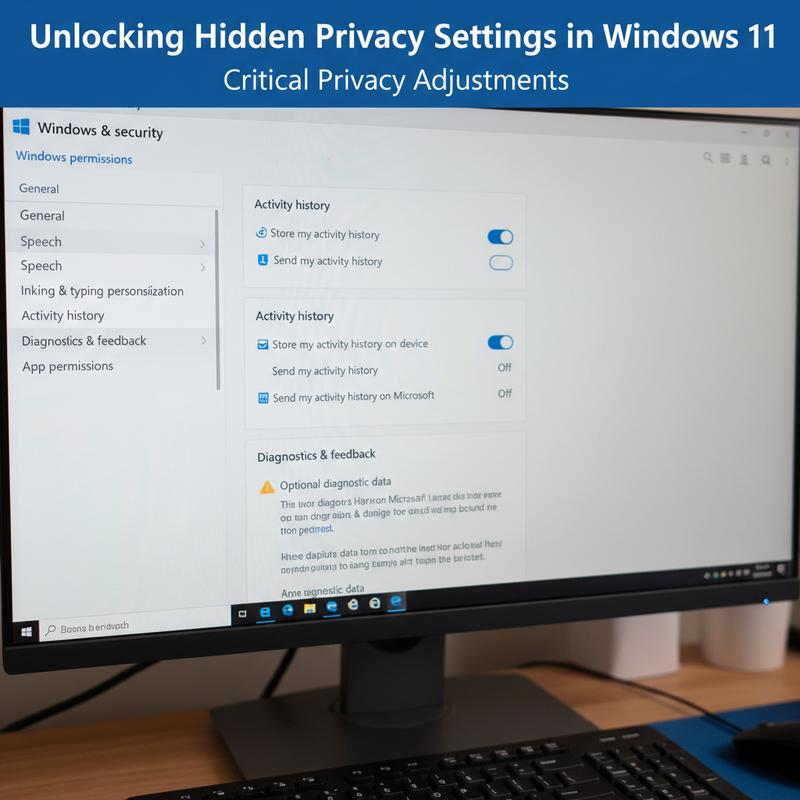
Windows 11 tries hard to feel smooth and connected. Thing is, that often means it pulls in more user data than you might expect, and that can expose info you’d rather keep private. If you take a few minutes to adjust the right settings, you can make Windows feel a lot more private without breaking the basics.
First up, turning down telemetry and diagnostics is one of the biggest wins. Microsoft collects diagnostic data by default, including things like app usage and crash reports. Go to Settings > Privacy & security > Diagnostics & feedback and set diagnostic data to Basic to cut back what gets sent. This limits data collection to essential operating system info and can reduce the amount of data shared by up to 80% compared to full mode.
Next, take a look at location, camera, and microphone permissions. Under Settings > Privacy & security, you can disable location services so apps (including Microsoft Edge) can’t grab precise GPS details. And if you turn off global camera and microphone access, apps won’t be able to tap into audio or video unless you explicitly allow it.
Ads are another easy place to tighten things up. If you disable the Advertising and Personalization ID under Settings > Privacy & security > General, apps stop using that ID to show targeted ads based on how you use your device. It’s a small switch, but it helps keep Microsoft’s ecosystem from building ad profiles around your preferences.
And don’t forget Activity History, especially if you don’t want cross-device tracking. In Settings > Privacy & security > Activity history, uncheck the options to store and send activity history. That keeps your activity from being logged across devices and makes your day-to-day use feel a bit more private.
If you’re comfortable using third-party tools, something like O&O ShutUp10++ can handle a lot of these tweaks for you with simple switches. It also makes it easier to apply deeper changes without hunting through menus. And if you’re thinking bigger picture, these data-wiping tips pair nicely with a privacy-focused setup.
Most of these changes are quick and you’ll feel the impact right away, without losing the features people actually rely on. Windows 11 is built to stay connected, but you still get to decide where the lines are.
Advanced Privacy Settings in Windows 11
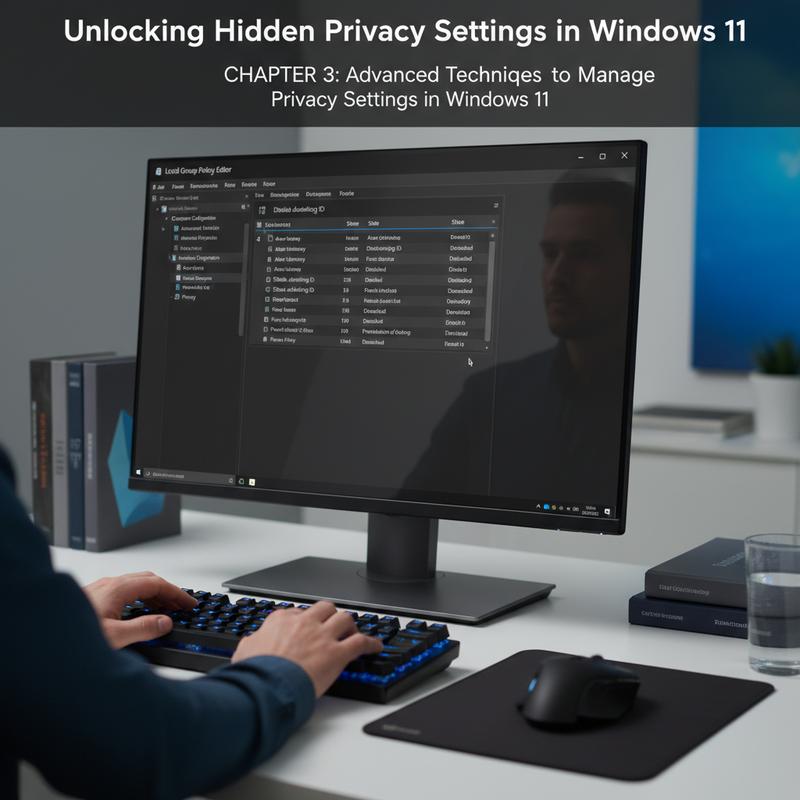
Windows 11 has plenty of privacy controls you can shape to fit your needs, especially if you’re comfortable digging a little deeper. Beyond the basic switches, you can also use the Settings menu, Group Policy Editor, Registry Editor, and PowerShell. These tools give you more fine control over what gets shared and what gets blocked, and you can do it without wrecking everyday usability.
A good place to start is the Core Privacy Dashboard, since it gives you a central spot for quick changes. You’ll find it under Settings > Privacy & security, and search also works well if you’re looking for something specific like telemetry or diagnostics. You can even pin commonly used settings to the Start menu so they’re easier to revisit. It’s also smart to disable Advertising ID and tailored experiences if you want to cut down cross-app tracking, which lines up with Microsoft’s own privacy guidance.
App permissions are another area where you can be picky. Go to Privacy & security > App permissions and set per-app access for things like the camera and microphone. A solid approach is to deny access by default, then only allow the apps you actually trust and use. And if you manage multiple devices or just like automation, PowerShell scripts can speed things up by turning off access for Universal Windows Platform (UWP) apps in bulk.
The Diagnostics & Feedback section is still key if you want to limit telemetry. Setting diagnostic data to Basic cuts down what gets sent to Microsoft and keeps it focused on essential system info. On Pro and Enterprise editions, you can also enforce this through Group Policy. Using Group Policy Editor (gpedit.msc) and Registry Editor can block most tracking and gives you a more consistent setup.
If you want even tighter control, the registry can help you disable specific features (like Cortana). Still, be careful here: back things up first and make changes slowly, because it’s easy to break something if you rush. In business setups, tools like Intune make it easier to roll out privacy baselines at scale so admins can keep a consistent privacy standard across the network.
On the flip side, you can also block telemetry at the network level using Firewall rules or Hosts file changes. This can stop some communication completely, but you’ll need to keep your blacklist updated as endpoints change over time.
If you want more ways to lock things down, it’s also worth checking out guides on protecting Windows devices, like this one on data wiping on Windows. When you combine a few of these advanced options, you can keep control of your data and still enjoy what Windows 11 does well.
Windows 11 Privacy Without Breaking Features
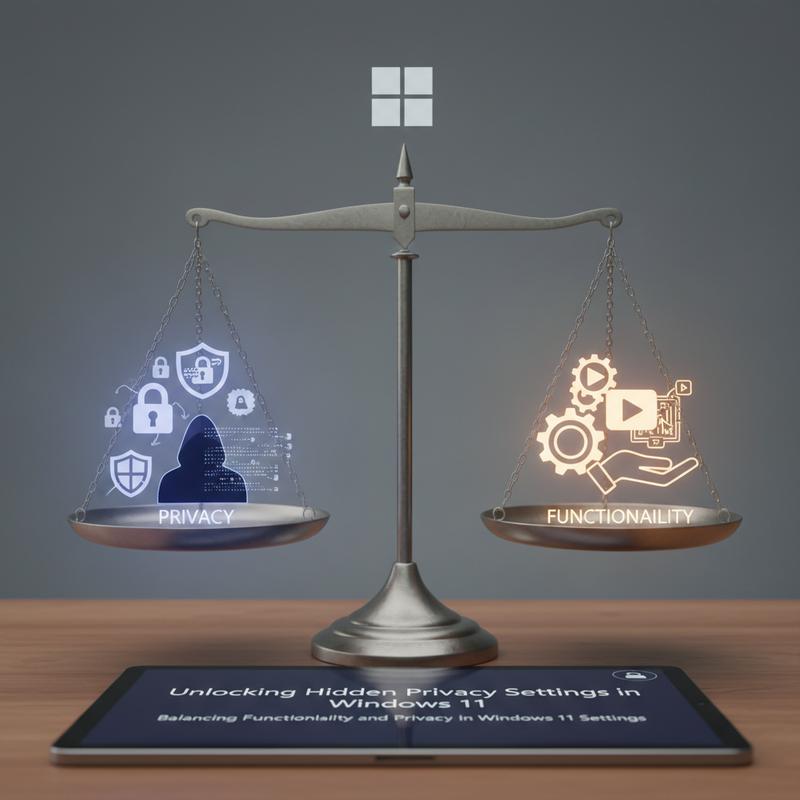
Windows 11 packs in a lot of modern features, and some of them lean on data collection to work well. So privacy tweaks are really about balance. You can tighten things up a lot and still keep the parts of the OS that matter day to day.
Windows 11 collects diagnostic data and telemetry by default, but you don’t have to leave it wide open. Go to Settings > Privacy & Security > Diagnostics & Feedback and limit it to the required diagnostic data. That cuts down what you share with Microsoft while still letting updates and core improvements work normally. You can also turn off tailored experiences and inking & typing personalization, which reduces how much Windows learns from your usage habits.
Activity history is another easy win if you want less tracking. In Settings > Privacy & Security > General, you can stop Windows from tracking activity across devices. That reduces extra data collection, but it may also limit the Timeline feature, so it’s worth thinking about whether you actually use Timeline before you switch it off.
App permissions are worth a quick audit too. Under Settings > Privacy & Security > App permissions, review which apps can access the camera, microphone, and location. Most apps don’t need all that access, and cutting it back helps reduce accidental over-sharing.
Some changes come with real trade-offs. Disabling Cortana can keep voice data from being sent to Microsoft, but you lose voice-based help. Turning off OneDrive syncing keeps files more private, but it also breaks easy access across devices. And if you disable personalization, Windows recommendations won’t be as tuned to you.
Still, you can make smart compromises. Keep Windows Update on so you still get important security patches without sharing extra data you don’t need to. Sticking with Microsoft Defender instead of a third-party antivirus can also reduce extra overhead while keeping strong protection in place. For OneDrive, selective sync is a nice middle ground since only the files you choose show up across devices. And you can disable Cortana but keep Windows Search, so you can still find local files without the privacy headaches.
When you understand what each setting changes, it’s much easier to build a Windows 11 setup that respects your privacy and still feels good to use. If you want more help with secure system cleanup, here’s this guide on data wiping.
Privacy Checkups and Tools for Windows 11
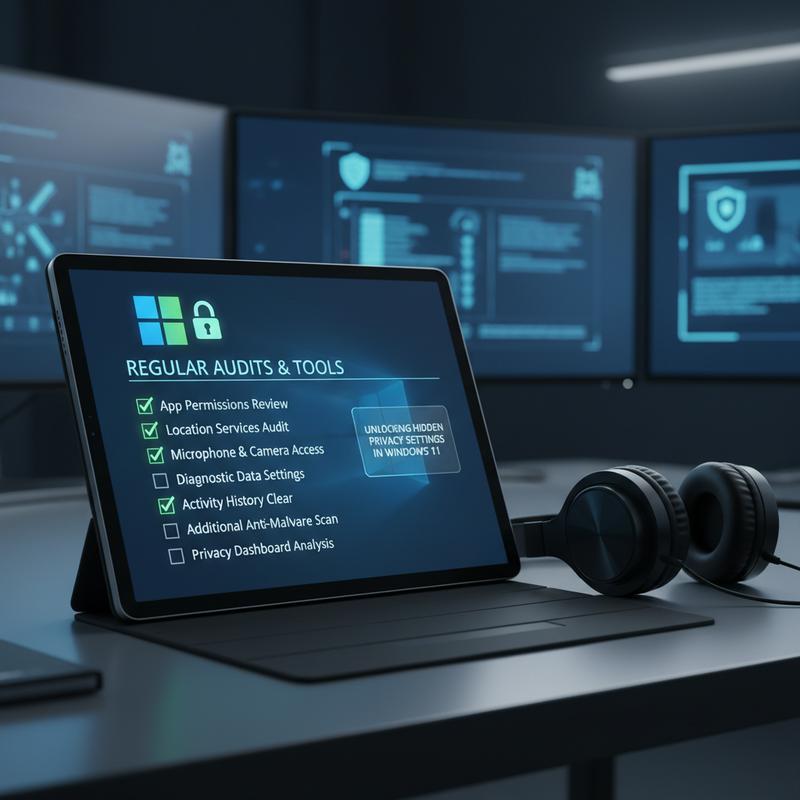
If you’re trying to keep a healthy balance between privacy and features, regular checkups and a few focused tools can make a big difference. Audits help you confirm that important protections, like Local Security Authority (LSA) protection, are still enabled and doing their job to protect credentials from unauthorized access. A weekly review can start by checking LSA protection in Windows Security, then using PowerShell to confirm the right registry keys are in place. You can also review Event Viewer logs for meaningful system events that might point to unauthorized access attempts or settings being changed behind the scenes.
It’s not only about credentials, either. Looking through logs like Security.evtx for logon event IDs (successful and failed login attempts) can reveal brute-force attempts. And System.evtx logs can hint at odd physical access, like unexpected power cycle events. After any incident, it’s smart to repeat these checks to make sure updates or changes didn’t reset your privacy settings.
To back up these audits, privacy tools can help tighten your Windows 11 setup even more. PC Armour Auditor is useful because it runs without installation and does a broad scan, including BitLocker encryption status, antivirus activity, and OS patching. It produces a Security Health Index and can generate concise, encrypted reports, which is handy if you need to document system security.
Towel Protocol is another option. It’s a free, C#-based framework that can apply privacy policies while keeping audit trails, and it supports restoring original settings through restore points. That’s helpful when updates roll back your configurations and you want a quick way to return to your preferred setup.
You can also use PowerShell scripts to automate audit tasks, which helps keep privacy settings stable over time. Putting a few of these methods together gives you stronger protection against accidental data sharing. And it’s a good idea to keep a history of settings and logs, including using Volume Shadow Copies if needed.
If you want more ideas for protecting sensitive info across platforms, check out strategies for securing sensitive data. Regular audits plus the right tools make it a lot easier to protect your personal data without turning Windows 11 into a hassle to use.
Final thoughts
If you adjust these less obvious privacy settings in Windows 11, you can cut down data collection a lot while keeping your system working normally. Regular check-ins and a few advanced tools add extra protection. The main thing is finding the right balance between privacy and usability so the settings match how you actually use your PC. Put together, these changes give you a strong starting point for keeping your personal information safer online.
Want a hand tightening up your Windows 11 privacy settings without breaking the stuff you rely on? Reach out to IT Carolina and we’ll help you sort it out.
Learn more: https://itcarolina.com/about/
About us
IT Carolina offers one-on-one IT support to help you get the most out of Windows 11. We focus on privacy settings and performance tuning so your system stays secure and runs smoothly. With our help, you can keep your tech simple, stable, and a lot less stressful.