

You’ve searched Google thousands of times. But if you’re like most people, you’re using exactly one feature: the search bar. You type words, scroll past the ads, and hope something useful appears in the first five results. These 12 operators change how Google processes your query — filtering by website, file type, date, exact phrase, and more. They work right now, in any browser, with no account required. Google maintains a help page on refining searches with operators, though this guide goes further with real tested examples.
We tested every operator in this list on May 26, 2026 with real searches and real results. A few of them have changed or stopped working — those are noted honestly so you don’t waste time on deprecated tricks.
All 12 Operators at a Glance
| Operator | What It Does | Example |
|---|---|---|
"phrase" |
Exact phrase match | "printer is offline" |
site: |
Search one website only | site:itcarolina.com printer |
- |
Exclude a word | jaguar -car -racing |
filetype: |
Find specific file types | filetype:pdf cybersecurity checklist |
intitle: |
Keyword must be in page title | intitle:checklist home office |
inurl: |
Keyword must be in page URL | inurl:pricing crm |
OR |
Either term (must be uppercase) | resume OR CV template |
.. |
Number or price range | laptop $500..$800 |
* |
Wildcard — any word fits here | "best * for small business" |
related: |
Sites similar to a known one | related:shopify.com |
cache: |
Last Google snapshot — deprecated 2024 | No longer works |
before: / after: |
Date filter — use Tools menu instead | AI regulation after:2025-01-01 |
1. “Exact Phrase” — Stop Getting Near-Matches
Put any phrase in double quotes and Google finds that exact sequence of words — not synonyms, not variations, not related topics. Without quotes, Google treats your words as flexible suggestions and fills results with pages that contain some of your words but not necessarily together.
Tested example: Searching "printer is offline" fix site:reddit.com returned only Reddit threads where that exact phrase appeared, not pages about printers being slow, printers not responding, or offline mode in general. Every result was a direct match to that specific error message.
When to use it: Tracking down a specific error message you saw on screen. Finding a quote from an article or document. Searching for a product with a precise name. Any time the words must appear together in that exact order.
2. site: — Search Any Single Website Like a Pro
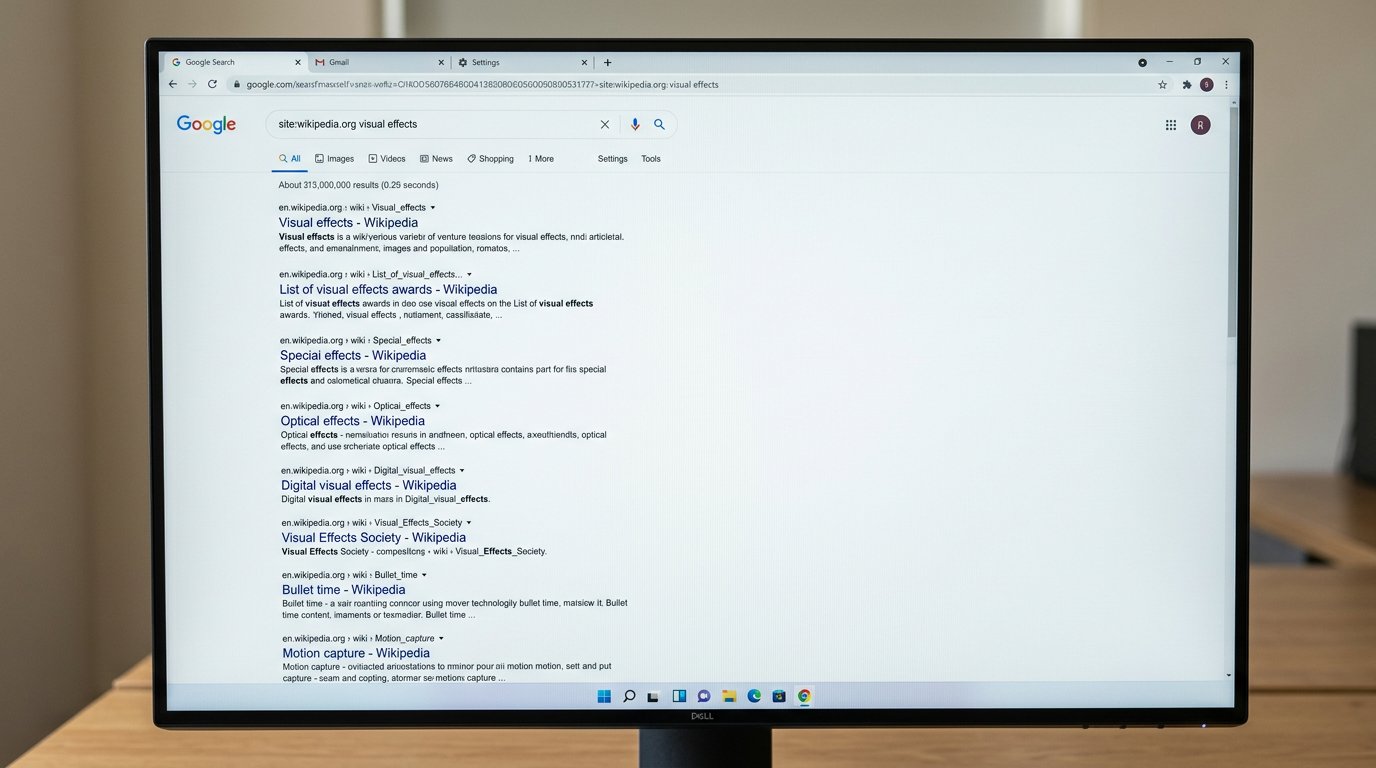
Add site:domain.com to your search and Google returns results only from that domain. Everything else disappears. This is more powerful than a website’s own search bar — Google’s index is more complete, faster, and you can combine it with other operators.
Tested example: Searching site:itcarolina.com printer returned seven pages from itcarolina.com mentioning printers — the printer setup guide, the offline printer fix, the HP cartridge article, and service pages. No results from any other website appeared.
Practical uses: Check what Google has indexed on your own website. Research what a competitor has published on a specific topic. Find a page you remember reading on a site but can’t locate. Verify whether a specific URL is in Google’s index at all (if a search for your page URL returns nothing, Google hasn’t indexed it).
3. – (Minus) — Remove Words That Pollute Your Results
Put a hyphen directly before any word — no space — and Google excludes pages containing that word. You can stack multiple exclusions in one query. This is the fastest way to rescue a search term that has two completely different meanings.
Tested example: Searching jaguar -car -sport -racing removed every result about the automobile brand. The first page showed only the animal: the U.S. Fish and Wildlife Service page on Panthera onca, Panthera.org’s species page, and YouTube wildlife documentaries. Not a single car result appeared.
When to use it: Any search term with multiple meanings — “mercury” (planet, element, car brand, or NASA program), “python” (programming language or snake), “apple” (company or fruit). Also useful for removing content types: adding -reddit removes Reddit threads, -youtube removes video results.
4. filetype: — Find PDFs, Spreadsheets, and Slides
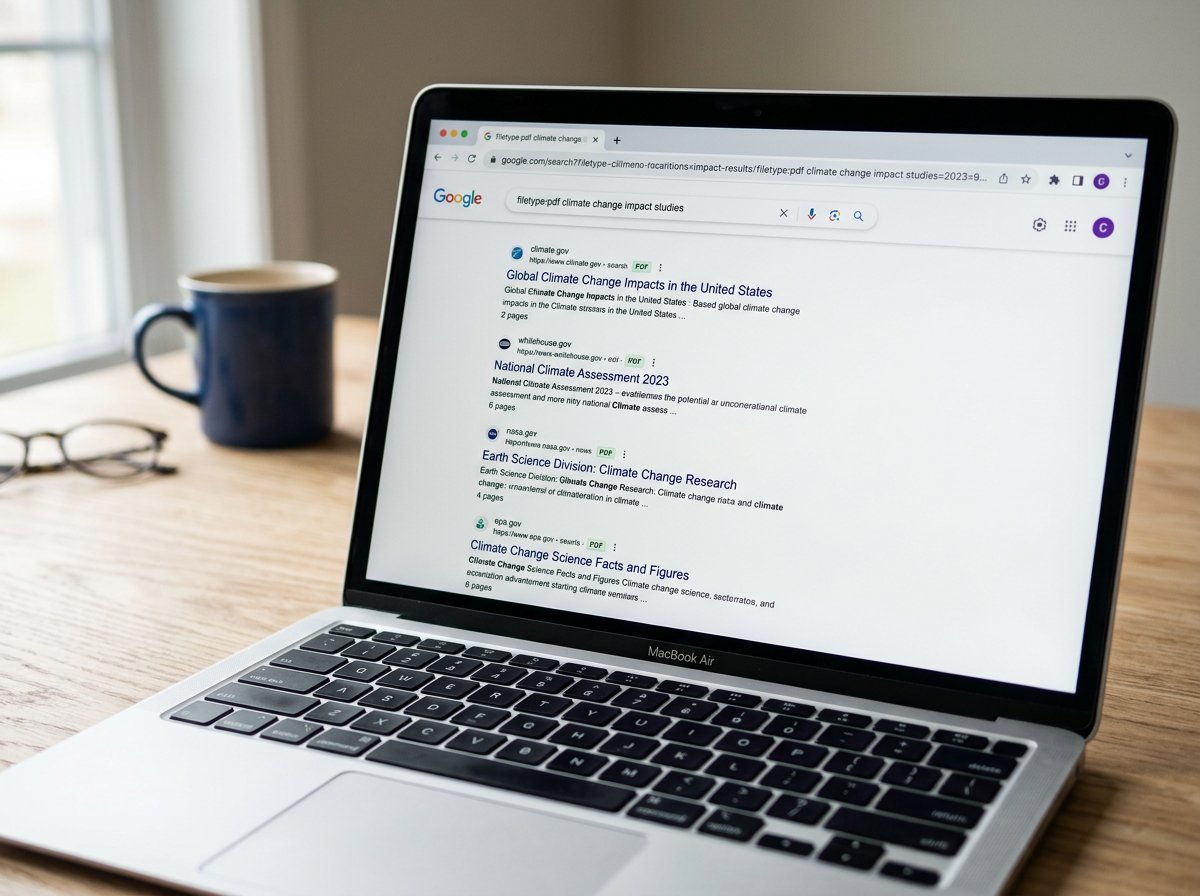
Add filetype:pdf (or filetype:xlsx, filetype:pptx, filetype:docx) and Google returns only that file type. Every result is a direct download link to that format. This is the fastest way to find professional templates, government checklists, and industry reports that would otherwise be buried in regular search results.
Tested example: Searching filetype:pdf small business cybersecurity checklist returned only PDF files — every single result had a PDF badge next to it. The sources included NIST (National Institute of Standards and Technology), FINRA, Cyber.gov.au, and several banks. All professional, downloadable documents. No blog posts, no landing pages, no ads.
Useful combinations: filetype:pdf site:gov security checklist — only government PDFs. filetype:xlsx budget template small business — downloadable Excel files. filetype:pptx presentation template marketing — slides you can edit directly. For a practical starting point on IT maintenance, our monthly computer maintenance checklist is a good companion to what you’ll find via filetype searches.
5. intitle: — Find Pages Where Your Keyword Is in the Title
Normal Google search matches your keyword anywhere on the page — body text, alt tags, metadata. intitle: requires your keyword to appear in the actual page title (the headline in the browser tab). This filters out pages that only mention your topic tangentially and surfaces content specifically written about it.
Tested example: Searching intitle:checklist home office setup returned pages where “checklist” was part of the page title — results from Brother USA (“Home Office Equipment & Supplies Checklist”), LinkedIn posts specifically about setup checklists, and similar pages. Pages that just mentioned a checklist in a single paragraph were excluded.
When to use it: Finding how-to guides and checklists on any topic. Researching what headlines competitors use for specific topics. Finding review articles (intitle:review laptop model) rather than product pages.
6. inurl: — Filter by What’s in the Web Address
inurl: requires your keyword to appear in the page URL itself. This is useful because well-structured websites put important keywords in their URLs — a pricing page is often at /pricing/, a blog post about a topic often has the topic in its URL.
Example: inurl:pricing crm surfaces pages where the URL contains “pricing” — these are almost always actual pricing pages, not comparison articles or ads. inurl:blog charlotte it support finds blog posts from Charlotte IT companies. inurl:pdf compliance checklist sometimes catches PDFs that filetype: misses.
7. OR — Search for Two Different Terms at Once
Type OR in all caps between two terms and Google returns results containing either one. This is useful when your topic goes by different names, or when you genuinely want results from two related-but-different areas.
Example: resume OR CV template free returns both resume-focused and CV-focused templates in one search — useful since the same document is called a resume in the US and a CV in the UK and most of Europe. laptop OR notebook repair Charlotte NC catches businesses that use either term on their sites.
Important: OR must be uppercase. Lowercase “or” is treated as a regular word and filtered out by Google as a common stop word.
8. .. (Two Dots) — Search Within a Price or Number Range
Put two dots between two numbers to tell Google to look within that range. Works with prices (with $ sign), years, sizes, or any numeric value. Google often activates a shopping filter sidebar when it detects a price range search.
Tested example: Searching laptop $500..$800 triggered Google’s shopping results panel with price-range filtering controls on the left side — filtering by RAM, drive type, screen size, and processor. All visible products were priced within that range. Google even detected the local Charlotte, NC area and showed nearby store availability. If you’re researching laptops in that price range, our best budget laptops guide covers the top picks under $800 in detail.
Other uses: cybersecurity certification cost $200..$500. SSD 500GB..$1TB price. home office chair $100..$300.
9. * (Wildcard) — Let Google Fill In the Blank
An asterisk inside a quoted phrase acts as a placeholder for any word. Google fills it in with whatever fits. This is most useful when you remember most of a phrase but not one specific word, or when you want to find all variations of a phrase pattern.
Example: "best * for small business" returns results for “best software for small business,” “best laptop for small business,” “best CRM for small business,” and dozens of other completions — all in one search. "how to * a printer" catches “how to install a printer,” “how to share a printer,” and “how to troubleshoot a printer.”
10. related: — Find Websites Similar to One You Already Know
related:domain.com asks Google to show websites it considers similar to that domain — same industry, similar content, comparable audience. In practice, results vary significantly by domain size and niche.
Example: related:shopify.com surfaces other e-commerce platform sites. related:pcmag.com shows other tech review publications. For small, local businesses, related: often returns few results because Google’s similarity data is thin for niche local sites. It works best for well-known national or industry-leading domains.
11. cache: — Deprecated Since January 2024
The cache: operator used to show Google’s last saved snapshot of a page. It was removed in early 2024. Typing cache:example.com today returns a standard search results page — the same as any other search. Google confirmed the removal officially in February 2024.
If you need to see an older version of a webpage, use the Wayback Machine at web.archive.org instead. It archives billions of pages going back to the late 1990s and lets you browse specific historical snapshots by date. It’s free and far more comprehensive than Google’s cache ever was.
12. before: and after: — Date Filtering (Use the Tools Menu Instead)
The before:YYYY-MM-DD and after:YYYY-MM-DD operators are supposed to filter results by publication date. In testing on May 26, 2026, the query AI regulation after:2025-01-01 returned zero results — the operator produced no output at all. This is a known inconsistency with these operators in standard search.
More reliable approach: Run your search normally, then click Tools (below the search bar on desktop) → Any time → Custom range. This date filter works consistently and gives you a calendar to pick exact dates. The after:/before: syntax is useful when building automated queries or scripts, but for everyday searches the Tools menu is more reliable.

Combining Operators — Where the Real Power Is
Individual operators are useful. Combined, they become precise. You can stack as many as make sense for your query — Google processes them all simultaneously.
Here are combinations worth bookmarking:
"printer is offline" fix site:reddit.com— Exact phrase + site-specific. We tested this: every result was a Reddit thread where that exact error message appeared. Zero irrelevant results.filetype:pdf site:gov cybersecurity checklist— Only government-hosted PDFs on cybersecurity. Surfaces NIST, CISA, and similar authoritative documents.intitle:review laptop $500..$800 -amazon -best buy— Reviews in a price range, excluding retailer pages.site:itcarolina.com -contact -about -privacy— All indexed pages from a site except administrative pages."how to * without * software" filetype:pdf— Wildcard inside a phrase, limited to PDFs.
There is no formal limit on operator combinations, but very complex queries sometimes return fewer results because fewer pages satisfy all conditions simultaneously. Start with two or three operators and add more only if needed.
How a Charlotte Business Owner Used These to Research a Market
A marketing consultant in Charlotte’s South End neighborhood was preparing a proposal for a new client in the HR software space. She needed to understand what content her client’s competitors were publishing — but manually browsing five competitor sites would have taken most of a morning.
She used site:competitor1.com onboarding to see every piece of content that competitor had published about onboarding. Then filetype:pdf site:shrm.org onboarding checklist to download authoritative templates from the Society for Human Resource Management. Then intitle:review "HR software" 2025 -ad to find independent review articles published in the past year. The entire research phase took 25 minutes instead of three hours.
This is the practical value of operators: not exotic search tricks, but systematic ways to cut a research task from hours to minutes. If you need help setting up efficient workflows for your home office or small business, IT Carolina’s home office service covers technology setup and optimization for small businesses across the Charlotte, NC area.
Frequently Asked Questions
- Do Google search operators still work in 2026?
- Most of them, yes. Working reliably: site:, filetype:, intitle:, inurl:, exact phrase in quotes, minus (-), OR, and the number range (..). Deprecated: cache: (removed in 2024). Unreliable: before: and after: — use Google’s Tools menu to filter by date instead.
- Are Google search operators case-sensitive?
- The operators themselves are not case-sensitive — site: and SITE: work the same way. The one exception: OR must be uppercase. Lowercase “or” is treated as a regular search word and ignored by Google. Your search terms after the operator follow Google’s normal rules and are not case-sensitive.
- Can I combine multiple operators in one search?
- Yes. That’s where they’re most powerful. “printer is offline” fix site:reddit.com uses exact phrase plus site: in one query. filetype:pdf site:gov cybersecurity finds only government PDFs. Stack as many as needed — just be aware that very specific combinations may return fewer results because fewer pages satisfy all conditions.
- Does the cache: operator still work?
- No. Google removed it in early 2024. Use the Wayback Machine at web.archive.org to see older versions of any webpage — it’s free and archives billions of pages going back decades.
- How is site: different from a website’s internal search?
- A website’s own search is limited to its internal database, which is often incomplete or only searches titles. site: uses Google’s full index of the domain — more complete, faster, and combinable with other operators like filetype: or intitle: that no internal search supports.
- What’s the most useful operator for small business owners?
- site: gives immediate value: check what Google has indexed on your own website, research what competitors publish about a topic, verify that your key pages are in Google’s index. filetype:pdf is a close second for finding professional templates and reports from authoritative sources without wading through blog posts.
- Do these operators work on mobile?
- Yes. All text-based operators work identically in Google’s mobile browser. Type them directly into the search bar the same way you would on desktop. The colon characters and special symbols are available on any mobile keyboard.
Ready to Work More Efficiently?
These operators are free, work right now, and require nothing beyond what you already use every day. The next time a search returns 10 pages of irrelevant results, one of the operators above will fix it in seconds.
For more help optimizing how your home office or small business uses technology — from software setup to hardware recommendations — contact IT Carolina. We work with clients across the Charlotte, NC area and handle everything from search tool training to full office IT setup.
John Jones
Senior IT Specialist, IT Carolina
John has 12 years of hands-on experience diagnosing and resolving computer, printer, and network issues for homeowners and small businesses across Charlotte, NC. He has helped hundreds of clients recover from Windows update failures, driver conflicts, and hardware problems — often resolving in a single remote or on-site session.