

Windows flashes the dreaded “Low Disk Space” warning. You open your C: drive, add up your photos, documents, and downloads — and it is nowhere near what is missing. So where did all that space actually go?
On Windows 10 and 11, the space you can’t see is almost always hidden system data — update leftovers, a hibernation file, restore points, and more. The good news: most of it is safe to clear. Here are the nine usual suspects and exactly how to reclaim each one.
Why Is My Disk Full When I Don’t Have Many Files?
If Windows says your disk is full but your files don’t add up, the missing space is almost always hidden system data: Windows Update leftovers, the hibernation file, System Restore points, temporary files, and a leftover Windows.old folder. Together these can quietly eat 20–50 GB. The fix is to find them, then clear them safely.
This often shows up right after a big update. If your PC also got sluggish at the same time, our guide on a computer running slow after a Windows update covers the performance side.
First, See What’s Actually Eating Your Disk
Before you delete anything, find out where the space went. Windows has a built-in view: go to Settings → System → Storage. It breaks your drive down by category — Apps, Temporary files, System, and so on.
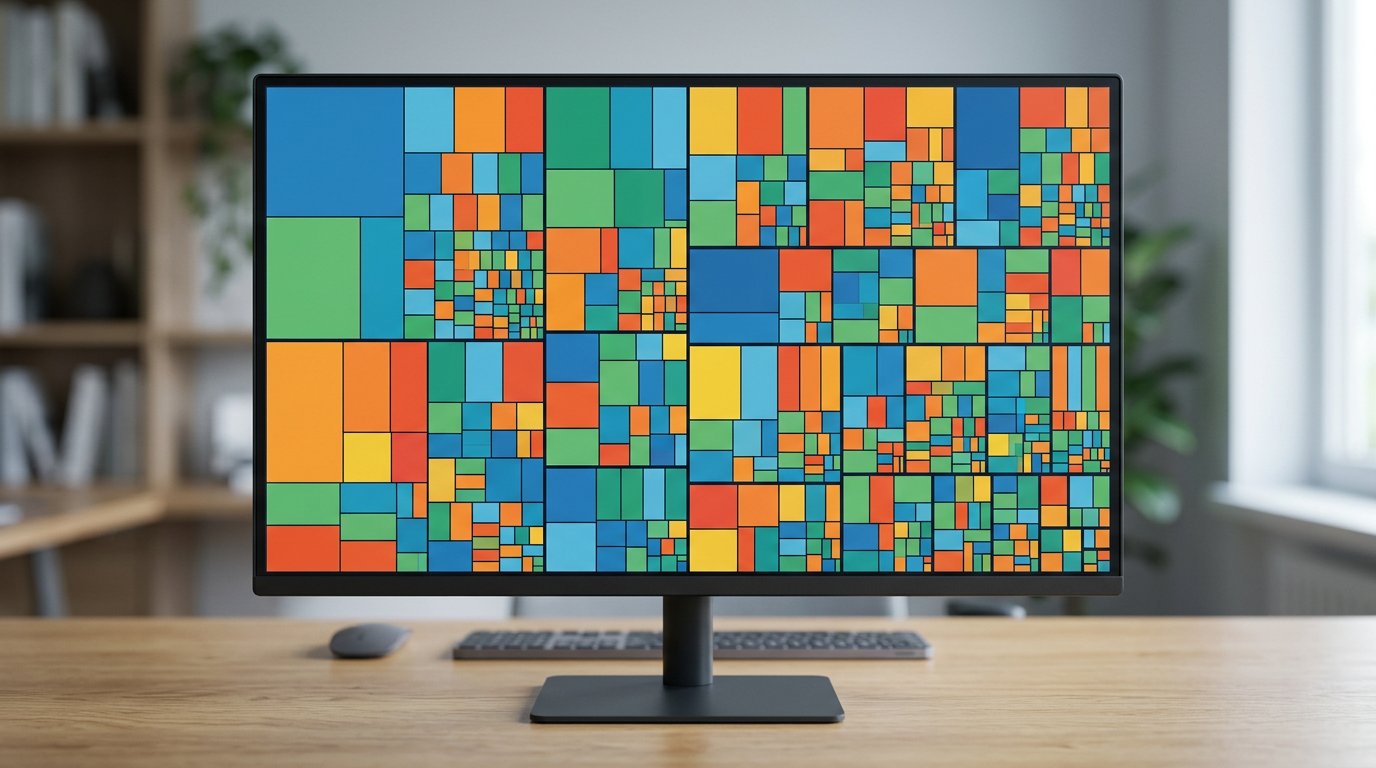
For a clearer picture, a free tool helps. WinDirStat scans your drive and draws a treemap: every file becomes a colored rectangle sized to the space it uses, so the big hogs jump right out. It is free and open-source — just download it only from the official site (windirstat.net) or the project GitHub, since copycat sites reuse the name and bundle junk.
The 9 Hidden Space Hogs (and How to Clear Each)
Here are the files that usually account for your missing gigabytes, with the safe way to clear each one.
- Windows Update leftovers (WinSxS component store). Old update files pile up here. Do not delete the folder by hand — run Disk Cleanup’s Windows Update Cleanup, or from an admin prompt:
DISM /Online /Cleanup-Image /StartComponentCleanup. Usually frees 3–8 GB. - The hibernation file (
hiberfil.sys). It reserves roughly 75% of your RAM — about 12 GB on a 16 GB PC. If you never use Hibernate, open an admin prompt and runpowercfg /h offto remove it. - System Restore points and shadow copies. These snapshots can hoard many gigabytes. Go to Control Panel → System → System Protection → Configure to cap how much space they use or delete old ones.
- Temporary files. App caches, install leftovers, and old logs. Clear them under Settings → System → Storage → Temporary files.
Windows.old(after a feature update). Your previous Windows install, often 15–30 GB. Remove it via Disk Cleanup → Previous Windows installation(s). Note: you lose the option to roll back.- OneDrive offline copies. Files set to always stay on this device take real disk space. Right-click the folder and choose Free up space to keep them in the cloud instead.
- The Recycle Bin. Deleted files still sit here until you empty it. Right-click the Recycle Bin and choose Empty.
- Downloads and leftover installers. The Downloads folder collects setup files you will never open again. Sort by size and clear the big ones.
- Delivery Optimization cache. Windows stores update bits to share on your network. Clear it under Settings → System → Storage → Temporary files → Delivery Optimization Files.
How Do You Free Up Space Safely?
Work safest-first. Start with the built-in tools before touching anything advanced.
- Turn on Storage Sense (Settings → System → Storage) so Windows auto-clears temp files and the Recycle Bin.
- Run Disk Cleanup (search “Disk Cleanup”), click Clean up system files, then tick Windows Update Cleanup, Temporary files, Recycle Bin, and Previous Windows installation(s).
- Remove
hiberfil.syswithpowercfg /h offif you do not hibernate. - Cap System Restore usage so it stops growing.
- Only if WinSxS is still huge, run the DISM command above.
Just as important: what not to touch. Don’t manually delete the WinSxS folder — Microsoft warns it can damage Windows so badly the PC won’t boot or update. Leave pagefile.sys alone too; Windows manages it. And never delete anything inside the Windows or System32 folders.
Make it a habit. A quick monthly pass keeps your drive healthy — see our monthly computer maintenance checklist.
Case Study: 0 Bytes Free on a Charlotte Laptop
A small-business owner in Charlotte’s NoDa neighborhood brought us an HP Pavilion with a red, completely full C: drive — Windows wouldn’t even update. She was sure she had barely saved anything to it, and she was right.
WinDirStat told the story in seconds: a 28 GB Windows.old folder from a feature update, plus 9 GB of restore points and a 12 GB hibernation file. None of it was her data. We cleared Windows.old through Disk Cleanup, capped restore points, and ran powercfg /h off — about 45 GB back in 20 minutes, and updates ran fine afterward.
Frequently Asked Questions
Is it safe to delete hiberfil.sys? Yes, if you don’t use Hibernate. Run powercfg /h off as admin — that’s the proper way. Don’t delete the file by hand; Windows will just recreate it.
Can I delete the Windows.old folder? Yes, through Disk Cleanup’s “Previous Windows installation(s)” option. Just know you lose the ability to roll back, and Windows removes it automatically after about 10 days anyway.
Why is my C: drive full but my D: drive empty? Windows, apps, and system files all install to C: by default. Moving large folders or your OneDrive location to D: can rebalance things.
Will deleting temporary files break anything? No. Temp files are safe to clear — that’s exactly what Storage Sense and Disk Cleanup are built to do.
Should I delete pagefile.sys to save space? No. That’s Windows’ virtual memory. Leave it on automatic; deleting it can cause crashes.
How do I see what is taking up space? Use Settings → System → Storage for the built-in view, or WinDirStat for a visual map of every file by size.
When to Call IT Carolina
If your drive fills up again days after a cleanup, refuses to free space, or you’re nervous about which system files are safe to touch, that’s worth a second opinion. A drive stuck near 0 bytes can also be an early sign of a failing disk.
We help homeowners and small businesses across Charlotte, NC reclaim space, speed up slow PCs, and sort out storage problems — usually in a single visit. See our home and home-office IT support, or give us a call.
John Jones
Senior IT Specialist, IT Carolina
John has 12 years of hands-on experience diagnosing and resolving computer, printer, and network issues for homeowners and small businesses across Charlotte, NC. He has helped hundreds of clients recover from Windows update failures, driver conflicts, and hardware problems — often resolving in a single remote or on-site session.