
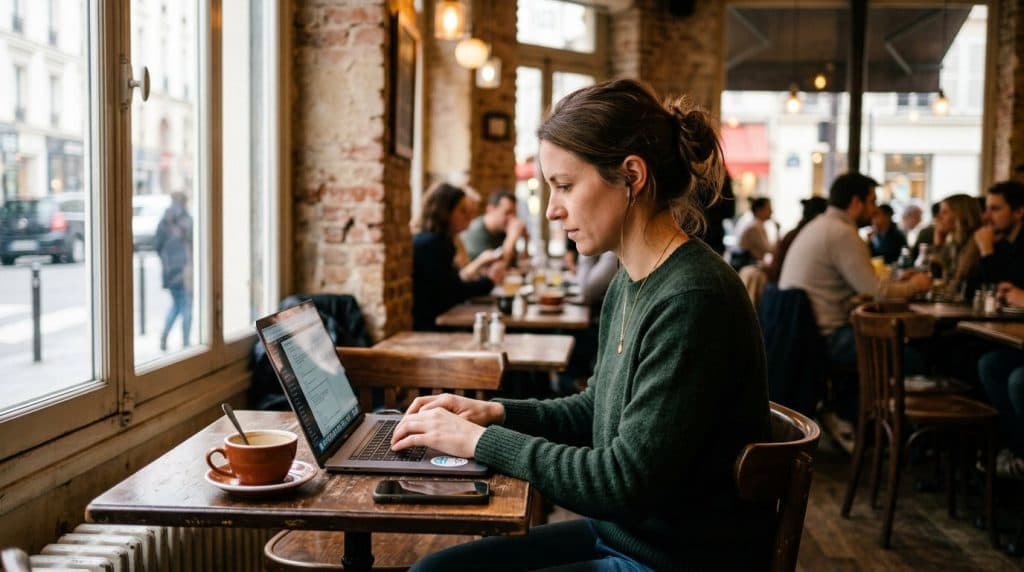
Free Wi-Fi feels like a gift — at the airport, the coffee shop, the hotel lobby. The catch is that an open network is open to everyone on it, including whoever set up a look-alike hotspot two tables over. You don’t see the risk, which is exactly what makes it dangerous.
You don’t have to swear off public Wi-Fi. You just have to know what not to do on it. Here are 10 things to never do on public Wi-Fi — and the safer move for each. (For the deeper how-and-why, see our guide on how hackers exploit public Wi-Fi.)

Why Is Public Wi-Fi Risky in the First Place?
Because you can’t see who else is on the network or whether it’s even real. An attacker can snoop on traffic, or set up a fake hotspot that copies the cafe’s name and quietly routes everything you do through their equipment. Most of the danger comes down to two things: sending sensitive data in the open, and trusting a network you haven’t verified.
10 Things You Should Never Do on Public Wi-Fi
1. Never check your bank or move money
Logging into your bank, transferring funds, or paying a bill puts your most sensitive credentials onto a network you don’t control. Instead: use your phone’s cellular data. As Fordham’s security team advises, the connection between your phone and the cell tower is automatically encrypted, which makes mobile data the safer choice for anything financial.
2. Never enter credit card details to shop
That “limited-time deal” can wait until you’re home. Typing a card number on public Wi-Fi risks handing it to anyone intercepting traffic on a fake or compromised network. Instead: save the purchase for a trusted connection, or switch to cellular data and a VPN first.
3. Never log into email or work accounts unprotected
Your email is the master key — it can reset the password to almost every other account you own. Logging in over open Wi-Fi without protection is a gift to anyone listening. Instead: use a VPN, and make sure multi-factor authentication is on so a stolen password alone isn’t enough.
4. Never connect without turning on a VPN
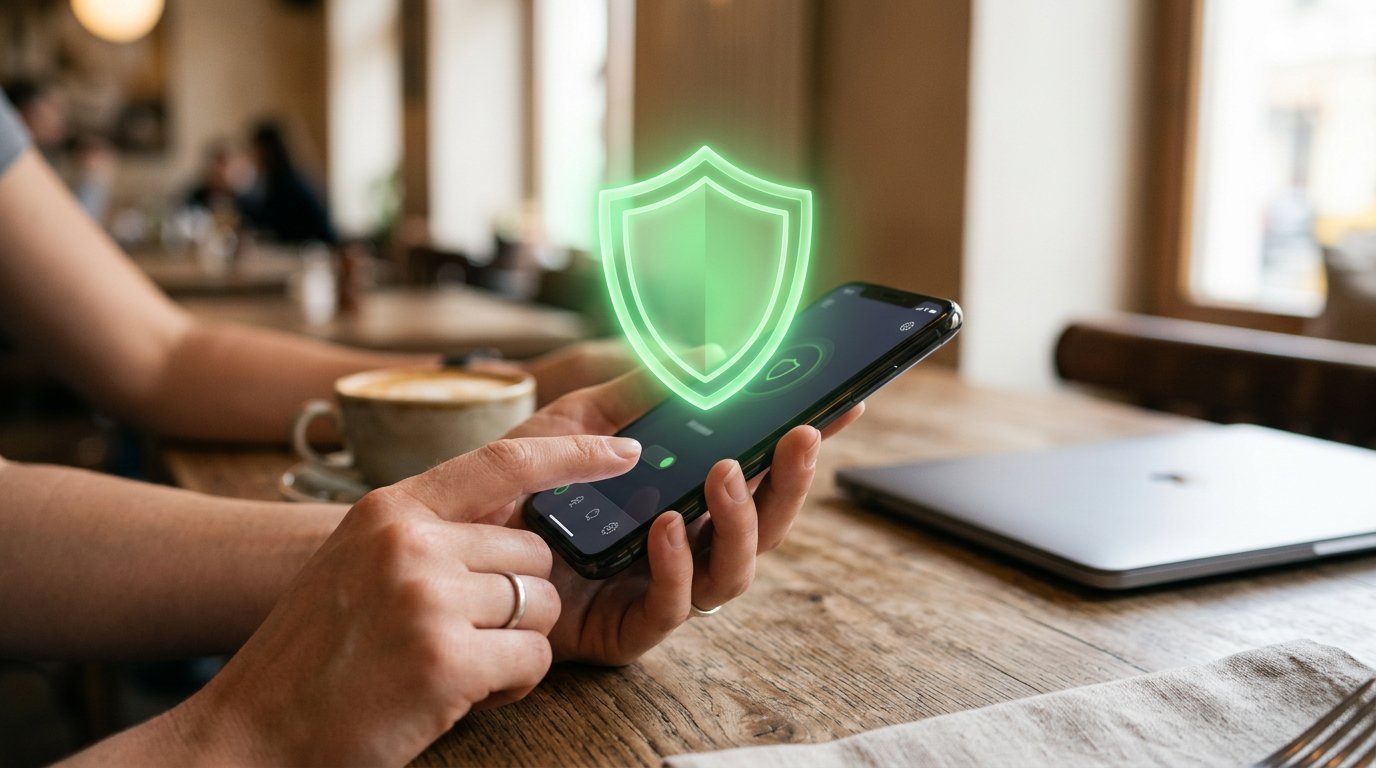
This is the one habit that fixes most of the others. A VPN encrypts everything you send, so even on a malicious network an attacker sees only gibberish. Kaspersky notes a VPN protects you from evil twin attacks by encrypting your data no matter the network. Instead: turn the VPN on before you do anything — see our take on whether you really need a VPN.
5. Never trust the padlock to keep you fully safe
HTTPS (the padlock in your browser) protects most websites, and that’s good — but it isn’t a force field. It doesn’t cover every app, and it can’t stop a fake login page or a risky setting on your own device. Instead: treat HTTPS as one layer, and still avoid sensitive logins on open networks.
6. Never let your device auto-connect to open Wi-Fi
Auto-connect is convenient and dangerous: your phone can silently join a network just because the name matches one you used before — including a fake one. Fordham recommends disabling the “connect automatically” feature. Instead: turn off auto-join for public networks and connect on purpose, every time.
7. Never join a network you can’t verify
An “evil twin” is a fake hotspot that copies a real network’s name — Airport_Free_WiFi, Starbucks_Guest — and attackers often boost its signal so it sits at the top of your list. As Kaspersky explains, you may connect to the fake one without realizing. Instead: ask staff for the exact network name, and be suspicious of two networks with nearly identical names.
8. Never leave file sharing and AirDrop on
On a public network, file sharing set to “everyone” can let strangers see or drop files on your device. Instead: turn off network file sharing and set AirDrop to “Contacts Only” or off before you connect in public. On Windows, switch the network type to “Public” so sharing is locked down automatically.
9. Never type your login into a Wi-Fi pop-up or ignore a warning
A fake hotspot often shows a slick “sign in to continue” page asking for your email and password — a captive portal should never need those. And a certificate or security warning is your browser telling you something is wrong. Instead: never enter real account credentials into a Wi-Fi login screen, and never click through a security warning to “continue anyway.”
10. Never forget to log out and forget the network
When you’re done, leaving accounts logged in and the network saved means your device may silently reconnect next time — or the next person on a shared device gets in. Instead: log out of accounts, then tell your device to “forget” the public network so it won’t auto-join later.
The 30-Second Public Wi-Fi Checklist
Before you connect anywhere public: turn on your VPN, confirm the exact network name with staff, keep banking on cellular data, and make sure multi-factor authentication guards your key accounts. Do those four and the rest of this list mostly takes care of itself. If MFA isn’t set up yet, our two-factor authentication guide is the place to start.
Case Study: A Charlotte Traveler and a Fake “Airport_WiFi”
A client flying out of Charlotte Douglas connected to a network called “CLT_Free_WiFi” and was met with a login page asking for his email and password to “continue.” It looked official. He typed his email, then paused at the password field — the real airport Wi-Fi had never asked for that.
He disconnected and asked an airline agent for the correct network name; the legitimate one needed no login at all. The page he’d almost completed was an evil twin harvesting credentials. We later set him up with an always-on VPN and MFA, so even a slip like that wouldn’t hand over a working account.
Frequently Asked Questions
Is public Wi-Fi safe to use? For light browsing with a VPN, yes. Avoid banking and sensitive logins, and verify the network first.
What is an evil twin network? A fake hotspot named to copy a real one. Connect to it and your traffic flows through the attacker — verify the name and use a VPN.
Does a VPN make public Wi-Fi safe? Largely. It encrypts your traffic so a snooper sees only scrambled data. It’s the single best protection.
Is it safe to bank on public Wi-Fi? Better not to — use cellular data, which is encrypted to the tower automatically.
Isn’t HTTPS enough? Not fully. It covers most sites but not every app, fake login pages, or risky device settings. Treat it as one layer.
When to Call IT Carolina
If you think you logged into a fake network, entered a password somewhere you shouldn’t have, or just want your laptop and phone set up to travel safely, a quick review puts your mind at ease. A VPN and MFA take minutes to set up and save you from the worst-case version of a bad connection.
We help homeowners and small businesses across Charlotte, NC lock down devices, set up VPNs and MFA, and clean up after a suspicious login — usually in a single visit. See our home and home-office IT support, or give us a call.
John Jones
Senior IT Specialist, IT Carolina
John has 12 years of hands-on experience diagnosing and resolving computer, printer, and network issues for homeowners and small businesses across Charlotte, NC. He has helped hundreds of clients recover from Windows update failures, driver conflicts, and hardware problems — often resolving in a single remote or on-site session.