

You shut your laptop down for the night. Next morning you turn it on — and the same glitch is right back. The Bluetooth mouse won’t pair, the Wi-Fi keeps dropping, or it’s still crawling. So you hit Restart instead, and suddenly everything works.
That’s not luck. In Windows 10 and 11, Restart and Shut Down do two different things under the hood — and only one of them actually gives your PC a fresh start. Here’s what’s really happening, and how to make shutting down work the way you think it does.
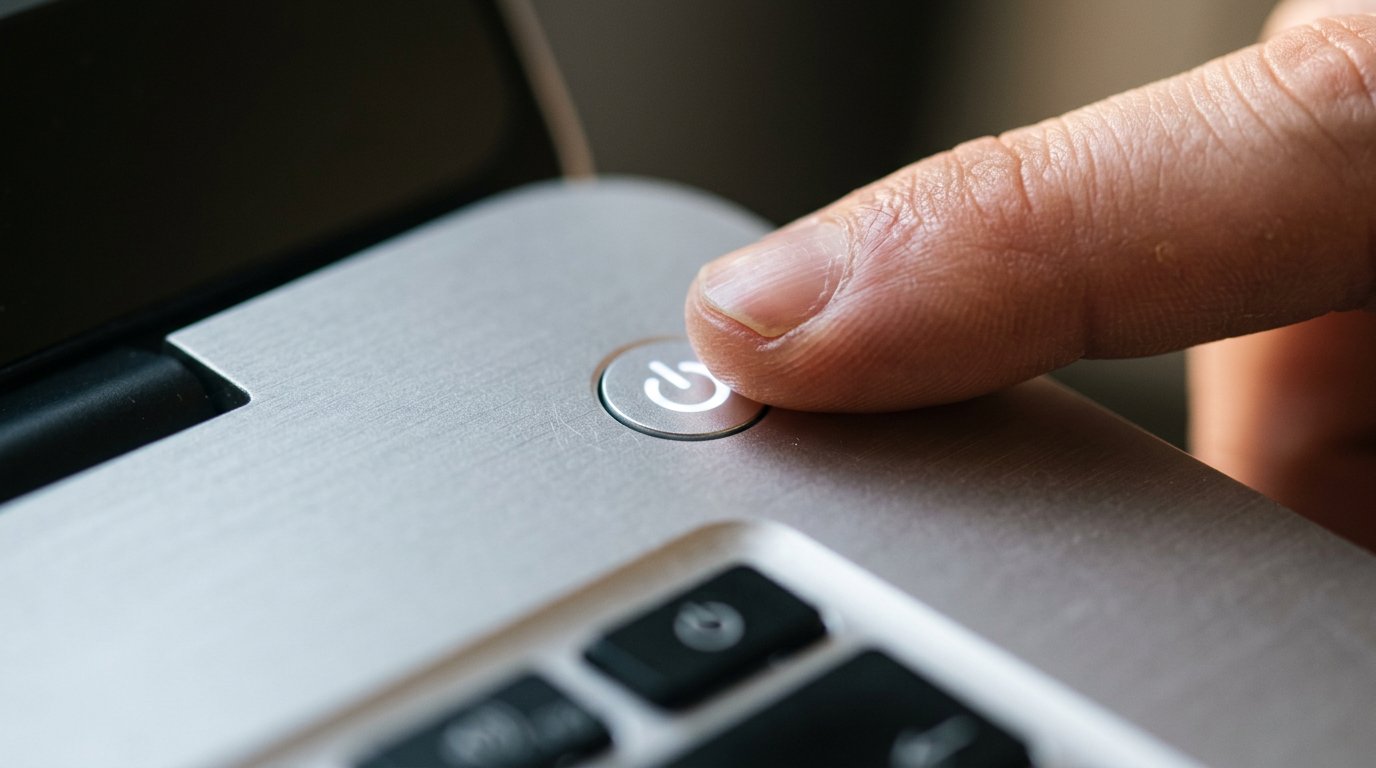
Is Restart the Same as Shut Down?
No. In Windows 10 and 11, restarting and shutting down are not the same. A feature called Fast Startup saves part of your system to disk when you shut down, so the next boot reloads that saved state instead of starting clean. A Restart ignores Fast Startup and always does a full reboot. That’s why Restart clears glitches a Shut Down brings right back.
What Is Fast Startup, and Why Is It On Without You Knowing?
Fast Startup — also called Hybrid Boot or Hiberboot — is a Windows feature that makes your PC boot faster. It’s turned on by default, so most people use it without ever choosing to.
Here’s the trick. When you click Shut Down, Windows closes your apps and logs you out, just like always. But instead of powering everything off, it saves the Windows kernel and your loaded drivers to a hibernation file called hiberfil.sys on your drive.
On the next start, Windows skips most of the hardware setup and loads that saved state back. The payoff is real: boot times drop by roughly 30–60%, which you notice most on older hard drives. That hibernation file isn’t small either — it usually takes up about 70–75% of your installed RAM.
According to Microsoft’s own documentation, Fast Startup is enabled by default, and a shutdown with it on saves “the kernel session and device drivers (system information) to the hiberfil.sys file on disk instead of closing it.”
Why Does Restart Fix Problems That Shut Down Leaves Behind?
Because your drivers never fully reset on a Fast Startup shutdown. The kernel session gets frozen to disk and thawed back out the next morning — same state, same bugs.
A Restart is different. Fast Startup doesn’t apply to Restart at all. A restart tears the kernel down and rebuilds it from scratch, a true cold boot. Drivers reinitialize, memory clears, and whatever was stuck gets a clean slate. As How-To Geek puts it, restarting bypasses Fast Startup even when it is enabled.
This is exactly why these problems clear up after a restart but not a shutdown:
- Bluetooth devices that suddenly won’t pair
- USB drives or printers that aren’t recognized
- Audio that randomly stops working
- Slowdowns and memory leaks that “come back” every morning
- Network adapters that won’t grab an IP address
If something’s broken and you shut down, Fast Startup just saves the broken state and hands it back at next power-on. A restart throws it away.
When Should You Restart Instead of Shut Down?
Use Restart — not Shut Down — whenever you actually need a clean system. In our experience that’s more often than people think.
- After a Windows Update. A restart forces the full boot updates need. If your machine drags afterward, see our fixes for a computer running slow after a Windows update.
- After installing a driver or new hardware. Drivers need a full reinitialization to load correctly.
- When something’s misbehaving — Bluetooth, Wi-Fi, audio, a frozen app, or general sluggishness.
- Before you call for help. A proper restart fixes a surprising share of issues on its own — there’s a reason “did you restart it?” is always the first question.
How Do You Make Shut Down Work Like a Real Restart?
You have three options, from easiest to most permanent.
1. Just use Restart. The simplest fix. Click Start → Power → Restart instead of Shut Down. It always does a full boot, with no settings to change.
2. Hold Shift while you click Shut Down. For a one-time full shutdown, hold the Shift key as you click Start → Power → Shut down. That single shutdown skips Fast Startup. From a command line, shutdown /s /t 0 does the same thing.
3. Turn off Fast Startup entirely, so every shutdown is a full one:
- Open Control Panel → Hardware and Sound → Power Options.
- Click Choose what the power buttons do.
- Click Change settings that are currently unavailable.
- Uncheck Turn on fast startup (recommended), then click Save changes.
One honest caveat: Microsoft labels Fast Startup “recommended” and says disabling it isn’t recommended — you trade a little boot speed for cleaner shutdowns. On a modern SSD that speed difference is tiny, so many techs turn it off. On an older laptop with a hard drive, you’ll feel it. Prefer to keep the speed? Just remember to Restart when something’s wrong.
Case Study: A Charlotte Laptop That Wouldn’t Stay Fixed
A client in Charlotte’s Plaza Midwood neighborhood brought us a Dell Inspiron with a maddening pattern. Every morning, her wireless mouse and a USB receipt printer were dead. Restarting fixed both — but only until she shut down again at night.
The culprit was Fast Startup. Each “shut down” saved a half-initialized USB driver state and reloaded it at power-on, so the devices never got a clean handshake. We held Shift for one full shutdown to confirm the theory, then disabled Fast Startup for good. The mouse and printer have started cleanly every morning since. Total fix time: under 15 minutes.
Frequently Asked Questions
Is it bad to leave Fast Startup on? Not for most people. It speeds up boot and is fine day to day. It just means clicking Shut Down isn’t a full reset, so restart when something is misbehaving.
Does Restart use more electricity than Shut Down? No meaningful difference. A restart simply reboots the PC; it doesn’t keep it powered for long.
Should I shut down or restart every day? Either is fine for the hardware. If you want a clean system, restart at least once a week and always after Windows updates.
Does an SSD make Fast Startup pointless? Mostly. On a fast SSD the boot-time savings are small, so turning it off costs you little while giving you cleaner shutdowns.
Why does my PC restart by itself right after I shut it down? That’s usually a separate issue — a driver, a pending update, or a power setting. Fast Startup can contribute, but check Windows Update and power options too.
When to Call IT Carolina
If your computer keeps “forgetting” fixes, drops devices every morning, or feels slow no matter how you turn it off, the cause is often deeper than Fast Startup — a failing driver, a dying drive, or a startup conflict.
We help homeowners and small businesses across Charlotte, NC sort out exactly these problems, usually in a single visit. See our home and home-office IT support, or give us a call — we’ll get your PC starting clean and staying that way.
John Jones
Senior IT Specialist, IT Carolina
John has 12 years of hands-on experience diagnosing and resolving computer, printer, and network issues for homeowners and small businesses across Charlotte, NC. He has helped hundreds of clients recover from Windows update failures, driver conflicts, and hardware problems — often resolving in a single remote or on-site session.