
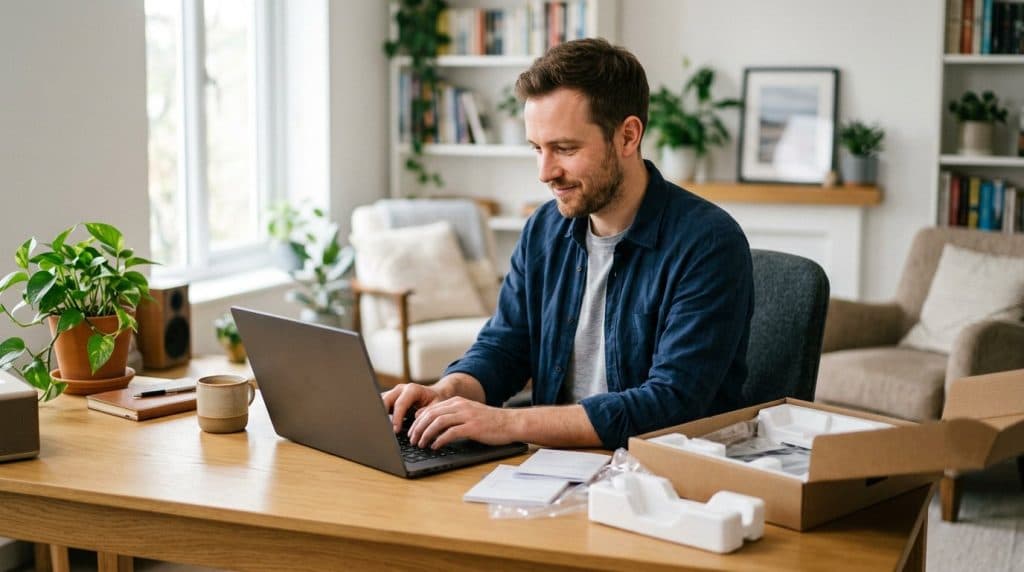
A new Windows PC arrives set up for Microsoft’s convenience, not yours. Out of the box it’s tracking your activity for ads, sending optional usage data, and quietly loading apps at startup you never asked for. Ten minutes of setup fixes most of it.
Here are the top 10 Windows 11 settings to change on a new PC — for better privacy, more speed, and real protection — with the exact path to find each one.
What Should You Change First on a New Windows PC?
Focus on three things: privacy, speed, and protection. Turn off the advertising ID and optional diagnostic data, trim the apps that launch at startup, turn on Storage Sense, and make sure backups, updates, and device encryption are active. None of it requires extra software — it’s all in Settings, and none of it breaks anything.
Top 10 Windows 11 Settings to Change on a New PC
1. Turn off the advertising ID
The advertising ID lets apps build a profile of you to target ads. Switch it off and you’ll see the same number of ads, just less personalized. Path: Settings → Privacy & security → General (on newer builds it has moved to Recommendations & offers). Computerworld walks through the exact slider.
2. Send only required diagnostic data
By default Windows sends optional usage data on top of the required baseline. You can safely turn the optional part off. Path: Settings → Privacy & security → Diagnostics & feedback → turn off Send optional diagnostic data. Microsoft’s own documentation confirms the required baseline still keeps your PC patched.
3. Turn off tailored experiences and suggestion ads
“Tailored experiences” uses your data to push personalized tips and ads, and Windows sprinkles suggestions across the Start menu and lock screen. Path: turn off Tailored experiences under Diagnostics & feedback, then visit Settings → Personalization → Start and Lock screen to switch off tips and suggestions.
4. Review app permissions
Not every app needs your camera, microphone, and location. Each page lists every app with an individual on/off switch. Path: Settings → Privacy & security, then open Camera, Microphone, and Location one at a time and turn off access for anything that has no business using it.
5. Disable startup apps you don’t need
This is the single most effective speed-up. Many apps set themselves to launch the moment you log in, dragging out boot time and eating memory. Path: Settings → Apps → Startup. Each entry shows a High, Medium, or Low impact rating — switch off anything you don’t need running from the start.
6. Turn on Storage Sense
Storage Sense quietly clears temporary files and empties the Recycle Bin so junk never piles up. Turn it on once and forget it. Path: Settings → System → Storage → switch on Storage Sense. It’s the easiest way to keep a new PC from slowly filling up.
7. Set up an automatic backup
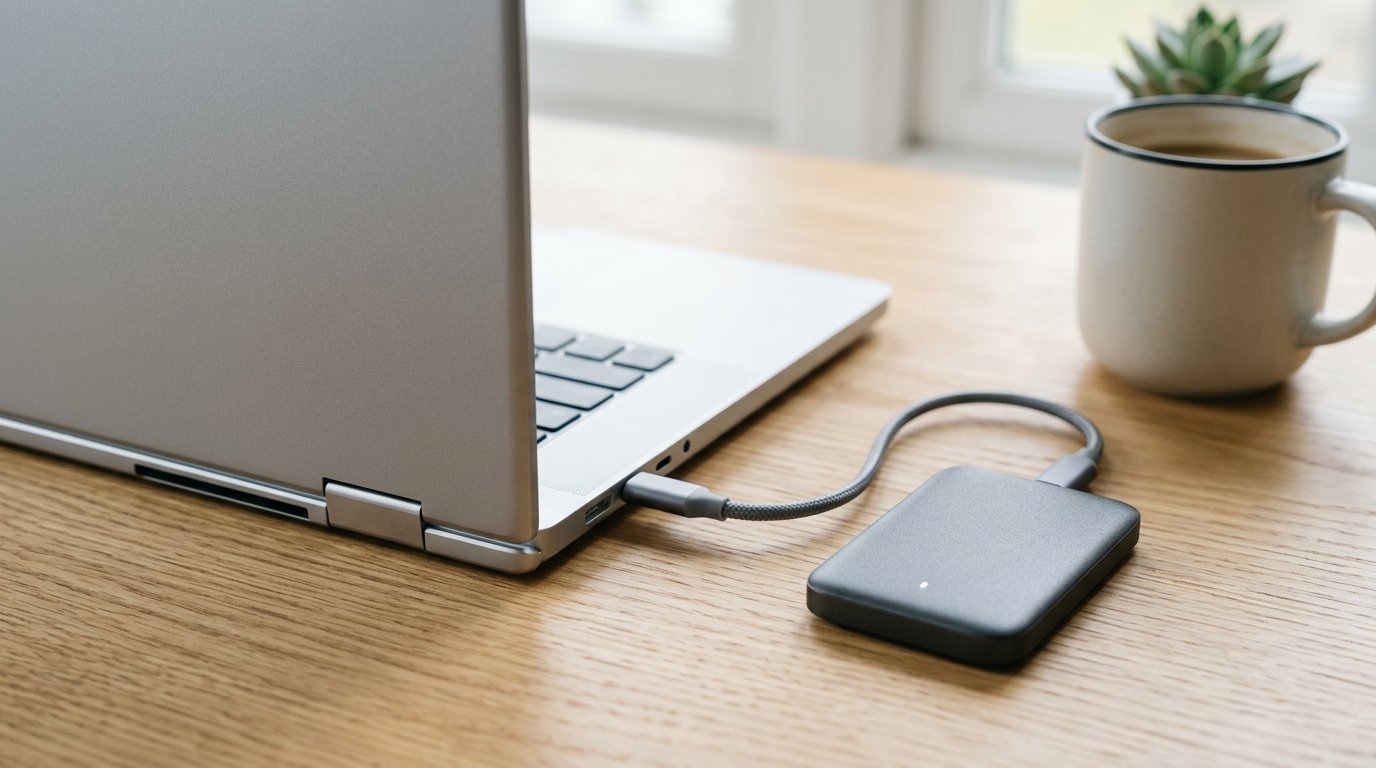
The best day to set up a backup is the day the PC is new and empty. Path: turn on OneDrive folder backup, and plug in an external drive for a local copy. A new PC is the perfect moment to start the 3-2-1 backup habit so a failure or theft never costs you your files.
8. Turn on device encryption
Encryption scrambles your drive so a lost or stolen laptop can’t hand over your data. Many Windows 11 PCs support it out of the box. Path: Settings → Privacy & security → Device encryption (or turn on BitLocker on Pro editions). Save the recovery key somewhere safe — not just on the laptop itself.
9. Set a strong sign-in and protect your account
Set up a Windows Hello PIN or fingerprint, and lock down the Microsoft account behind it. Path: Settings → Accounts → Sign-in options. Then turn on multi-factor authentication for your Microsoft account online — our two-factor authentication guide shows how, so a stolen password alone can’t get in.
10. Confirm updates are on and create a restore point
Make sure Windows Update is set to install automatically, then create a manual restore point so you have a clean state to roll back to. Path: Settings → Windows Update for updates; search Create a restore point to open System Protection, turn it on for your system drive, and click Create.
The Quick New-PC Checklist
Short on time? Do these four first: turn off the advertising ID and optional diagnostic data, trim startup apps, set up a backup, and confirm encryption plus MFA. Those cover the biggest privacy, speed, and safety wins in under ten minutes. For the deeper privacy pass, our guide to hidden Windows 11 privacy settings goes further.
Case Study: A Charlotte New-Laptop Setup
A client in Charlotte’s Steele Creek area brought in a brand-new laptop that already felt sluggish to start and “full of pop-ups.” Nothing was wrong with it — it was just running every preloaded startup app and showing suggestion ads everywhere.
We spent fifteen minutes trimming startup apps, turning off the advertising ID and tailored experiences, enabling device encryption, and setting up OneDrive plus an external-drive backup. Boot time dropped noticeably, the pop-ups stopped, and her files were protected from day one. No new software, just the settings that should have been on to begin with.
Frequently Asked Questions
What should I change first on a new Windows 11 PC? Turn off the advertising ID and optional diagnostic data, trim startup apps, turn on Storage Sense, set up a backup, and confirm updates and encryption.
Is it safe to turn off diagnostic data? Yes. The optional part is safe to disable; Windows still sends a required baseline it needs for security updates.
Do startup apps slow down my PC? Yes — they lengthen boot time and use memory. Disabling unneeded ones under Apps then Startup is a top speed-up.
Should I turn on device encryption? Yes, especially on a laptop. It protects your files if the device is lost or stolen. Save the recovery key safely.
Does turning off the advertising ID remove ads? No, but it makes them less targeted, since apps can no longer share one ID to profile you.
When to Call IT Carolina
If you’d rather have a new computer set up right the first time — privacy locked down, backups running, encryption on, and the bloatware gone — that’s a quick job for us and a clean start for you.
We help homeowners and small businesses across Charlotte, NC set up new PCs, migrate files, and configure them for privacy, speed, and safety — usually in a single visit. See our home and home-office IT support, or give us a call.
John Jones
Senior IT Specialist, IT Carolina
John has 12 years of hands-on experience diagnosing and resolving computer, printer, and network issues for homeowners and small businesses across Charlotte, NC. He has helped hundreds of clients recover from Windows update failures, driver conflicts, and hardware problems — often resolving in a single remote or on-site session.