
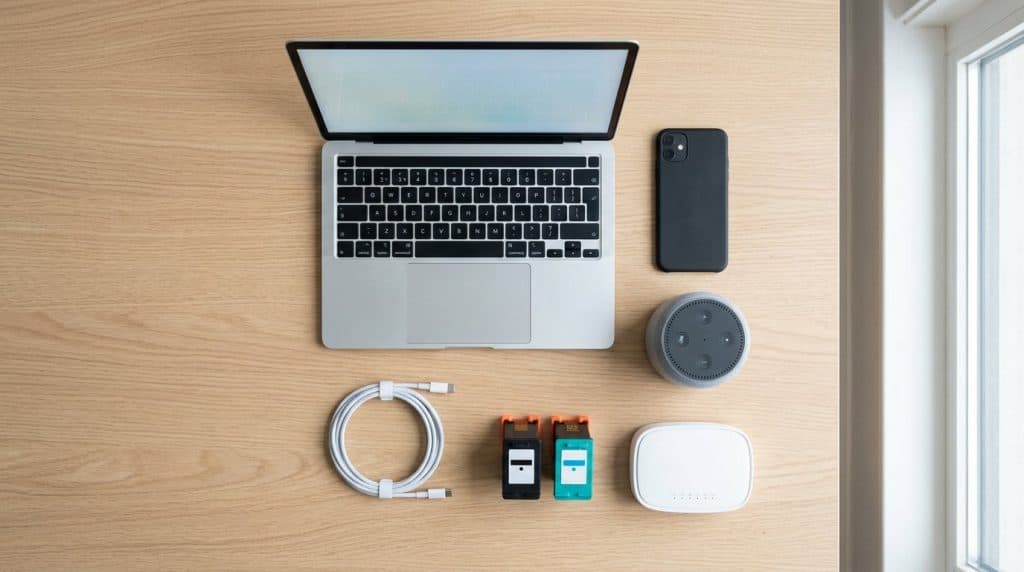
Some tech advice was rock-solid — in 2009. Then batteries, drives, and operating systems changed, and the old rules quietly became half-truths. The problem is nobody sent out a memo, so we keep draining batteries, killing apps, and babying gadgets for no reason.
Here are 30 tech myths that just won’t die, grouped by where they live: your laptop, your printer, your computer, your privacy, and your smart devices. Each one gets the short, honest version of what’s actually true today.
Why Do So Many Tech Myths Stick Around?
Most tech myths were true once, then the technology moved on. Lithium-ion replaced nickel batteries, SSDs replaced spinning disks, and operating systems got smarter at managing themselves. The advice stuck in our heads, even though the reason behind it disappeared. Repeat a rule long enough and it feels like common sense — which is exactly why these are worth a second look.
Laptop & Battery Myths
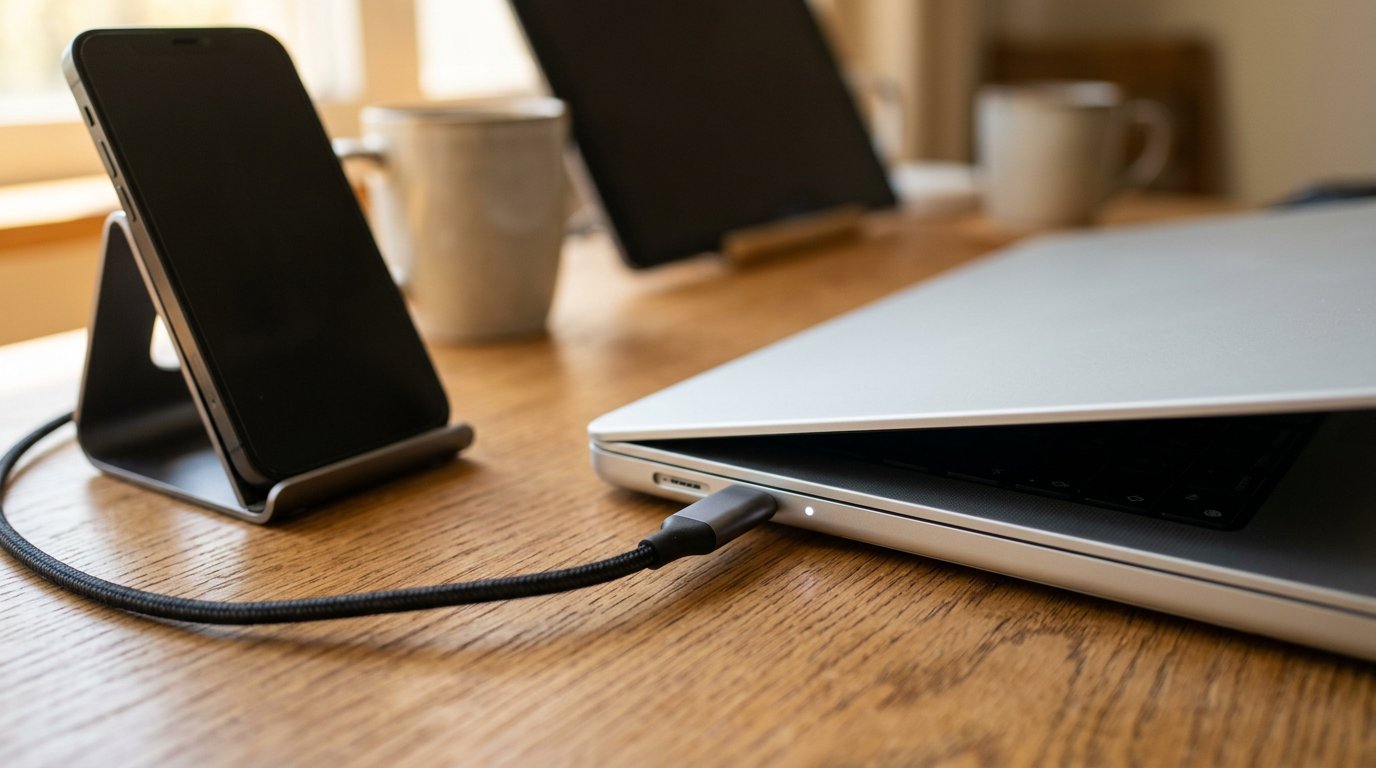
1. “Leaving your laptop plugged in 24/7 ruins the battery.” Modern laptops stop charging at 100%, so they don’t “overcharge.” Heat is the real battery killer, and sitting at a constant 100% adds only a little wear. Unplugging obsessively does more harm than good — just keep it cool. We dig deeper in our look at leaving a laptop plugged in 24/7.
2. “You should fully drain the battery before recharging.” That was true for old nickel batteries. Today’s lithium-ion cells last longer with frequent partial charges, ideally kept between roughly 20% and 80%. Full drains actually stress them and shorten their life.
3. “Charging overnight overcharges the battery and can start a fire.” Once it hits 100%, charging stops, and many phones now hold at 80% until morning with optimized charging. As The Conversation explains, modern devices have built-in protection against overcharging. Cheap no-name chargers and trapped heat are the real risks.
4. “You need to calibrate the battery by draining it to zero.” A full drain only resets the percentage gauge — it doesn’t restore lost capacity. On modern devices it’s rarely needed, and deep discharges aren’t good for the cells anyway.
5. “A magnet will wipe your laptop or SSD.” SSDs store data in flash chips, not magnetically, so fridge and speaker magnets do nothing to them. Even an old spinning hard drive needs an industrial-strength magnet, not a souvenir off your fridge.
6. “Any cheap third-party charger will fry your device.” A reputable third-party charger is perfectly safe. The danger is ultra-cheap, no-brand bricks with no safety circuitry. Match the wattage, buy from a known maker, and you’re fine.
Printer Myths
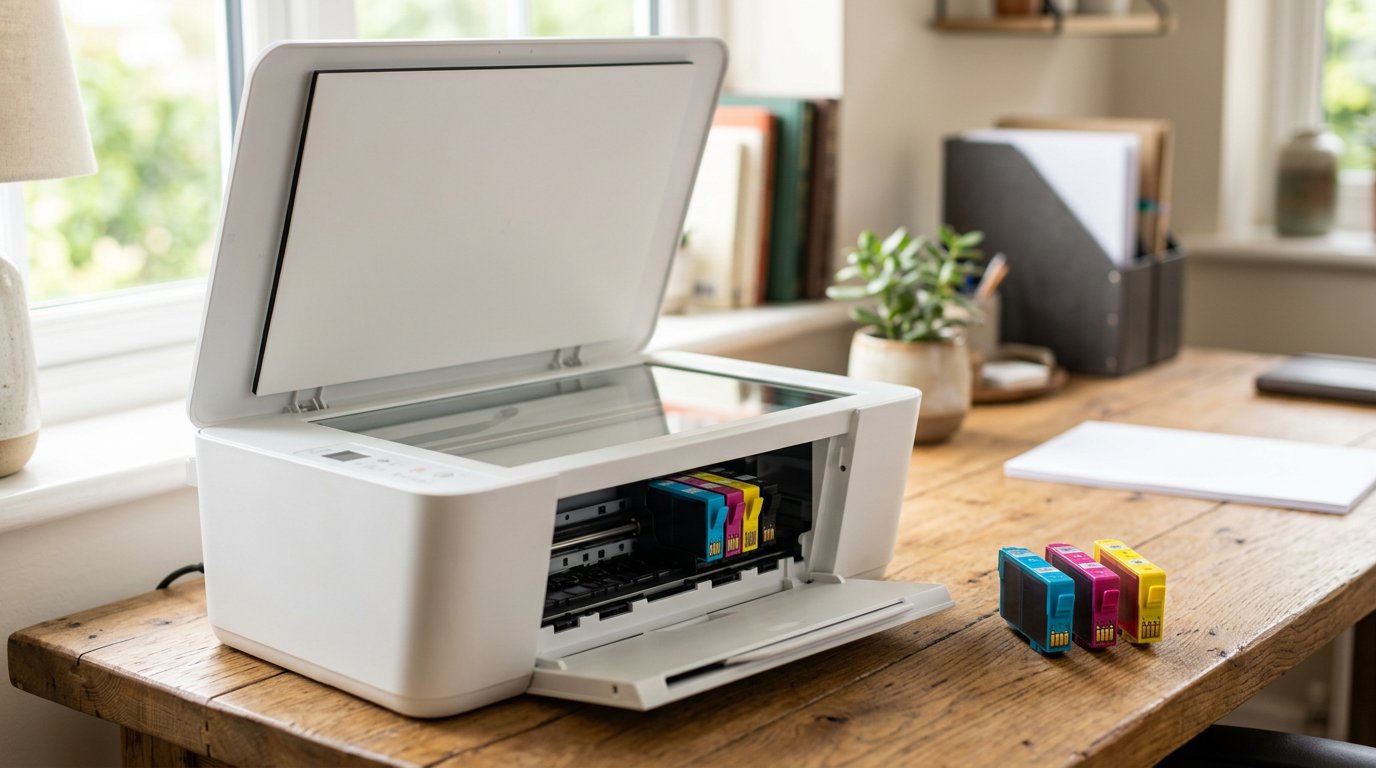
7. “Third-party or refilled ink will ruin your printer.” Reputable third-party ink prints nearly as well as brand-name and won’t wreck your printer. Which? testing found the best third-party inks were very close in quality to original ink. Problems come from bargain no-name suppliers, not the concept — and you pay a fraction of the price.
8. “Using non-brand ink automatically voids your warranty.” In the US, the Magnuson-Moss Warranty Act generally stops a manufacturer from voiding your warranty just because you used aftermarket ink — unless that specific cartridge caused the damage. Don’t let scare tactics decide for you.
9. “Turning your inkjet off between uses saves ink.” It’s backwards. Every power-on can trigger a head-cleaning cycle that spends ink, and an idle printer sips almost no power. For an inkjet, leaving it on and printing something now and then actually prevents clogged heads.
10. “A ‘low ink’ warning means the cartridge is nearly empty.” Printers cry wolf. That warning often fires with 20–40% of ink still in the tank. You can usually keep printing for weeks — don’t toss a cartridge just because a pop-up told you to.
11. “Draft mode barely saves any ink.” It genuinely uses less ink, and it won’t hurt the printer. The savings aren’t dramatic per page, but for everyday documents draft mode is basically free money over time.
12. “Laser toner is toxic and dangerous.” Toner is a fine plastic powder, not poison. Don’t inhale a cloud of it, but normal handling and the occasional spill are harmless — wipe a spill with a cold, damp cloth so it doesn’t set.
Home Computer & Windows Myths
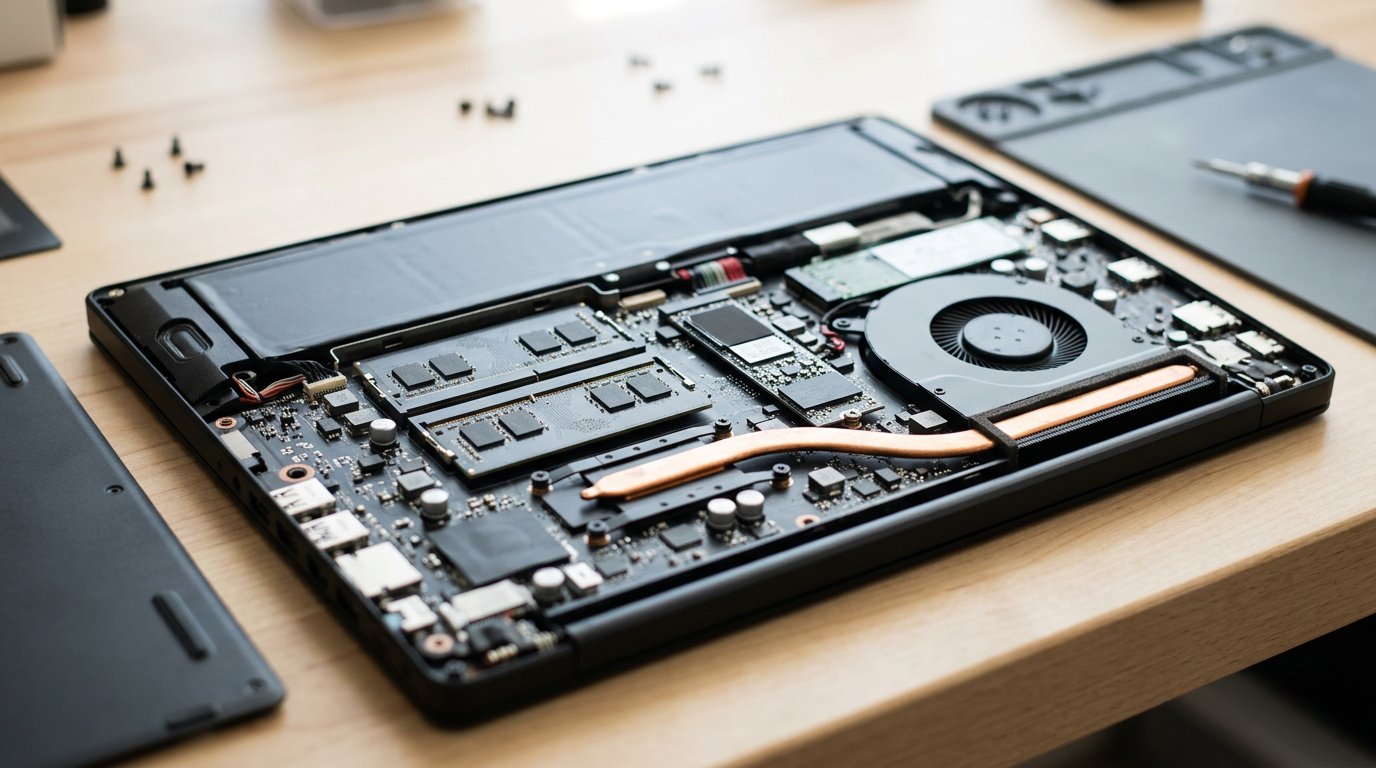
13. “More RAM always makes your computer faster.” RAM only helps until you have enough for what you do. If you’re not running out, adding more does nothing for speed. A sluggish PC is far more often a tired hard drive or a pile of background software.
14. “You should defragment your SSD.” Don’t. SSDs have no moving parts, so defragging gains nothing and adds needless write wear. As How-To Geek notes, Windows already runs the right maintenance (TRIM) automatically — leave it alone.
15. “Registry cleaners speed up your PC.” They don’t. Registry entries are tiny, removing them frees nothing meaningful, and many “cleaners” quietly bundle adware. It’s one of the oldest snake-oil categories in computing.
16. “Macs don’t get viruses.” They do. macOS is reasonably secure, but it’s a target like any popular platform — malware, phishing, and scams all hit Macs. See why in our piece on the Mac virus myth.
17. “Emptying the Recycle Bin permanently deletes your files.” Nope. It just removes the file’s pointer; the data stays on the disk, recoverable with free tools, until something overwrites it. That matters most before you sell or hand off a computer.
18. “Restart and Shut Down do the same thing.” Not in Windows 10 or 11. “Fast Startup” makes Shut Down save part of the system to disk, so glitches survive. A Restart does a true full reboot — which is why it fixes problems a shutdown won’t.
19. “Force-closing apps speeds up your computer.” Modern operating systems manage memory better than you can. Constantly killing apps just makes them reload from scratch, using more CPU and battery, not less. The same goes for your phone — here’s why you should stop force-closing apps.
20. “You must shut your PC down every night.” Not necessary. Sleep is fine for daily use, and a restart once or twice a week clears things out. Nightly shutdowns don’t extend the life of modern hardware.
Browsing & Security Myths
21. “Incognito mode makes you anonymous.” It only hides your history from other people on your device. Your employer, your internet provider, and the websites still see you. Incognito is for privacy at home, not invisibility — we unpack it in the incognito illusion.
22. “Public Wi-Fi is safe as long as the site has a padlock.” HTTPS helps, but it’s not a force field. Scammers set up fake hotspots and lookalike login pages on open networks. On public Wi-Fi, avoid banking, and use a VPN if you really must do something sensitive.
23. “A VPN makes you completely anonymous.” A VPN hides your IP address and encrypts your traffic on the network, which is genuinely useful. But it doesn’t make you invisible — the VPN provider can see your traffic, and logins and cookies still identify you.
24. “Windows Defender isn’t real antivirus.” Built-in Microsoft Defender is now solid and scores well in independent tests. For most home users it’s plenty. Safe habits matter far more than which antivirus badge you paid for.
25. “A strong password is all the protection you need.” Even a great password leaks in a data breach. Two-factor authentication is the single biggest upgrade you can make — it blocks the vast majority of account takeovers even when your password is already stolen.
Smart Device, Phone & Wi-Fi Myths
26. “Closing apps on your phone saves battery.” It usually does the opposite. iOS and Android already freeze background apps, so force-closing them means they reload fully next time, burning more power. Leave them be.
27. “More megapixels means a better phone camera.” Past a point, megapixels don’t matter — sensor size, lens quality, and software do the heavy lifting. A good 12MP camera routinely beats a cheap 108MP one in real photos.
28. “More Wi-Fi bars means faster internet.” Bars show signal strength, not speed. You can have full bars and crawling internet from network congestion, a slow plan, or an overloaded router. Strong signal is not the same as a fast connection.
29. “5GHz Wi-Fi is always better than 2.4GHz.” 5GHz is faster but travels a shorter distance and struggles through walls. For a far bedroom, the older 2.4GHz band often wins. The best band depends on where you’re actually standing.
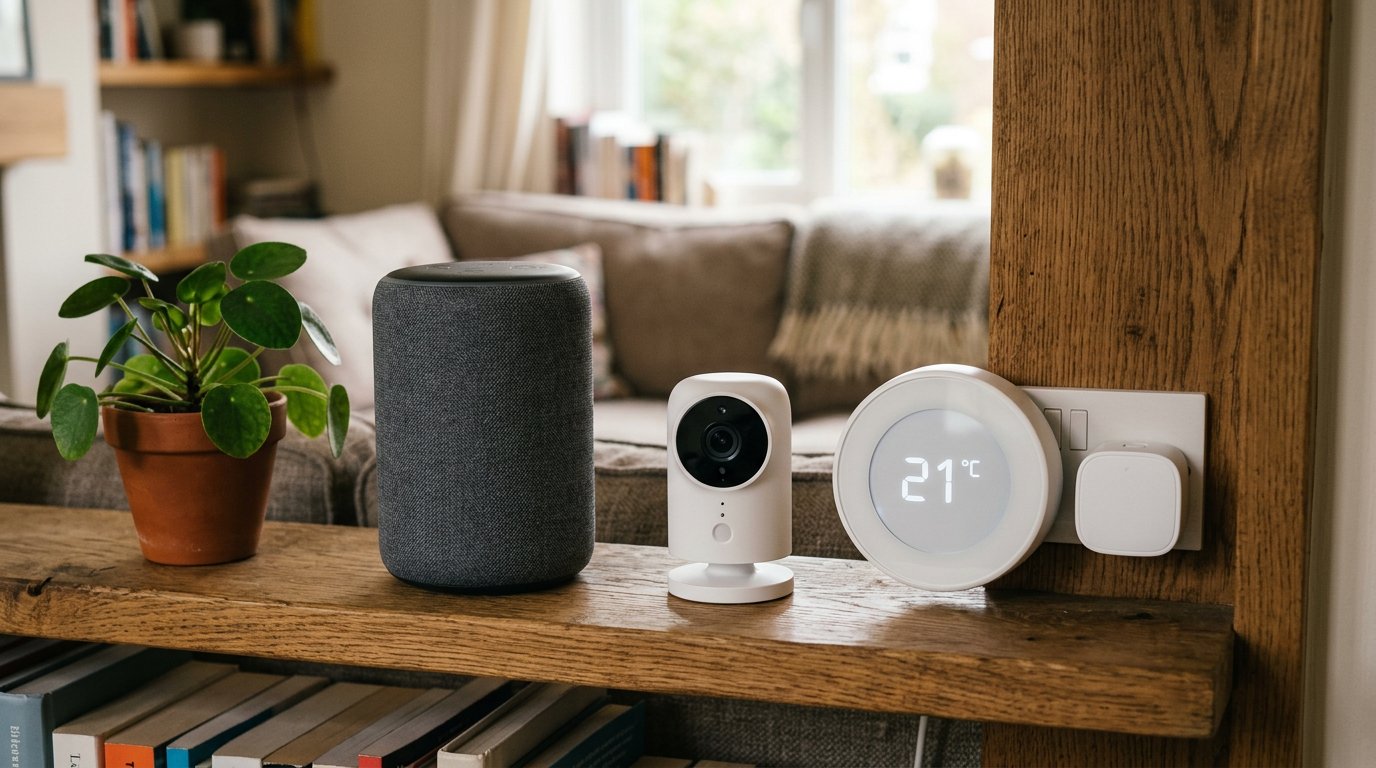
30. “Smart home gadgets are secure right out of the box.” Many ship with default passwords and almost never get updated by their owners. A cheap camera or plug you never patched is a quiet doorway into your whole network. Change the defaults and keep the firmware current.
The Pattern Behind Almost Every Myth
Notice the theme? Most of these come down to trusting your devices to do their job. Batteries, drives, and operating systems are smarter than the habits we picked up a decade ago. When in doubt, the modern answer is usually “stop micromanaging it” — with the big exception of security, where doing a little more (2FA, updates, strong defaults) genuinely pays off.
Frequently Asked Questions
Is it bad to leave my laptop plugged in all the time? Not really — it stops charging at 100% and won’t overcharge. Heat matters more than being plugged in, so just keep it cool.
Do I really not need to defragment my SSD? Correct. Defragging an SSD gains nothing and adds wear. Windows handles SSD maintenance automatically with TRIM.
Will third-party ink void my warranty? Generally no. US warranty law protects you unless the aftermarket cartridge itself caused the damage.
Does closing phone apps save battery? Usually the opposite — reopening them from scratch uses more power than leaving them frozen in the background.
Is Windows Defender enough? For most home users, yes. Good habits and two-factor authentication protect you more than any paid antivirus badge.
When to Call IT Carolina
Myths aside, sometimes a slow, hot, or glitchy computer has a real cause that no habit change will fix — a failing drive, a malware infection, or a hardware fault. That’s where a hands-on diagnosis pays for itself.
We help homeowners and small businesses across Charlotte, NC sort fact from fiction and fix what’s actually wrong — usually in a single visit. See our home and home-office IT support, or give us a call.
John Jones
Senior IT Specialist, IT Carolina
John has 12 years of hands-on experience diagnosing and resolving computer, printer, and network issues for homeowners and small businesses across Charlotte, NC. He has helped hundreds of clients recover from Windows update failures, driver conflicts, and hardware problems — often resolving in a single remote or on-site session.