

Computers rarely die without warning. They drop hints first — a new noise, a random shutdown, a slowdown that wasn’t there last month. Catch those hints early and you can save your files and often the machine itself. Miss them, and you find out the hard way when nothing turns on.
Here are 10 warning signs your computer is on its way out, what each one really means, and the one move that matters most when you see them: back up now.
How Do You Know If Your Computer Is Dying?
A dying computer usually shows it through hardware: a hard drive making noise or slowing down, a battery swelling, frequent blue screens, random shutdowns, or constant overheating. One glitch is normal. Several of these together, or any drive noise at all, means you should back up your data immediately and get it checked before it fails completely.
10 Warning Signs Your Computer Is About to Die
1. A clicking, grinding, or beeping hard drive
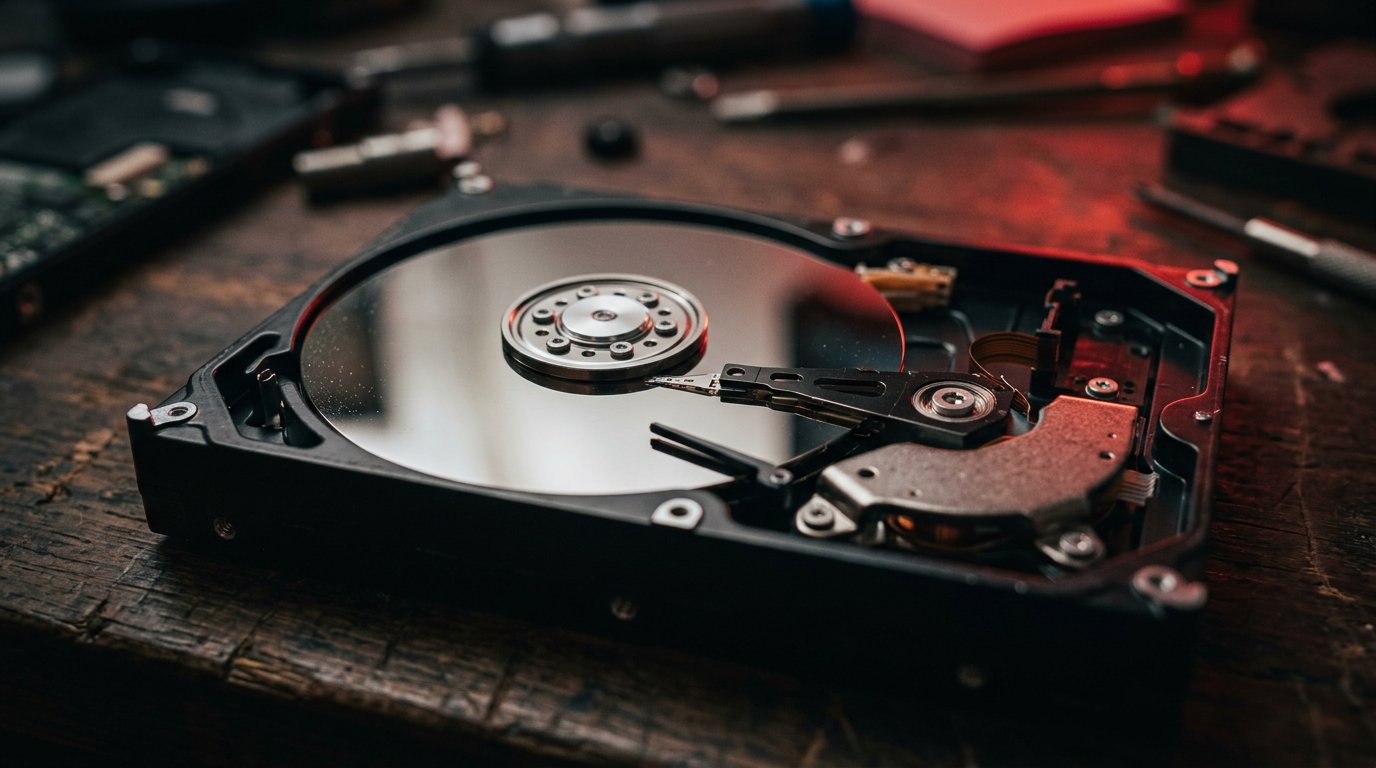
This is the most urgent sign here. A repetitive click-click-click — the infamous “click of death” — usually means the read/write heads inside a traditional hard drive have failed. Grinding or screeching means a head is dragging across the platter where your data lives. Power the computer off right away and don’t turn it back on. Every spin-up scrapes away more of your files, and at that point only a data-recovery lab can help. If the drive is still quiet but you want peace of mind, this is the moment to copy everything off it.
2. A SMART warning at startup
If your PC shows a message like “SMART failure predicted” when it boots, don’t dismiss it. SMART is the drive’s own self-monitoring telling you it has logged too many errors and expects to fail soon. It’s one of the few warnings that comes straight from the hardware. Back up immediately and plan to replace the drive — a SMART alert often means days or weeks, not months.
3. Frequent blue screens of death
A single blue screen can be a fluke — a bad driver or a one-off crash. But blue screens that keep coming back, especially with different error codes, point to failing hardware: bad RAM, a dying drive, or an overheating chip. Note the error code each time. A pattern is the difference between “annoying” and “about to fail.”
4. Random shutdowns and restarts
When a computer powers off or reboots on its own — no warning, no blue screen — it’s usually heat or power. An overheating CPU will cut power to protect itself, and a failing power supply or battery can drop out under load. If it happens more when the machine is busy or warm, treat it as a hardware red flag, not a software quirk.
5. It gets slower and files start misbehaving
A drive that’s wearing out develops bad sectors, and you feel it: programs that opened instantly now take 30 seconds, folders hang, and files occasionally won’t open or vanish and reappear. Backblaze lists these exact symptoms — files that can’t be read, the system running excessively slow, apps freezing — as classic signs of a failing drive. If a cleanup doesn’t fix a steady decline, suspect the disk.
6. Files disappear, corrupt, or won’t open
Photos that won’t display, documents that open as garbage, or a folder that’s suddenly empty are all signs the drive can’t reliably read what’s stored on it. This often shows up alongside the slowdown above. Once corruption starts spreading, copy your most important files off the machine first — before the next file to go is one you needed.
7. A swollen battery
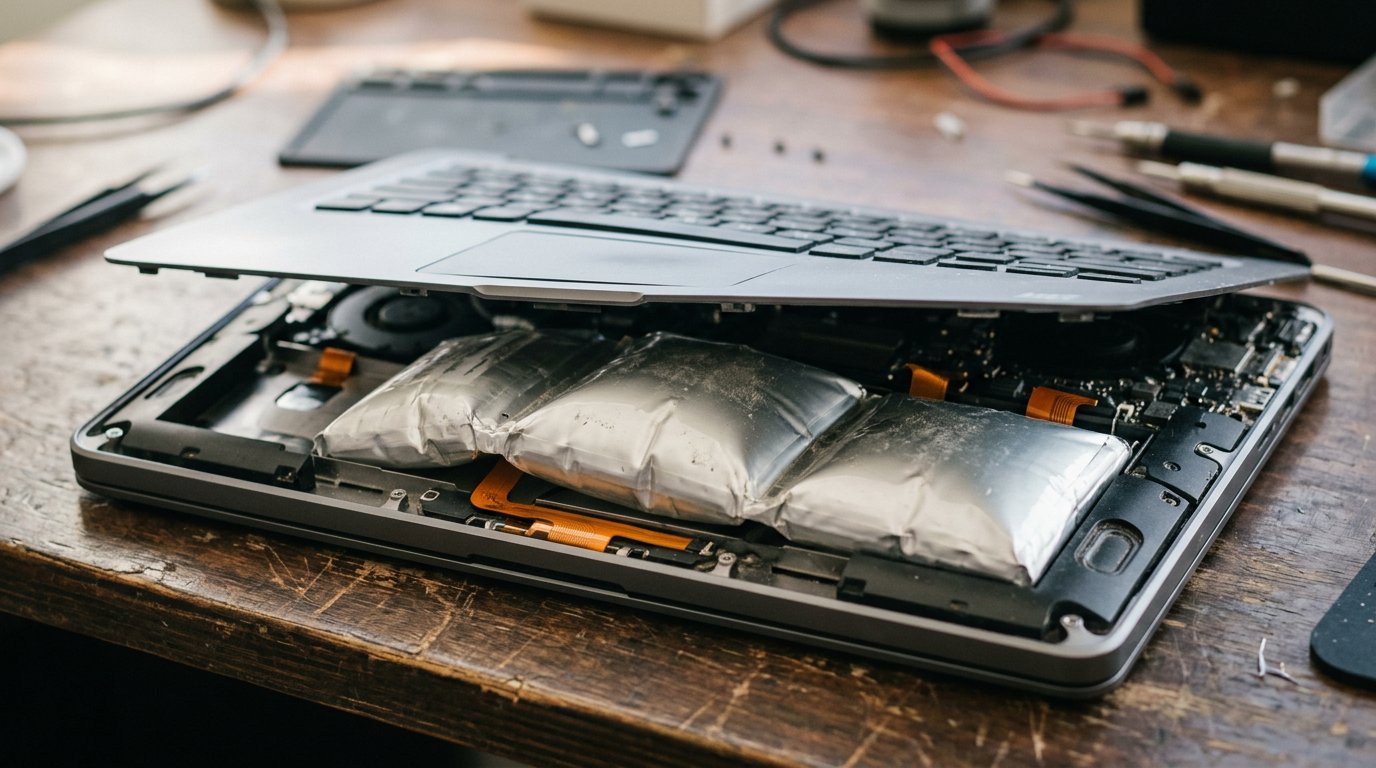
If your laptop rocks on a flat desk, the trackpad bulges, the case lifts, or there’s a gap between keyboard and screen when closed, the battery is swelling — and that’s a safety issue, not just a dying-computer one. A swollen lithium battery can catch fire. iFixit warns not to operate a device with a swollen battery and never to puncture it. Stop charging it, power down, and get the battery safely replaced.
8. Constant overheating and fans at full blast
Fans that roar nonstop and a case that’s hot to the touch mean the cooling system is losing the fight — clogged with dust, dried thermal paste, or a failing fan. Sustained heat slowly cooks the components around it, shortening the life of the whole machine. If it’s also throttling, shutting down, or crashing, the heat has crossed from annoying into damaging.
9. It won’t reliably turn on
A computer that sometimes powers on and sometimes doesn’t, shows a black screen, or greets you with a pattern of beep codes is failing to complete its startup checks. The cause might be RAM, the motherboard, or the power supply. If yours has started doing this, our guide on a computer that won’t turn on walks through the first things to check.
10. A burning smell or buzzing from inside
Your nose is a good diagnostic tool. A sharp, hot-plastic or burning smell means something electrical is overheating — often the power supply or a capacitor. A buzzing or high-pitched whine can be a failing fan bearing or a struggling power component. Unplug it immediately. A burning smell is the one sign on this list where you stop and call a professional rather than poke around.
What to Do the Moment You Spot These Signs
Before anything else, back up your data. A dying computer can still be working enough to copy files today and be a brick tomorrow. Copy your photos, documents, and anything irreplaceable to an external drive and a cloud service. Our 3-2-1 backup strategy keeps a safe copy even if the machine dies mid-rescue.
Then decide: fix or replace. A failing drive, bad RAM, or a swollen battery are often worth replacing on an otherwise good machine. An old laptop with several of these signs at once usually isn’t. Our guide on when to repair vs replace lays out the math.
Case Study: A Click That Saved the Photos
A client in Charlotte’s Cotswold neighborhood called because her desktop had started making a faint clicking sound and felt slow. She almost ignored it. We told her to shut it down and not restart it — the click was the drive’s heads beginning to fail.
Because she stopped using it immediately, we were able to pull eight years of family photos off the drive before it gave out entirely a few days later. Had she kept working on it, each restart would have ground away more of those files. The fix was a new drive and a fresh Windows install — and a backup plan so it never gets that close again.
Frequently Asked Questions
What’s the first sign a computer is dying? Usually a noise or slowdown from a failing drive. A clicking or grinding drive is the most urgent — power off immediately and back up before anything else.
Should I keep using a laptop with a swollen battery? No. It’s a fire hazard. Stop charging and using it, don’t puncture it, and get the battery safely replaced.
Does a blue screen mean my computer is dying? Not on its own. Frequent blue screens, especially with shutdowns or drive noise, are the real warning.
Can a dying computer be saved? Often, if you act early. Drives, RAM, and batteries can be replaced — just back up your data first.
How do I back up before it dies? Copy important files to an external drive and the cloud. Three copies, two media types, one off-site is the safe standard.
When to Call IT Carolina
If you hear clicking, see a SMART warning, or spot a swollen battery, time matters — the gap between “recoverable” and “gone” can be a single day. Don’t keep running a machine that’s showing these signs.
We help homeowners and small businesses across Charlotte, NC rescue data, replace failing parts, and decide when a computer is worth saving — usually in a single visit. See our home and home-office IT support, or call us before that click turns into silence.
John Jones
Senior IT Specialist, IT Carolina
John has 12 years of hands-on experience diagnosing and resolving computer, printer, and network issues for homeowners and small businesses across Charlotte, NC. He has helped hundreds of clients recover from Windows update failures, driver conflicts, and hardware problems — often resolving in a single remote or on-site session.