

You’re about to sell your old laptop. You backed up your files, ran a factory reset, watched it spin back to that fresh out-of-the-box screen, and figured you were done. Clean slate, right?
Not quite. A reset makes your data invisible, not gone. On many computers, the photos, tax returns, and saved passwords you thought you erased are still sitting on the drive, waiting for anyone with free recovery software. Before that machine leaves your hands, here’s what really stays behind — and how to wipe it for good.

Does a Factory Reset Actually Erase Everything?
Not reliably. A standard factory reset removes your files and reinstalls Windows, but on a hard drive the underlying data usually stays recoverable with free tools. To truly erase it, you need the “clean data” wipe option, a manufacturer secure-erase tool for an SSD, or full-disk encryption with the key destroyed. The difference matters the moment someone else owns your computer.
This isn’t a rare edge case. In our shop we’ve recovered “deleted” files from reset laptops more than once — sometimes to prove a point to a client about to sell one. The reset did its job of reinstalling Windows. It just never erased the old data underneath.
Why “Delete” and “Empty Recycle Bin” Erase Nothing
Here’s the part that surprises people. When you delete a file and empty the Recycle Bin, Windows doesn’t scrub the file off the disk. It simply removes the pointer that says where the file lives and marks that space as “available.”
Think of it like a library. Deleting a file tears the card out of the catalog, but the book is still on the shelf. Until a new book takes that exact spot, the old one is right there for anyone who looks. The data only truly disappears when something new overwrites those blocks.
That is exactly why undelete tools work. The same software that helps you recover a file you deleted by accident will happily resurrect files a stranger “deleted” before selling the machine. Recovery is a feature for you and a risk for your old data.
What a Buyer Could Still Pull Off Your Old Drive
The leftovers aren’t random junk. They’re often the most sensitive things you own:
- Personal photos and videos, including ones you thought you’d cleared months ago.
- Tax returns, bank statements, and pay stubs saved to Documents or Downloads.
- Saved passwords and autofill data from your browser — logins, addresses, even card details.
- Emails and chat history cached by desktop apps.
- Scans of your driver’s license, passport, or Social Security card.
Put together, that’s a starter kit for identity theft. A buyer doesn’t need to be a hacker — a free download and ten minutes is enough on an unwiped hard drive. That’s the real reason this is worth getting right.
HDD vs SSD: Why Erasing Works Differently
How you wipe a drive depends entirely on what kind it is, and most people never check.
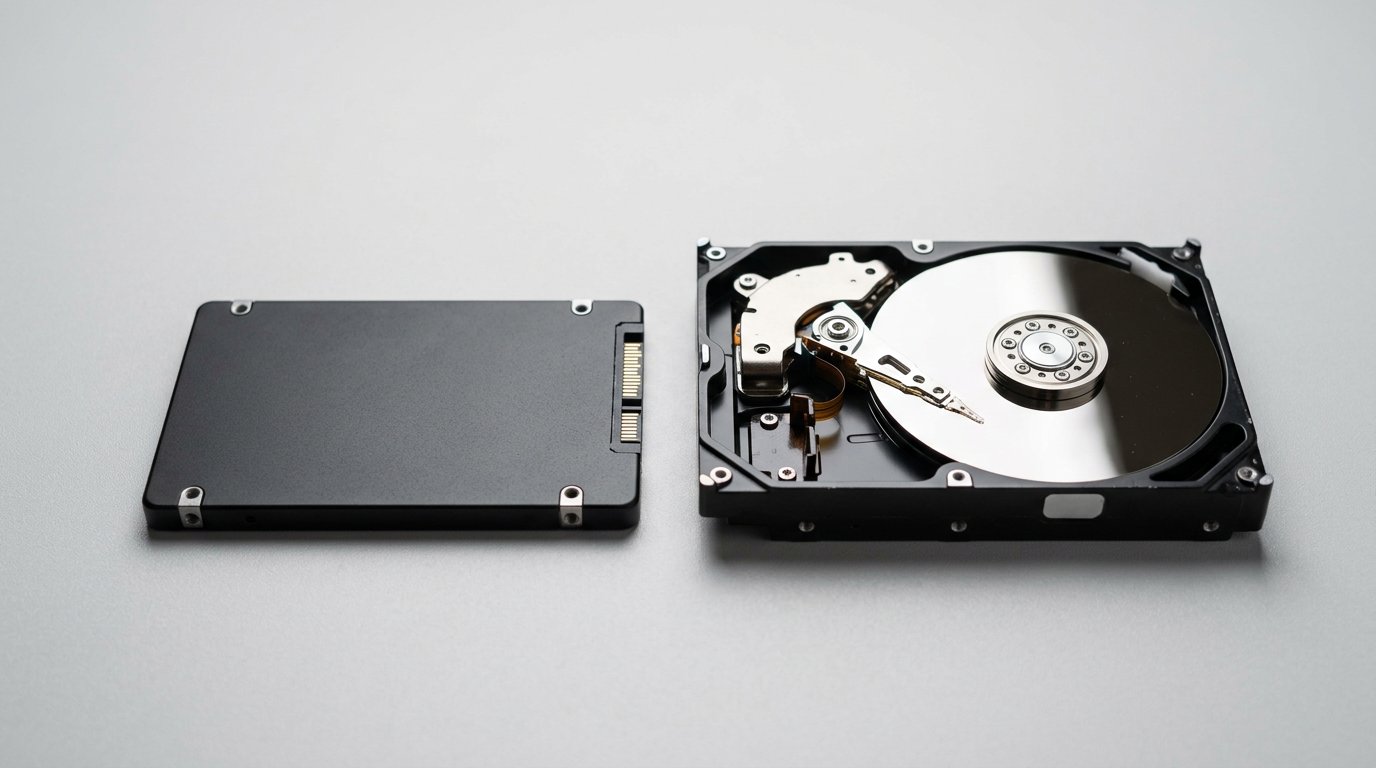
Traditional hard drives (HDDs) store data magnetically on spinning platters. Overwriting the whole disk with new data physically replaces the old, which is why a full overwrite makes HDD data nearly impossible to recover. This is the old, reliable method.
Solid-state drives (SSDs) are trickier. To spread wear evenly, an SSD constantly moves data around internally and keeps spare hidden “over-provisioning” blocks. That means a normal overwrite can miss copies of your data sitting in cells the operating system can’t even see.
People often assume the TRIM command handles this. It doesn’t. TRIM helps the drive manage free space for performance, but it is not a secure-erase tool and you can’t count on it to purge every block. For an SSD, the right answer is a proper secure erase, not an overwrite.
The Smartest Move: Encrypt First, Then Destroy the Key
There’s a method that sidesteps the whole HDD-versus-SSD headache: full-disk encryption. If your drive is encrypted, all the stored data is scrambled gibberish without the key. Wipe the key, and every block becomes unrecoverable noise — instantly, no hours of overwriting required.
Security experts call this cryptographic erase, and it’s a recognized method in the U.S. government’s NIST guidelines for media sanitization (SP 800-88), which rank sanitization as Clear, Purge, or Destroy. Crypto erase counts as a Purge — strong enough that the data can’t be reconstructed even with forensic tools.
The good news: many Windows 11 PCs already have Device Encryption or BitLocker turned on by default. If yours was encrypted from day one, a clean reset that resets the key effectively crypto-erases the drive for you. If it wasn’t encrypted, the methods below still get you there.
How to Actually Erase Your PC Before Selling It
Match the method to your drive and your comfort level. Any one of these does the job.
1. Use Windows’ built-in clean wipe. Go to Settings → System → Recovery → Reset this PC → Remove everything. Choose Change settings and turn on Clean data. As Microsoft explains, this option “removes files and cleans the drive” so data is far harder to recover. It can add several hours, but it’s the simplest safe choice for resale.
2. For an SSD, run a secure erase. Most SSD makers offer a free utility (Samsung Magician, Crucial Storage Executive, and similar) that resets the drive to factory state, including those hidden blocks. Many UEFI/BIOS menus also have a built-in secure erase. This is the most reliable SSD method.
3. For an HDD you’re wiping separately, a full-disk overwrite tool does the trick. We walk through the exact steps for both Windows and macOS in our guide to wiping a laptop.
Whichever you pick, do it after your final backup and before you list the machine. Once it’s wiped, reinstall a clean copy of Windows so the buyer gets a working PC — that also keeps its resale value up.
How Long Does a Secure Wipe Take?
The honest answer: it depends on your drive and your method, and the secure options are slower than the quick ones for a reason.
- Quick reset (remove files only): 20–60 minutes — but remember, this one is not secure.
- Clean-data wipe: several hours, especially on a large hard drive, because Windows overwrites the whole disk.
- SSD secure erase: often just a few minutes — it’s a single controller command, not a slow rewrite.
- Crypto erase (encrypted drive): seconds, since only the encryption key is destroyed.
If you’re running a clean-data wipe on an older laptop with a hard drive, plan to start it before bed and let it finish overnight. Don’t interrupt it partway — a half-finished wipe can leave both your data and the OS in a broken state.
The Cloud and Account Leftovers Everyone Forgets
Wiping the disk isn’t the whole job. A computer is also a key to your online accounts, and those connections don’t vanish with a reset. Before it goes:
- Sign out of every browser and turn off sync, so saved passwords and history don’t travel with the device.
- Remove your Microsoft or Google account from the PC, not just the local profile.
- Deauthorize licensed software — Microsoft 365, Adobe, iTunes — so you don’t burn an activation slot.
- Unlink OneDrive or Google Drive and confirm local copies are gone.
- Move your authenticator app and 2FA to your new device first.
- Save your BitLocker recovery key somewhere safe, then remove the device from your Microsoft account online.
Skip these and the new owner might end up staring at your synced bookmarks — or you might lock yourself out of an app license you paid for. Two minutes here saves a real headache later.
What About Phones, USB Sticks, and External Drives?
The same rule applies to anything that stores data, and a couple of these catch people out constantly.
USB flash drives and SD cards are the most overlooked. People hand them off or toss them with files still on board, and a quick format won’t protect you — use a full wipe or physically destroy small cheap ones. External hard drives are just HDDs in a case, so treat them to the same full overwrite.
Here’s the one happy exception: modern phones and tablets. Recent iPhones and Android devices are encrypted by default, so a factory reset performs a crypto erase and is genuinely secure — no extra steps needed, as long as the device was encrypted (every current one is). Just sign out of your accounts and remove any SIM or SD card first.
Don’t forget the quiet ones, either. Printers, routers, and game consoles can store Wi-Fi passwords, saved logins, and scanned documents. Reset those to factory settings too before they leave with the computer.
Sell, Donate, or Recycle? What to Do for Each
The data steps are the same; the destination changes the details.
Selling: wipe thoroughly, reinstall Windows, and include the charger. A clean, working machine sells faster and for more, and you’ve protected yourself.
Donating: treat it exactly like a sale. A school or charity is trustworthy, but you can’t control where the laptop travels after that, so wipe it the same way.
Recycling: if the PC is dead or too old to sell, don’t toss it in the trash — that’s an e-waste and a data problem. Use a certified recycler and, ideally, pull and destroy the drive first. Our guide to secure disposal of computers and hard drives covers the safe way to retire old hardware.
When Physical Destruction Is the Only Safe Option
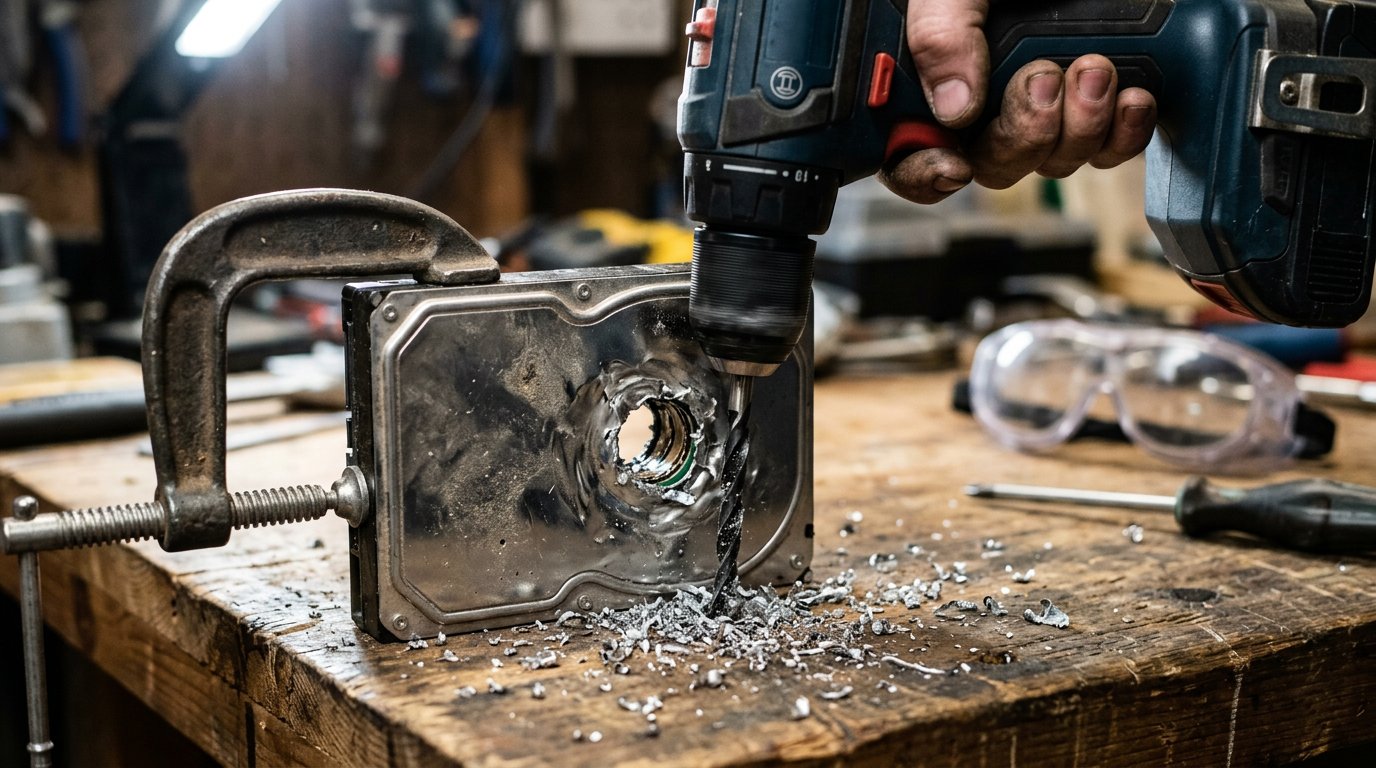
Sometimes you can’t wipe a drive in software, and that’s when you go physical. Destroy the drive when it won’t boot or be detected, when an SSD has failed (you can’t secure-erase a dead controller), or when the data is sensitive enough that you simply want it gone.
For a hard drive, drilling several holes through the platters or bending them renders the data unreadable. For an SSD, the data lives in chips, so crushing or shredding those chips is the goal. The NIST “Destroy” level — shred, disintegrate, or incinerate — is the gold standard when nothing else will do.
One caution: physical destruction kills resale value. Only reach for the drill when wiping isn’t an option, not as a shortcut to skip the steps above.
5 Common Mistakes That Leave Data Behind
Almost every “I thought it was erased” story comes down to one of these:
- Trusting the Recycle Bin. Emptying it deletes nothing permanently — it just frees the space for later.
- Doing a quick format. It clears the file index in seconds and leaves every byte of your data sitting on the disk.
- Overwriting an SSD like a hard drive. A plain overwrite misses the hidden blocks; an SSD needs a true secure erase.
- Forgetting the cloud. The disk can be spotless while your accounts still sync passwords and files to the device.
- Tossing a dead drive in the trash. If it won’t boot, you can’t wipe it — so it has to be destroyed, not discarded.
Avoid those five and you’ve covered the ways data slips through. The theme is simple: “gone from view” and “gone from the disk” are not the same thing.
Case Study: The Tax Returns Still on a “Wiped” Laptop
A client in Charlotte’s Ballantyne area was a week from selling a four-year-old Dell laptop on Facebook Marketplace. She had run a factory reset and assumed it was spotless. She brought it in for a quick check first — smart move.
Within ten minutes, a free recovery scan pulled back three years of tax returns, a folder of family photos, and her saved browser passwords. The drive was a traditional HDD, and the reset had only removed the file pointers. We showed her the results, then did it properly: enabled BitLocker, ran the clean-data wipe, and reinstalled Windows. She sold it the next week — this time with nothing left to find.
Frequently Asked Questions
Does a factory reset delete everything? Not reliably. It removes files and reinstalls Windows, but on a hard drive the data often stays recoverable unless you use the clean-data wipe or a secure erase.
Can someone recover my files after I reset? On an HDD, yes, with free software, unless you did a full wipe. On an SSD it’s less likely but not guaranteed — which is why secure erase or encryption is the safe call.
Is a quick format enough? No. A quick format only clears the file index and leaves the data in place. A full overwrite or secure erase is what makes it unrecoverable.
How do I wipe an SSD before selling? Use the SSD maker’s secure-erase tool or your UEFI/BIOS secure erase, which clears even the hidden over-provisioning blocks. Don’t rely on a plain overwrite.
Should I remove the hard drive before selling? For zero risk, keep or destroy the drive and sell the PC without it. Otherwise a proper wipe lets you sell it intact and working.
Does emptying the Recycle Bin permanently delete files? No. It only removes the pointer. The data stays until new data overwrites those blocks.
Is it safe to donate an old laptop? Yes — once you’ve wiped it and signed out of every account. Treat a donation exactly like a sale.
When to Call IT Carolina
If you’re selling or donating a computer and want to be certain nothing personal is left on it — or you have a dead drive you can’t wipe yourself — that’s worth a second set of hands. Getting this wrong can mean handing a stranger your financial life.
We help homeowners and small businesses across Charlotte, NC wipe, encrypt, and safely retire old computers and drives — usually in a single visit. See our home and home-office IT support, or give us a call before that old PC leaves your house.
John Jones
Senior IT Specialist, IT Carolina
John has 12 years of hands-on experience diagnosing and resolving computer, printer, and network issues for homeowners and small businesses across Charlotte, NC. He has helped hundreds of clients recover from Windows update failures, driver conflicts, and hardware problems — often resolving in a single remote or on-site session.