

One minute your laptop is quiet. The next it sounds like a small jet on the runway — a constant whir that won’t settle down, even when you’re just reading email. It’s annoying, and it’s also your computer trying to tell you something.
That fan only ramps up for one reason: heat. How and when it gets loud points straight at the cause — whether that’s dust, a runaway app, or a fan on its last legs. Here’s how to read the noise and quiet it down.
Why Is My Computer Fan So Loud?
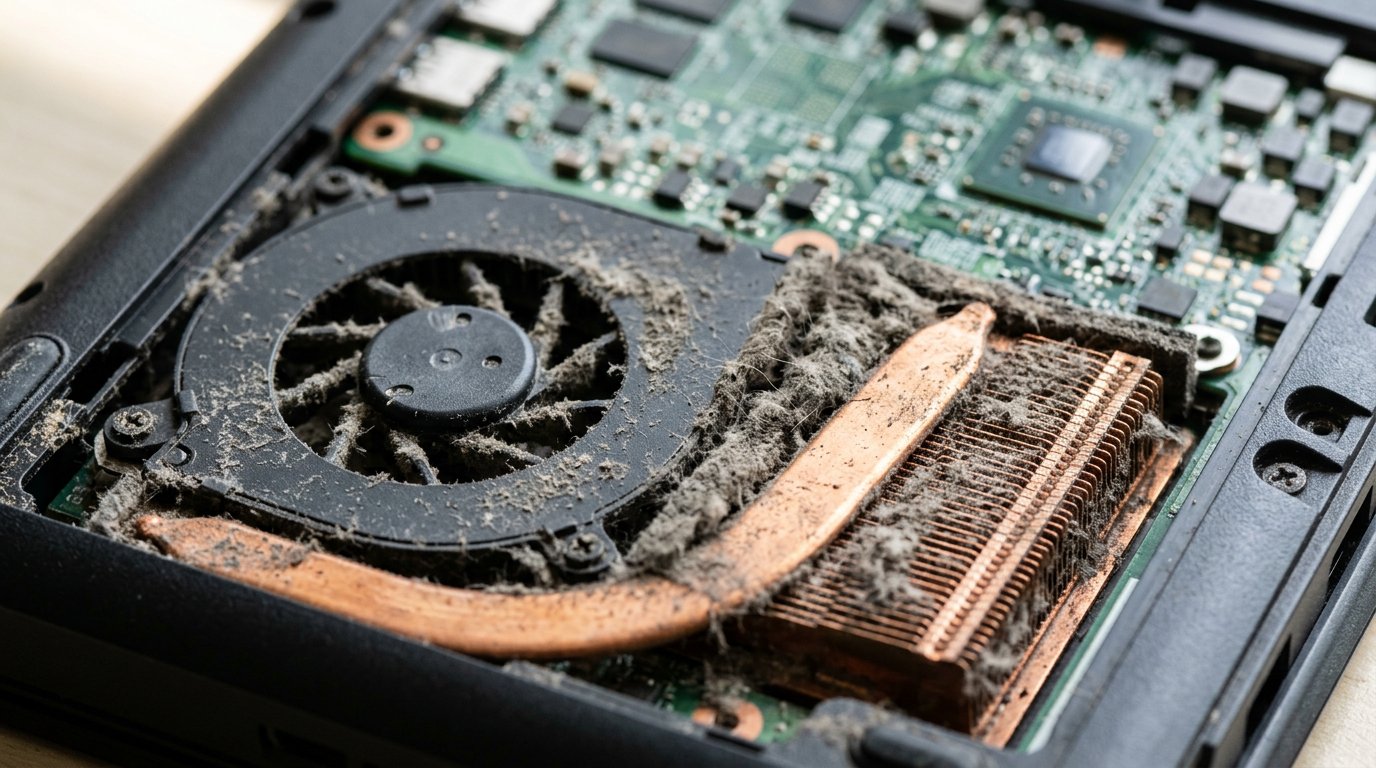
Your fan gets loud when the CPU or GPU heats up and the fan spins faster to cool it. So a loud fan means one of two things: the chips are genuinely working hard, or the cooling system can’t keep up because of dust, dried thermal paste, blocked vents, or a failing fan. The trick is telling those two apart.
Is Your Fan Working Hard, or Struggling to Cool?
Start here, because it splits every fix into two camps. Open Task Manager with Ctrl + Shift + Esc, click the Processes tab, and sort by CPU.
If something is using 30%, 50%, or more while you’re doing almost nothing, that process is your answer — the fan is just doing its job. If CPU sits near idle but the fan still roars, the problem is the cooling itself.
Want hard numbers? A free tool like Core Temp or HWMonitor shows your CPU temperature. Most laptops idle around 40–60°C and hit 80–90°C under a heavy load like gaming or video export. Above roughly 90–100°C the CPU starts throttling itself to avoid damage — a sign cooling is failing.
What the Noise Itself Is Telling You
The kind of sound is a clue most people miss. Here’s the quick translation:
- A steady loud whoosh that never quiets down — the fan can’t cool efficiently. Think dust, dried thermal paste, or blocked vents.
- Loud only during heavy tasks (games, 4K video, big exports) — usually normal. The fan should settle once you stop.
- Suddenly loud at idle and never spinning down — a background process is pegging the CPU. Sometimes that’s malware or a hidden crypto-miner.
- Grinding, rattling, clicking, or buzzing — mechanical. The fan bearing is wearing out, or something is touching a blade.
- Revving up and down in waves — rapid temperature swings or an aggressive fan curve; occasionally an early failing fan.
The 8 Common Causes (and How to Fix Each)
Run through these roughly in order — the first few are free and take minutes.
- Dust in the vents and heatsink. The number-one cause. Dust clogs the fins so air can’t carry heat away. Clean it out with compressed air (steps below).
- A runaway background process. A stuck app or browser tab pinning the CPU. End it in Task Manager, or restart the PC.
- Windows Update, search indexing, or an antivirus scan. These spike the CPU temporarily. Let them finish — the fan should calm down after.
- Malware or a crypto-miner. Hidden software using your CPU to mine cryptocurrency. Run a full scan with Windows Security or Malwarebytes.
- Blocked vents. Using a laptop on a bed, couch, or your lap chokes the intake. Put it on a hard, flat surface or a cooling pad.
- Dried-out thermal paste. On machines three-plus years old, the paste between chip and heatsink hardens and stops transferring heat. A repaste fixes it.
- A failing fan. Worn bearings grind and rattle. The cure is a new fan — usually inexpensive.
- Heat and poor airflow. A hot room, or a desktop crammed into a closed cabinet, makes the fan run nonstop. Improve the airflow around it.
How Do You Quiet a Loud Fan? (Step by Step)
Work from easiest and safest to most involved.
- Open Task Manager (Ctrl + Shift + Esc) and end any process eating the CPU.
- Restart the computer — it clears stuck processes that won’t quit.
- Install pending Windows updates and drivers, then let them finish.
- Run a full malware scan if the fan roars for no clear reason.
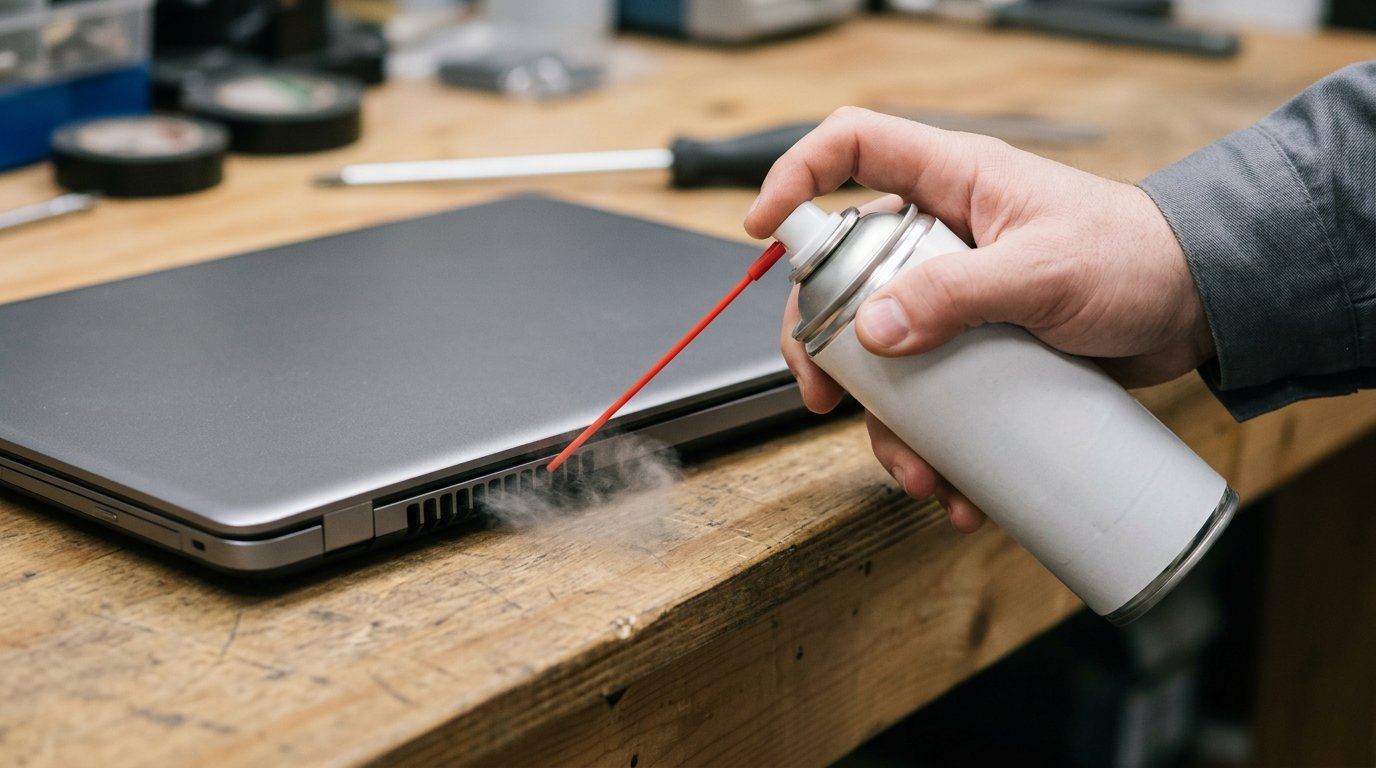
- Power off, unplug, and clean the vents with compressed air in short bursts. Hold the fan blade still so it doesn’t over-spin.
- Use the laptop on a hard surface or a cooling pad, not soft bedding.
- If it still runs hot or grinds, it’s time for a repaste or a new fan — a quick job for a technician.
A regular clean-out prevents most of this. For a full routine, see our guide to cleaning your computer, and if the noise came with sluggishness, our tips to revitalize a slow computer help on the software side. HP also has a solid walk-through on fixing loud laptop fan noise.
When Is Fan Noise Normal vs a Warning Sign?
A burst of fan noise during gaming, video calls, or exports is normal — the fan ramps up, then settles within a minute or two of stopping. That’s the system doing exactly what it should.
Treat it as a warning when the fan is loud at idle, grinds or rattles, or runs alongside heat, random shutdowns, or stutter. As Dell notes, fans that keep spinning fast and make abnormally loud noises can point to a real problem. Don’t ignore grinding — a failing bearing can lead to no cooling at all, and that cooks other parts.
Case Study: A Loud Lenovo in Charlotte
A client in Charlotte’s Dilworth neighborhood brought us a three-year-old Lenovo IdeaPad that sounded like a hairdryer the moment it powered on — even at the desktop, doing nothing. Task Manager showed the CPU near idle, so this wasn’t a software hog.
Inside, the heatsink was packed with dust and the thermal paste had gone chalky. We cleaned the fins, replaced the paste, and idle temperatures dropped from 78°C to 46°C. The fan went near-silent, and the laptop stopped throttling. Total time: about 40 minutes.
Frequently Asked Questions
Is it bad if my computer fan is always loud? A fan that never spins down usually means it can’t cool well (dust, dried paste) or something is pinning the CPU. It’s worth checking — it isn’t normal.
Will cleaning the dust out fix a loud fan? Often, yes — dust is the most common cause. If it’s still loud and hot afterward, suspect dried thermal paste or a worn bearing.
Is it safe to use compressed air on my laptop? Yes, with the laptop off and unplugged, using short bursts. Hold the fan blades still so they don’t over-spin, and keep the can upright.
Why is my fan loud but my laptop doesn’t feel hot? Usually a background process briefly spiking the CPU, or an aggressive fan curve. Check Task Manager and sort by CPU.
Can a loud fan damage my computer? The noise won’t, but the overheating behind it can. Grinding means a failing bearing — fix it before cooling stops entirely.
Should I replace just the fan or the whole laptop? A fan is usually a cheap, quick swap. Replace the laptop only if it’s old and other parts are failing too.
When to Call IT Carolina
If your fan still roars after a cleanup, grinds, or runs alongside heat and shutdowns, it’s worth a hands-on look. Repasting a CPU or replacing a fan means opening the machine — easy to get wrong, and easy for us to get right.
We help homeowners and small businesses across Charlotte, NC with overheating laptops, noisy desktops, and slow PCs — usually in a single visit. See our home and home-office IT support, or give us a call.
John Jones
Senior IT Specialist, IT Carolina
John has 12 years of hands-on experience diagnosing and resolving computer, printer, and network issues for homeowners and small businesses across Charlotte, NC. He has helped hundreds of clients recover from Windows update failures, driver conflicts, and hardware problems — often resolving in a single remote or on-site session.