
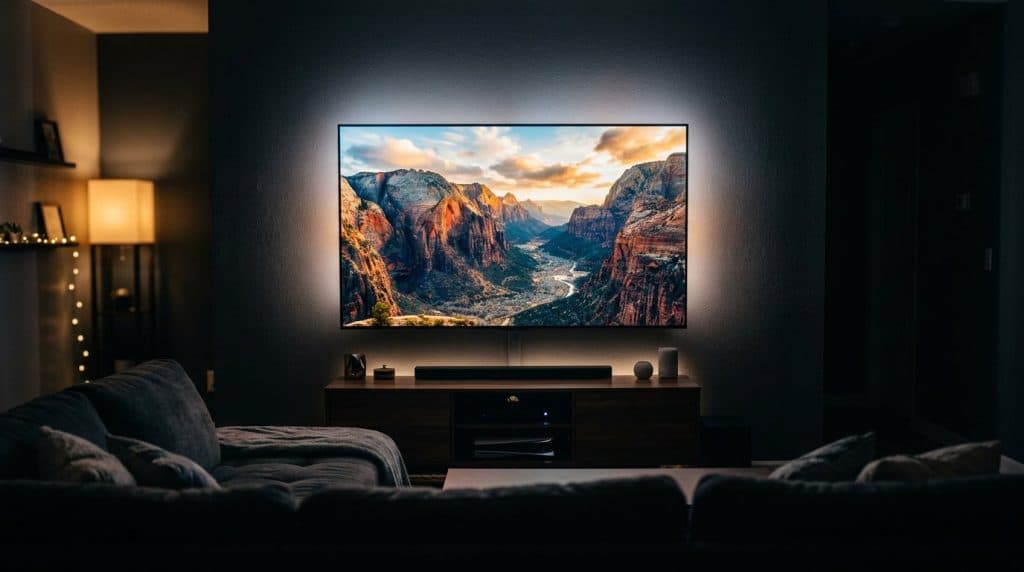
Here’s a puzzle that drives people a little crazy. You pay for the 4K plan. On your smart TV and your phone, movies look razor-sharp. But open the exact same service in Chrome on your laptop, and it tops out at 1080p — sometimes even less. Same account, same movie, same internet. So what gives? The answer surprises most people: it has almost nothing to do with your screen or your connection, and almost everything to do with copy protection. And once we’ve solved that mystery, we’ll tackle the other big one — why your TV stutters, pixelates, or buffers, and the one fix almost nobody bothers to try.
Why Does My Computer Only Stream in 1080p?
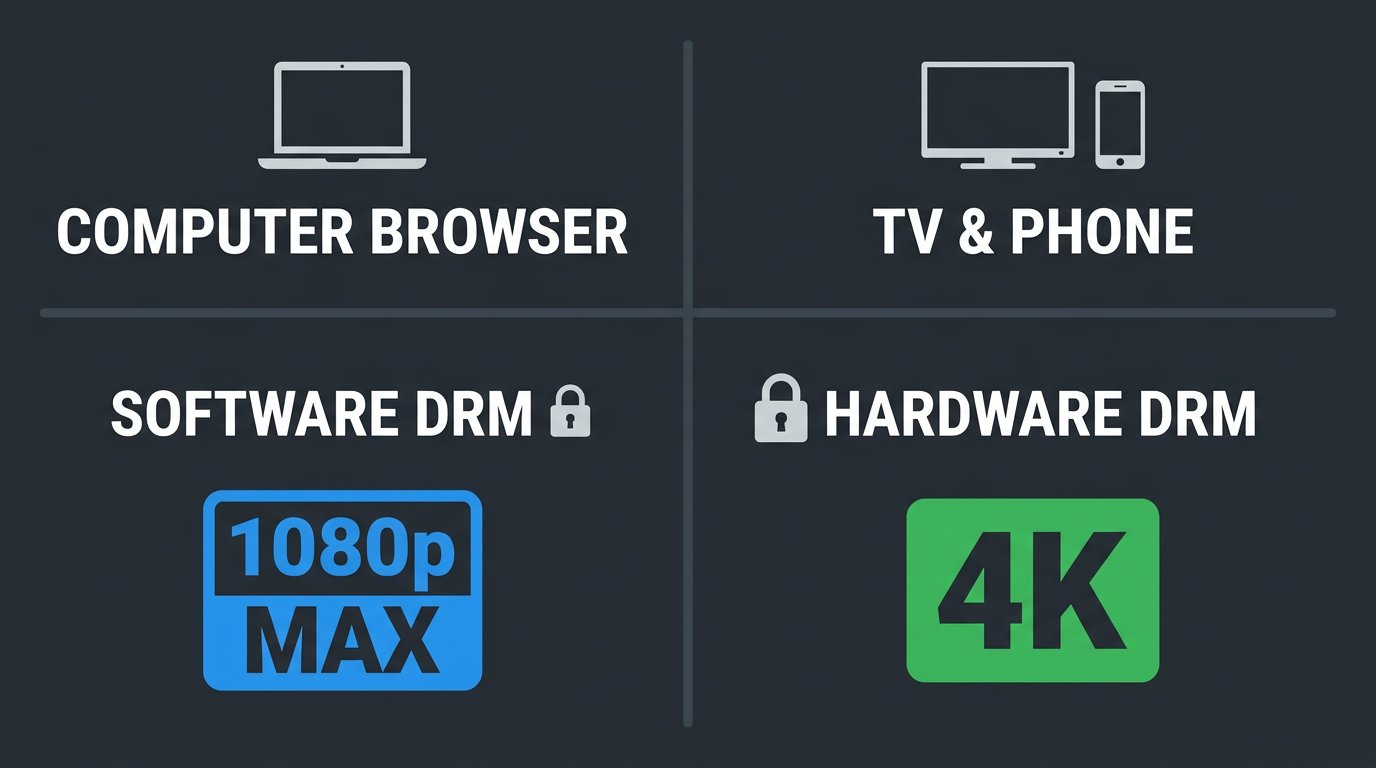
The short answer: streaming services only send 4K to devices with hardware-level copy protection. Your TV and phone have it built in; most web browsers only have a weaker, software-based version. Studios don’t trust software protection with their best-quality files, so browsers get capped at 1080p or lower — even on a 4K laptop with fast internet.
You were right if you suspected this was about piracy. Let’s unpack it in plain terms.
How Copy Protection Decides Your Resolution
Every major streaming service wraps its video in a digital lock called DRM (Digital Rights Management). Its job is to stop people from copying and re-uploading films. But not all locks are equal, and that difference is the whole story.
Think of it like a bank handing out cash. To a verified armored truck with a sealed vault — that’s your TV or phone, with protection built into the hardware itself — the bank hands over the full amount, the 4K master. To a regular person at the counter who could walk off with it — that’s a web browser, where the protection is just software that’s far easier to tamper with — the bank limits how much it’ll release. Same customer, same account, but the security of the container decides how much they’ll trust you with.
In technical terms, devices use protection levels. Phones, streaming sticks, and smart TVs typically have the high-trust hardware level (you’ll see it called Widevine L1 or PlayReady on Windows hardware). Browsers like Chrome and Firefox generally run the software level (Widevine L3), which services treat as lower-trust and cap accordingly. There’s also a separate requirement called HDCP 2.2 — a protected handshake along the cable and screen chain — that 4K and HDR content demands end to end.
The practical result: on a Windows PC, Chrome and Firefox usually limit Netflix to 720p–1080p. To actually get 4K on a computer you typically need the dedicated app or Microsoft Edge, plus specific compatible hardware and a 4K HDR display. It’s not that your laptop is weak — it’s that the browser isn’t a trusted enough container for the studio’s best file.
So the mystery is solved: your screen and your internet aren’t the problem. The lock on the door is.
Why Streaming Eats the Internet (A Quick Reality Check)
Before we get to buffering, one number puts everything in context. As of December 2025, streaming made up 47.5% of all TV viewing in the U.S., a record high — and earlier in 2025 it passed cable and broadcast combined for the first time ever. Video is the single biggest thing happening on the internet. That scale is exactly why the next part — buffering — happens to all of us.
Why Does My TV Buffer, Stutter, or Look Pixelated?
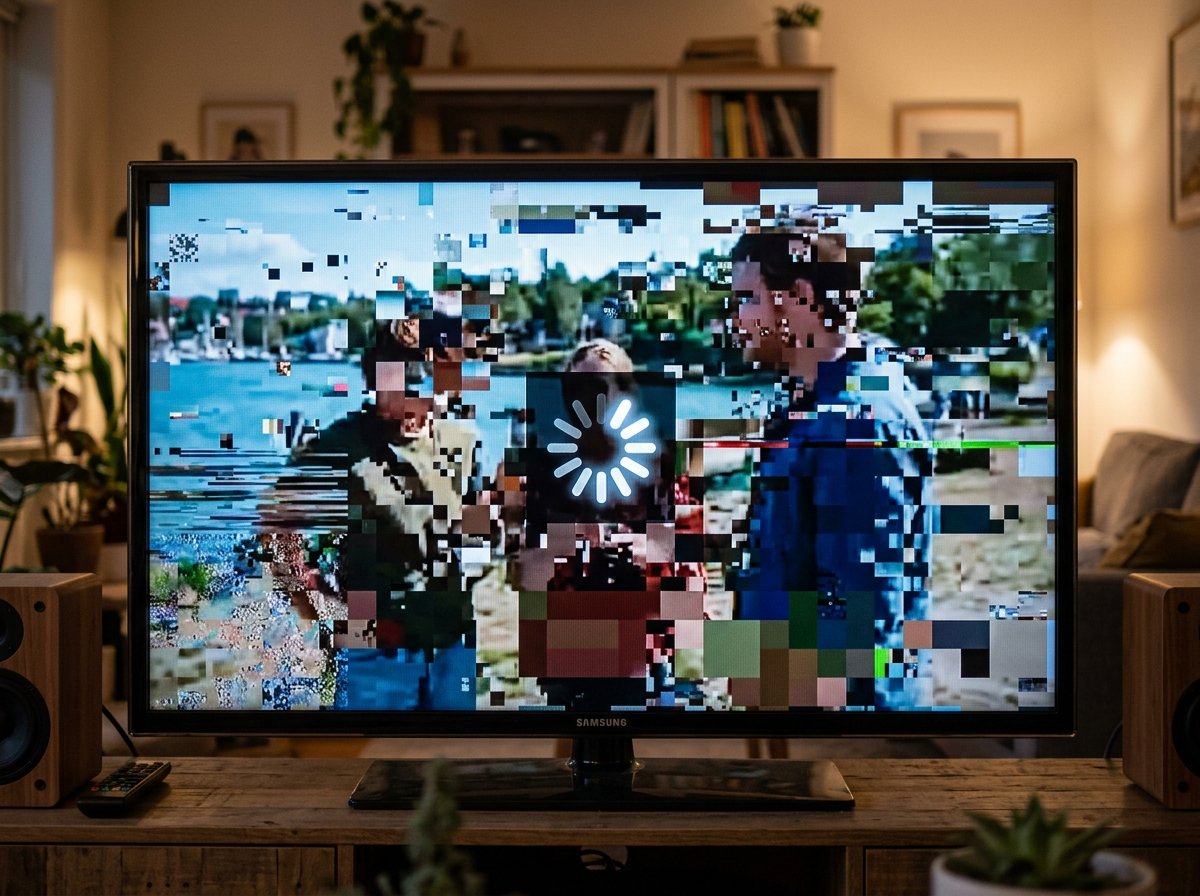
That maddening moment when the picture freezes, breaks into blocks, or drops to a soft blur has a few possible causes. Usually it’s one of three things: your home Wi-Fi, the way streaming buffers, or congestion on the service itself. Let’s take them one at a time, because the fix depends on the cause.
Cause 1: Your Wi-Fi Isn’t Reaching the TV
This is the most common culprit by far. Here’s the trap: your internet plan might say 100, 300, or 500 Mbps — but that’s the size of the water main at the street. What actually reaches your TV is more like a garden hose, and Wi-Fi makes that hose leaky. Distance from the router, walls, and other devices all shrink the real speed at the TV, often dramatically. Your TV drinks from the hose, not the main.
A single 4K stream needs a steady connection of roughly 15 to 25 Mbps — Netflix recommends at least 15 Mbps for Ultra HD, while Disney+ asks for 25 Mbps. So 100 Mbps sounds like overkill — and for one wired stream, it is. The problem is the word “steady.” If your far-room TV is only pulling 20 Mbps over weak Wi-Fi, and someone starts a video call or downloads a game, the speed at the TV dips below what 4K needs, and the stream stutters or drops to blurry.
If your TV lives in a room where Wi-Fi is weak, fixing the signal solves the buffering. Our guides on fixing Wi-Fi dead zones and choosing a Wi-Fi extender cover how to get a strong signal to a distant TV — and our breakdown of Wi-Fi 5 vs 6 vs 7 explains why a modern router handles multiple streams better.
Cause 2: The Buffer Ran Dry
“Buffering” isn’t a vague gremlin — it’s a real, clever system. When you press play, the app quietly downloads the next chunk of video ahead of what you’re watching and stores it in a reservoir called the buffer. Think of it as filling a bucket of water before you start drinking. As long as the bucket has water, you drink smoothly even if the tap sputters for a few seconds. The buffer absorbs small dips in your connection invisibly.
The dreaded spinning circle appears only when the bucket runs completely dry — your connection dropped for long enough that the app drank faster than it could refill. That’s also why the picture sometimes goes soft and then sharpens: a feature called adaptive bitrate streaming. The app constantly measures your speed and instantly drops to a lower resolution when it senses trouble, choosing “keep playing, slightly blurry” over “freeze to buffer.” When your speed recovers, it climbs back to sharp.
Cause 3: Everyone Is Watching the Same Thing
Sometimes it genuinely isn’t your fault. When a hit show drops a new episode or a big game goes live, millions of people hit the same servers at the same moment. Picture a highway that’s wide open near your house but completely jammed at the one popular exit everyone’s taking at once. Your car (your internet) is fast, but the on-ramp is the bottleneck.
This is a real, measurable effect. According to the 2025 Global Internet Phenomena Report, live streamed sports create traffic spikes of three to four times normal levels — sudden surges that can momentarily overwhelm parts of the delivery network. When release-night buffering clears up an hour later, that’s usually the crowd thinning out, not anything you fixed.
The Most Reliable Fix Almost Nobody Uses
Here’s the fix that solves most TV streaming problems and that hardly anyone tries: plug the TV into the router with an ethernet cable.
Wi-Fi is a shared, crowded radio channel that every device in your home competes for, and walls muffle it. Ethernet is a private, dedicated line — no interference, no distance loss, no neighbors’ networks bleeding in, full speed every second. For a device that sits in one place all day, like a TV, a cable is the ideal connection. It’s the difference between shouting across a noisy room and talking on a direct phone line.
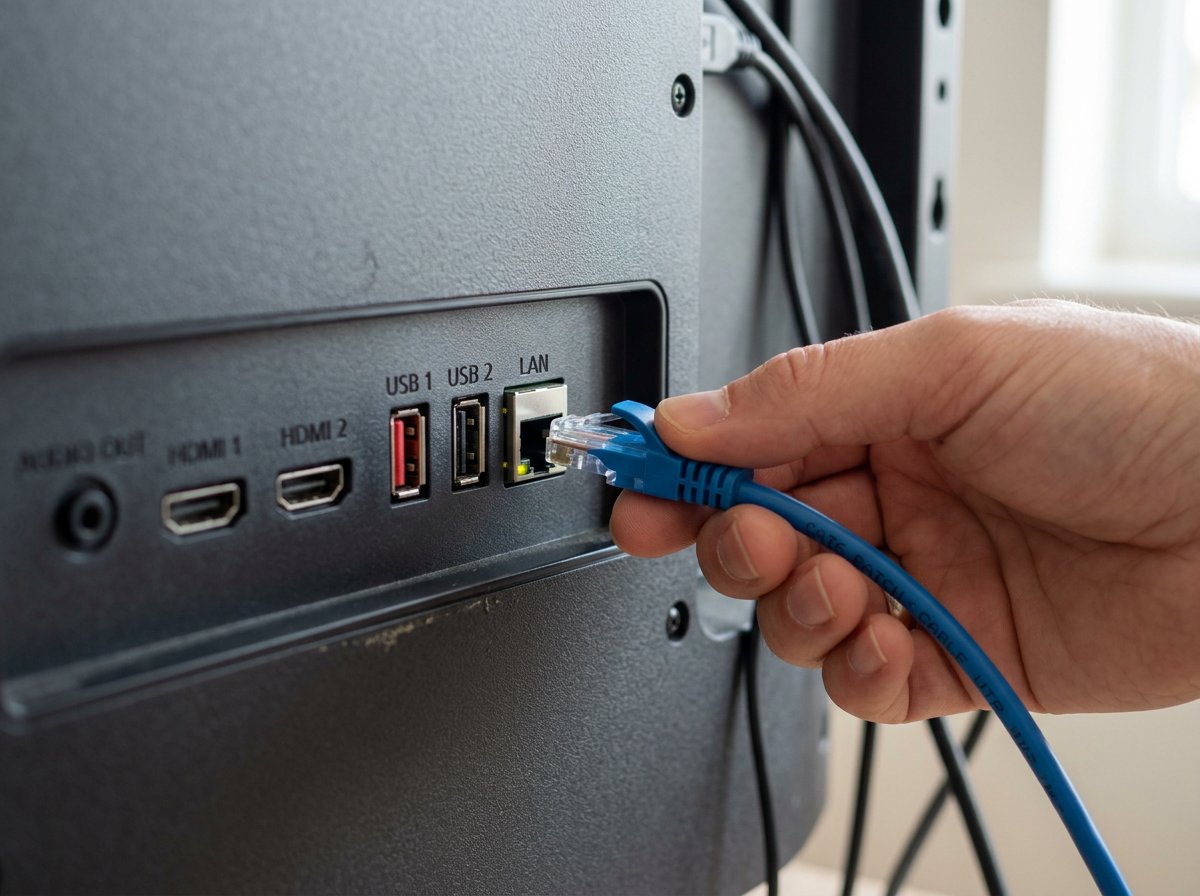
Nearly every smart TV and streaming box has an ethernet port on the back, sitting unused. If your router is in the same room, or close enough to run a cable along the baseboard, plugging in directly will often end buffering completely. People skip it because Wi-Fi is the default and running a cable feels old-fashioned — but it remains the single most reliable way to stream 4K without drama. If the TV is far from the router, a flat ethernet cable tucked under a rug, or a wired-backhaul extender near the TV, gets you most of the same benefit.
Case Study: The Movie Night That Finally Worked
A family in Charlotte’s Dilworth neighborhood called IT Carolina frustrated with their living-room TV. Every movie night ended the same way: the picture would drop to a blurry mess during the best scenes, or freeze on a spinning circle right at the climax. They’d already upgraded to a faster 300 Mbps internet plan specifically to fix it — and it hadn’t helped at all, which only made them angrier.
The reason the upgrade did nothing was textbook. Their router sat in a back office on the far side of the house, and the TV was pulling a weak Wi-Fi signal through two interior walls and a brick fireplace. A speed test on a phone next to the TV told the story: the 300 Mbps plan was delivering barely 18 Mbps at the couch — just under what a steady 4K stream needs, so the picture kept dropping to lower quality and stalling. The plan was never the bottleneck; the signal reaching the TV was.
The TV happened to be about fifteen feet from a wall the router’s room backed onto, so we ran a single flat ethernet cable along the baseboard and plugged the TV in directly. Instant, full-speed, rock-solid 4K — no buffering, no blur, every night since. Total cost: one $12 cable. The family’s takeaway was the same one we give everyone: before you pay for a faster plan, find out what’s actually reaching the device. If you’re fighting the same battle, that’s exactly the kind of thing we sort out quickly for households across the Charlotte, NC area.
Frequently Asked Questions
- Why is Netflix only 1080p on my laptop browser?
- Because most browsers only have software-based copy protection (Widevine L3), which services don’t trust with 4K. Studios require hardware-level protection for 4K and HDR. On a PC, Chrome and Firefox usually cap at 720p–1080p; 4K typically needs the app or Microsoft Edge plus compatible hardware and a 4K HDCP 2.2 display. It’s the protection level, not your screen or internet.
- Why does my TV buffer but my phone doesn’t?
- Usually the connection. The TV is often far from the router on weak Wi-Fi, while the phone is closer or streaming lower resolution. A 4K TV also needs a steadier, higher bitrate. The most reliable fix is connecting the TV to the router by ethernet cable, removing Wi-Fi’s variability entirely.
- Is 100 Mbps enough for 4K streaming?
- For one stream, yes — 4K needs about 15 to 25 Mbps. The catch is that your plan’s speed rarely reaches the TV in full over Wi-Fi. Distance, walls, and other devices can drop the real speed at the TV below what a steady 4K stream needs, causing buffering or a drop in quality.
- Does an ethernet cable really fix streaming problems?
- Very often, yes — and it’s the most underused fix. Ethernet gives the TV a private, stable, full-speed line to the router with no interference or distance loss. If the TV is near the router or you can run a cable, plugging in directly is the most reliable way to get smooth 4K.
- Why does my movie get blurry and then sharpen up?
- That’s adaptive bitrate streaming. The app measures your connection constantly and drops to a lower resolution the instant your speed dips, so the video keeps playing instead of freezing — that’s the blurry moment. When speed recovers, it climbs back to sharp. It chooses “keep playing” over “pause to buffer.”
- Why does a popular new show buffer more on release night?
- Because millions watch the same thing at once, straining the servers and network paths delivering it. Live sports and big premieres can spike traffic to several times normal. Even with fast home internet, the bottleneck can be congestion upstream — like a clear highway jammed at the one exit everyone’s taking.
- What is the most reliable way to stream 4K at home?
- Connect the TV or streaming device by ethernet when possible, make sure your plan comfortably exceeds 25 Mbps, and use the service’s official app rather than a browser. If a cable isn’t practical, keep the TV in strong Wi-Fi range, use a modern Wi-Fi 6 router, and consider a wired-backhaul extender or mesh node near the TV.
Buffering on Your TV? We’ll Find the Real Cause
If your movie nights keep ending in a spinning circle, the problem is almost always something specific and fixable — and rarely the thing people blame. IT Carolina diagnoses streaming and home network problems for households across the Charlotte, NC area: we find out exactly what speed is reaching your TV, fix the weak link, and set up the most reliable connection for your layout, whether that’s a cable, a better router, or smarter placement.
Tired of buffering during the best part? Contact IT Carolina for a remote or on-site visit, and we’ll get your screens running smoothly.
John Jones
Senior IT Specialist, IT Carolina
John has 12 years of hands-on experience diagnosing and resolving computer, printer, and network issues for homeowners and small businesses across Charlotte, NC. He has helped hundreds of clients recover from Windows update failures, driver conflicts, and hardware problems — often resolving in a single remote or on-site session.