
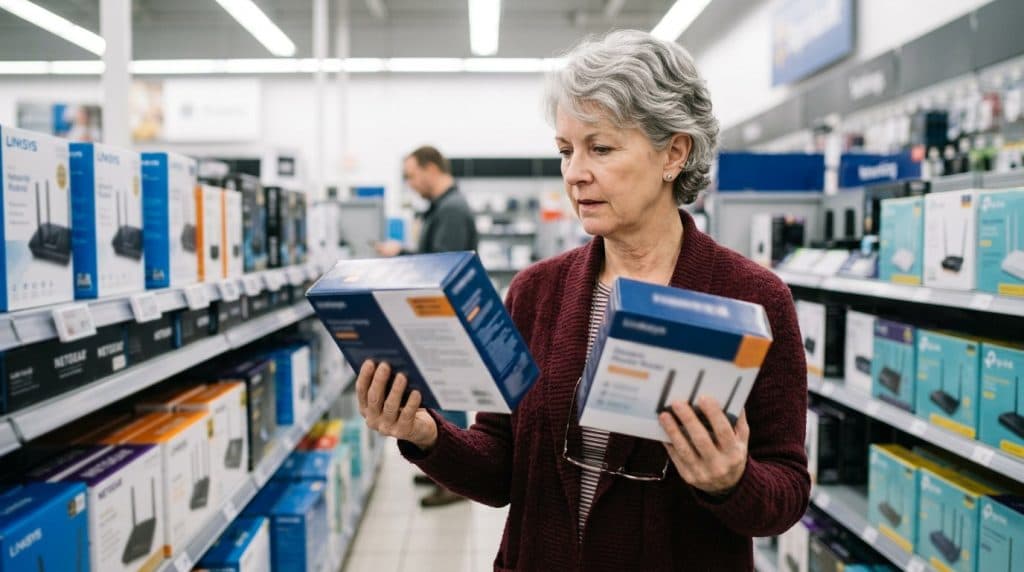
Picture this: a retiree stands in the networking aisle of a big electronics store. A salesperson is enthusiastically steering her toward a $300 WiFi 7 router, talking about “the latest standard” and “future-proofing.” She doesn’t game. She doesn’t stream in 4K. She has a 200 Mbps internet plan, a laptop, a phone, and a smart TV. That $300 router will do absolutely nothing for her that a $90 one wouldn’t — but she has no way to know that. This guide gives you what that salesperson didn’t: a plain-English breakdown of WiFi 5, WiFi 6, and WiFi 7, and exactly which one you actually need.
WiFi 5 vs WiFi 6 vs WiFi 7: The Short Answer
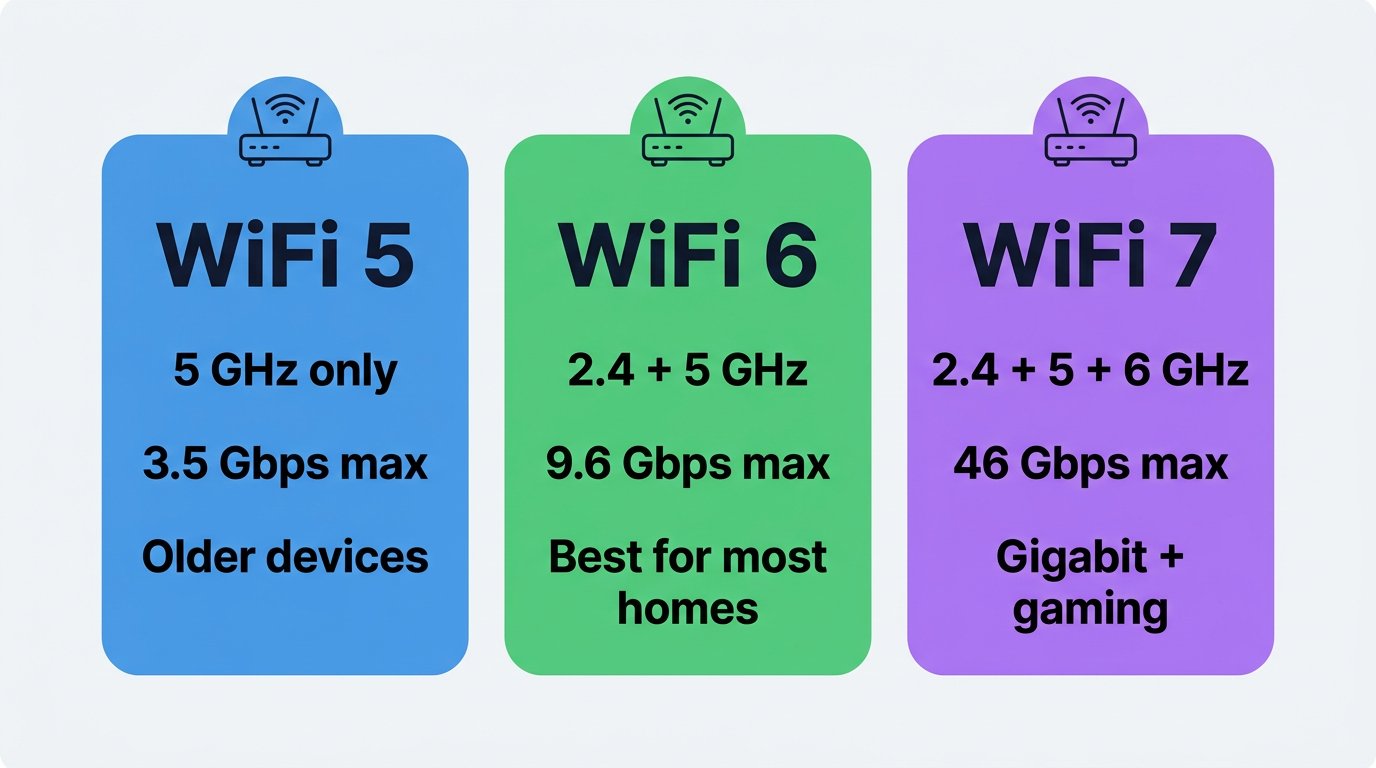
For most homes, WiFi 6 is the right choice in 2026. It delivers your full internet speed, handles dozens of devices, and costs far less than WiFi 7. WiFi 5 is fine if your needs are light and your budget is tight. WiFi 7 only pays off with internet faster than 1 Gbps and devices that also support it — which most homes don’t have yet.
| Standard | Bands | Max Speed (theoretical) | Best For |
|---|---|---|---|
| WiFi 5 (802.11ac) | 5 GHz | ~3.5 Gbps | Light use, tight budget, older devices |
| WiFi 6 / 6E (802.11ax) | 2.4 + 5 GHz (6E adds 6 GHz) | ~9.6 Gbps | Most homes, smart homes, home offices |
| WiFi 7 (802.11be) | 2.4 + 5 + 6 GHz | ~46 Gbps | Gigabit-plus internet, competitive gaming, newest devices |
Those “max speed” numbers are theoretical lab figures you will never see in real life. They’re useful only for comparing standards to each other — not for predicting your actual speed. We’ll explain what you really get below.
What Do the WiFi Numbers Actually Mean?
The numbers are just generations, like phone models. Higher is newer. Each generation has a technical name too — WiFi 5 is 802.11ac, WiFi 6 is 802.11ax, WiFi 7 is 802.11be — but the simple numbers exist precisely so you don’t have to memorize that.
Here’s the one concept that explains most of the difference: bands. Think of WiFi bands as separate highways your data can travel on. WiFi 5 uses one main highway (the 5 GHz band). WiFi 6 uses two (2.4 GHz and 5 GHz). WiFi 6E and WiFi 7 add a third, brand-new, less-crowded highway (the 6 GHz band). More highways means less traffic congestion when many devices are online at once.
The other improvements are mostly about efficiency — squeezing more out of those highways and letting more cars travel at once. That matters more than raw top speed for a normal home, because the real-world problem isn’t “my one device is too slow.” It’s “everything slows down when the whole family is online.”
WiFi 5 — Still Fine for Light Use
WiFi 5 launched in 2013 and is still running in millions of homes. It operates on the 5 GHz band and tops out around 3.5 Gbps in theory — realistically delivering speeds approaching 1 Gbps to a single device in good conditions.
Here’s the honest truth: if you have a handful of devices, a modest internet plan, and you mostly browse, email, and stream regular video, WiFi 5 still does the job. The reason to move on isn’t that WiFi 5 is “bad” — it’s that it struggles when many devices compete at once, and brand-new WiFi 5 routers are getting hard to find anyway.
Stick with WiFi 5 if: your current router works fine, you have a small number of devices, and your internet plan is under 300 Mbps. There’s no rule that says you must upgrade. If it’s working, it’s working.
WiFi 6 (and 6E) — The Sweet Spot for Most Homes
WiFi 6 is where most people should land. It runs on both the 2.4 GHz and 5 GHz bands, has a theoretical maximum of 9.6 Gbps, and — far more importantly — delivers real-world speeds of roughly 600 to 900 Mbps per device. That comfortably covers any internet plan up to gigabit.
The headline feature is a technology called OFDMA. In plain terms, it lets the router talk to many devices in the same instant instead of one at a time — like a delivery truck dropping packages at several houses on one trip instead of driving back to the warehouse after each one. Combined with another feature called MU-MIMO, this is exactly what a modern home needs, because the real strain on home WiFi isn’t one fast device — it’s twenty small ones all chattering at once. According to Intel’s overview of WiFi 6, these efficiency gains are the core upgrade over WiFi 5, not just raw speed.
WiFi 6E is WiFi 6 with one addition: access to the 6 GHz band — that third, less-crowded highway. If you live in an apartment building where everyone’s WiFi overlaps, or you have a lot of devices, 6E is a genuinely useful step up without jumping all the way to WiFi 7.
Choose WiFi 6 or 6E if: you work from home, have a smart home, stream on multiple TVs, or just want a router that handles everything a normal household throws at it for years. This is the recommendation for the large majority of homes — and good WiFi 6 routers commonly run $60 to $150.

WiFi 7 — Who Actually Needs It?
WiFi 7 is genuinely impressive technology. It uses all three bands (2.4, 5, and 6 GHz), wider data channels, and a theoretical maximum around 46 Gbps. Real-world single-device speeds reach 3 to 5 Gbps in ideal conditions. Its standout feature is Multi-Link Operation (MLO), which lets a single device use multiple bands at the same time — if one gets congested, traffic instantly shifts to another, which lowers latency and prevents dropouts.
That all sounds great. So why isn’t it the automatic choice? Two reasons, and they’re the part stores conveniently skip.
First, your internet plan is almost certainly the limit, not your router. If you pay for 500 Mbps, a WiFi 7 router gives you 500 Mbps — exactly the same as a WiFi 6 router. WiFi 7’s extra speed only becomes visible when your internet plan exceeds about 1 Gbps, which most US households don’t have. Second, your devices have to support WiFi 7 too. Features like MLO need both the router and the connecting device to be WiFi 7. As of early 2026, WiFi 7 is mostly found in flagship phones and premium laptops — a WiFi 7 router talking to your existing devices just runs at WiFi 6 speeds. Cisco’s explainer on WiFi 7 confirms MLO is the marquee feature — but it only works device-to-device when both ends speak WiFi 7.
WiFi 7 is worth it if: you have a gigabit-plus internet plan, you’re a competitive online gamer chasing every millisecond, you own several brand-new WiFi 7 devices, or you’re wiring a large home and want to buy once for the next 5+ years. For everyone else, paying $250 to $500 for WiFi 7 today means paying for speed you can’t use yet.
Which WiFi Router Do You Need? (By Situation)
Forget the marketing. Here’s the honest recommendation for the four most common situations.
Home office and remote work: WiFi 6. Video calls, cloud files, and a couple of work devices need stability far more than raw speed, and WiFi 6 delivers rock-solid performance for a video call on any normal internet plan. The thing that ruins video calls is usually router placement or an overloaded network — not the WiFi standard. If a work device is in a fixed spot, a single ethernet cable beats every WiFi standard.
Smart home with lots of devices: WiFi 6. This is OFDMA’s home turf — it was designed for exactly this. Smart bulbs, plugs, cameras, speakers, and doorbells are many small devices talking constantly, and WiFi 6 handles that crowd far better than WiFi 5. The number of devices matters more than the WiFi number here. While you’re at it, put those smart devices on their own network — our guide to home network segmentation explains why and how.
Gaming: WiFi 6 for most people — and a wired ethernet connection beats every WiFi standard for the lowest, most stable latency. If you can run a cable to the console or PC, do that first. Competitive players on a gigabit-plus plan with a WiFi 7 gaming laptop or phone are the rare case where WiFi 7’s lower wireless latency genuinely helps. Casual and even most serious gamers won’t notice a difference over WiFi 6.

Large home with dead zones: This one is a trick question — the answer often isn’t a faster standard at all. A bigger, better single router won’t reach through three walls and two floors no matter how new it is. What you usually need is a mesh system that spreads coverage across multiple units, or better placement of the router you have. Our guides on choosing a mesh WiFi system and fixing WiFi dead zones solve this far more effectively than upgrading the standard.
The One Thing That Matters More Than the WiFi Number
Here’s the secret the store won’t lead with: for most people, the WiFi standard is not the bottleneck. Two other things matter more.
Your internet plan. Your router can never deliver more speed than your internet plan provides. A WiFi 7 router on a 200 Mbps plan gives you 200 Mbps. If your WiFi feels slow, check your actual plan speed first — you may be paying for less than you think, or paying for far more than your devices can use.
Your router’s age and placement. A router more than five or six years old, or one stuffed in a closet behind the TV, will cause more real-world slowdowns than choosing WiFi 6 over WiFi 7 ever could. If your equipment is genuinely old, upgrading to a modern WiFi 6 router is one of the best-value improvements you can make — and an old router is also a real security risk, as we cover in the warning signs your router needs replacing.
Case Study: The $300 Router That Wasn’t Needed
A retired client in Charlotte’s Myers Park neighborhood called IT Carolina after a big-box store talked her into a $300 WiFi 7 router and a setup that, two weeks later, had left her smart TV unable to connect and her tablet dropping off the network. She felt the new router had made things worse, not better — and she wasn’t wrong.
When we looked at her setup, the picture was clear. She had a 200 Mbps internet plan, a laptop, an iPhone a few years old, an iPad, and a smart TV — not one of which supported WiFi 7. The expensive router’s headline features were doing nothing for her, and a misconfigured 6 GHz band was actually confusing her older devices, causing the dropouts.
We reconfigured the router so her existing devices connected cleanly, and explained that a $90 WiFi 6 router would have delivered identical real-world performance for her. The honest takeaway we gave her: she could return the $300 router for the refund window and buy a solid WiFi 6 model, or keep the one she had now that it was set up correctly — but either way, she should never have been upsold to it in the first place. This is the kind of thing we see constantly: people paying for specs that their internet plan and devices can’t use. If you’re not sure what you actually need before you buy, a quick conversation can save you a lot of money.
Frequently Asked Questions
- Do I really need a WiFi 7 router?
- For most homes, no. WiFi 7’s biggest gains only appear with internet faster than 1 Gbps and devices that also support WiFi 7, which is still rare in 2026. If your plan is under 1 Gbps, a good WiFi 6 router already delivers your full speed. WiFi 7 makes sense for gigabit-plus plans, competitive gaming, or homes full of brand-new devices.
- What is the real difference between WiFi 6 and WiFi 7?
- WiFi 6 added efficiency features (OFDMA, MU-MIMO) for handling many devices and uses the 2.4 and 5 GHz bands. WiFi 7 adds the 6 GHz band, wider channels, and Multi-Link Operation for lower latency. In practice you only feel the difference with gigabit-plus internet and WiFi 7 devices. For browsing, streaming, and video calls, there’s no noticeable difference.
- Is WiFi 6 still good in 2026?
- Yes — it’s the practical sweet spot. WiFi 6 delivers roughly 600 to 900 Mbps per device in the real world, handles dozens of smart home devices via OFDMA, and costs far less than WiFi 7. Unless you have gigabit-plus internet and matching devices, WiFi 6 or 6E covers everything a typical home does.
- Will a WiFi 7 router make my internet faster?
- Not on its own. A router can’t deliver more than your internet plan provides. On a 500 Mbps plan, WiFi 7 gives you 500 Mbps — the same as a good WiFi 6 router. A new router only helps if the old one was the bottleneck or your plan exceeds about 1 Gbps.
- Does my phone or laptop need to support WiFi 7 too?
- Yes. To get WiFi 7 speeds and MLO, both the router and the device must support WiFi 7. A WiFi 7 router talking to a WiFi 6 laptop just runs at WiFi 6 speeds. As of early 2026, WiFi 7 is mostly in flagship phones and premium laptops, so most home devices still connect at WiFi 6 or older.
- What WiFi router is best for a smart home?
- A WiFi 6 router. Its OFDMA technology was built to handle many small devices talking at once — exactly what smart bulbs, plugs, cameras, and speakers do. Total device count matters more than the WiFi number, so a solid WiFi 6 model handles a typical smart home well without WiFi 7 pricing.
- What WiFi router do I need for gaming?
- For most gamers, a quality WiFi 6 router is plenty — and a wired ethernet connection beats any WiFi standard for the lowest, most stable latency. Competitive players on a gigabit-plus plan with a WiFi 7 device may benefit from WiFi 7’s lower wireless latency, but wired still wins for gaming.
Not Sure What You Actually Need? Ask Before You Buy
The router aisle is designed to sell you the most expensive box, not the right one. Before you spend $300 on specs your internet plan and devices can’t use, it’s worth a five-minute reality check on what your home actually needs. IT Carolina helps homeowners and small businesses across the Charlotte, NC area choose, set up, and secure the right network equipment — without overspending on features that sit unused.
Have a question about your setup or what to buy? Contact IT Carolina for honest advice and a remote or on-site session — we’ll tell you the truth about what you need, even when that’s the cheaper option.
John Jones
Senior IT Specialist, IT Carolina
John has 12 years of hands-on experience diagnosing and resolving computer, printer, and network issues for homeowners and small businesses across Charlotte, NC. He has helped hundreds of clients recover from Windows update failures, driver conflicts, and hardware problems — often resolving in a single remote or on-site session.