
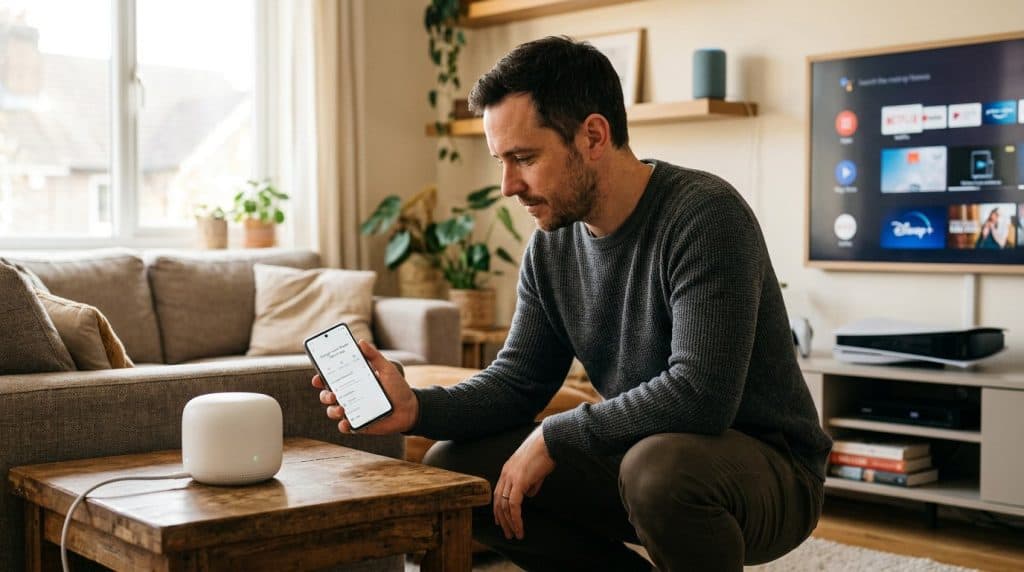
Count the devices on your home Wi-Fi right now. Laptops, phones, a smart TV, maybe a security camera, a video doorbell, a couple of smart bulbs, a gaming console. The average home has 17 connected devices — and most of them sit on the exact same network, able to talk to each other freely. That means one hacked smart bulb can become a doorway to the laptop where you do your banking. Network segmentation fixes that, and the basic version takes about 15 minutes. This guide shows you how to split your devices into separate networks so a problem on one stays on one.
What Is Home Network Segmentation?
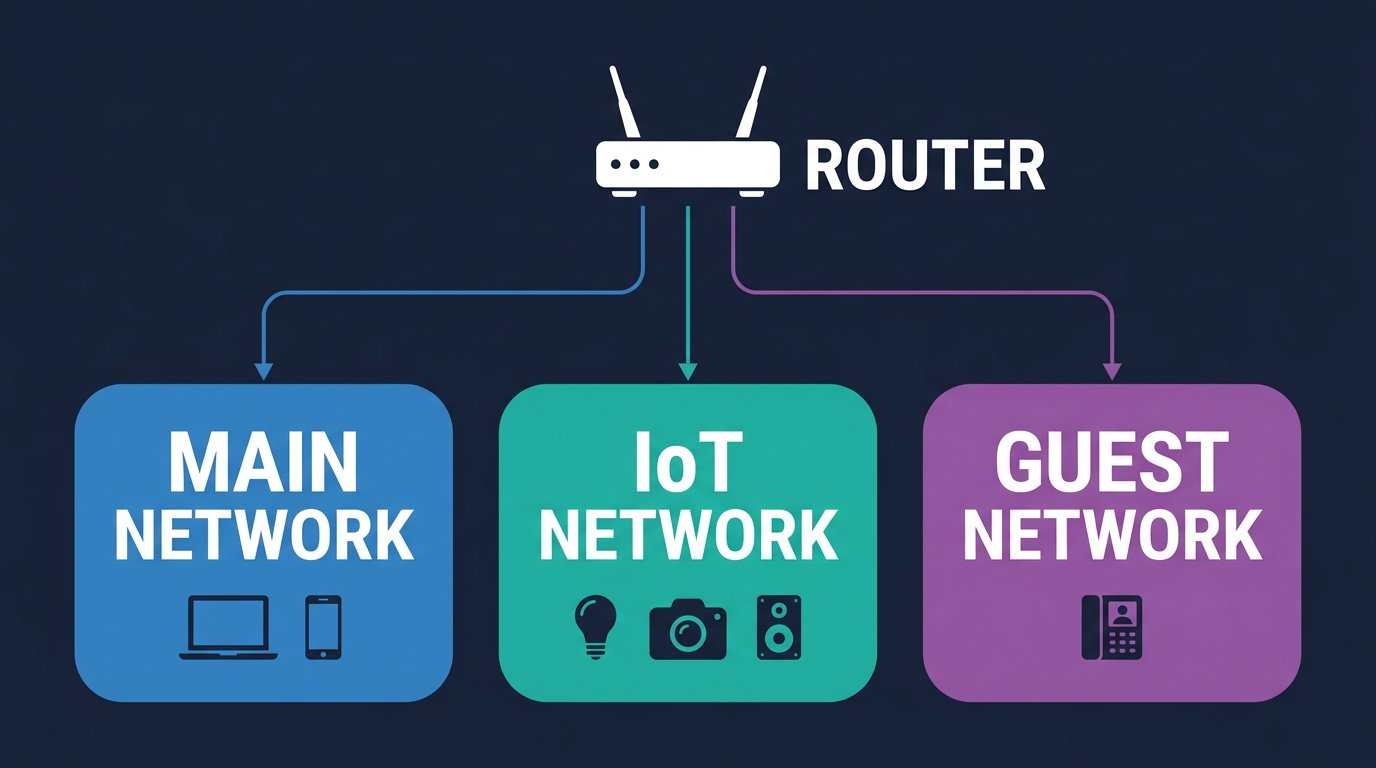
Home network segmentation means splitting the devices on your Wi-Fi into separate groups that cannot freely talk to each other. The most common setup uses three networks: a main network for trusted computers and phones, a separate network for smart home devices, and a guest network for visitors. If a smart device is hacked, the attacker stays stuck on its network — away from your laptops and files.
Think of it like rooms in a house instead of one big open hall. Right now, your network is probably one open hall: every device can see every other device. Segmentation adds walls and doors. Your work laptop lives in one room, your smart camera in another, and a guest who comes over gets the entryway — not a key to the whole house.
The key part is isolation. A segmented network doesn’t just organize devices; it stops them from reaching each other. That single change is what turns a minor problem — a cheap gadget with a security flaw — into a contained one.
Why Should You Segment Your Home Network?
Here’s the real risk. Smart home devices are the weakest link on almost every home network. Budget cameras, smart plugs, off-brand bulbs, and video doorbells often ship with weak default passwords, stop getting security updates within a year or two, and run outdated software the manufacturer never patches. They sit on your network 24/7, which makes them an ideal foothold.
When everything shares one network, a single compromised device can scan for and reach everything else — including the computer where you store tax documents, work files, and saved passwords. Segmentation breaks that chain. The U.S. Cybersecurity and Infrastructure Security Agency recommends segmentation as a core practice in its home network security guidance, and the FTC specifically advises putting smart devices on a separate network from your computers and phones.
There’s a second benefit beyond security: performance and order. Keeping bandwidth-hungry gaming and streaming separate from work devices means a big game download doesn’t fight with your video call. And if you work from home, separating work devices from a household full of smart gadgets and kids’ consoles is simply good hygiene.
The 3-Network Setup Most Homes Need
You don’t need a complex enterprise design. For the vast majority of homes, three networks cover everything:
- Main network — your trusted devices: personal and work laptops, phones, tablets, and a network printer. These are the devices that hold or access sensitive data. Keep this network’s name and password private.
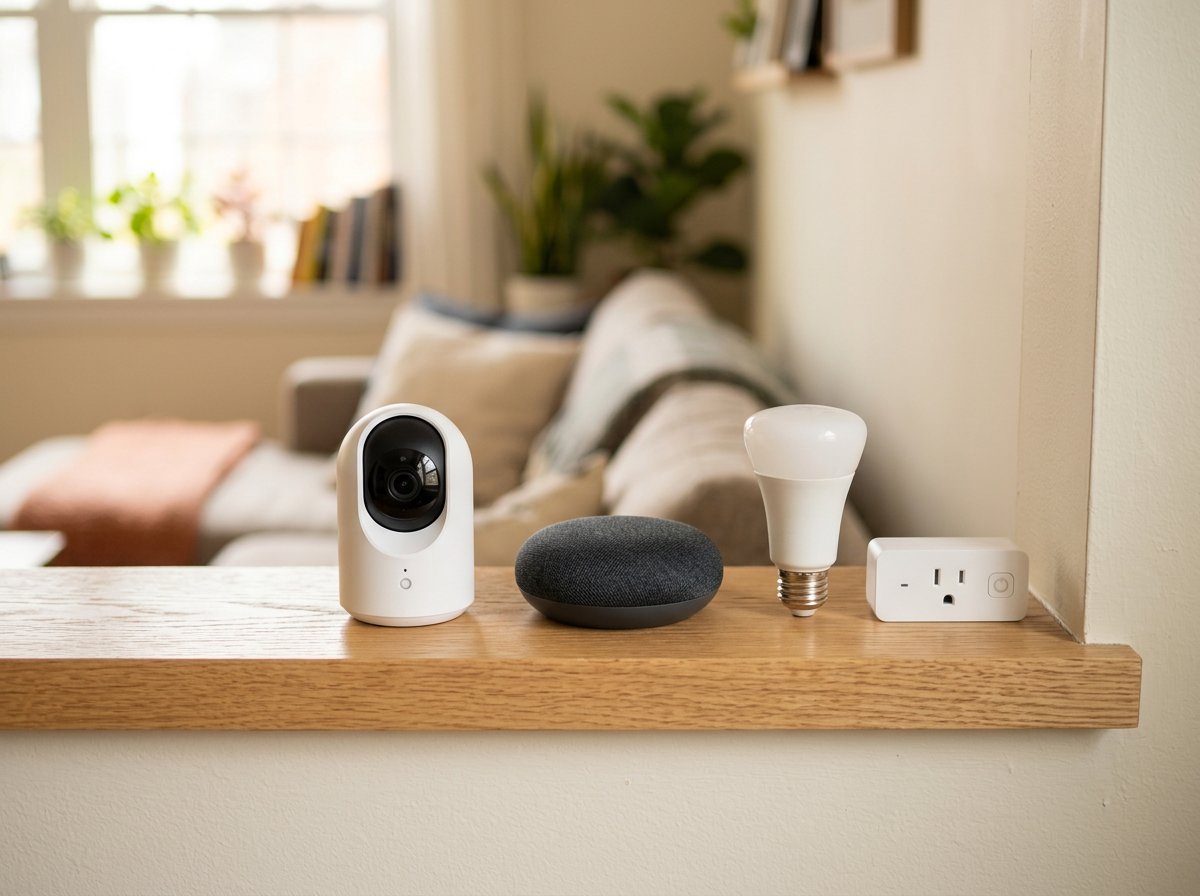
- IoT network — every smart home device: cameras, smart speakers, bulbs, plugs, thermostats, TVs, video doorbells, and smart appliances. These reach the internet and their apps but are walled off from your main devices.
- Guest network — for visitors and anything you don’t fully trust. Friends, family, contractors, and one-off devices connect here. They get internet access and nothing else.
Some people combine the IoT and guest networks into one “untrusted” network, which is perfectly fine and even simpler. The important principle is that your trusted devices live on one network, and everything questionable lives somewhere else that can’t reach them.
How to Segment Your Network With a Guest Network (Easiest Method)
The fastest way to segment your home network is the guest network feature already built into your router. No new hardware, no networking degree. Here are the six steps.
Step 1: Log in to your router. Open a browser and go to your router’s address — usually 192.168.1.1 or 192.168.0.1, printed on a sticker on the router itself. Sign in with the admin username and password (also on the sticker if you never changed it — and you should change it).
Step 2: Find the Guest Network section. Look for “Guest Network” or “Guest Wi-Fi” in the wireless settings. Almost every router from the last several years has this. If yours doesn’t, that’s a strong sign it’s time to upgrade.
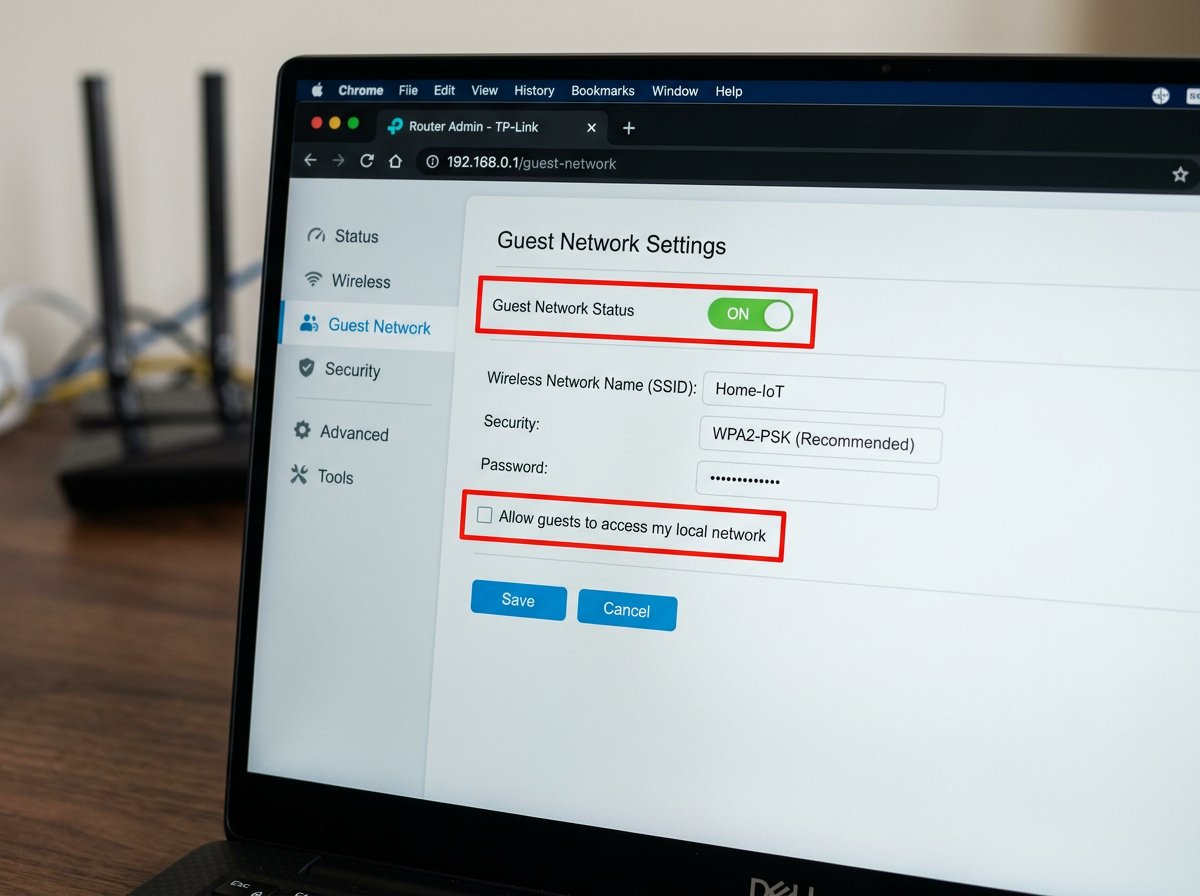
Step 3: Create your IoT network. Turn the guest network on and name it something clear like Home-IoT. Set a strong, unique password. This is the network your smart devices will live on.
Step 4: Turn off local access. This is the step that actually creates the wall. Find the option usually labeled “Allow guests to access local network,” “Allow guests to see each other,” or “Intranet access” — and make sure it is turned OFF. This stops devices on the IoT network from reaching your main network. On most routers it’s off by default, but confirm it.
Step 5: Move your smart devices over. Go through your smart home devices one at a time and reconnect each to the new Home-IoT network instead of your main Wi-Fi. Cameras, bulbs, plugs, speakers, the smart TV — all of them. This is the most tedious part, but you only do it once.
Step 6: Set up a true guest network for visitors. If your router supports more than one guest network, create a second one named Guest for actual visitors. If it only supports one, your visitors can share the IoT network — it’s still isolated from your main devices, which is what matters. For a deeper walkthrough on this specific step, see our guide on creating a secure guest Wi-Fi network.
That’s it. In about 15 minutes you’ve gone from one open network to a properly segmented one. The guest network method delivers roughly 90% of the security benefit for almost none of the effort.
How to Segment With VLANs (For More Control)
If you want more than the guest network offers — multiple custom segments, per-network firewall rules, or enterprise-grade separation — the next step up is VLANs (Virtual Local Area Networks). A VLAN lets you create several isolated networks on a single router or managed switch, each kept separate at the hardware level.
VLANs require gear that supports them: a router with VLAN capability (many prosumer and mesh systems now do), and often a managed switch. You assign each VLAN an ID, create the matching Wi-Fi networks, and set rules for what each segment can reach. It’s more involved, and the terminology gets technical fast.
Honest take: most households don’t need VLANs. The guest network method covers the core risk. VLANs make sense if you run a home lab, have a large number of smart devices, or want precise control over how segments interact. If that’s you, it’s worth doing properly — and it’s a common reason people in the Charlotte area book a one-hour setup session rather than wrestling with it alone.
Which Devices Go on Which Network?
Once your networks exist, sorting devices is straightforward. Here’s the rule of thumb, device by device:
| Device | Network | Why |
|---|---|---|
| Personal & work laptops | Main | Hold sensitive data; need to be protected |
| Phones & tablets (yours) | Main | Trusted, regularly updated |
| Network printer | Main | You print from trusted devices |
| Smart cameras & doorbells | IoT | Common attack target; rarely updated |
| Smart speakers & displays | IoT | Always listening, always online |
| Smart bulbs, plugs, thermostats | IoT | Cheap firmware, weak security |
| Smart TV & streaming sticks | IoT | Heavy data collection, rarely patched |
| Gaming consoles | IoT or Guest | Isolate from work data; bandwidth-heavy |
| Visitor phones & laptops | Guest | Unknown security state |
One judgment call worth making: your phone. If you use a phone to control smart home apps, keep the phone on your main network — the apps talk to the devices through the internet and the cloud, not directly over local Wi-Fi, so isolation doesn’t break them. If you hit a device that genuinely needs local discovery (some printers and older smart speakers), you can make a narrow exception, but those are increasingly rare.
Common Segmentation Mistakes to Avoid
A few traps catch people setting this up for the first time:
- Leaving local access turned on. If you skip Step 4, your “separate” network isn’t actually isolated — devices can still reach each other. This is the single most common mistake. Always confirm local/intranet access is off.
- Reusing the same password everywhere. Each network should have its own strong, unique password. Reusing your main password on the IoT network defeats part of the purpose.
- Forgetting a device. That one smart plug still on the main network is a hole in the wall. Do a full inventory and move every smart device over.
- Never changing the router admin password. Segmentation means nothing if an attacker can log into the router itself with the default password. Change it. This is also covered in our broader Wi-Fi security guide.
Case Study: A Charlotte Home Office That Closed a Real Gap
A client running a small accounting practice from her home in Charlotte’s Ballantyne area contacted IT Carolina after a security awareness email from a vendor made her nervous about her setup. She worked from a home office with a laptop full of client financial data — and on the same Wi-Fi sat three security cameras she’d bought off a marketplace for under $30 each, two smart speakers, a video doorbell, and her kids’ two gaming consoles. Everything on one flat network.
When we ran a quick audit, two of the budget cameras were running firmware that hadn’t been updated in over two years and still had a manufacturer default account active. On a flat network, either camera was a potential path straight to the laptop holding client tax records — exactly the kind of exposure that turns into a serious problem.
The fix took under an hour. We set up a dedicated IoT network for every smart device, moved the gaming consoles to it as well, kept the work laptop and her phone on a private main network, and turned off local access so the IoT side couldn’t reach the main side. We also changed the router admin password and replaced the two cameras’ default accounts. Her work data is now walled off from the weakest devices in the house. If you want a similar review of your own setup, IT Carolina’s home office service includes network security audits across the Charlotte, NC area. For the broader picture, our home network security guide covers the fundamentals that pair with segmentation.
Frequently Asked Questions
- What is home network segmentation in simple terms?
- It’s splitting your Wi-Fi devices into separate groups that can’t freely talk to each other — typically a main network for trusted computers and phones, an IoT network for smart devices, and a guest network for visitors. If a smart device is hacked, the attacker stays stuck on its network, away from your laptops and files.
- Do I need a separate router to segment my home network?
- No. Most routers from the last several years can segment using the built-in guest network feature — no extra hardware. A VLAN-capable router or managed switch is only needed for advanced setups. For most homes, the guest network in your existing router is enough.
- Can I use a guest network to isolate smart home devices?
- Yes, and it’s the easiest method. Create a guest network, name it something like Home-IoT, and connect your smart devices to it. Make sure the option allowing guest devices to reach your local network is off. Your devices still reach the internet and their apps, but can’t see your computers.
- What is a VLAN and do I need one at home?
- A VLAN creates multiple isolated networks on one router or switch, separated at the hardware level. It gives more precise control than a guest network. Most homes don’t need VLANs — the guest network covers the main use case. VLANs are worth it for home labs, many smart devices, or enterprise-grade separation.
- Does network segmentation slow down my internet?
- No, not noticeably. Segmentation separates which devices can talk to each other locally — it doesn’t reduce the internet speed entering your home. Each device still gets full bandwidth. Only very cheap routers struggle running several networks; any modern mid-range router handles it fine.
- Which devices are the biggest security risk?
- Smart home (IoT) devices: budget cameras, smart plugs, bulbs, and video doorbells. Many ship with weak default passwords, stop getting updates quickly, and run outdated software. Because they’re online 24/7, one compromised device can become a foothold — which is why isolating them matters.
- Is segmentation worth it for a normal household?
- Yes. If you own even a few smart devices, segmentation is one of the highest-value security steps you can take, and the guest network method takes about 15 minutes. It also helps work-from-home setups by keeping work devices separate from gadgets and gaming consoles.
Want Help Setting Up a Secure Home Network?
Segmenting a home network is straightforward once you know the steps — but every router’s menus are a little different, and VLAN setups get technical fast. If you’d rather have it done right the first time, IT Carolina sets up segmented, secured home and small-business networks across the Charlotte, NC area. We handle the configuration, move your devices, lock down your router, and make sure your work data is properly isolated from everything else.
Have questions about your own setup? Contact IT Carolina to schedule a remote or on-site session — we configure segmented, secured networks for homes and small businesses across the Charlotte, NC area.
John Jones
Senior IT Specialist, IT Carolina
John has 12 years of hands-on experience diagnosing and resolving computer, printer, and network issues for homeowners and small businesses across Charlotte, NC. He has helped hundreds of clients recover from Windows update failures, driver conflicts, and hardware problems — often resolving in a single remote or on-site session.