

Your laptop was fast this morning. You unplug it, and suddenly Chrome is sluggish, video calls stutter, and a task that took 5 seconds now takes 20. Nothing crashed. No error message. Just slower.
The reason is almost always Windows Power Throttling — a feature Microsoft built into Windows 10 and 11 that automatically limits your CPU speed when you’re running on battery. On a Dell or Lenovo with a Core i7, that can mean a 25–50% performance drop the instant the charger comes out.
Here’s what’s happening under the hood, how to confirm it in under a minute, and five specific fixes to get your full speed back on battery.

What’s Actually Slowing Your Laptop Down?
When you unplug, Windows switches to a battery-saving power mode and activates Power Throttling — a feature that limits how fast your CPU runs to extend battery life. On most laptops, this causes a 25–50% drop in processor performance. It’s intentional behavior, not a malfunction. The fix is adjusting your power settings to keep the CPU unrestricted.
The Windows Power Throttling System
Microsoft introduced Power Throttling in Windows 10 Fall Creators Update (version 1709, October 2017). The feature works through EcoQoS — a scheduling layer that assigns background processes to energy-efficient CPU cores and caps their clock speed to the minimum necessary for the task.
The critical point: Power Throttling doesn’t just slow down background apps. When Windows switches to a Balanced or Battery Saver power plan, it also sets Minimum Processor State limits that affect the entire system — including whatever you’re actively working in.
Why Everything Feels Slow, Not Just Background Apps
In Balanced mode on battery, the Minimum Processor State defaults to 5% on most OEM laptops. That means your CPU can drop to 5% of its rated speed whenever load is momentarily light — like between keystrokes, between frames in a video, or while waiting for a web request.
The result: input lag, hesitation when switching tabs, and sluggish app behavior that looks identical to a malware infection or a failing hard drive. But the hardware is fine. The OS is aggressively managing power.
How Much Performance Do You Actually Lose?
The numbers are bigger than most people expect.
Dell’s internal testing found users experience a 25–50% performance reduction when switching from AC to battery power. A separate HP study found processor clock speeds limited by up to 70% on battery in power-saving configurations. If your Core i7 runs at 3.0 GHz plugged in, it may run at 1.0–1.5 GHz on battery. That’s the difference between responsive and frustrating.
GPU throttling follows the same pattern. A discrete graphics card running at 1,500 MHz on AC power typically drops to around 1,000 MHz on battery — a 33% reduction. That’s visible in video playback, browser rendering, and any app that uses hardware acceleration.
How to Confirm Your CPU Is Being Throttled (30 Seconds)
Open Task Manager: press Ctrl + Shift + Esc.
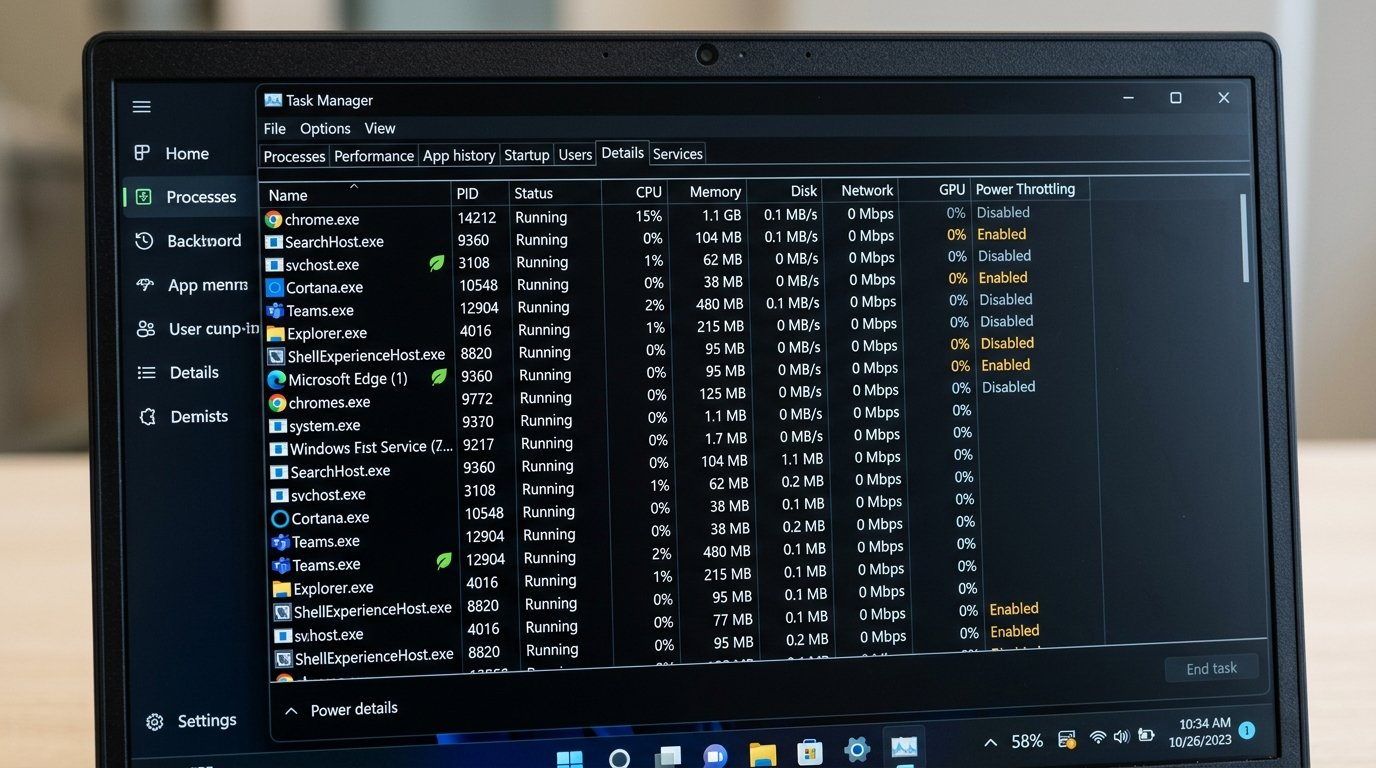
In Windows 11: go to the Processes tab. If Power Throttling is active, a small green leaf icon appears next to throttled processes. For a full breakdown, right-click any column header → Select columns → enable Power Throttling. You’ll see “Enabled” next to each throttled process.
Check actual CPU clock speed in real time: Task Manager → Performance tab → CPU. The GHz value updates every second. Unplug your charger while watching it — if the GHz value drops immediately, Power Throttling is confirmed.
On a fresh Windows install with Balanced power plan, this drop is nearly instant. A Core i5-1235U laptop that runs at 2.5–3.5 GHz plugged in often sits at 0.4–0.8 GHz during light tasks on battery.
5 Fixes to Get Full Speed Back on Battery
Fix 1 — Switch to High Performance Power Plan
This is the fastest fix. Right-click the battery icon in your taskbar → Power Options → select High Performance.
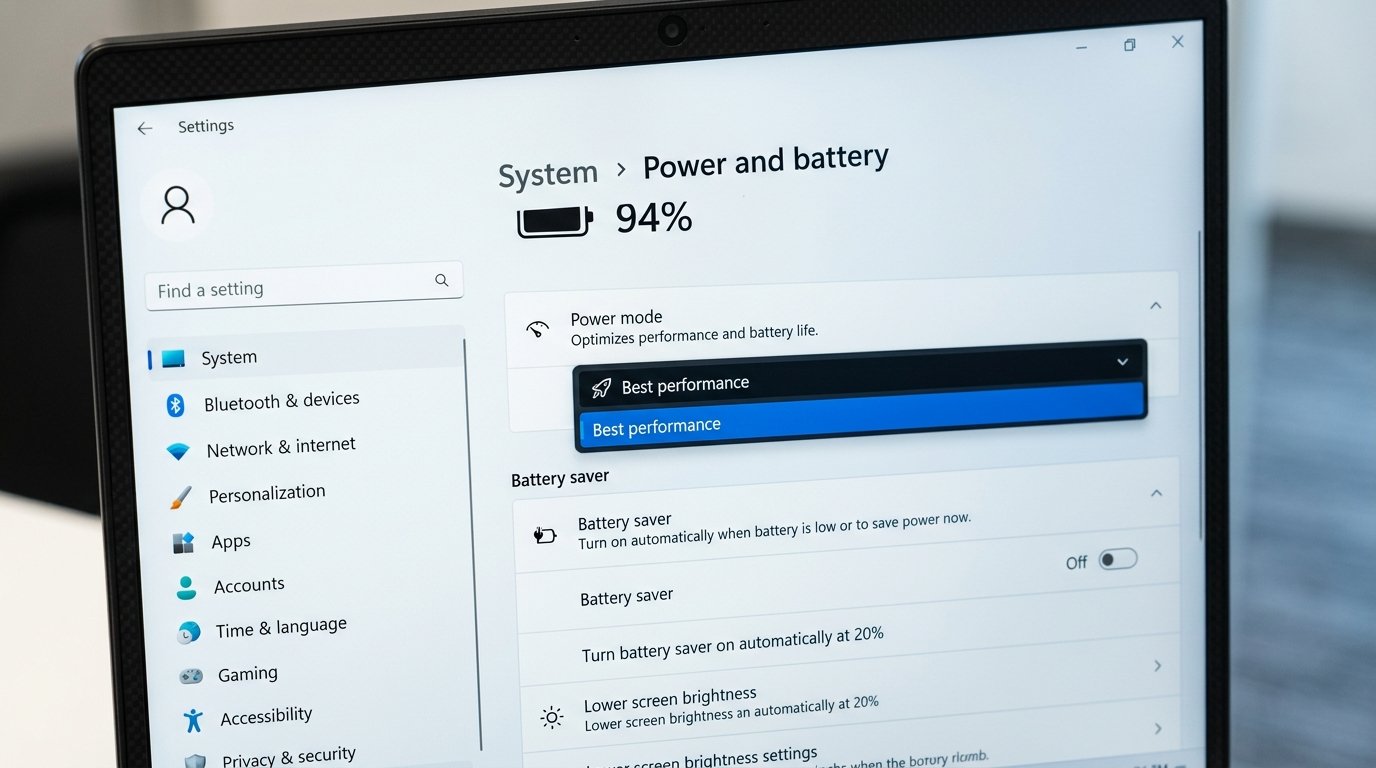
On Windows 11: Settings → System → Power & battery → Power mode → select Best performance. Microsoft’s guide to changing power modes also covers the hidden Ultimate Performance plan available on Pro editions.
High Performance keeps the CPU close to full speed regardless of battery status. The trade-off: roughly 30–40% shorter battery run time compared to Balanced. Worth it if you’re at a desk or near an outlet most of the time.
Fix 2 — Set Minimum Processor State to 99%
High Performance sometimes isn’t enough on its own — some custom power plans still throttle the CPU minimum. Setting the Minimum Processor State overrides this directly.
- Press Win + R → type
powercfg.cpl→ Enter - Click Change plan settings next to your active power plan → Change advanced power settings
- Expand Processor power management → Minimum processor state
- Change the On battery value from 5% to 99%
- Click Apply → OK
Set it to 99%, not 100%. On some Intel laptops, 100% prevents Turbo Boost from engaging correctly because the P-state governor can’t operate normally. At 99%, your CPU stays at base frequency without that conflict.
This fix resolves the most common Power Throttling complaints. If you’ve already tried other software and nothing helped, try this first.
Fix 3 — Use Your Laptop Brand’s Power Management App
Laptop manufacturers control CPU power limits at the BIOS and firmware level. Windows settings work within those limits — but the brand’s app can adjust them directly.
- Dell: Open Dell Power Manager → Battery section → disable Battery Extender mode. This removes Dell’s additional frequency restrictions on battery.
- Lenovo: Open Lenovo Vantage → Power tab → Intelligent Cooling → set mode to Performance. On ThinkPads, this switches to Active cooling and removes the CPU cap designed for silent operation.
- ASUS ROG / gaming: Open Armoury Crate → System → configure your preferred performance mode while plugged in. The app applies those same settings when you switch to battery.
- ASUS mainstream: Open MyASUS → Power & Performance → adjust the performance mode slider.
- HP: HP doesn’t have a dedicated performance app on most consumer laptops. Keep BIOS firmware updated (Fix 5) — HP’s power limits are primarily BIOS-controlled.
Fix 4 — Disable Windows Power Throttling System-Wide (Advanced)
This removes Power Throttling from the entire system. Every app — foreground and background — runs unrestricted on battery. The trade-off is noticeably shorter battery life.
Via Registry (works on all Windows 10/11 editions including Home):
- Press Win + R → type
regedit→ Enter - Navigate to:
HKEY_LOCAL_MACHINE\SYSTEM\CurrentControlSet\Control\Power - Right-click the right panel → New → DWORD (32-bit) Value
- Name it:
PowerThrottlingOff - Double-click it → set Value data to:
1 - Restart your computer
Via Group Policy (Windows 10/11 Pro and Enterprise only):
Open gpedit.msc → Computer Configuration → Administrative Templates → System → Power Management → Power Throttling Settings → enable “Turn off Power Throttling” → Apply → restart.
This is the right fix for demanding workloads on battery — video editing, development builds, long spreadsheet calculations. For general web browsing and Office work, Fix 1 and Fix 2 are usually sufficient.
Fix 5 — Update BIOS and Chipset Drivers
BIOS firmware controls base CPU power limits (PL1 and PL2) that no Windows setting can override. On HP, Dell, and ASUS laptops, power management regressions are frequently resolved in BIOS updates.
Visit your manufacturer’s support site, enter your exact model number, and download the latest BIOS update. Check the release notes for mentions of “power management,” “thermal behavior,” or “battery performance.”
Also update chipset drivers: Intel Management Engine Interface or AMD chipset drivers. These control how Windows negotiates CPU power states. Download from Intel or AMD directly — not through Windows Update, which tends to lag months behind on chipset drivers.
One Trade-Off to Know Before You Change Everything
Power Throttling exists because laptop batteries have real capacity limits. Disabling it means the CPU draws more power, and your battery runs down faster — typically 30–40% shorter runtime.
Here’s the less obvious problem: if your battery is already aging, pushing the CPU harder can make performance worse in some cases. A degraded battery under high load can’t deliver enough current, and Windows throttles the CPU anyway to prevent voltage drops — regardless of your power settings.
If you’re also seeing other battery symptoms — percentage jumping around, much shorter runtime than a year ago, the base of the laptop running warm at idle — the fixes above will help short-term, but a battery replacement is the real solution. See our post on whether keeping your laptop plugged in 24/7 damages the battery for context on battery health and what affects it.
Case Study: Fixing a Dell Inspiron in Charlotte
A client in Charlotte’s Ballantyne neighborhood contacted us about their Dell Inspiron 15 5000 (Core i5-1235U). It worked normally on the charger but became nearly unusable on battery — an Excel macro that ran in 5 minutes while plugged in took over 20 minutes unplugged. Video calls dropped frames constantly.
Task Manager confirmed it: CPU clock speed capped at 400–600 MHz on battery. Intel’s efficiency cores running at minimum frequency. The power plan was Balanced, Minimum Processor State at 5%. No malware, no storage issues, no hardware failure.
Two changes resolved it. Setting Minimum Processor State to 99% on battery (Fix 2) brought most of the performance back. Disabling Dell Power Manager’s Battery Extender mode (Fix 3) added another 15–20% improvement. Combined, battery performance came back to within 15% of plugged-in speed — the Excel macro dropped from 20+ minutes to 7 minutes on battery.
The client stayed on Balanced mode everywhere else. They still want the battery to last through a workday, just not at the cost of everything grinding to a halt. If your laptop is doing the same thing, our home office IT support service can diagnose and fix it remotely in most cases.
Frequently Asked Questions
Why does my laptop slow down when I unplug the charger?
Windows switches to a battery power plan when you unplug, which activates Power Throttling and lowers the CPU Minimum Processor State — often to as low as 5% of its rated speed. The result is slower response, input lag, and sluggish app behavior. Switching to High Performance mode or raising the Minimum Processor State setting (both covered above) resolves it in most cases.
Can a laptop run at full speed on battery?
Yes, with the right settings. Switching to High Performance power plan and setting Minimum Processor State to 99% keeps the CPU close to its plugged-in speed. The trade-off is reduced battery life — typically 30–40% less runtime. For demanding work away from an outlet, disabling Power Throttling via Registry (Fix 4) removes all system-level restrictions.
How do I disable Windows Power Throttling?
Open Registry Editor (Win + R, type regedit), navigate to HKEY_LOCAL_MACHINE > SYSTEM > CurrentControlSet > Control > Power, create a new DWORD value named PowerThrottlingOff, set it to 1, and restart your computer. On Windows Pro, you can also use Group Policy: gpedit.msc, then Computer Configuration > Administrative Templates > System > Power Management > Power Throttling Settings > enable “Turn off Power Throttling.”
Does power throttling affect gaming on battery?
Significantly. Gaming laptops (ASUS ROG, Lenovo Legion, Dell G-series) typically see a 40–60% reduction in CPU and GPU power limits on battery versus AC. The power limit on an ASUS ROG, for example, can drop from 110–135W plugged in to 40–60W on battery. Fix 3 (brand app) combined with Fix 4 (disabling Power Throttling) is the standard approach for gaming on battery.
Will disabling power throttling damage my battery faster?
Not directly. Battery wear is primarily caused by charge cycles and heat, not CPU speed. The indirect effect: running the CPU at full speed generates more heat, which accelerates battery degradation over time if ventilation is poor. For occasional use away from an outlet it’s fine. If you disable throttling permanently, keep the laptop on a hard flat surface and the vents clear.
My laptop is still slow after all five fixes — what else could it be?
A failing battery can create voltage instability that forces Windows to throttle the CPU regardless of settings. Outdated or corrupted GPU drivers prevent hardware acceleration from working properly. And general Windows performance issues — startup bloat, background indexing, service conflicts — compound the problem. If the laptop is also slow when plugged in, see our guide on revitalizing a slow computer for those causes.
Laptop Still Slow? IT Carolina Can Help
If you’ve worked through all five fixes and the laptop is still slower on battery than it should be, it’s time for hands-on diagnosis. Battery calibration issues, BIOS-level power limit bugs, and driver conflicts don’t always surface in Settings.
IT Carolina helps homeowners and small businesses across the Charlotte, NC area with exactly this kind of issue — remotely or on-site, usually resolved in one session. Contact us and we’ll identify the root cause and get your laptop running at full speed.
John Jones
Senior IT Specialist, IT Carolina
John has 12 years of hands-on experience diagnosing and
resolving computer, printer, and network issues for homeowners and small businesses across
Charlotte, NC. He has helped hundreds of clients recover from Windows update failures, driver
conflicts, and hardware problems — often resolving in a single remote or on-site session.