

You’re in Best Buy, laptop in hand. The price is right. The screen looks sharp. Then you notice the corner of the lid — five stickers. Intel Core i7. AMD Ryzen 5. Intel Evo. NVIDIA GeForce. You have no idea which ones matter and which are just noise.
Most people guess, ask a salesperson, or just buy the one with the highest number. Here’s a faster approach: know what each badge actually means before you walk in.
These stickers are hardware shorthand. Each one tells you something specific about what’s inside — the processor family, the performance tier, and in some cases, a set of certified hardware standards. Once you know the code, picking the right laptop takes 60 seconds instead of 60 minutes. We also cover this from the buying-mistake angle in our guide to common laptop buying mistakes — worth reading alongside this one.
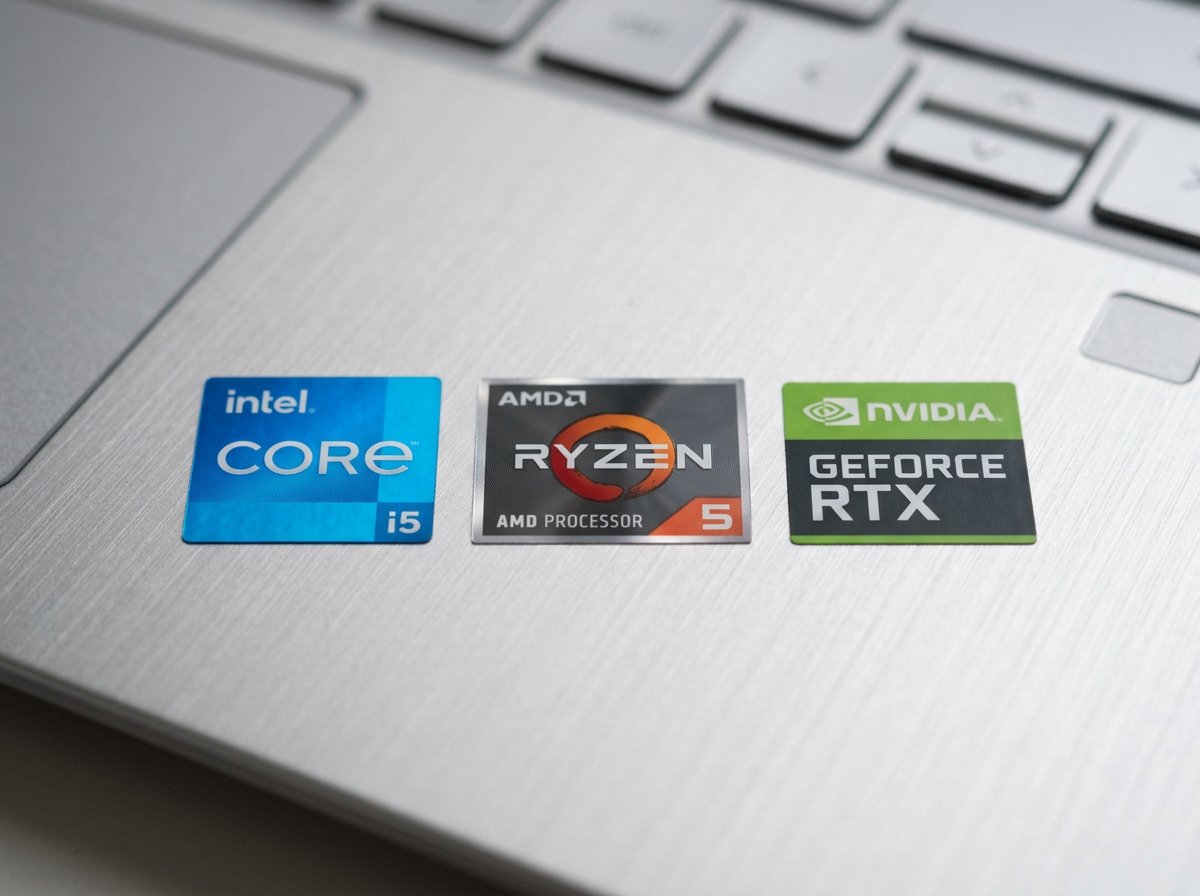
Why Do Laptops Have All These Stickers?
Laptop stickers are placed by the processor and graphics manufacturers — Intel, AMD, and NVIDIA — not by the laptop brands like Dell, HP, or Lenovo. They serve two purposes: marketing (visible on store shelves) and certification (proof the hardware inside meets specific standards).
Quick answer: A sticker identifies the processor family and tier inside the laptop. It tells you roughly how fast the CPU is, what it was designed for, and in some cases (Intel Evo), that the entire system passed a specific performance and battery test. Stickers are not everything — but they predict a lot about what the laptop can do.
There are four main badges you’ll encounter: Intel Core, AMD Ryzen, Intel Evo, and a GPU badge from NVIDIA or AMD. Here’s what each one means.
Intel Core Badges: i3, i5, i7, and i9 — What Each Number Means
Intel’s Core lineup uses a tier number (i3, i5, i7, i9) to indicate performance within each generation. Higher number = more cores, more speed, more power draw. That’s the simplified version. Here’s what each tier actually delivers in practice.
i3 — Good Enough for Web and Documents
Intel Core i3 processors handle web browsing, email, video streaming, Word, and Excel without issue. They won’t handle video editing or 20 browser tabs simultaneously. If your use is primarily web and basic documents, an i3 saves money and extends battery life.
One warning: avoid pairing an i3 with only 8GB of RAM. That combination struggles with modern browsers that keep many tabs loaded in memory at once.
i5 — The Best Value for Most People
Intel Core i5 is the sweet spot. It handles everything an i3 can, plus: multiple apps open simultaneously, Zoom calls with screen sharing, large spreadsheets, light photo editing in Lightroom, and most coding tasks. For 80% of laptop buyers — home users, small business owners, students — an i5 is the right answer.
The i5 tier has a strong price-to-performance ratio. Paying more for an i7 is often not worth it unless you have a specific heavy workload in mind.
i7 and i9 — When You Actually Need the Power
Intel Core i7 and i9 processors are built for sustained heavy workloads: 4K video editing in Premiere Pro, 3D rendering, running virtual machines, or compiling large codebases. If your work involves these tasks regularly, the i7 upgrade makes sense. i9 in a laptop is a niche choice — it runs hot, drains battery faster, and only pulls ahead in very specific benchmarks.
The Generation Rule: Why a Newer i5 Often Beats an Older i7
Here’s the most important fact most salespeople won’t tell you: the generation number matters as much as the tier. An Intel Core i7-1165G7 (11th generation) is slower than an Intel Core i5-1340P (13th generation) in most real-world tasks — despite the higher badge number.
How to spot the generation: it’s the first two digits in the model number after the dash. “i5-1340P” = 13th generation. “i7-1165G7″ = 11th generation. When comparing laptops, always check the full CPU model number in the specs sheet, not just the sticker badge.
According to Tom’s Hardware’s CPU benchmark hierarchy, a 13th-gen Intel Core i5 consistently outscores 11th-gen i7 chips in both single-thread and multi-thread tests. Newer generation beats older tier when the price is similar.

AMD Ryzen: 3, 5, 7, and 9 Explained
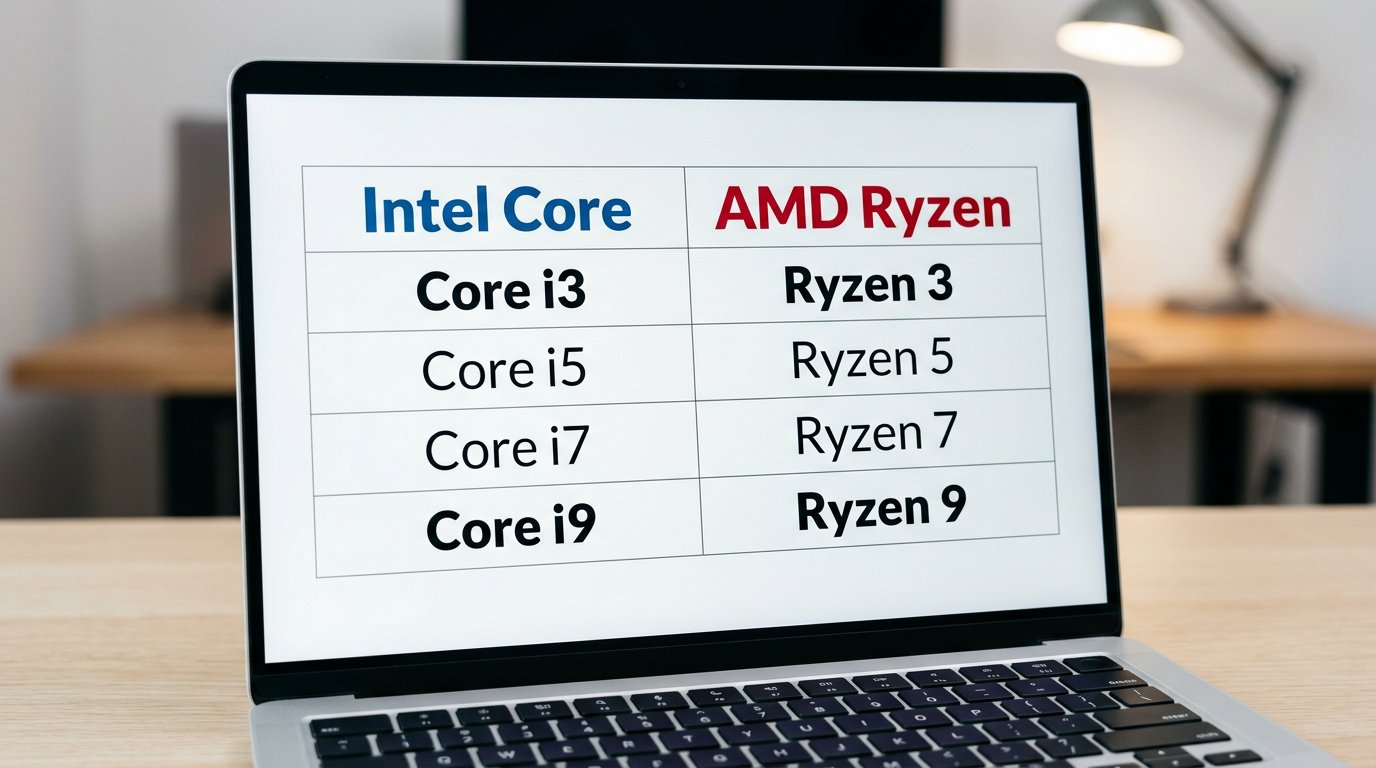
AMD’s Ryzen lineup uses the same tier system as Intel’s Core line — 3, 5, 7, 9 — and maps to similar performance levels. If you’re looking at a Ryzen badge, the decision process is almost identical to Intel.
Ryzen 3 — Everyday Computing
Ryzen 3 covers the same ground as Intel’s i3: web browsing, documents, streaming. Battery life is generally good because power draw is low. If you’re buying a laptop for school or light office work and budget is the priority, Ryzen 3 handles it.
Ryzen 5 — The AMD Sweet Spot
Ryzen 5 competes directly with Intel Core i5. In multi-threaded workloads — running many tasks at once — Ryzen 5 often wins. In single-threaded tasks, they’re roughly equal. AMD also tends to offer stronger integrated graphics in the Ryzen 5 tier (AMD Radeon 780M in Ryzen 5 7000 series) compared to Intel’s Iris Xe, which matters if you need graphics without a dedicated GPU.
Ryzen 7 and 9 — For Creators and Power Users
Ryzen 7 is AMD’s answer to Intel i7: strong multi-core performance for video editing, photo batch processing, and virtual machines. Ryzen 9 pushes into desktop-class performance in a laptop chassis. If you’re shopping at this tier on a tighter budget, our 2026 budget laptop guide covers where to find the best value at each Ryzen level.
What the Ryzen 7000 and 8000 Series Numbers Mean
AMD uses a four-digit series number alongside the tier number. “Ryzen 5 7530U” and “Ryzen 5 7640U” are both Ryzen 5, but the second is a newer chip architecture. The first digit is the generation: 7000 series = released 2023, 8000 series = released 2024.
The rule is simple: when choosing between two Ryzen laptops at the same price with the same tier sticker, pick the higher series number. A Ryzen 5 8645HS outperforms a Ryzen 5 7530U significantly — even though both carry the “Ryzen 5” badge on the lid.
Intel Evo: What the Blue Badge Actually Certifies
Intel Evo is different from the other stickers. It’s not a processor tier — it’s a certification. A laptop earns the Evo badge by passing a specific set of hardware tests defined by Intel’s Project Athena standards.
To carry the Evo badge, a laptop must meet all of these minimums:
- Wake from sleep in under 1 second — instant-on from a closed lid
- 9+ hours of real-world battery life — verified under real-use conditions, not marketing figures
- 30 minutes of charging = 4 hours of use — fast charge is required by the spec
- Intel Thunderbolt 4 port included — high-speed connectivity and charging
- Thin and light design — under specific thickness and weight thresholds
Evo certification is well-suited for students, frequent travelers, and anyone who commutes with a laptop daily. According to Intel’s Evo specification page, every certified design goes through real-use validation — not just spec-sheet tests. Worth noting: Evo does not tell you the processor tier. You can have an Evo-certified laptop with an i5 or an i7. Look at both badges.
GPU Badge: Integrated vs. Dedicated Graphics
The GPU (graphics processing unit) handles everything visual on your laptop: the image on your screen, video decoding, photo and video rendering, and gaming. Laptop GPUs come in two types: integrated (built into the processor) and dedicated (a separate chip with its own memory).
Integrated Graphics — Battery-Friendly and Good Enough for Most
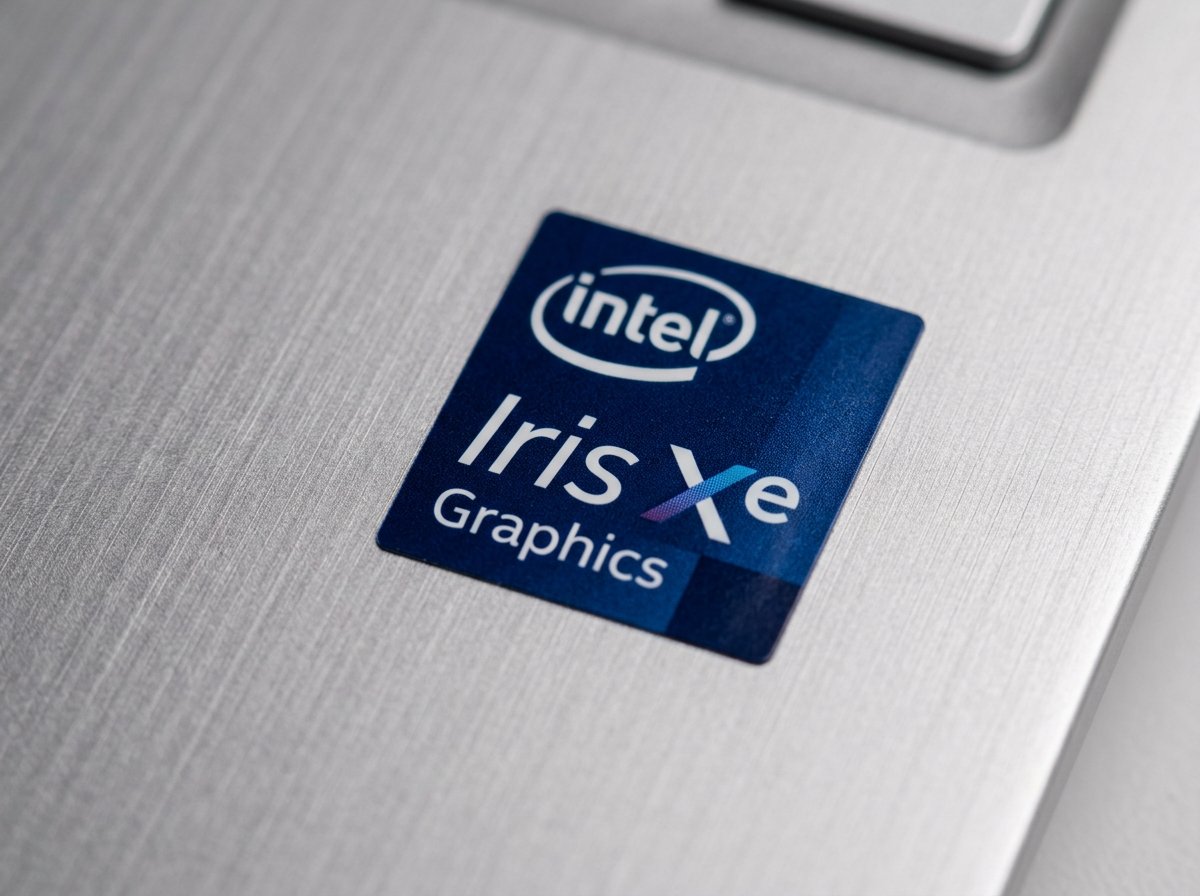
If you see no separate GPU badge — or a badge that says “Intel Iris Xe” or “AMD Radeon” without a GeForce or RX label — the laptop has integrated graphics. The GPU shares memory with the CPU and uses no additional power, which is why these laptops have better battery life.
Integrated graphics handles everything except gaming, 3D work, and 4K video export. Video calls, YouTube, photo viewing, even light Lightroom editing — all fine. For most home and office users, integrated is sufficient and the smarter choice for battery life.
Dedicated GPU — NVIDIA RTX or AMD RX
A dedicated GPU badge (NVIDIA GeForce RTX, NVIDIA GeForce GTX, or AMD Radeon RX) means the laptop has a separate graphics chip with its own VRAM. This is what you need for gaming at 1080p or higher, video editing with GPU acceleration in Premiere Pro or DaVinci Resolve, 3D modeling in Blender or AutoCAD, and machine learning workloads.
The naming rule: RTX > GTX for NVIDIA. RTX cards support ray tracing and dedicated AI cores (Tensor cores). An RTX 4060 laptop significantly outperforms a GTX 1660 Ti. On AMD’s side, RX 7000 series is current — higher number within a generation means a faster card.
Check VRAM if You Edit Video or Work in 3D
VRAM is the dedicated memory on the GPU, separate from your laptop’s main RAM. It matters for rendering and video editing. Current minimum recommendations: 6GB for 1080p video editing, 8GB for 4K editing and 3D modeling. Most RTX 4060 laptops ship with 8GB VRAM — a reasonable all-around spec for creative work in 2025-2026.
How to Read a Full Sticker Combination (Quick Decoder)
Most laptops carry two or three stickers at once. Here’s how to map your profile to what the badges should say:
| Your profile | What stickers to look for |
|---|---|
| Web browsing, email, streaming only | i3 or Ryzen 3 + integrated GPU |
| Office work, video calls, spreadsheets | i5 or Ryzen 5 (+ Evo if you travel) |
| Photo editing, multitasking | i5 or Ryzen 5, check that RAM is 16GB in specs |
| Video editing, 3D modeling | i7 or Ryzen 7 + NVIDIA RTX + 8GB+ VRAM |
| Gaming | i5+ or Ryzen 5+ + NVIDIA RTX 4060 or AMD RX 7600M |
| Travel and all-day battery priority | Intel Evo badge (any processor tier) |
One rule applies to all combinations: always check the generation number in the full processor model string, not just the sticker badge. Two laptops with identical stickers can perform very differently if they carry different processor generations.
If you’re weighing whether to upgrade your current machine vs. buy new, our breakdown of when a laptop is worth repairing vs. replacing covers that calculation in detail.

Case Study: The i7 Laptop That Wasn’t the Better Buy
A client from Dilworth — a financial consultant working from a home office in Charlotte — came to IT Carolina before a planned laptop purchase. She’d narrowed it down to two HP models: an $829 HP Spectre x360 with an Intel Core i7 sticker and a $699 HP Envy with an Intel Core i5 sticker. She assumed the i7 was worth the extra $130.
We pulled up the full model numbers. The i7 was an Intel Core i7-1255U — 12th generation. The i5 was an Intel Core i5-1335U — 13th generation. In benchmark comparisons, the 13th-gen i5-1335U matches or outperforms the 12th-gen i7-1255U in both single-core and multi-core scores.
Her workload: Excel, Teams calls, a CRM browser app, and occasional PDF work. Nothing that required an i7. She bought the $699 model, saved $130, and got a faster machine for her actual use. The sticker said i7. The generation number told a different story.
This is the kind of decision where knowing the badge system pays off. If you want a quick second opinion before spending $700 to $1,200 on a laptop, reach out to IT Carolina — we give honest advice with no sales commission behind it.
Frequently Asked Questions
- Does a higher number always mean a better laptop processor?
- Not always. The generation number matters as much as the tier. A 13th-gen Intel Core i5 outperforms an 11th-gen i7 in most tasks. Always check the full model number — the first two digits after the dash tell you the generation.
- Is Intel Core better than AMD Ryzen?
- Neither is universally better. Intel tends to lead in single-core speed; AMD Ryzen tends to offer better multi-core value. For everyday use, Ryzen 5 and Intel Core i5 deliver nearly identical performance at the same price.
- What does the Intel Evo badge mean?
- It is a certification, not a processor tier. The laptop passed Intel’s tests for instant wake (under 1 second), 9+ hours of battery life, fast charging, and Thunderbolt 4. It signals a premium thin-and-light design regardless of the CPU tier inside.
- Do I need a dedicated GPU?
- Only if you game, edit video, work with 3D, or run machine learning tools. For web, email, Office, and video calls, integrated graphics handles everything fine — and gives significantly better battery life.
- What does VRAM mean and how much do I need?
- VRAM is the dedicated memory on the GPU. For 1080p video editing, aim for 6GB minimum. For 4K editing or 3D work, 8GB or more. Most RTX 4060 laptops ship with 8GB.
- How do I check my processor generation?
- Press Win+R, type msinfo32, press Enter. Find the Processor entry. A model like i5-1340P starts with 13, which means 13th generation. Higher is newer and generally faster within the same tier.
- Is AMD Ryzen 5 comparable to Intel Core i5?
- Yes. They compete directly at the same price point. Ryzen 5 often leads in multi-threaded tasks; Intel i5 sometimes leads in single-threaded speed. For most users, the real-world difference day to day is negligible.
Need Help Choosing the Right Laptop? IT Carolina Can Help
Stickers tell you a lot — but not everything. RAM, storage speed, display quality, and build quality all factor in too. If you are choosing a laptop for your home office or small business and want a second opinion before spending $700-$1,200, IT Carolina offers honest buying advice with no sales agenda.
We help homeowners and small businesses across the Charlotte, NC area choose the right hardware, set it up correctly, and keep it running. View our Home Office IT services or contact us directly — we are happy to point you in the right direction before you buy.
John Jones
Senior IT Specialist, IT Carolina
John has 12 years of hands-on experience diagnosing and resolving computer, printer, and network issues for homeowners and small businesses across Charlotte, NC. He has helped hundreds of clients recover from Windows update failures, driver conflicts, and hardware problems — often resolving in a single remote or on-site session.