

You spend 15 minutes looking for last month’s invoice. You open three folders named “New Folder,” “New Folder (2),” and “Misc.” The file isn’t in any of them. Sound familiar?
The problem isn’t discipline. It’s the system — or the lack of one. A few hundred randomly saved files become unfindable faster than you’d expect. This guide gives you a structure that takes 10 minutes to set up and eliminates that problem permanently.
It works on Windows 10 and 11, syncs with any cloud storage, and doesn’t require any software. For the broader habit of keeping your PC in good shape, our monthly computer maintenance checklist pairs well with this system.
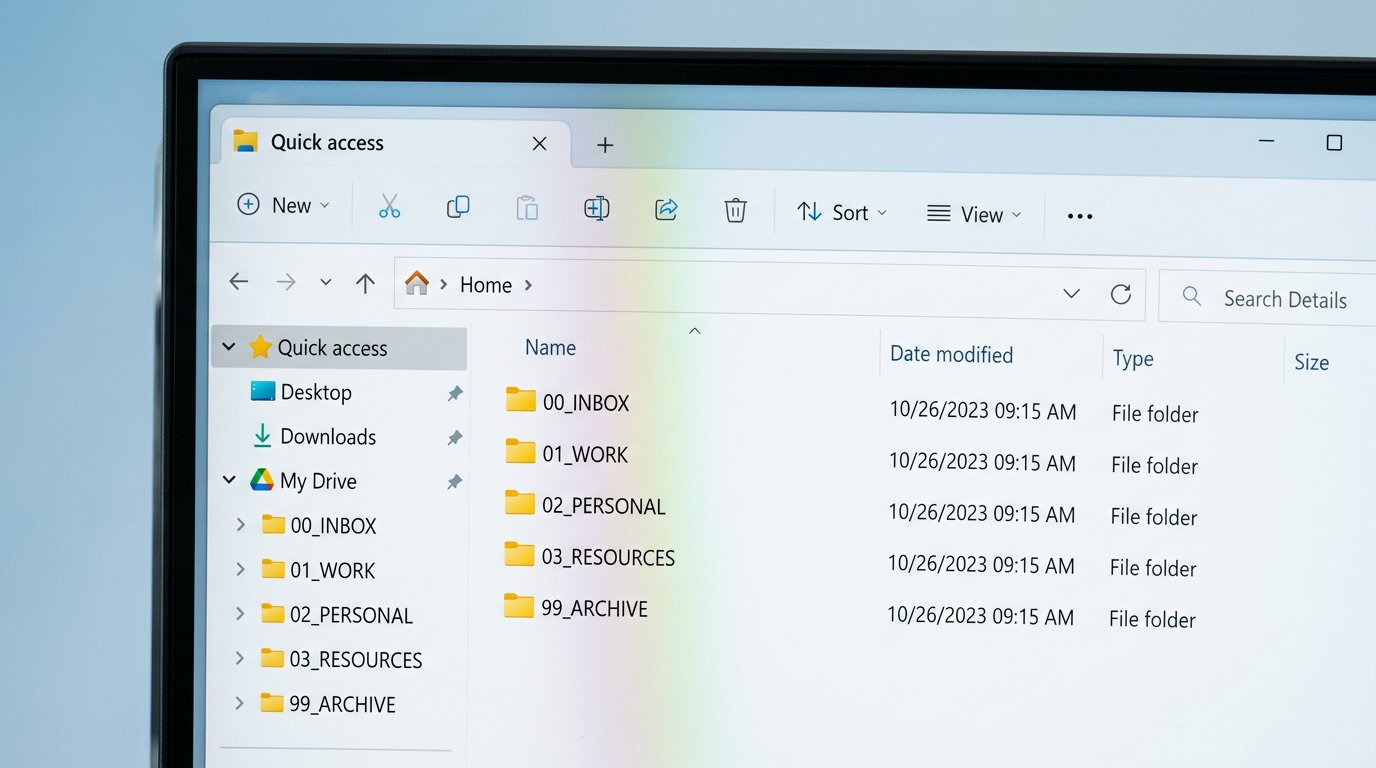
Quick answer: Create five top-level folders — 00_INBOX, 01_WORK, 02_PERSONAL, 03_RESOURCES, 99_ARCHIVE. Drop every new file into 00_INBOX first. Once a week, spend 5 minutes filing it all. Name every file YYYY-MM-DD_Description_v01 so it sorts automatically. That’s the whole system.
Why Most File Organization Systems Fail
Most people create folders when they need them. Project starts → new folder. Download arrives → drop it on the desktop. Email attachment → save to Downloads. After six months: 40 folders with overlapping names, files in three locations, and no memory of which version is final.
The pattern has two root causes:
- No landing pad. Without one place to put new files temporarily, they scatter immediately.
- No naming convention. “Report_final_REAL_v3_USE_THIS.docx” is a symptom, not a joke.
The fix is a system you decide on once and never think about again.
The 5-Folder System (Copy This Structure)
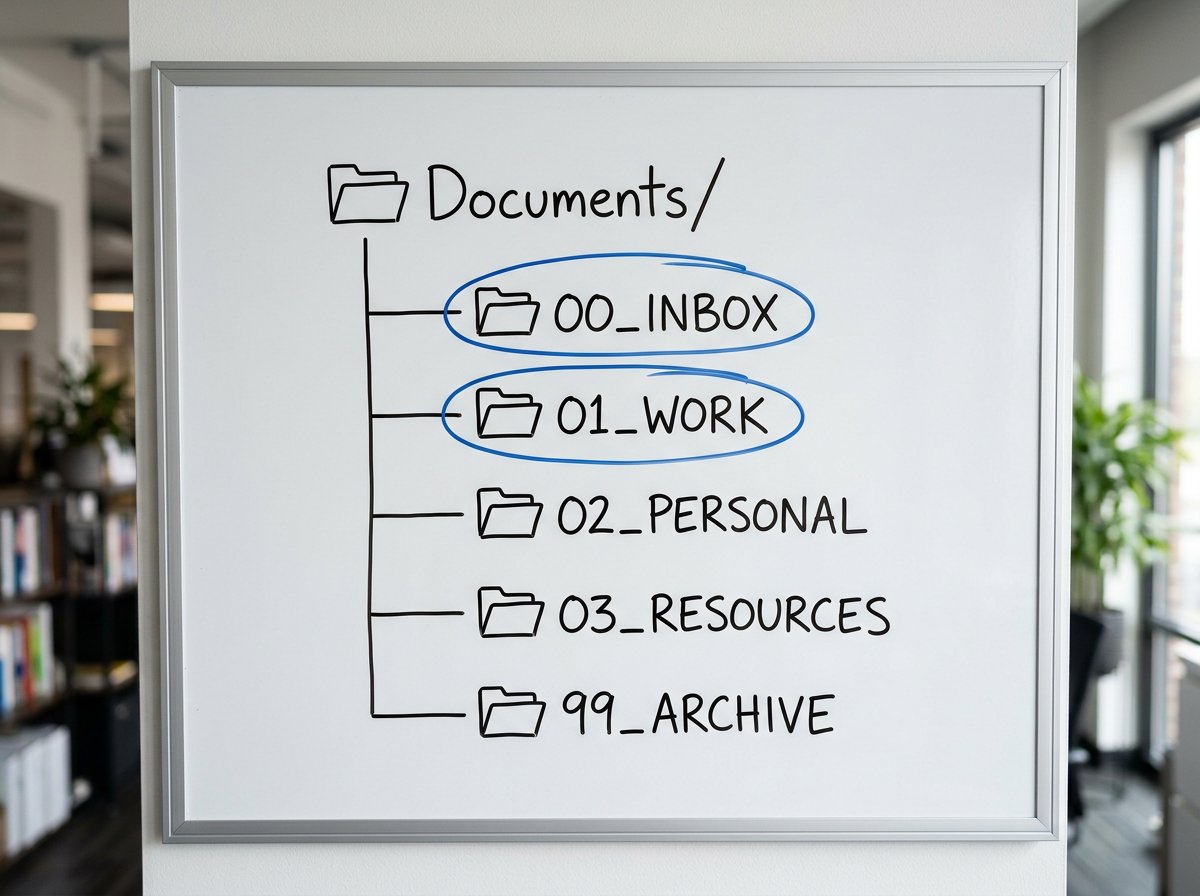
Create these five folders inside your Documents folder. The numbers force them to sort in the right order — in every view, on every device, in every application.
00_INBOX — Your Universal Landing Pad
Every new file goes here first. Downloads, email attachments, photos from your phone, documents you’re working on — everything lands in 00_INBOX before it goes anywhere else.
The rule: nothing stays in 00_INBOX longer than 7 days. Once a week, you file whatever’s in there. This separates “where do I put this right now” (answer: INBOX) from “where does this actually belong” (answer: deal with it Friday).
The 00 prefix keeps it at the very top of your folder list, above everything else.
01_WORK
Everything work-related: clients, projects, admin documents, contracts. Subfolders by client or project name, each with the same internal structure (see below).
02_PERSONAL
Home documents, health records, finance, travel. Four subfolders cover most people: Home / Health / Finance / Travel.
03_RESOURCES
Reference material you didn’t create and don’t need to act on: templates, how-to guides, industry reports, tutorials. Two subfolders: Learn (things you’re actively studying) and Reference (things you look up occasionally).
99_ARCHIVE
Completed projects, old versions, anything you’re done with but not ready to delete. The 99 prefix pushes it to the bottom of the list — out of the way but findable. Pair this with a proper backup strategy so your archive is protected against drive failure.
Inside 01_WORK: The Subfolder Template
For each client or project inside 01_WORK, use this same four-folder structure:
01_WORK/
 Admin/
 Clients/
 ClientName/
 01_Briefs/
 02_Working/
 03_Deliverables/
 04_Archive/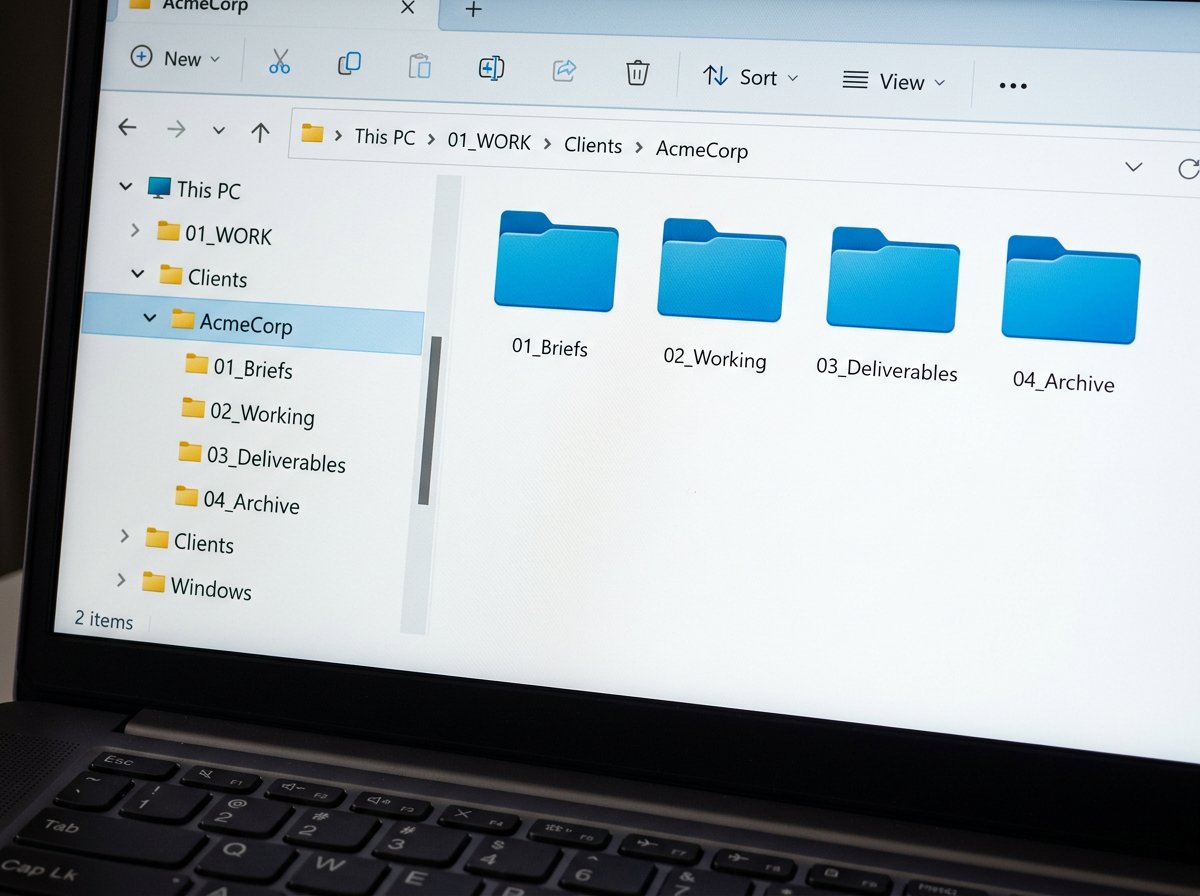
- 01_Briefs — what the client sent you. Specs, requirements, source files.
- 02_Working — your active drafts. The messy folder. That’s fine.
- 03_Deliverables — what you send back. Final versions only.
- 04_Archive — old versions you’re keeping for reference.
Numbered prefixes keep these in workflow order, not alphabetical order. Briefs before Working before Deliverables — every time, without thinking.
How to Name Every File So You Can Find It in 10 Seconds
The YYYY-MM-DD Rule
Start every filename with the date in year-month-day format:
2026-05-24_Invoice_AcmeCorp_v01.pdf
2026-05-20_MeetingNotes_ProjectX.docx
2026-04-15_TaxReturn_2025_signed.pdf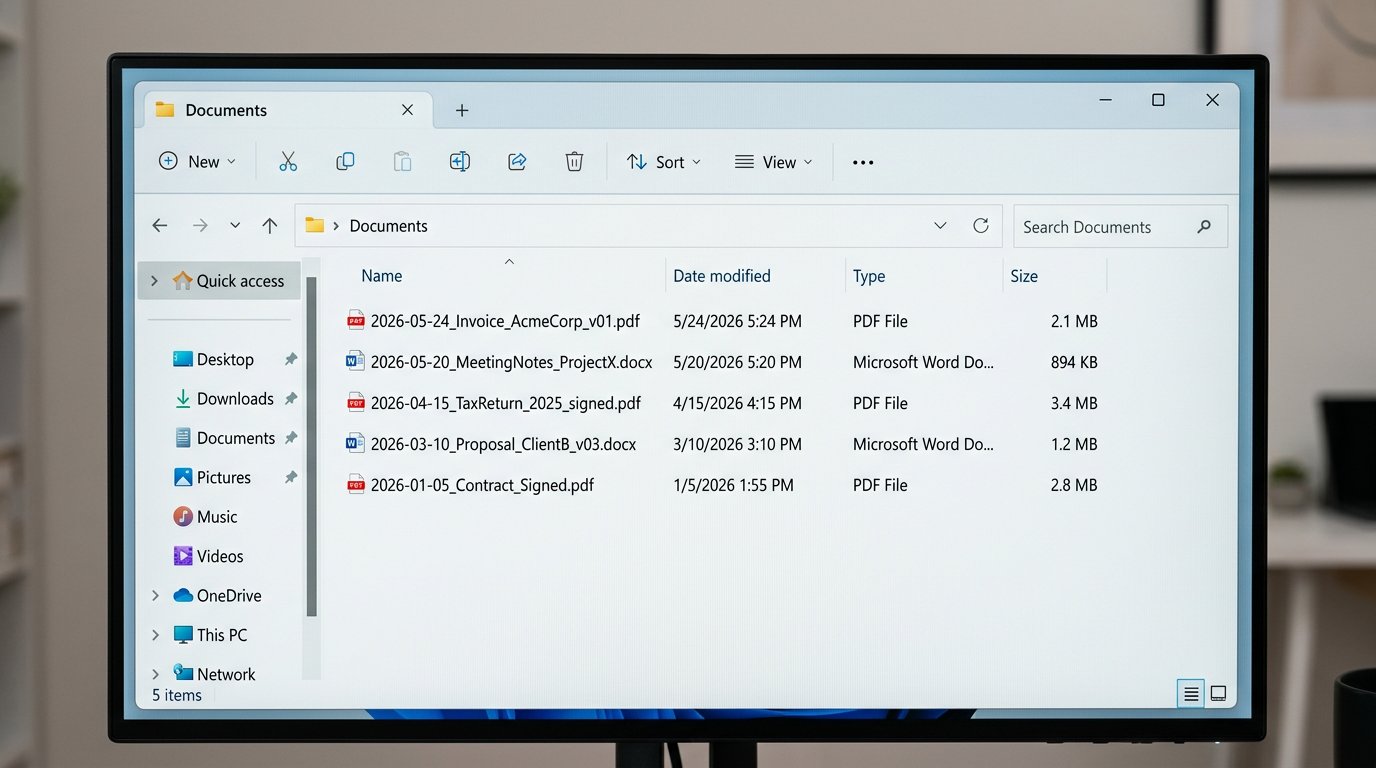
Why this format specifically? Because alphabetical order becomes chronological order. Harvard’s data management guidelines recommend YYYY-MM-DD as the international standard (ISO 8601) for exactly this reason — it sorts correctly in every operating system, every cloud service, and every file manager without any additional settings.
Compare: “May 24 Invoice.pdf” sorts after “May 3 Invoice.pdf” in alphabetical order. But “2026-05-24” sorts correctly after “2026-05-03.” Every time.
Version Numbers Instead of “Final”
Replace “final,” “FINAL,” “FINAL_USE_THIS,” and “v3_actual_final” with simple version numbers:
2026-05-24_Proposal_ClientName_v01.docx ← first draft
2026-05-24_Proposal_ClientName_v02.docx ← after revisions
2026-05-24_Proposal_ClientName_v03.docx ← sent to client
The highest version number is always the latest. No ambiguity.
One Source of Truth
Every file lives in exactly one place. When you need to share something, you send a copy or a link — but the master version stays in its folder and never moves. No saving the same document in three folders “just in case.”
If you’re working on a document that’s also in cloud storage, the cloud folder IS the location. Don’t keep a second copy on your desktop.
Build the Whole System in 10 Minutes
Open File Explorer (Win + E), navigate to Documents, and create these folders in order:
- Right-click inside Documents → New → Folder → name it 00_INBOX
- Repeat for 01_WORK
- Repeat for 02_PERSONAL
- Repeat for 03_RESOURCES
- Repeat for 99_ARCHIVE
Inside 01_WORK, create an Admin folder and a Clients folder. Inside Clients, create one folder for your most active client and give it the four subfolders: 01_Briefs, 02_Working, 03_Deliverables, 04_Archive.
Inside 02_PERSONAL, create: Home, Health, Finance, Travel.
Inside 03_RESOURCES, create: Learn, Reference.
Inside 99_ARCHIVE, create one folder named for the current year (2026).
Total time: under 10 minutes. Pin 00_INBOX and 01_WORK to Quick Access by right-clicking each and selecting Pin to Quick Access — one click to get there from any File Explorer window.
How to Handle Your Existing Files
Don’t try to organize everything at once. That approach stalls after 20 minutes and never finishes.
Instead, do this:
- Move your entire Desktop into 00_INBOX. All of it, right now.
- Sort 00_INBOX by date modified — oldest files first.
- Move anything older than 1 year directly into 99_ARCHIVE/[year] without opening it.
- Work through the rest top-to-bottom, 15 files at a time, one session per week.
You’ll process the entire backlog over 3–4 weeks without it feeling overwhelming. Meanwhile, everything new goes into 00_INBOX and gets filed on your weekly schedule.
Sync with OneDrive or Google Drive
The five-folder structure works identically in cloud storage. Create the folders inside your OneDrive or Google Drive sync folder, and they’ll be available on every device automatically.
If you’re deciding which cloud service to use, our comparison of iCloud, Google Drive, and OneDrive covers the privacy and reliability differences for home and small business users.
One note: cloud sync does not replace backup. Your 99_ARCHIVE in particular should have an offline backup — a drive failure or accidental deletion in the cloud can propagate to all devices within minutes.

Case Study: From 400 Files on the Desktop to 30-Second Searches
A client in Charlotte’s SouthPark area runs a small consulting practice from her home office. She contacted IT Carolina after spending nearly 20 minutes searching for a signed contract during a client call — an experience, she said, that had happened “too many times.”
Her setup: 412 files on the desktop, Downloads folder with 1,800 items, no consistent naming convention. Three versions of most documents with names like “proposal SEND THIS ONE.docx.”
What we did:
- Created the five-folder structure inside her OneDrive folder (syncs to her laptop and desktop).
- Moved all desktop files into 00_INBOX, then spent 45 minutes sorting by client and year.
- Renamed her 15 most-used documents with YYYY-MM-DD prefixes.
- Set a recurring Friday calendar reminder: “File INBOX — 5 min.”
Result: Two weeks later she reported finding any file in under 30 seconds. She now spends 5 minutes per week filing instead of 20 minutes per week searching. The contract that triggered the call? It’s in 01_WORK/Clients/[ClientName]/03_Deliverables — and she can get there in three clicks.
Frequently Asked Questions
- What is the best way to organize files on a computer?
- Create five top-level folders: 00_INBOX (landing pad), 01_WORK, 02_PERSONAL, 03_RESOURCES, and 99_ARCHIVE. Drop every new file into 00_INBOX first. Once a week, spend 5 minutes filing it all. Name every file YYYY-MM-DD at the start so files sort automatically.
- How do I organize files and folders in Windows 10 and 11?
- Press Win+E to open File Explorer. In your Documents folder, create the five folders with numbered prefixes (00, 01, 02, 03, 99). Numbered prefixes force the correct sort order in every view mode, regardless of Windows settings.
- What is the YYYY-MM-DD file naming convention?
- It means putting the date at the start of every filename in year-month-day order — 2026-05-24_Invoice_ClientName_v01.pdf, for example. Because alphabetical order equals chronological order in this format, files sort automatically in every application.
- What should I do with old files I no longer need?
- Move them into 99_ARCHIVE with a year subfolder (99_ARCHIVE/2024). Don’t delete files you’re unsure about — storage is cheap, and you may need them later. Archive is not trash.
- Can I use this folder system with OneDrive or Google Drive?
- Yes. The five-folder structure works identically in OneDrive, Google Drive, and Dropbox. Create the folders inside your cloud sync folder and they’ll appear on every device automatically.
- How often should I empty my 00_INBOX folder?
- Once a week. Pick a fixed day — Friday afternoon is common — and spend 5 minutes filing everything in 00_INBOX. Nothing should sit there longer than 7 days.
- How do I stop having duplicate files everywhere?
- Follow the one-source-of-truth rule: every file lives in exactly one place. When you share a file, send a copy or a link. The master version never moves from its folder.
Need Help Setting Up Your Home Office IT? Call IT Carolina
A clean file system is one part of a well-organized home office. If you’re also dealing with slow hardware, backup gaps, or network issues — IT Carolina handles remote and on-site setup for home office and small business users across the Charlotte, NC area.
View our Home Office IT services | Contact IT Carolina
John Jones
Senior IT Specialist, IT Carolina
John has 12 years of hands-on experience diagnosing and resolving computer, printer, and network issues for homeowners and small businesses across Charlotte, NC. He has helped hundreds of clients recover from Windows update failures, driver conflicts, and hardware problems — often resolving in a single remote or on-site session.