
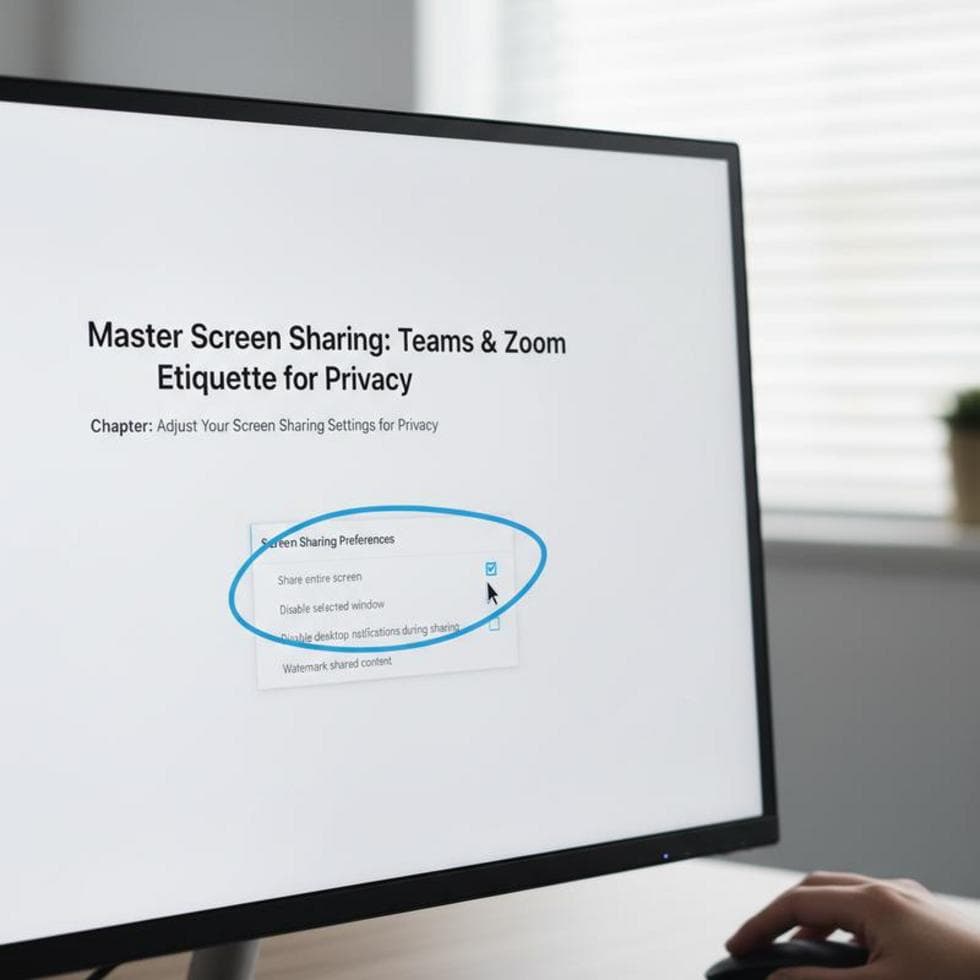
Screen sharing on Teams and Zoom is normal now — and so are the small disasters: a private message popping up mid-presentation, a client seeing a tab you forgot to close, a notification that shows the wrong person’s name. A few habits keep those off everyone’s screen.
Here’s how to share your screen on Teams and Zoom without accidentally sharing your private life.
Share a Window, Not Your Whole Screen
This is the single biggest fix. Instead of sharing your entire desktop, share the one specific window or app you’re presenting. Both Teams and Zoom let you pick a single window in the share menu — do that, and notifications, other tabs, and stray apps never show up. Zoom’s own guide covers how to share a specific application window.
Prep Before You Hit “Share”
- Close confidential docs and extra browser tabs. If it’s open, it can be seen. Shut anything you wouldn’t hand to the person on the call.
- Silence notifications. On Windows turn on Focus / Do Not Disturb (Settings → System → Notifications); on a Mac turn on Focus. No more banner previews mid-share.
- Quit chat apps. Personal messaging apps are the most common source of an awkward pop-up — close them, don’t just minimize.
Check Permissions and Clean Up After
On a Mac, screen sharing needs permission under System Settings → Privacy & Security → Screen & System Audio Recording — review which apps have it and remove any you don’t recognize. When the meeting ends, stop sharing right away; leaving it running is how people get seen when they think they’re done.
The same “only expose what you mean to” mindset applies to your browser — see why incognito mode isn’t as private as you think.
Case Study: The Cost of a Full-Screen Share
A small law office in Charlotte’s Dilworth area asked us to lock down their meeting setup after a partner shared a full screen and a private email preview flashed to a client. We set every machine to share a single window by default, turned on Focus during calls, and added it to their onboarding checklist. Problem solved, and it never happened again.
Frequently Asked Questions
How do I stop notifications during screen sharing? Turn on Focus / Do Not Disturb in Windows or Focus on a Mac before you share.
Is sharing a window safer than the whole screen? Yes, much. A single window hides your other tabs, apps, and pop-ups entirely.
Can people see my other tabs when I share a browser? Only if you share the whole screen or the whole browser. Share the single tab or window instead.
When to Call IT Carolina
If your team handles sensitive info on calls and you want screen sharing set up safely by default — across everyone’s machines — we can standardize it in one visit. We help small businesses across Charlotte, NC with secure remote-meeting setups. See our business IT services, or give us a call.
John Jones
Senior IT Specialist, IT Carolina
John has 12 years of hands-on experience diagnosing and resolving computer, printer, and network issues for homeowners and small businesses across Charlotte, NC. He has helped hundreds of clients recover from Windows update failures, driver conflicts, and hardware problems — often resolving in a single remote or on-site session.