
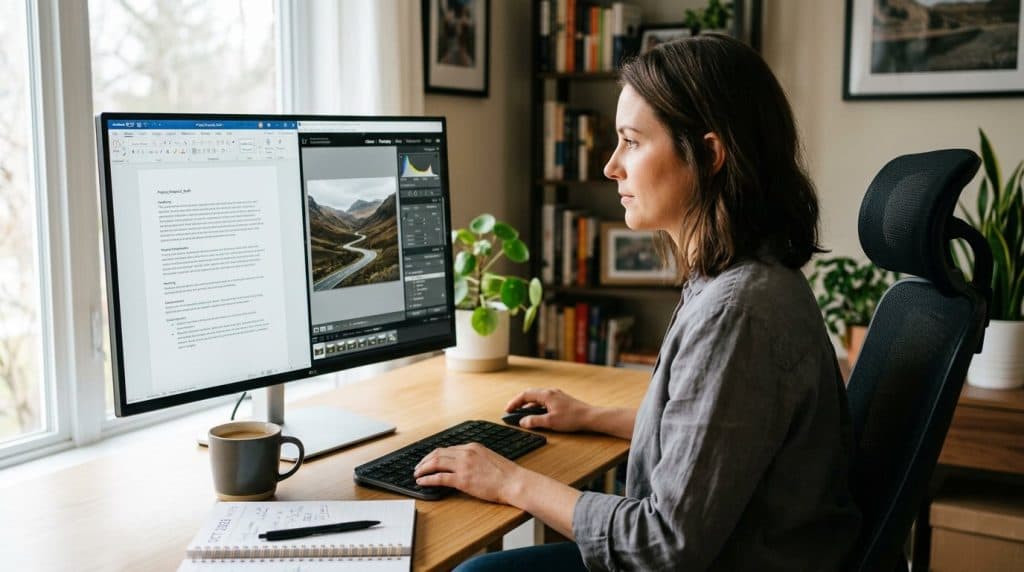
Check your credit card statement for recurring charges. Adobe Photoshop: ~$22/month. Premiere Pro: $22.99/month. Microsoft 365: $99.99/year. Canva Pro: $10/month. By the time you add them all up, software subscriptions quietly cost most home users and small businesses $400-1,000 a year — billed automatically, renewed without much thought.
Here is what that same money buys you with the right free alternatives: nothing. You pay nothing, download the software once, and use it indefinitely. No expiration date. No feature locks after a trial. These are legitimate professional tools used by millions of people every day.
This guide covers the 5 best free programs available in 2026, what each one replaces, and exactly how they compare to the paid version side by side. Before switching, it helps to have your files organized — our file organization guide walks you through a 10-minute system that makes migrating between applications much cleaner.
What “Free” Actually Means in This List
Quick answer: The five programs below are free in the full sense — no credit card, no subscription, no 30-day trial that expires. LibreOffice, GIMP, and Audacity are open-source: maintained by global developer communities, with source code publicly available and no commercial owner controlling the roadmap. DaVinci Resolve and Canva use a freemium model where the free tier is genuinely complete and the paid upgrade is optional, not required.
None of these are the lite or student edition of a paid product. They are the actual software — the same download that professional editors, designers, and developers use worldwide. The difference from paid alternatives is not in power; it is in specific workflow integrations and, in some cases, the learning curve.
#1. LibreOffice — Replace Microsoft Office and Keep Your Files
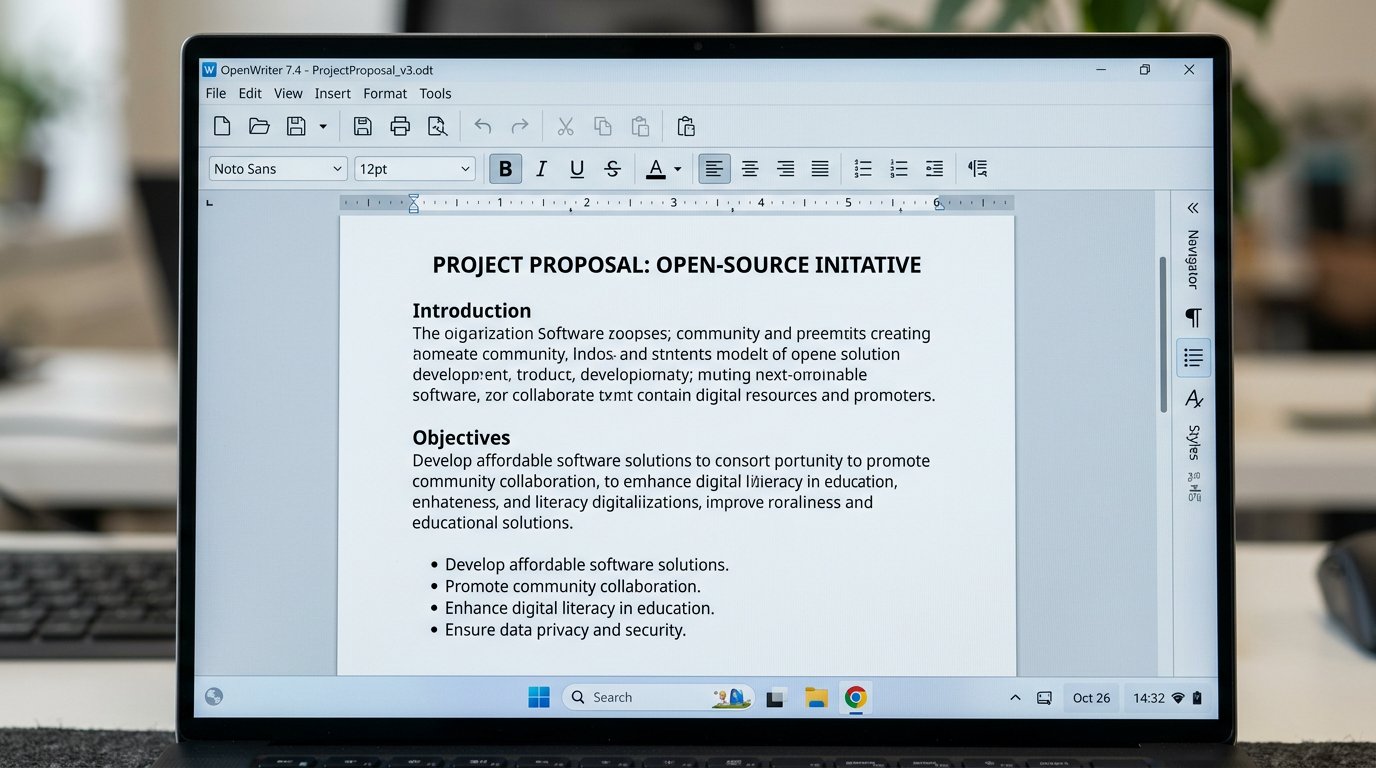
LibreOffice is a complete, free, open-source office suite that includes a word processor (Writer), spreadsheet application (Calc), presentation tool (Impress), database manager (Base), and formula editor (Math). It replaces every application in the Microsoft Office lineup at no cost, with no subscription required.
What it does: Writer handles everything from simple letters to multi-chapter documents with tables of contents, footnotes, and track changes. Calc supports all the functions Excel users rely on — VLOOKUP, pivot tables, conditional formatting, and charts. Impress creates slide decks with animations and themes. All three read and write Microsoft Office file formats (.docx, .xlsx, .pptx) natively, so sharing files with Office users is seamless.
Compared to Microsoft 365: Microsoft 365 Personal costs $99.99/year and gives you cloud storage (OneDrive), the full Office desktop apps, and real-time co-authoring in the browser. LibreOffice does not include cloud storage or live collaboration — you would use it with a shared folder on OneDrive or Google Drive separately. For solo users working on their own documents, LibreOffice does everything Microsoft 365 does at zero cost.
Best for: Home users, freelancers, and small businesses that primarily work on their own documents and do not need live multi-user editing. Organizations switching from Microsoft Office that want to reduce licensing costs. Anyone who finds Microsoft 365 is renewing automatically for a feature set they only use 20% of.
Limitation: Complex Excel macros written in VBA may need adjustments to work in LibreOffice Calc. The interface is functional but looks less modern than Microsoft 365 or Google Docs.
Download free at libreoffice.org. Available for Windows, macOS, and Linux. No registration required.
#2. GIMP — Replace Adobe Photoshop for Photo Editing and Graphics
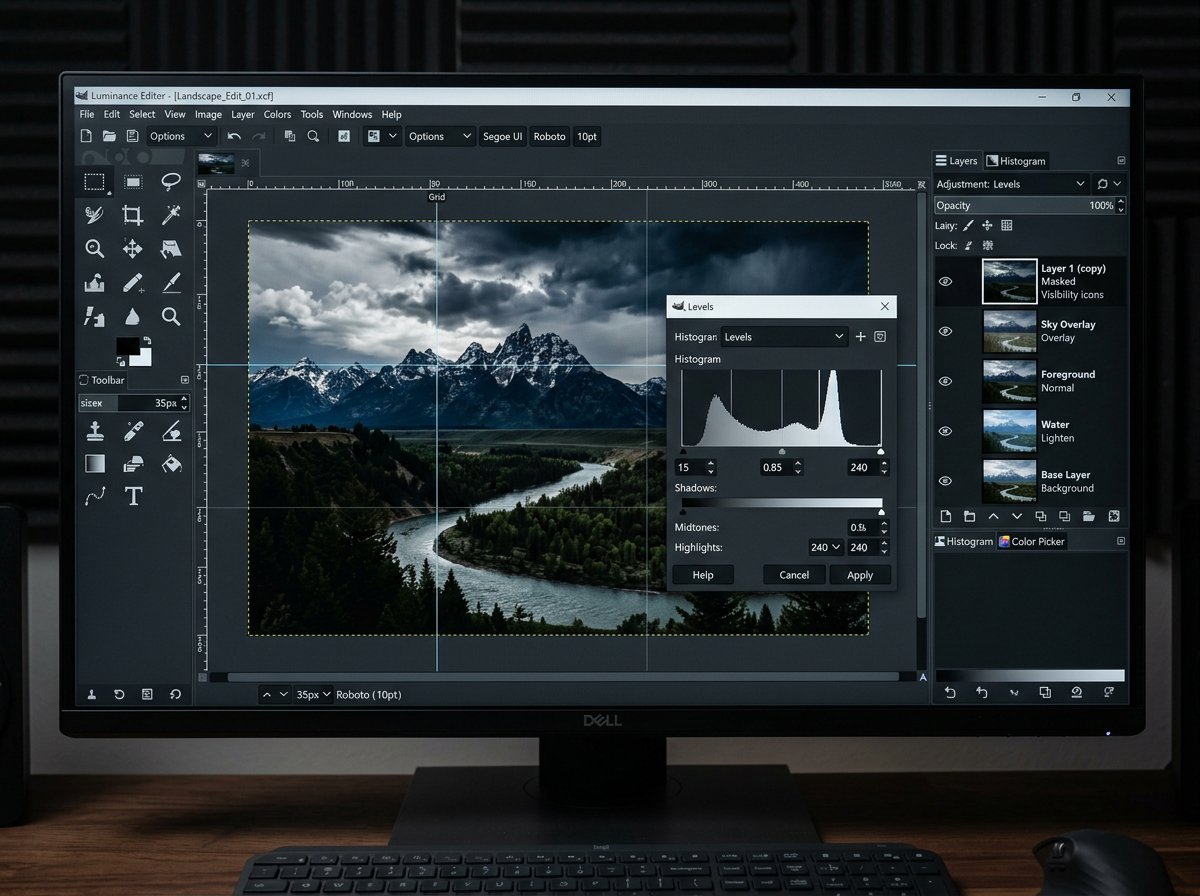
GIMP (GNU Image Manipulation Program) is a free, open-source image editor that has been in continuous development since 1996. It is the most direct free alternative to Adobe Photoshop for photo editing, graphic design, and image compositing — and it runs on Windows, macOS, and Linux.
What it does: GIMP handles the full range of photo editing tasks: exposure correction, color grading, levels and curves, healing brush, clone tool, dodge and burn, selections (including intelligent scissors and fuzzy select), layer masks, and adjustment layers. It supports Photoshop file formats (.psd) for opening and working with existing layered files. Version 3.0, released in 2024, added a significantly redesigned interface and improved color management.
Compared to Adobe Photoshop: Photoshop costs around $20/month on the Photography plan (which also includes Lightroom and 1TB cloud storage). GIMP covers every photo editing function in that plan. Where Photoshop pulls ahead is in non-destructive editing via Smart Objects, the Content-Aware tools, and integration with other Adobe products (Illustrator, Lightroom). For photographers editing in a standalone workflow — not part of a design agency using the full Creative Cloud — GIMP handles the workload.
Best for: Photographers editing portrait, product, and real estate photos. Small business owners creating web graphics, banners, and social media images. Anyone who needs to remove backgrounds, composite images, or do color corrections.
Limitation: GIMP does not have non-destructive adjustment layers the way Photoshop does. The interface takes time to learn if you are coming from Photoshop — the tool layout is different. Some Photoshop plugins are not compatible.
Download free at gimp.org. No account or registration required.
#3. DaVinci Resolve — Replace Adobe Premiere Pro With Hollywood-Grade Tools
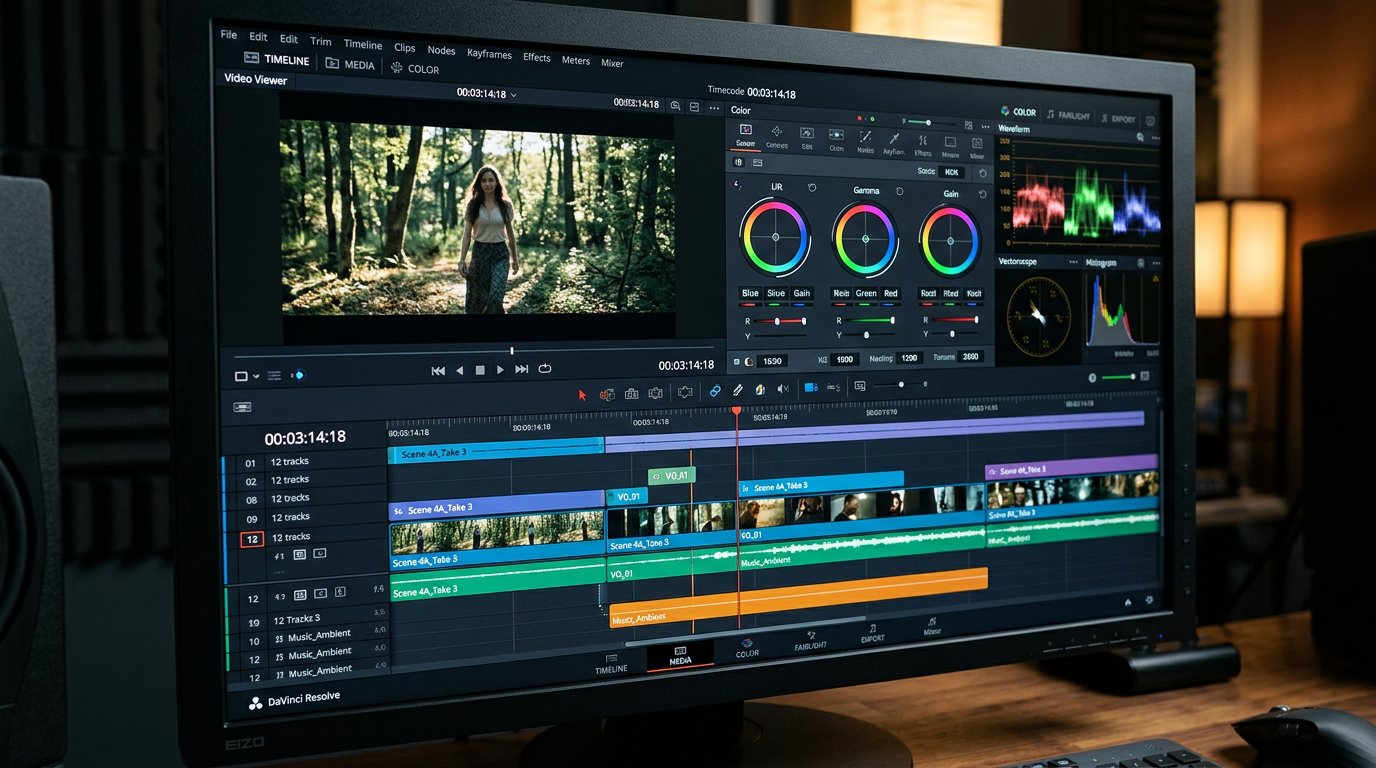
DaVinci Resolve is a professional video editing, color grading, visual effects, and audio post-production suite made by Blackmagic Design. The free version is not a stripped-down demo — it is the same software used in professional film and television production, including major Hollywood films. It is free to download, with no watermarks or time limits.
What it does: The Edit page handles standard multi-track video editing with cuts, transitions, titles, and effects. The Color page is the industry standard for color grading — more capable than anything in Adobe Premiere Pro at any price. The Fusion page adds compositing and visual effects. The Fairlight page is a full digital audio workstation built into the same application. In one free download, you get tools that would otherwise require Premiere Pro, After Effects, and Audition separately.
Compared to Adobe Premiere Pro: Premiere Pro costs $22.99/month ($276/year) as a standalone subscription, or around $60/month as part of the Creative Cloud All Apps plan. DaVinci Resolve free version handles 4K editing, professional color grading with scopes, multi-track audio editing, and basic VFX — everything a YouTuber, content creator, or small business video producer needs. The paid Studio version ($295 one-time purchase, not a subscription) adds remote collaboration, some GPU-accelerated noise reduction effects, and certain advanced codec support. Most users never need it.
Best for: YouTubers and content creators, small businesses creating video marketing content, photographers adding video work, anyone currently paying for Premiere Pro who does not need Adobe integration specifically.
Limitation: DaVinci Resolve has a steeper learning curve than simpler editors like iMovie or CapCut. It requires a reasonably modern GPU — an older integrated graphics laptop may struggle with 4K playback. The interface is complex because it is a professional tool, not a beginner one. Back up your files before starting a new project — our 3-2-1 backup guide covers exactly how to protect your source footage.
Download free at blackmagicdesign.com. No registration required. Windows, macOS, and Linux.
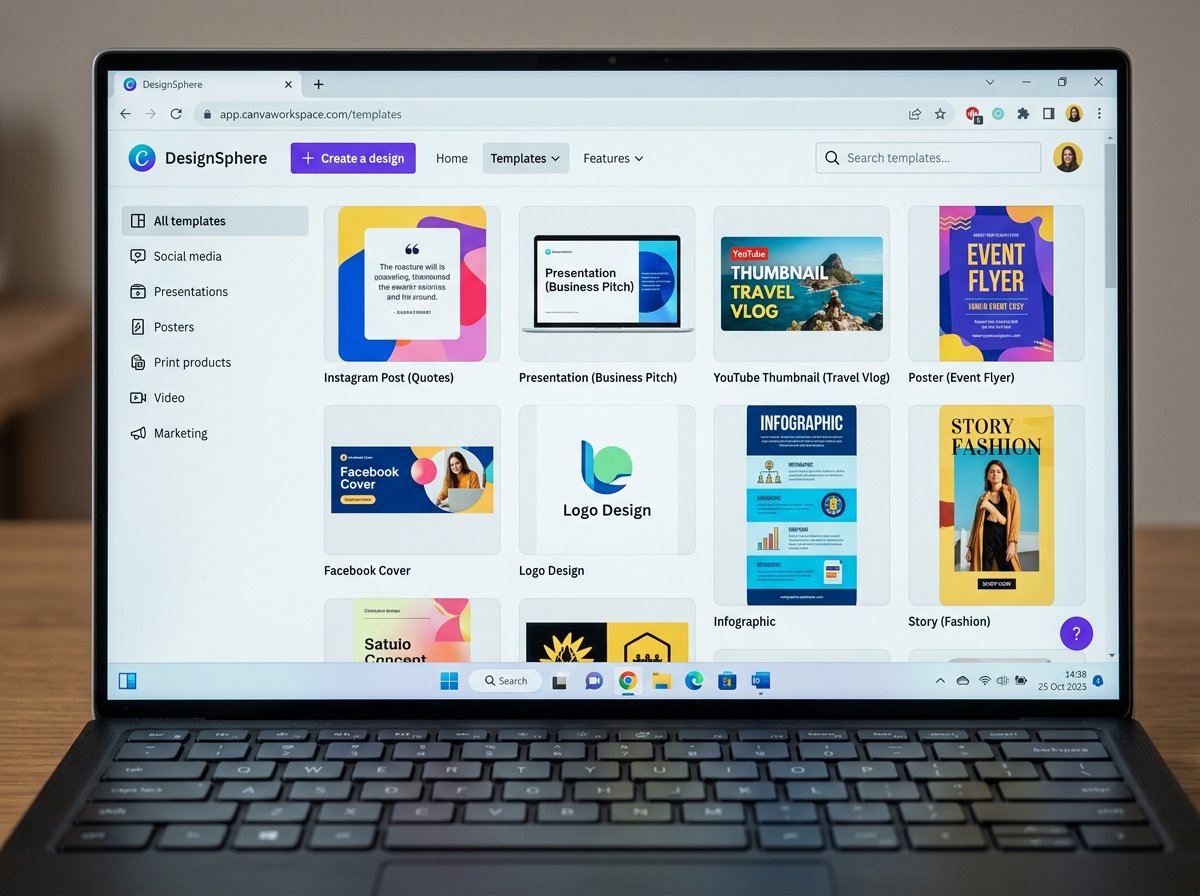
#4. Canva Free — Professional-Looking Design Without Hiring a Designer
Canva is a browser-based drag-and-drop design platform that makes it possible for anyone — regardless of design experience — to create professional-looking graphics in minutes. The free tier is genuinely capable for most small business marketing needs: social media posts, flyers, presentations, email headers, business cards, and more.
What it does: Canva Free provides over 250,000 pre-built templates sized for every platform (Instagram, Facebook, LinkedIn, print, presentations). You pick a template, replace the text and photos with yours, and export in PNG, PDF, or MP4. The photo library includes over 1 million free stock images and graphics. The presentation templates export to PowerPoint format or present directly in the browser. All design work happens in a browser — no software to install, works on any computer.
Compared to paid design tools: Adobe InDesign costs $23/month. Professional design agencies charge $50-150/hour. Canva Free replaces both for standard marketing tasks that do not require print production-level precision. Compared to Canva Pro ($144/year), the free tier lacks: background remover (available a limited number of times), Brand Kit for saving brand colors and fonts across designs, and 100GB of storage (you get 5GB on free). For a solo business owner or a small team, the free tier covers about 80% of what Pro offers.
Best for: Small business owners creating their own social media content, event flyers, and email newsletters. Real estate agents and consultants who need polished presentations quickly. Anyone currently paying a monthly subscription to a design tool for occasional use.
Limitation: Canva Free does not replace Illustrator or Photoshop for professional design work. Vector artwork, complex photo manipulation, and print-production files with bleed marks and color profiles are beyond what Canva does. It is also browser-dependent — you need an internet connection to use it.
Start for free at canva.com. No download required. Free account with Google or email sign-in.
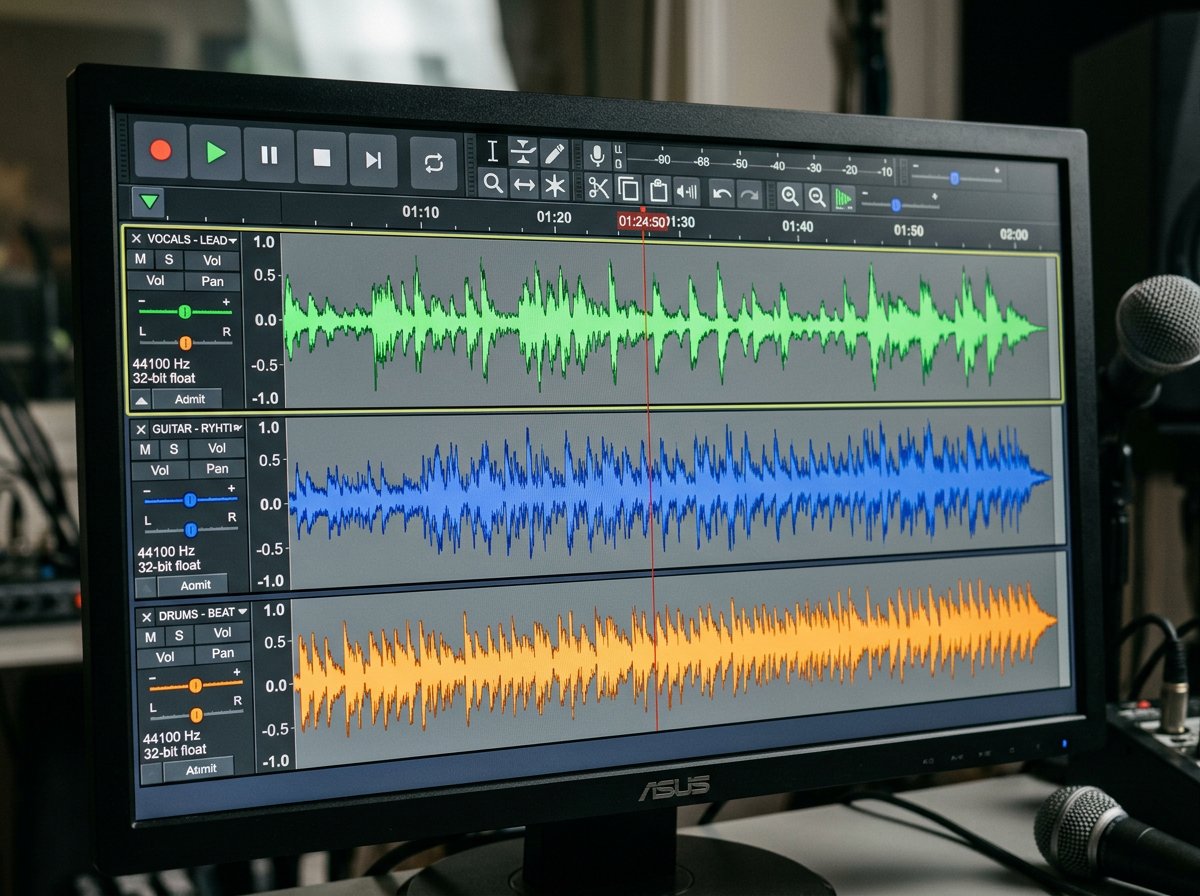
#5. Audacity — Record and Edit Audio Like a Professional
Audacity is a free, open-source audio recorder and editor that has been the go-to tool for podcast production, voice-over recording, and audio restoration for over 20 years. It is available on Windows, macOS, and Linux. There is no paid version — Audacity is completely free, always.
What it does: Audacity records audio from a microphone, audio interface, or system output. It edits multi-track audio with cut, copy, paste, and silence operations on the waveform directly. Built-in effects include: noise reduction (excellent for removing background hiss from microphone recordings), equalization, compression, normalization, reverb, chorus, and pitch shift. It exports to MP3, WAV, FLAC, OGG, and AIFF. The noise reduction tool alone makes it invaluable for anyone recording voice audio in a non-professional environment — home offices, spare bedrooms, or untreated rooms.
Compared to Adobe Audition: Adobe Audition costs $22.99/month ($276/year) and is the standard for professional broadcast and podcast production. It adds real-time effects processing, advanced spectral editing for surgical audio repair, automatic loudness matching, and seamless integration with Premiere Pro. For most podcasters, voice-over artists, and musicians recording demos, Audacity does everything needed. The step up to Audition makes sense only when you need the real-time workflow speed or the advanced spectral tools.
Best for: Podcasters producing one or two episodes per week. Business owners recording product tutorials, training videos, or webinar audio. Musicians recording demos and rough tracks. Anyone who needs to clean up a voice recording before publishing it.
Limitation: Audacity does not support real-time effect monitoring during recording — you apply effects after capturing. The interface is functional but feels dated compared to modern DAWs. It does not support VST3 plugins (only VST2 and built-in effects). For musicians who need MIDI, a DAW like LMMS or Cakewalk (also free) is better suited. Keeping software like Audacity updated is covered in our monthly maintenance checklist — updates matter especially for audio software.
Download free at audacityteam.org. Windows, macOS, and Linux. No registration required.
How Much You Actually Save: Annual Cost Comparison
Here is what replacing each paid subscription with its free alternative saves over one year:
| Paid Software | Annual Cost | Free Alternative | Annual Savings |
|---|---|---|---|
| Microsoft 365 Personal | $99.99/yr | LibreOffice | ~$100 |
| Adobe Photoshop (Photo Plan, 1TB) | ~$240/yr | GIMP | ~$240 |
| Adobe Premiere Pro | ~$276/yr | DaVinci Resolve | ~$276 |
| Canva Pro | $144/yr | Canva Free | $144 |
| Adobe Audition | ~$276/yr | Audacity | ~$276 |
| Total | ~$1,036/yr | ~$1,036/yr |
Most home users and small businesses are not paying for all five simultaneously — but even replacing two or three of these subscriptions adds up to meaningful savings. The most common overlap we see: Microsoft 365 plus some combination of Adobe tools.
How to Migrate Without Losing Your Files
Switching software does not mean losing access to existing files. All five tools in this list open the most common file formats from their paid counterparts. LibreOffice opens .docx, .xlsx, and .pptx. GIMP opens .psd (Photoshop) files. DaVinci Resolve imports the video formats Premiere Pro exports. Audacity opens WAV, MP3, and AIFF files from any source.
Before migrating, do two things: back up your existing project files to an external drive, and organize your folder structure so you can find files after the switch. Our file organization guide covers the folder system that makes software migrations much smoother.
For complex migrations — like moving from a long-term Premiere Pro project archive or a large Lightroom catalog — the process is more involved. That is where a one-hour remote session with an IT professional can save you days of frustration.
Case Study: A Charlotte Consultant Who Cut $840 in Software Costs
A marketing consultant based in Charlotte’s NoDa neighborhood contacted IT Carolina after noticing her monthly software charges had climbed to over $100. She was paying for Microsoft 365 ($99.99/year), Adobe Creative Cloud Photography plan ($20/month), and Canva Pro ($12/month) — a total of around $484/year just for those three.
Her actual use: writing proposals (Word), editing headshots and event photos (Photoshop), and making client slide decks and social posts (Canva Pro). We walked her through LibreOffice for her proposals, GIMP for her photo work, and moved her to Canva Free for design. The headshot editing took about 30 minutes to learn on GIMP — most Photoshop muscle memory transferred directly.
She kept Canva Pro for one month after switching, then cancelled when she confirmed the free tier covered her actual workflow. Total first-year savings: approximately $484. She reinvested part of that in a quality USB microphone for client video calls. If you want a similar audit of your software subscriptions, reach out to IT Carolina — we include a software review as part of setup consultations across the Charlotte, NC area.
Frequently Asked Questions
- Is LibreOffice really a full replacement for Microsoft Office?
- For most everyday tasks — documents, spreadsheets, presentations — yes. LibreOffice opens and saves Microsoft Office formats natively. The main gap is real-time cloud collaboration and some complex VBA macros, which may need minor adjustments.
- Is GIMP as good as Photoshop?
- For photo editing, retouching, and web graphics — yes. GIMP handles layers, masks, healing brush, clone tool, and color correction fully. It falls behind on non-destructive Smart Objects and the professional print workflow. For most photography and graphic work, GIMP is sufficient.
- Is DaVinci Resolve free version good enough for YouTube?
- Yes. The free version handles 4K editing, professional color grading, multi-track audio, and basic visual effects — everything a YouTube channel or content creator needs. Most users never need the $295 Studio upgrade.
- What is the difference between Canva Free and Canva Pro?
- Free gives you 250,000+ templates, 1M+ stock images, 5GB storage, and all core design tools. Pro adds background remover, Brand Kit, 100GB storage, premium templates, and AI tools for $144/year. Free covers about 80% of what Pro offers for solo users.
- Is Audacity safe to download in 2026?
- Yes, from the official audacityteam.org only. A 2021 privacy policy controversy was reversed. Audacity remains fully open-source with active development and no data collection by default.
- Do these programs work on Windows 11?
- All five run on Windows 10 and Windows 11. LibreOffice, GIMP, DaVinci Resolve, and Audacity also run on macOS and Linux. Canva runs in any web browser with no installation.
- How much money can I save by switching?
- Replacing Microsoft 365, Adobe Photoshop, Premiere Pro, Canva Pro, and Audition with these free tools saves approximately $1,036/year at current subscription prices. Most users realistically save $200-500/year by replacing the two or three subscriptions most relevant to their work.
Need Help Setting Up Free Software at Your Home Office?
Installing and configuring professional software takes time — especially when you are migrating files from a previous application or setting up a new system from scratch. IT Carolina handles software setup, data migration, and configuration for home office and small business users across the Charlotte, NC area. We can set up all five tools covered in this guide, import your existing files, and make sure everything works the way you need it to.
View our Home Office IT services or contact IT Carolina to schedule a remote or on-site session.
John Jones
Senior IT Specialist, IT Carolina
John has 12 years of hands-on experience diagnosing and resolving computer, printer, and network issues for homeowners and small businesses across Charlotte, NC. He has helped hundreds of clients recover from Windows update failures, driver conflicts, and hardware problems — often resolving in a single remote or on-site session.