

You’re looking at a new laptop and the spec sheet says 16GB RAM — but the step-up model offers 32GB for $150 more. Worth it? For most people, no. RAM is one of the most oversold specs in consumer electronics, and the majority of buyers end up paying for capacity they never come close to using. This guide explains exactly what 8GB, 16GB, 32GB, and 64GB of RAM actually mean for your day-to-day use — so you can make the right call without relying on a salesperson’s guess.
The Right Amount of RAM at a Glance
Quick answer: 16GB is the right amount for most people buying a computer in 2025. 8GB is survivable for very light use. 32GB pays off only if you game seriously, edit video, or run virtual machines. 64GB is for professionals working with 4K/8K footage, 3D rendering, or large datasets. Here’s the full breakdown by use case:
| What You Do | RAM You Need |
|---|---|
| Email, documents, basic web browsing | 8GB minimum |
| Multitasking, 20+ browser tabs, Zoom + Office | 16GB |
| Gaming (AAA), streaming, video editing (1080p–4K) | 32GB |
| 4K/8K video editing, 3D rendering, virtual machines | 64GB+ |
If you rarely have more than a few apps open at once and your browsing stays under 10 tabs, 8GB is technically workable. For everyone else, 16GB is the starting point — and for the use cases in row three, 32GB is genuinely worth it.
Is 8GB of RAM Still Good Enough?
Here’s the honest answer: 8GB is survivable, but you’ll feel the edges. Windows 11 uses around 3–4GB at idle just running the operating system and background processes. That leaves 4–5GB for everything else. Open Chrome with 10 tabs, start a Zoom call, and have Microsoft Word open at the same time — and most 8GB systems hit 85–90% RAM usage. That’s when the slowdowns begin.
When RAM fills up, Windows offloads data to the page file — a section of your hard drive or SSD used as overflow memory. This is dramatically slower than actual RAM. The result isn’t a crash; it’s the sluggish, unresponsive feeling where apps take 2–3 seconds to respond to clicks. The computer isn’t broken — it’s just running out of fast memory and borrowing slow storage instead.
If you browse with fewer than 8 tabs and rarely multitask beyond one or two apps, 8GB works fine. The moment you add Slack, a second browser window, background cloud sync, or software updates running in the background, you’re consistently pushing the limit. Microsoft’s official Windows 11 minimum is just 4GB — which tells you that 8GB gives real headroom above the floor, but not much runway above that.
Why 16GB Is the Sweet Spot for Most People
16GB RAM is the right call for most laptops and desktops purchased today. It handles 20+ browser tabs, background app updates, a video call, and several active applications without approaching its limit. In typical office and home use, a 16GB system rarely exceeds 60–70% RAM usage — meaning you have a comfortable buffer for anything unexpected.
Work from home with Google Workspace or Microsoft 365? Browse heavily? Occasionally edit photos? 16GB covers all of it without compromise. It’s also the minimum we recommend for any new purchase — because saving $30–50 by choosing 8GB means you’ll be managing RAM limitations for the entire life of the machine, and on a laptop you likely can’t upgrade it later.
For a deeper look at specific 16GB scenarios — including when it starts to feel tight — see our dedicated guide: Is 16GB of RAM Enough in 2025?
When Does 32GB RAM Actually Make Sense?
32GB makes sense in these specific situations: you play modern AAA games while streaming or running Discord simultaneously, you edit video at 1080p or 4K, you work with large spreadsheets with tens of thousands of rows, or you run virtual machines. Outside those use cases, 32GB will sit mostly idle — useful as insurance, but not actively improving anything.
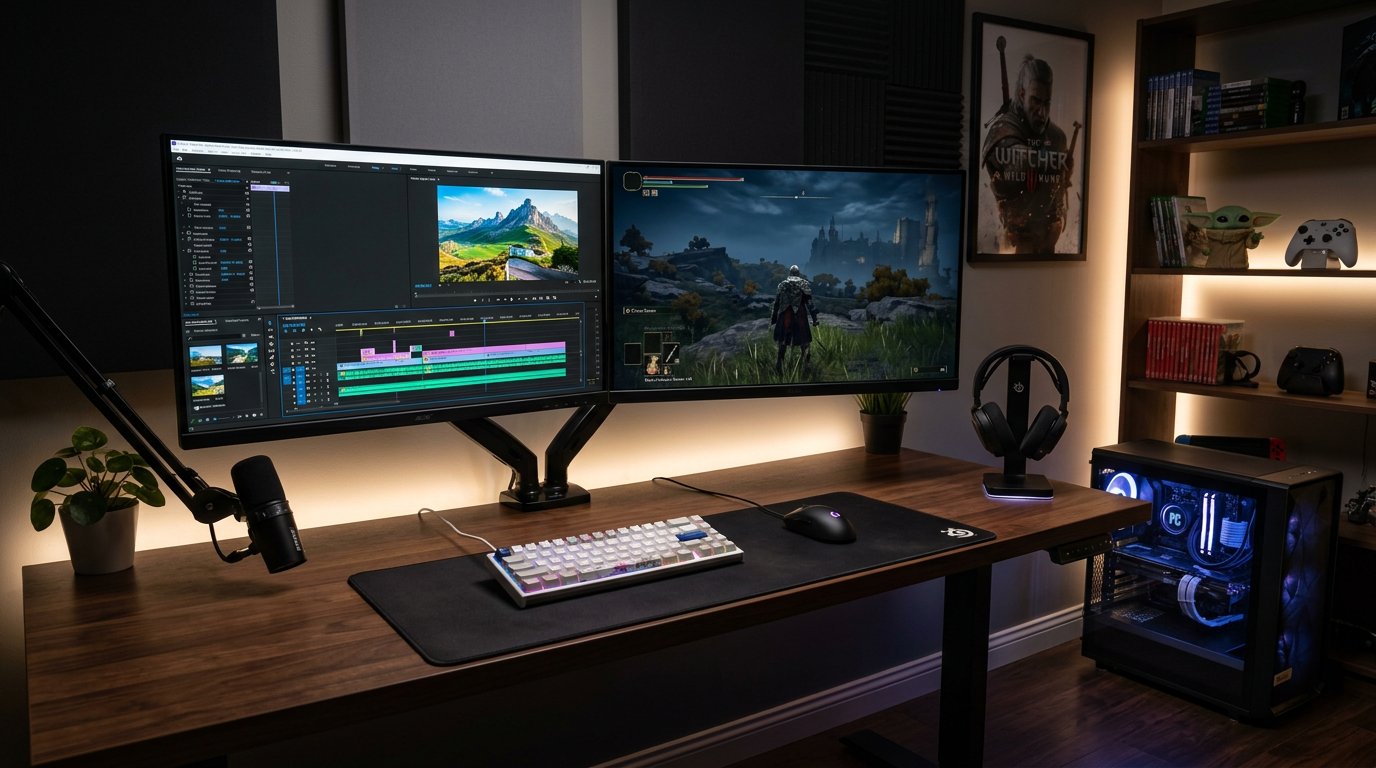
For video editing specifically: DaVinci Resolve (the professional free editor) recommends 16GB minimum for 1080p work and 32GB for 4K timelines. Adobe Premiere Pro users handling 4K footage with multiple effects layers genuinely benefit from 32GB — the difference shows up in smoother scrubbing and faster background rendering. If you’re considering free video editing software, our guide to free software alternatives covers DaVinci Resolve and its system requirements in detail.
For gaming: most modern AAA games list 16GB as recommended. The push toward 32GB comes from running the game alongside OBS for streaming, Discord voice chat, a browser for guides or maps, and background processes — all simultaneously. If you play single-player games without streaming, 16GB is still adequate. If you mod heavily, stream, or run multiple game-related apps, 32GB removes a consistent source of performance drops.
64GB RAM — Who Actually Needs It?
64GB is for a specific group: 4K and 8K video editors working with long timelines and heavy effects, 3D artists rendering complex scenes in Blender or Cinema 4D, data scientists running large datasets in Python or R, and IT professionals running several virtual machines simultaneously. If you don’t recognize yourself in that list, 64GB is money you will never put to work.
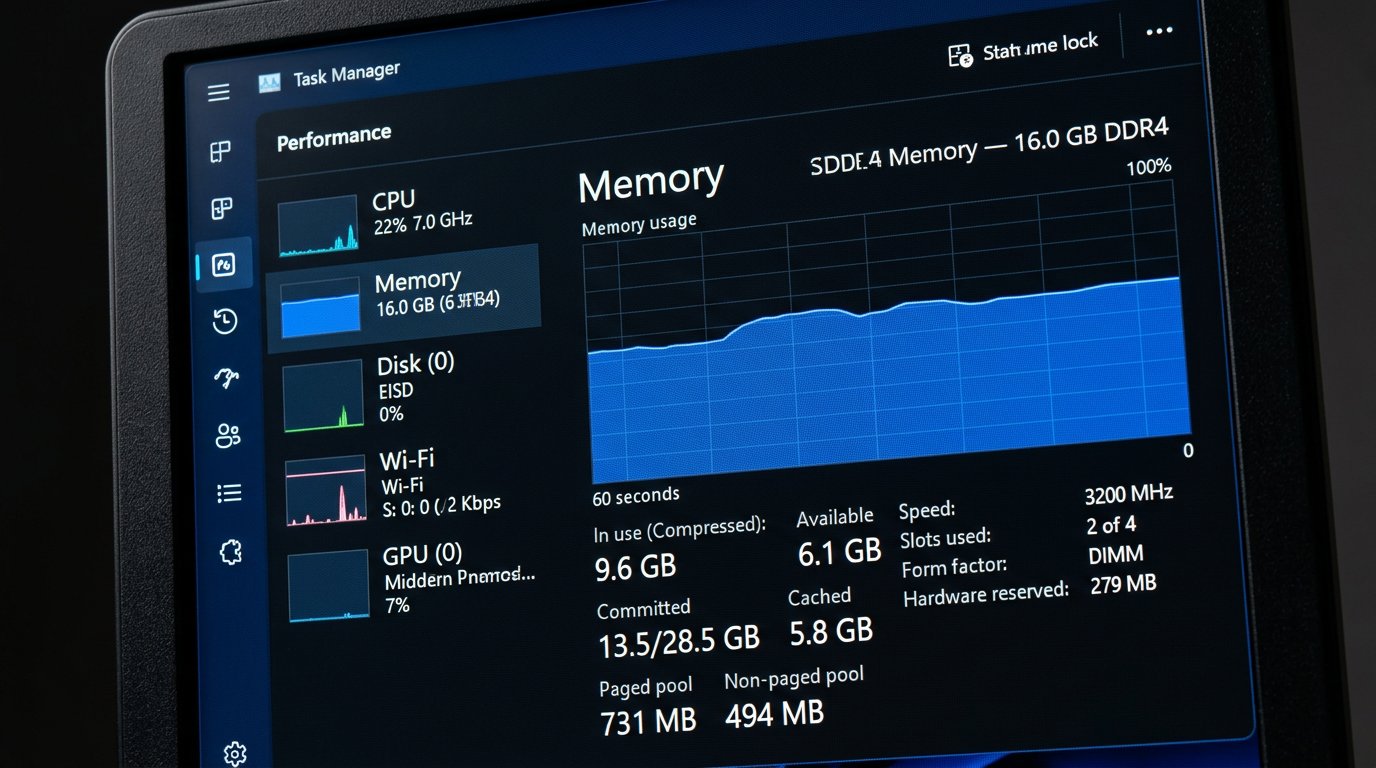
The practical test: if you’re considering 64GB because your computer feels slow, open Task Manager and check your RAM usage first. If it’s not consistently hitting 85–90% under load, more RAM will not make the machine faster. Not even slightly. The bottleneck is almost certainly something else.
Gaming RAM Requirements — The Practical Numbers
RAM requirements for gaming vary more by scenario than by game title. Here’s what actually works in 2025:
| Gaming Scenario | Minimum | Recommended |
|---|---|---|
| Esports (Valorant, CS2, League of Legends) | 8GB | 16GB |
| Modern AAA single-player | 16GB | 16GB |
| AAA + Discord + browser open | 16GB | 32GB |
| AAA + OBS streaming + heavy mods | 32GB | 32GB |
| Content creation and gaming combined | 32GB | 32GB |
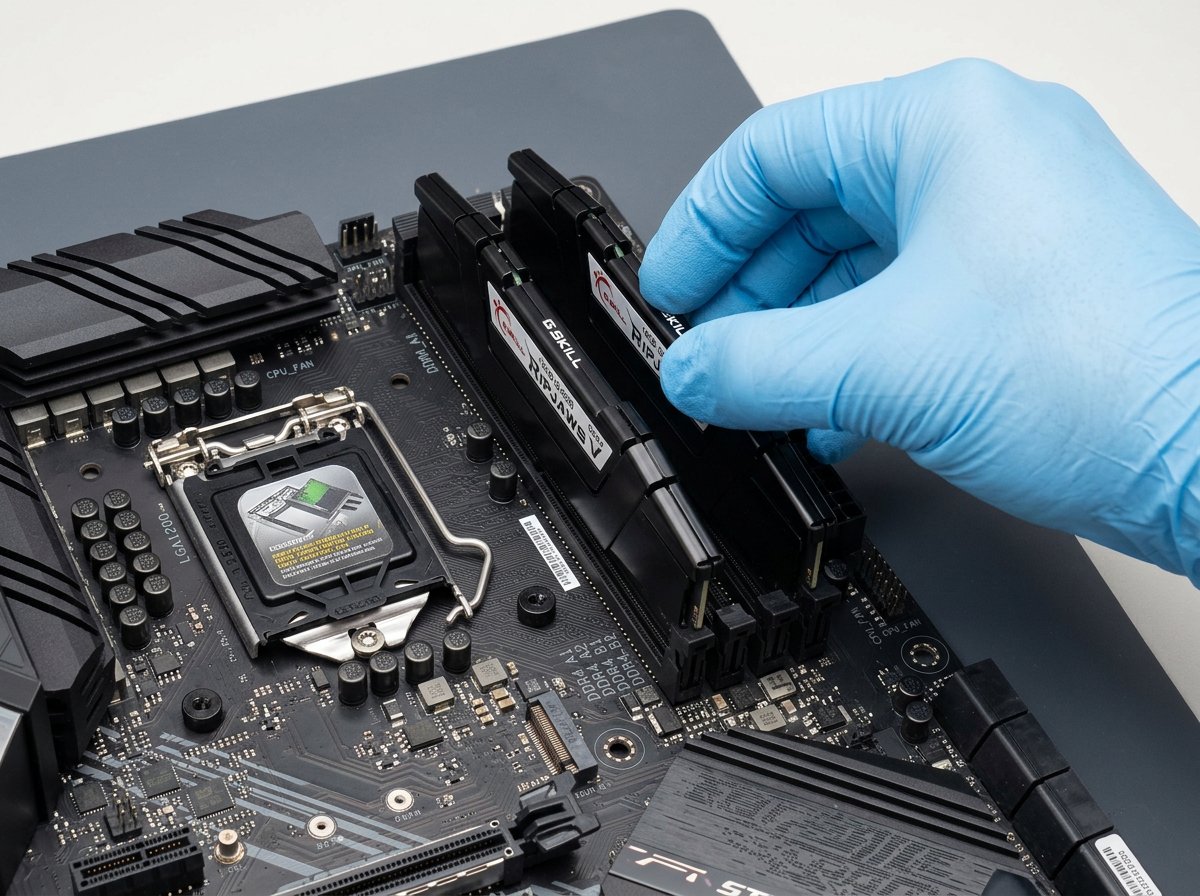
One thing most buyer’s guides skip: configuration matters as much as total capacity. Two 8GB sticks installed in the correct paired slots (dual-channel mode) outperform a single 16GB stick at the same total capacity. Dual-channel configuration roughly doubles the memory bandwidth available to your CPU — a measurable advantage in gaming and any RAM-intensive task. Always install RAM in matched pairs and check your motherboard manual for the correct slot pairing. For a detailed breakdown of RAM performance differences, Tom’s Hardware’s RAM buyer’s guide is the most reliable technical reference.
Before You Buy More RAM, Check This First
Almost every month, someone contacts IT Carolina convinced they need a RAM upgrade because their computer is slow. In most cases, RAM isn’t the problem. Before spending anything, open Task Manager (Ctrl + Shift + Esc), click the Performance tab, and look at the Memory section. Check the usage during a real work session — with all your usual apps open. If you’re consistently below 80%, more RAM will not fix the slowdown.
The most common culprit that looks like a RAM issue: a slow hard drive. A 5400 RPM spinning HDD trying to simultaneously handle Windows, browser cache, and active applications becomes the bottleneck long before RAM runs out. An SSD upgrade costs $60–100 and transforms the experience of an older machine more dramatically than RAM in most cases. Our guide to revitalizing a slow computer walks through the full diagnostic process — including how to identify whether RAM, storage, or something else is the actual limit.
RAM Speed and Configuration — What Actually Moves the Needle
RAM has two specifications beyond size: speed (DDR4-3200, DDR5-6000, etc.) and generation (DDR4 vs. DDR5). For office and productivity use, both are nearly irrelevant compared to having the right total capacity. For gaming, RAM speed has a measurable but modest impact — typically in the 3–10% range for CPU-bottlenecked scenarios.
DDR5 is faster than DDR4 and is standard on newer platforms: Intel 12th generation and above, AMD Ryzen 7000 series and above. If you’re building a new system that supports DDR5, use it. If you’re upgrading an existing DDR4 system, replacing functional DDR4 RAM with DDR5 sticks is not possible — they’re physically incompatible. The performance gain from staying on DDR4 but getting the right amount of it is far larger than switching generations.
The configuration that matters more than speed: dual-channel. Two matched sticks in the correct paired slots give your CPU nearly double the memory bandwidth compared to one stick of the same total size. If your system currently runs one 8GB stick and you’re experiencing RAM pressure, adding a second identical 8GB stick (to run dual-channel) is often more impactful than upgrading to a single 32GB stick.
Case Study: The Charlotte Laptop That Didn’t Need More RAM
A home office client in Charlotte’s SouthPark neighborhood contacted IT Carolina after her laptop became noticeably sluggish during client video calls. Zoom was choppy, switching between Chrome tabs took 3–4 seconds each, and opening Outlook felt like it was fighting for resources. Her conclusion: she needed more RAM. Her laptop had 8GB and she wanted to upgrade to 16GB.
Before recommending anything, we ran a diagnostic session with her actual workflow: Chrome with 12 tabs open, Zoom running, and Outlook with a large mailbox active. Task Manager showed RAM usage peaking at 74%. Not even close to maxed. The real culprit was a 5400 RPM spinning hard drive — the kind standard in budget laptops sold through 2020 — that was being asked to simultaneously serve Windows, the browser cache, and Outlook’s local data store. It simply couldn’t keep up.
We replaced the HDD with a 500GB SSD. Boot time dropped from 87 seconds to 11 seconds. Zoom calls cleared up immediately. App switching became instant. The 8GB of RAM was never the bottleneck — the storage was. Total parts cost: $65. If you’re diagnosing a similar situation, our SSD vs. HDD guide explains the difference and what to look for when evaluating an upgrade.
Frequently Asked Questions
- Is 8GB of RAM enough in 2025?
- For light use — email, a few browser tabs, documents, and Zoom without much multitasking — 8GB is survivable. In practice, Windows 11 uses 3–4GB at idle, leaving limited headroom. For any new purchase, 16GB is the right minimum. Don’t intentionally buy 8GB to save $30–50; you’ll manage RAM limits for the life of the device.
- Will upgrading RAM make my computer faster?
- Only if RAM is actually the bottleneck. Check Task Manager → Performance → Memory during real use. If usage stays below 80%, more RAM won’t help. Slow storage — especially a spinning HDD — is the more common cause of the symptoms people attribute to RAM. Fix the bottleneck, not a symptom.
- How do I check how much RAM I’m using?
- Press Ctrl + Shift + Esc to open Task Manager. Click the Performance tab and select Memory. You’ll see live usage, available memory, and total installed RAM. Check this during a typical work session with all your usual apps running for an accurate reading.
- Is 16GB RAM enough for gaming?
- Yes for most scenarios. Esports games and modern AAA single-player games run well on 16GB. The case for 32GB appears when you add OBS streaming, Discord, and a browser on top of a demanding game — all running simultaneously. For standard gaming without streaming, 16GB is fine.
- What is dual-channel RAM and does it matter?
- Dual-channel means two matching RAM sticks installed in paired motherboard slots, allowing the CPU to access both simultaneously for roughly double the memory bandwidth. Two 8GB sticks in dual-channel mode outperform one 16GB stick in benchmarks and real-world gaming. Always install RAM in matched pairs in the correct slots per your motherboard manual.
- Do I need DDR5 RAM?
- Not urgently. DDR5 is faster than DDR4 and standard on newer platforms (Intel 12th gen+, AMD Ryzen 7000+). For office and productivity use the real-world difference is negligible. For gaming, DDR5 gives a 3–10% advantage in some scenarios. Build with DDR5 if your new system supports it; don’t replace working DDR4 to switch generations.
- Can I upgrade RAM in my laptop?
- It depends on the model. Many budget and mid-range laptops have removable SO-DIMM slots. However, many thin laptops and ultrabooks use soldered RAM that cannot be upgraded after purchase. Check the manufacturer’s spec page or use Crucial’s online compatibility checker for your exact model before buying. If your laptop has soldered RAM, buy the right amount upfront.
Need Help Choosing or Upgrading?
Choosing the right configuration for a new computer — or diagnosing whether a current machine actually needs more RAM — is often quicker with a second opinion. IT Carolina helps home office users and small businesses across Charlotte, NC choose, configure, and upgrade their equipment without overspending on specs they don’t need.
Visit our Home Office IT service page to learn how we handle computer setup, hardware upgrades, and diagnostics — or reach out to schedule a remote or on-site session.
John Jones
Senior IT Specialist, IT Carolina
John has 12 years of hands-on experience diagnosing and resolving computer, printer, and network issues for homeowners and small businesses across Charlotte, NC. He has helped hundreds of clients recover from Windows update failures, driver conflicts, and hardware problems — often resolving in a single remote or on-site session.