

Your computer is freezing. Windows Update failed again. The Wi-Fi drops every hour. Before you
reset your PC or spend an hour clicking through Settings — open Command Prompt.
These 15 commands cover five categories of Windows problems: corrupted system files, network
failures, boot issues, outdated drivers, and stuck processes. Most take under 5 minutes to run.
Some take 30. All are copy-paste ready.
One thing most guides never explain: order matters. Running
sfc /scannow before DISM means repairing files from a possibly broken source. This
guide shows the right sequence — not just the commands. For Windows-update-specific slowdowns, our
guide on fixing a slow
computer after a Windows update covers the overlap.

Before You Start: Open CMD as Administrator
Every command below requires an elevated prompt. Without it, most will silently fail or return
permission errors.
Method 1: Press Win + X → select
Terminal (Admin) or Command Prompt (Admin).
Method 2: Click Start, type cmd, right-click Command Prompt,
select Run as administrator.
Confirm: the title bar should read Administrator: Command Prompt. If it
doesn’t, close and reopen.
Category 1 — Fix Corrupted System Files
These commands work as a team. The correct order is
chkdsk → DISM → sfc /scannow — in that sequence, every time.
Here’s why: SFC pulls replacement files from the Windows component store. If that store is
corrupted (what DISM fixes) or sitting on a bad disk sector (what chkdsk fixes), SFC replaces a
broken file with another broken copy. Running them out of order wastes 45 minutes and leaves the
root cause intact.
1. chkdsk C: /f /r — Start Here
chkdsk C: /f /rScans your drive for physical errors and bad sectors, then marks them so Windows stops writing
data there.
- /f — fixes logical file system errors
- /r — locates bad sectors and recovers readable data
Important: chkdsk can’t scan the active drive while Windows is running. Type
the command, press Y when prompted, then restart. The scan runs before Windows
loads — expect 20–60 minutes depending on drive size.
What it fixes: random crashes, blue screens tied to disk errors, files that
vanish unexpectedly, sluggish read/write speeds.
2. DISM /Online /Cleanup-Image /RestoreHealth
DISM /Online /Cleanup-Image /RestoreHealthDISM repairs the Windows component store — the source SFC uses to replace broken files. It
downloads fresh copies directly from Windows Update.
Requires: an active internet connection.
Time: 20–45 minutes. If it appears stuck at 20%, let it run — that’s normal.
What it fixes: SFC errors saying “unable to fix some of them,” Windows Update
failures, missing system components that prevent updates from installing.
3. sfc /scannow — Now Repair System Files
sfc /scannowWith the disk verified and the component store clean, run SFC. Now it has uncorrupted source
files to work from. Microsoft’s official SFC documentation explains every result message in detail.
Time: 15–30 minutes on an SSD, up to 45 minutes on an HDD.
Results:
- “…did not find any integrity violations” — Clean. No action needed.
- “…found corrupt files and repaired them” — Done. Restart your PC.
- “…found corrupt files but was unable to fix some of them” — Run DISM again,
then SFC again.
4. sfc /verifyonly — Optional Quick Check
sfc /verifyonlyScans without making any changes. Run this first to confirm corruption exists before committing
to the full 90-minute sequence.
Category 2 — Fix Network and Internet Problems
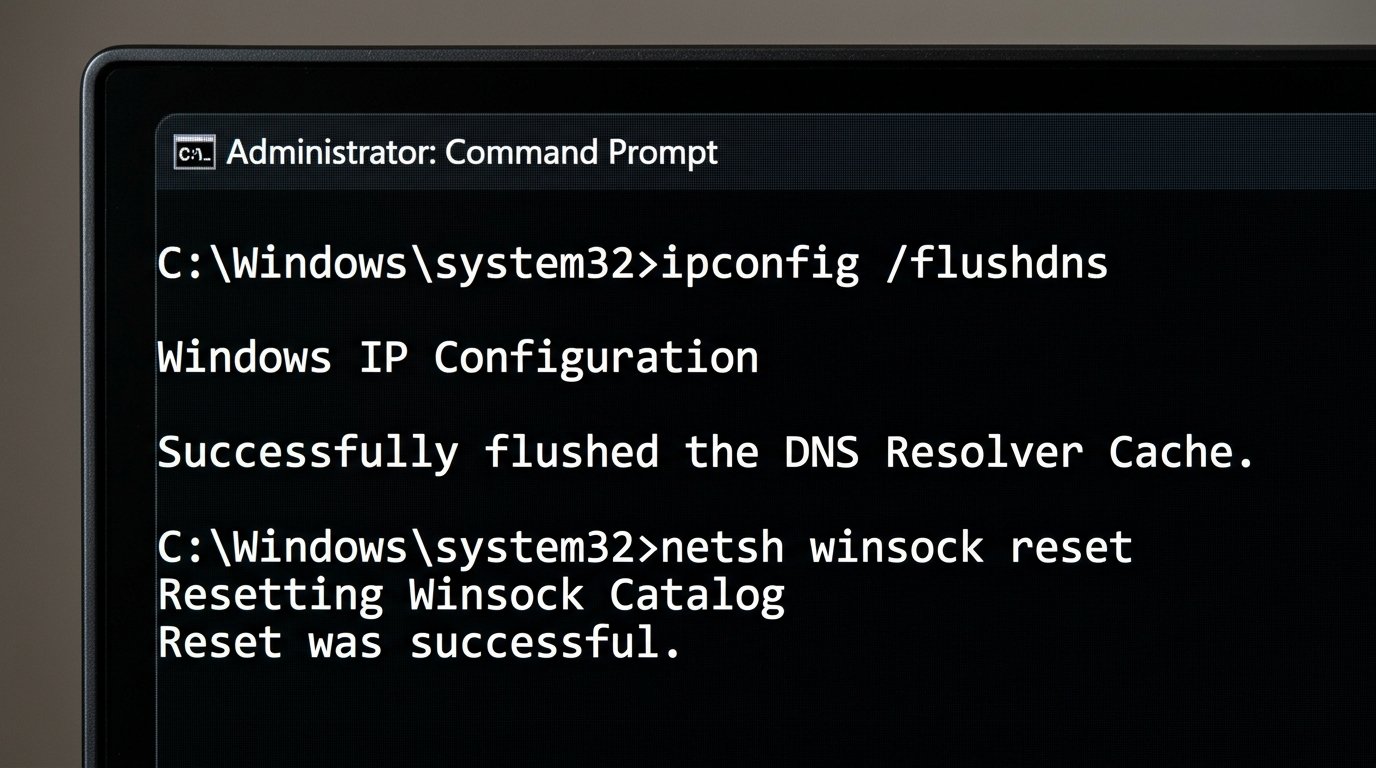
These commands reset every layer of Windows networking — from the DNS cache to the TCP/IP stack
itself. For problems that aren’t resolving with a router restart, our
Wi-Fi troubleshooting checklist covers
the full diagnosis process before running these.
5. ipconfig /flushdns
ipconfig /flushdnsClears the DNS cache — the local table of domain-to-IP mappings Windows stores. When a site’s
IP changes or the cache corrupts, DNS points to the wrong server.
What it fixes: sites that load for others but not you,
“DNS_PROBE_FINISHED_NXDOMAIN” errors, stale entries from old network configs.
6. ipconfig /release + ipconfig /renew
ipconfig /release
ipconfig /renew
Run back-to-back. /release drops your current IP lease from the router. /renew requests a
fresh one.
What it fixes: IP conflicts, stuck “No Internet” after reconnecting to a
network, issues after changing router settings.
7. netsh winsock reset
netsh winsock resetResets the Winsock catalog — Windows’ internal database of network protocols. Malware, failed
VPN installs, and antivirus removal frequently corrupt it.
Requires a restart to take effect.
What it fixes: internet that works in some apps but not others, browsers that
won’t connect while ping works fine, errors after VPN or antivirus removal.
8. netsh int ip reset
netsh int ip resetResets the entire TCP/IP stack to factory defaults — a hard reset for how Windows communicates
over any network connection. Requires a restart.
9. The Full Network Reset Sequence
Run all four in this order, then restart once:
ipconfig /release
ipconfig /flushdns
netsh winsock reset
netsh int ip reset
ipconfig /renew
This is the exact sequence IT technicians use when a network problem doesn’t respond to router
troubleshooting. One restart at the end applies all changes together.
Category 3 — Fix Boot Problems
⚠️ These commands run from Windows Recovery Environment (WinRE) — not a regular CMD
window.
To access WinRE: hold Shift while clicking Restart →
Troubleshoot → Advanced Options → Command Prompt. Or boot from a Windows installation USB
and select Repair your computer.
If your PC won’t reach the login screen at all, our
guide to a PC that won’t turn on
covers the hardware checks before trying boot commands.
10. bootrec /fixmbr
bootrec /fixmbrRewrites the Master Boot Record — the first sector of your drive that tells the BIOS where
Windows lives.
What it fixes: “Operating System not found,” “No bootable device,” boot
failures after malware infection or partition changes.
11. bootrec /fixboot
bootrec /fixbootRewrites the boot sector for the active partition — the partition-level record, not the
drive-level MBR.
What it fixes: “BOOTMGR is missing,” BCD errors, boot failures after an
interrupted Windows update.
Note: On Windows 11 with Secure Boot and UEFI firmware, this may return
“Access is denied.” Skip to bootrec /rebuildbcd.
12. bootrec /rebuildbcd
bootrec /rebuildbcdScans all drives for Windows installations and rebuilds the Boot Configuration Database from
scratch. Run this last — after /fixmbr and /fixboot.
What it fixes: Windows missing from the boot menu, corrupted BCD from drive
cloning or major system changes, startup failures where the other bootrec commands didn’t help.
Category 4 — Updates, Drivers & Diagnostics
13. winget upgrade –all
winget upgrade --allUpdates every installed application at once — Chrome, VLC, 7-Zip, Zoom, VS Code — without
opening a browser tab. Microsoft’s winget documentation lists all supported commands and flags.
Requires: Windows 10 version 1809 or later. Built into Windows 11 by default.
On Windows 10, install App Installer from the Microsoft Store if winget isn’t available.
Run winget upgrade first (without –all) to preview the update list before
committing.
What it fixes: apps with known bugs that a Windows update didn’t address,
software that broke because the app itself also needed updating.
14. driverquery
driverqueryLists every driver installed on your system — name, type, date, and version. No third-party
tools needed.
Filter by device type:
driverquery | findstr /i "display"Replace “display” with “audio,” “network,” or “storage.” Useful for pinpointing an outdated
driver before updating it through Device Manager.
15. tasklist + shutdown /r /t 0
tasklistShows every running process with its PID and memory usage. When Task Manager itself won’t open,
this is your fallback.
To force-close a stuck process:
taskkill /IM processname.exe /FReplace processname.exe with whatever’s frozen — chrome.exe, explorer.exe, outlook.exe.
For an instant restart that flushes RAM and reloads all drivers:
shutdown /r /t 0The /t 0 flag means zero delay — faster than navigating the Start menu, and it resolves dozens
of transient glitches that a normal restart through Settings misses.
The Right Order When Everything Goes Wrong
When Windows has multiple symptoms — slow, crashing, and disconnecting — work through this
sequence:
| Step | Command | Why This Order |
|---|---|---|
| 1 | chkdsk C: /f /r + restart |
Bad sectors corrupt every layer above |
| 2 | DISM /Online /Cleanup-Image /RestoreHealth |
Repairs the source SFC needs |
| 3 | sfc /scannow |
Now has clean files to work from |
| 4 | Full network reset sequence | Run after system files are stable |
| 5 | winget upgrade --all |
Update apps on a clean system |
| 6 | shutdown /r /t 0 |
Applies all pending changes |
Total time: roughly 2 hours. For most software-level Windows problems, this resolves the issue
without reinstalling Windows.
Case Study: Fixing a Client’s Windows Update Loop in Charlotte
A client in the Ballantyne area contacted IT Carolina after her HP Spectre x360 got stuck in
a Windows Update loop — the same cumulative update downloaded, failed at 78%, and reverted. Three
days in a row.
Diagnosis showed SFC reporting corrupted files but unable to repair them. DISM’s RestoreHealth
also failed — the component store itself was partially corrupted, most likely from a power loss that
interrupted an earlier update mid-install.
What we ran:
chkdsk C: /f /r— found and marked 14 bad sectors on the drive.- After reboot: DISM RestoreHealth — completed in 38 minutes.
sfc /scannow— repaired 23 corrupted system files.- Windows Update ran and completed without error on the first attempt.
Result: 94 minutes total. No reinstall required.
The pattern repeats constantly: when SFC can’t repair files, the fix is almost always in the
layer below — a corrupted DISM store or bad disk sectors. Fix the foundation first, every time.
Frequently Asked Questions
- Should I run SFC or DISM first?
- DISM first, always. SFC pulls replacement files from the Windows component store. If that
store is corrupted, SFC replaces broken files with broken copies. Run DISM to repair the store,
then SFC. - How long does sfc /scannow take?
- Typically 15–30 minutes on an SSD, up to 45 minutes on an HDD. If it appears stuck at the
same percentage for more than 20 minutes, let it continue — it’s still working. - Can I use these commands on Windows 11?
- Yes. All 15 commands work on Windows 10 and Windows 11. The bootrec commands require WinRE
access on both versions. - What does “Windows Resource Protection found corrupt files but was unable to
fix” mean? - SFC found corruption but couldn’t repair it because the component store is also corrupted.
Run DISM /Online /Cleanup-Image /RestoreHealth, then sfc /scannow again. - Is netsh winsock reset safe to run?
- Yes. It resets network protocol settings to defaults without touching your data. Restart
afterward. Some applications — particularly VPNs — may need to be reconfigured. - Why does bootrec /fixboot give me “Access is denied”?
- On Windows 11 with Secure Boot and UEFI firmware, bootrec /fixboot sometimes fails. Run
bootrec /rebuildbcd instead. In WinRE you may also need bcdedit to identify the correct boot
partition first. - What if none of these commands fix the problem?
- At that point the issue is almost certainly hardware — a failing drive, bad RAM, or a
component failure. A professional diagnostic can identify whether repair or replacement is the
right next step.
When CMD Isn’t Enough — Call IT Carolina
These 15 commands resolve the majority of software-level Windows problems. When they don’t work
— or when chkdsk reveals significant bad sectors — that’s a hardware signal, not a software one.
If you’re in the Charlotte, NC area and your PC is failing faster than commands can keep up
with, IT Carolina handles remote and on-site diagnostics for home users and small businesses.
Contact IT Carolina |
View our computer repair services
John Jones
Senior IT Specialist, IT Carolina
John has 12 years of hands-on experience diagnosing and
resolving computer, printer, and network issues for homeowners and small businesses across
Charlotte, NC. He has helped hundreds of clients recover from Windows update failures, driver
conflicts, and hardware problems — often resolving in a single remote or on-site session.