

Your Wi-Fi dropped mid-Zoom call. Your laptop shows “No Internet” while your phone browses fine. Or the signal is slow enough to buffer every YouTube video. Before you restart everything three times and call your ISP — use this 7-step checklist to pinpoint the exact cause in under 5 minutes.
Step 1 — Is It Your Wi-Fi or the Internet?
This single test tells you where to focus and saves 20 minutes of guessing.
Grab an Ethernet cable and plug your computer directly into the router — bypassing Wi-Fi. Open a browser and load any website.
- Ethernet works, Wi-Fi doesn’t → wireless signal is the problem (router settings, interference, or your device’s adapter)
- Ethernet also fails → problem is your router, modem, or ISP
- No Ethernet cable available → test another device on the same Wi-Fi. If your phone connects but your laptop doesn’t, the issue is device-specific — jump to Steps 6 and 7

Step 2 — Restart the Right Way (Order Matters)
Most people restart only the router and wonder why it didn’t help. The fix: restart the modem too — in the right order.
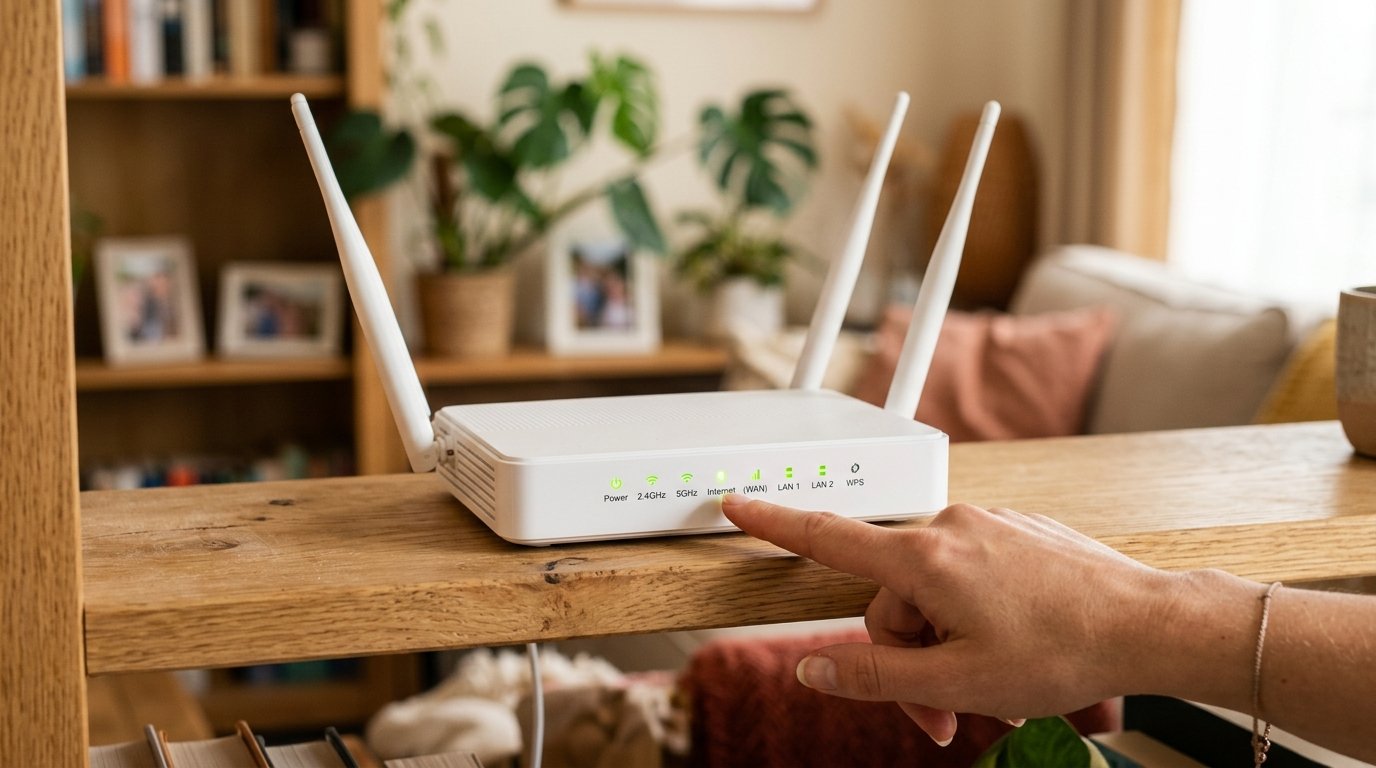
- Unplug your modem (the box connected directly to the coax cable or phone line)
- Unplug your router
- Wait 30 seconds — this clears the DHCP lease table and routing cache
- Plug the modem back in first — wait 60 seconds until its lights stabilize
- Plug the router back in — wait another 60 seconds before testing
This sequence forces a fresh IP address from your ISP and clears stale routing entries. It resolves about 60% of sudden “no internet” problems. If your modem and router are combined in one device (common with ISP-provided equipment), unplug it, wait 30 seconds, and plug back in.
Step 3 — One Device or All Devices?
Connect a second device — phone, tablet, or another computer — to the same Wi-Fi and try loading a website.
- Other devices work fine → problem is isolated to your device. Go directly to Steps 6 and 7.
- All devices fail → problem is your router, modem, or ISP. Continue with Step 4.
- All devices are slow but connected → likely interference or an ISP bandwidth issue. Go to Step 5.
Step 4 — Rule Out an ISP Outage
Before digging into router settings or reinstalling drivers, spend 60 seconds confirming there’s no outage on your ISP’s end — because nothing you do locally will fix an upstream problem.
- Use your phone’s cellular data to visit downdetector.com — search your ISP name
- Check your ISP’s own status page (search “[ISP name] outage map”)
- Ask a neighbor or check a local community group
If there’s a confirmed outage — wait it out. No outage? Continue to Step 5.
Step 5 — Fix Wi-Fi Interference (2.4 GHz vs 5 GHz)
Interference is the most under-diagnosed cause of slow and intermittent Wi-Fi — especially in apartment buildings or dense neighborhoods where dozens of networks overlap.
2.4 GHz vs 5 GHz explained:
- 2.4 GHz: wider range, but shared with microwaves, baby monitors, Bluetooth, and every nearby router. Gets congested fast.
- 5 GHz: faster and far less congested, but shorter range — walls reduce the signal more.
Fix 2.4 GHz channel congestion:
- Log into your router admin panel — type
192.168.1.1or192.168.0.1in your browser (check the sticker on your router for the exact address) - Navigate to Wireless Settings → 2.4 GHz channel
- Change to channel 1, 6, or 11 — the only three non-overlapping channels on 2.4 GHz
- For 5 GHz, try channels 36, 40, 44, or 48
As a rule: connect laptops and desktops to 5 GHz, let smart home devices and older phones use 2.4 GHz. If you have rooms with weak signal regardless of channel, the problem may be router placement — see our guide on fixing Wi-Fi dead zones.
Step 6 — Windows 11 Power Management Fix (Key 2026 Issue)
This is the #1 cause of single-device Wi-Fi drops in 2026.
Windows security update KB5077181 (February 2026) reset Wi-Fi adapter power management settings on a large number of Windows 11 systems. The result: Windows shuts off the Wi-Fi adapter to save battery — and the connection drops every 8–15 minutes. Your other devices are fine, your router is fine, but your laptop keeps disconnecting.
Fix it in 2 minutes:
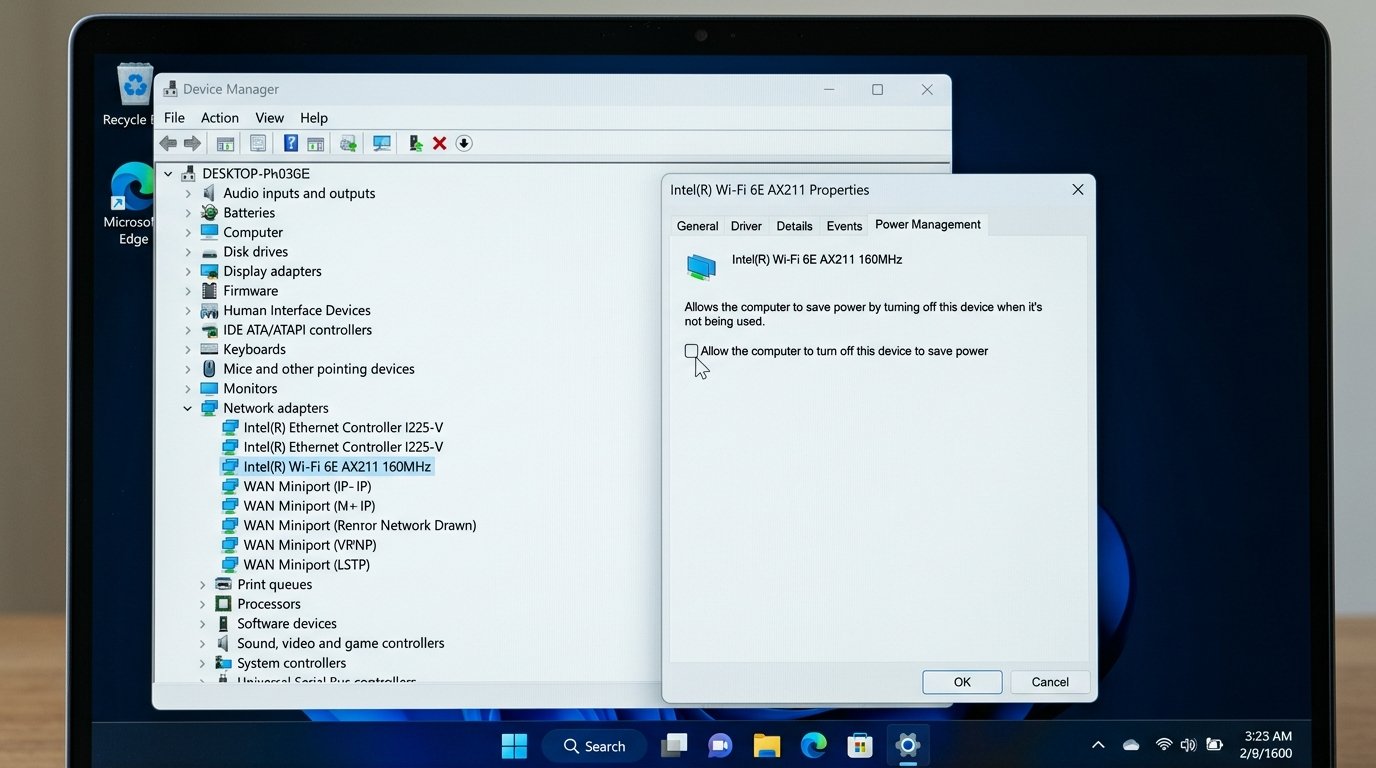
- Press Win + X → select Device Manager
- Expand Network Adapters → find your Wi-Fi adapter (Intel Wireless, Realtek, Qualcomm, or similar)
- Right-click your adapter → Properties → Power Management tab
- Uncheck: “Allow the computer to turn off this device to save power”
- Click OK → reconnect to Wi-Fi
Also fix Roaming Aggressiveness (stops Wi-Fi from scanning for other networks mid-session):
- Device Manager → right-click your adapter → Properties → Advanced tab
- Find Roaming Aggressiveness in the list
- Set the value to Lowest
- Click OK
We saw this exact issue with a client in Charlotte’s South End — their HP laptop with a Realtek RTL8822CE adapter started dropping Wi-Fi every 10 minutes after the February 2026 Windows update. Every other device on the network worked perfectly. The Ethernet connection was solid. Unchecking power management stopped the drops immediately; updating the Realtek driver from HP’s support page (not Windows Update) made the fix permanent.
Step 7 — Update Your Wi-Fi Driver (the Right Way)
Windows Update installs generic drivers that frequently conflict with specific Wi-Fi hardware. Realtek, Intel, MediaTek, and Qualcomm adapters all need manufacturer-specific drivers to run reliably on Windows 11.
Identify your adapter:
- Open Device Manager → Network Adapters
- Note the exact name: e.g., Intel Wi-Fi 6E AX211, Realtek RTL8852BE, MediaTek MT7921, Qualcomm FastConnect 6900
Download from the correct source:
- Intel adapters: Use Intel Driver & Support Assistant (intel.com/download) — it auto-detects your adapter and installs the right version
- Realtek adapters: Go to your laptop manufacturer’s support page (Dell, HP, Lenovo, ASUS) and search your model number. Avoid the generic realtek.com download — it often causes more problems than it solves.
- MediaTek / Qualcomm: Always use your laptop manufacturer’s support page
After installing, restart your computer and reconnect. If the new driver causes issues, roll back: Device Manager → right-click adapter → Properties → Driver tab → Roll Back Driver.
Optional: Diagnose with Event Viewer to find the exact disconnect reason:
- Press Win + R → type
eventvwr.msc→ Enter - Navigate to: Applications and Services Logs → Microsoft → Windows → WLAN-AutoConfig → Operational
- Look for Event ID 8000 (connection failure) or Event ID 11000 (authentication failure)
- The description shows the exact cause: “Dynamic key exchange did not succeed,” “Authentication timeout,” or “Adapter power state change”
When to Call IT Support
If you’ve worked through all 7 steps and still can’t get stable Wi-Fi, you’re likely dealing with a hardware or infrastructure issue that needs hands-on diagnosis:
- Failing router or modem — more than 4–5 years old, running hot, or needing reboots more than once a week. See our guide on 7 signs your router is a security risk — most of those signs also mean hardware is failing.
- Damaged coaxial or phone line cable — common in older Charlotte homes, especially after renovation work
- ISP provisioning issue — modem not properly registered after a move or plan change
- Complex home network — multiple routers, mesh system misconfiguration, or conflicting DHCP servers
IT Carolina helps homeowners and small businesses across Charlotte diagnose and fix persistent Wi-Fi problems — from router placement and driver conflicts to ISP escalations and full network upgrades. If you’ve tried the checklist and your connection is still unreliable, reach out for a free diagnostic. We’ll find the real problem and give you a clear fix — no jargon, no guesswork.
Frequently Asked Questions
Why does Wi-Fi work on my phone but not my laptop?
When your phone connects but your laptop doesn’t, the problem is device-specific — not your router or ISP. Start with Step 6 (disable the power management option) and Step 7 (update the driver from your laptop manufacturer’s site). Also try this in Command Prompt: type ipconfig /release, press Enter, then ipconfig /renew — this forces a fresh IP address and fixes many “connected but no internet” symptoms quickly.
Why does my Wi-Fi disconnect every few minutes?
The most common causes in 2026: (1) Windows power management turning off the adapter — fix in Step 6; (2) a congested 2.4 GHz channel — fix in Step 5; (3) an outdated or incompatible driver after a Windows update — fix in Step 7. If the drops started after the February 2026 Windows update, KB5077181 is the most likely trigger and the power management fix in Step 6 resolves it for most users.
How do I know if it’s my router or my ISP?
Connect a laptop directly to your modem with an Ethernet cable, bypassing the router entirely. If you get internet — your router is the problem. If you still have no internet — it’s your modem or ISP. You can also open a browser and type 192.168.1.1: if your router admin page loads, your device is communicating with the router fine, which means the failure is between the router and the internet upstream.
How do I know if my router is failing?
Key signs: all devices on the network experience slow or intermittent speeds simultaneously, you need to restart the router more than once a week, it runs very hot to the touch, or it’s more than 4–5 years old. Router hardware degrades over time — for most home users, replacement is more cost-effective than continued troubleshooting once a router is past the 5-year mark.