
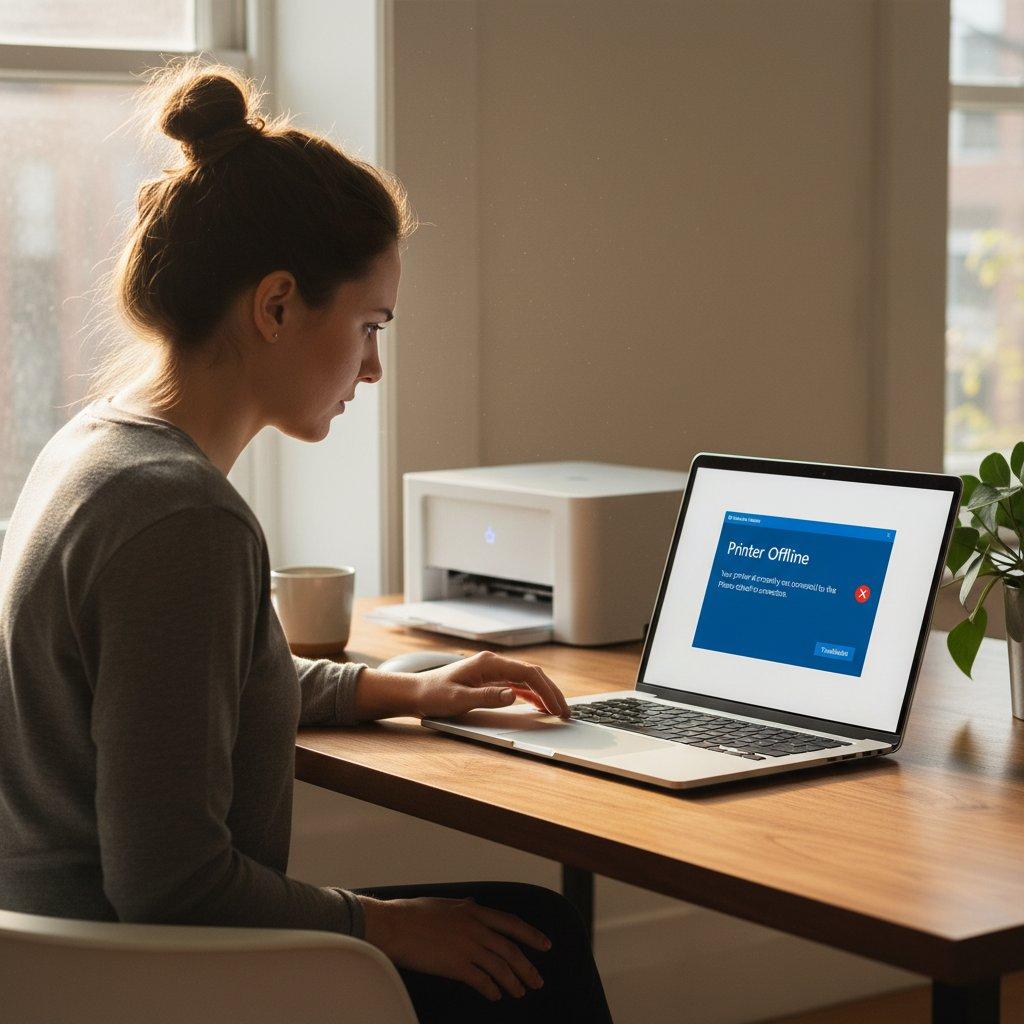
Your printer is on. It’s connected. The lights are green. And Windows still shows “Offline.”
This is one of the most frustrating IT problems in any home or office — and it’s almost never a hardware failure. “Printer offline” is a Windows status flag. It means the system lost track of your printer, not that something is physically broken.
Quick answer: Your printer shows “offline” because Windows lost communication with it — most often due to a stuck Print Spooler service, a changed IP address from DHCP lease expiration, or a failing WSD port. Restart the Print Spooler via Services.msc, clear the print queue, then confirm the printer’s IP matches its Windows port configuration. Most cases resolve in under 5 minutes.
If you’ve never set up this printer before and it’s never worked, see our printer setup guide instead. This article is for printers that worked before and suddenly show offline.
What “Printer Offline” Actually Means
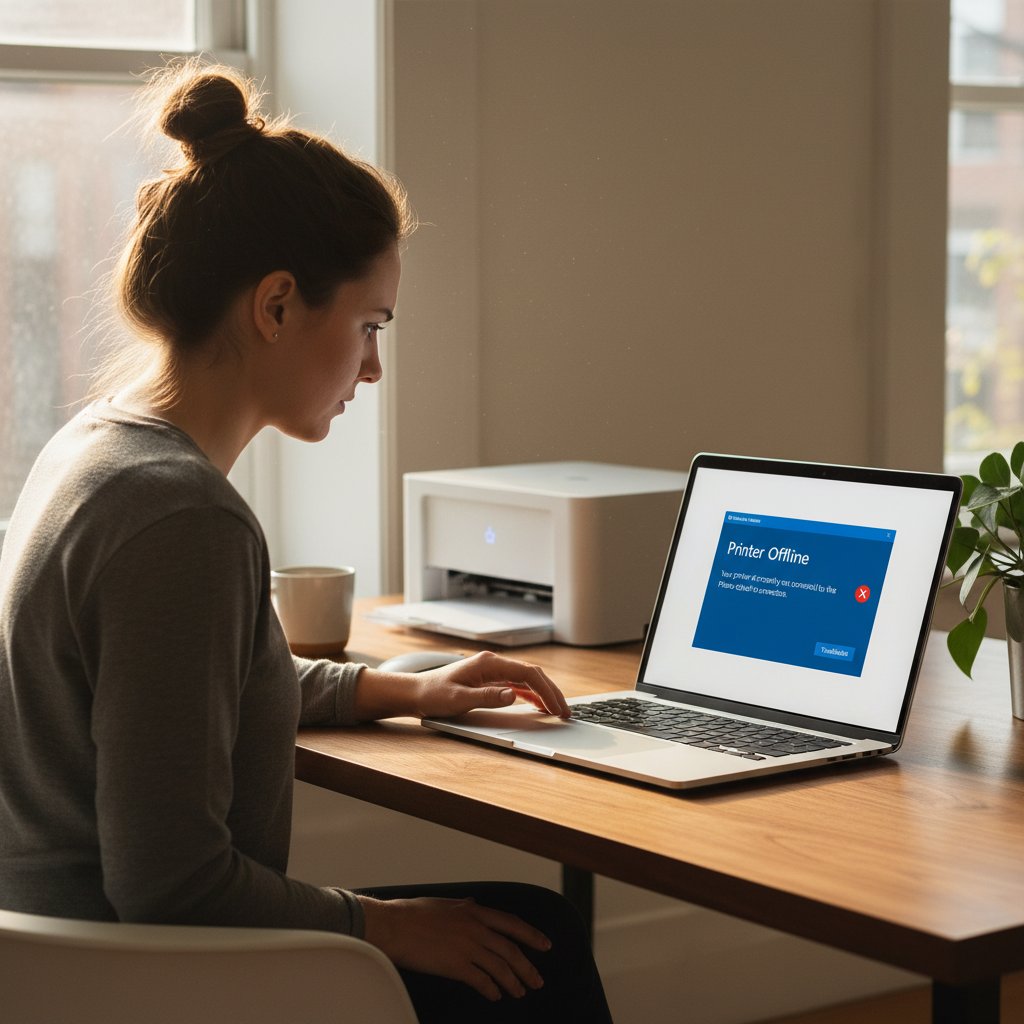
The Windows Print Spooler (spoolsv.exe) is a background service that manages all print jobs. When it can’t reach your printer — for any reason — it marks the queue “Offline” and holds every job there. The printer itself is fine. Windows just doesn’t know where it is.
Seven root causes account for nearly every offline error:
- Crashed or stuck Print Spooler service
- “Use Printer Offline” toggle accidentally enabled
- Corrupted print job blocking the queue
- WSD port failure — the most common cause for Wi-Fi and ethernet printers
- DHCP IP address change — printer got a new IP, Windows is still pointing to the old one
- 2.4GHz / 5GHz Wi-Fi band mismatch
- Windows 11 update conflict — an October 2025 update broke print spooler behavior for browser printing
Work through the fixes below in order. Start with Fix 1 and stop when yours is resolved.
Fix 1: Restart the Print Spooler Service
This resolves roughly 40% of offline cases. When the Print Spooler crashes, every printer on the machine goes offline — even USB-connected ones.
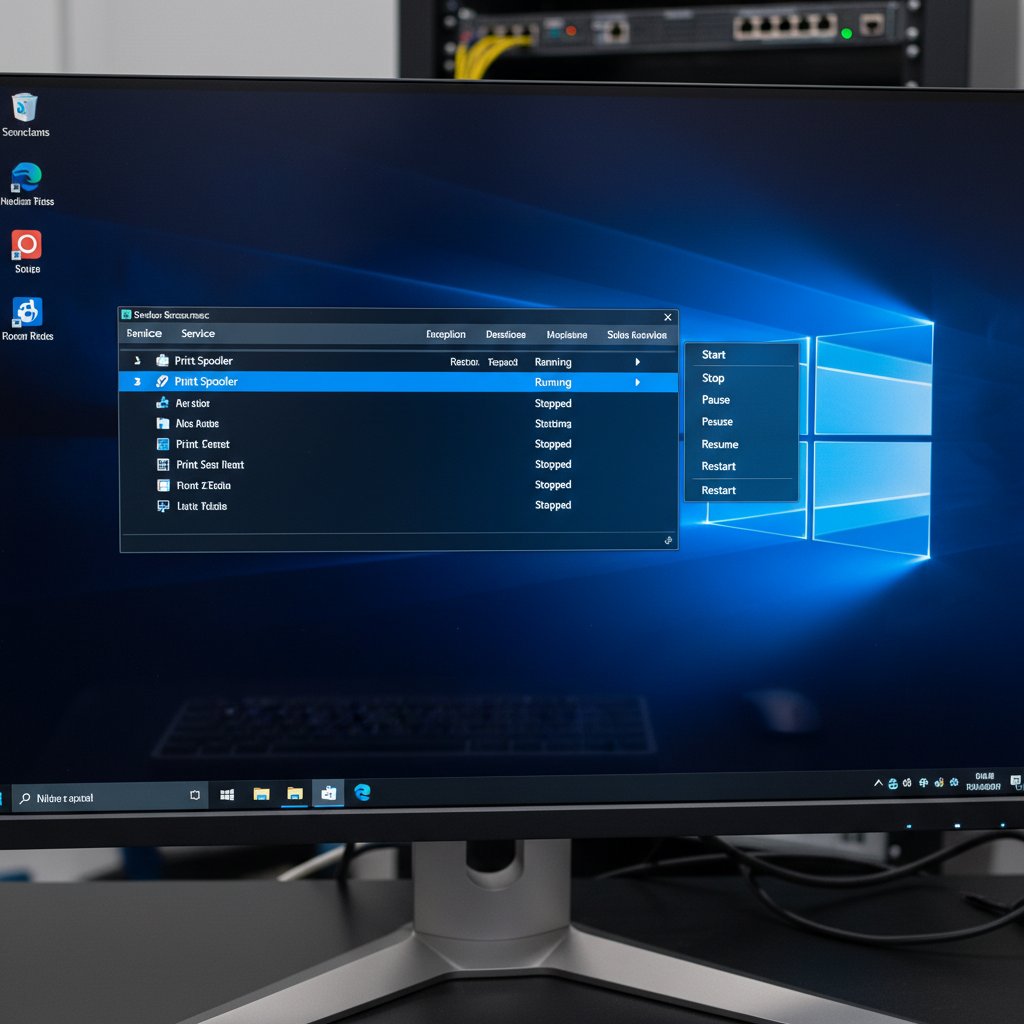
- Press Win + R, type
services.msc, press Enter - Scroll to Print Spooler
- Right-click → Restart
- Wait 10 seconds, then try printing
Still offline? Clear the spooler cache — one corrupted job file can block everything behind it:
- Right-click Print Spooler → Stop
- Open
C:\Windows\System32\spool\PRINTERSin File Explorer - Delete all files inside (not the folder itself)
- Go back to Services → Start the Print Spooler
Fix 2: Uncheck “Use Printer Offline”
Windows has a toggle that deliberately puts your printer into offline mode. It gets enabled by accident more often than you’d think — sometimes by a script, sometimes by a misclick in the print queue.
Windows 10: Control Panel → Devices and Printers → right-click your printer → See what’s printing → Printer menu → uncheck Use Printer Offline
Windows 11: Settings → Bluetooth & devices → Printers & scanners → click your printer → Open print queue → Printer menu → uncheck Use Printer Offline
If that option has a checkmark next to it, that’s your entire problem. Uncheck it and you’re done.
Fix 3: Clear the Print Queue
A single stuck job holds up everything behind it. The queue shows “Offline” because Windows can’t process or cancel the job normally.
- Open the print queue (right-click printer → See what’s printing)
- Select all jobs: Ctrl + A
- Press Delete or right-click → Cancel
If jobs won’t delete, stop the Print Spooler, delete files from spool\PRINTERS, then restart the service (Fix 1). That force-clears everything.
Fix 4: Switch from WSD Port to Standard TCP/IP Port
This is the permanent fix for network printers that keep going offline repeatedly. It’s the most common underlying cause — and almost nobody knows about it.
The problem: When Windows auto-discovers your printer, it creates a WSD port (Web Services for Devices) that uses multicast discovery packets to locate the printer. After the printer sleeps, the router reboots, or Windows wakes from sleep — those packets fail. Windows marks the printer “Offline” even though you can ping it directly.
The fix: Replace the WSD port with a Standard TCP/IP port that points straight to the printer’s IP address. No discovery needed.
- Find your printer’s current IP: print a configuration page from its control panel, or check your router’s connected-devices list
- Control Panel → Devices and Printers → right-click your printer → Printer Properties → Ports tab
- Click Add Port → Standard TCP/IP Port → New Port
- Enter the printer’s IP address → follow the wizard
- Select the new TCP/IP port in the Ports list → click OK
Once done, complete Fix 5 immediately — otherwise the IP can change again and you’ll be back to square one.
Fix 5: Assign a Static IP Address to Your Printer
Fix 4 creates a port pointing to the printer’s current IP. But if the printer uses DHCP (most do by default), the router can assign a different IP after a restart or lease expiration. The Windows port still points to the old address — offline again.
Option A — Reserve the IP in your router (recommended):
- Log into your router admin page (usually 192.168.1.1 or 192.168.0.1)
- Find DHCP Reservation or Address Reservation settings
- Add a reservation for your printer’s MAC address (on the printer’s config page or label)
- Assign a fixed IP outside your main DHCP range — for example, 192.168.1.150
Option B — Set static IP on the printer itself: Settings → Network → TCP/IP → Manual IP → enter the IP, subnet mask (255.255.255.0), and default gateway (your router’s IP).
Option A is more reliable — the printer doesn’t need reconfiguring if you factory reset it later.
Fix 6: Check Your 2.4GHz / 5GHz Wi-Fi Band
Most consumer printers only support 2.4GHz Wi-Fi. If your router broadcasts both bands under the same network name, your PC might connect to 5GHz while the printer sits on 2.4GHz. They end up on different network segments and can’t reach each other.
This is a confirmed issue with Brother MFC series, Epson WorkForce models, and older HP OfficeJet units — especially on newer dual-band routers from ASUS, Netgear, and TP-Link.
Fix: Create a dedicated 2.4GHz-only SSID in your router settings (e.g., “HomeNetwork_2.4G”) and connect your printer to it. One-time setup that permanently solves the problem.
Fix 7: Windows 11 Spooler Freeze (October 2025 Update)
An October 2025 Windows 11 update introduced a bug where print jobs freeze in “SPOOLING” state indefinitely — specifically when printing from Edge or Chrome. The spooler doesn’t crash; jobs just sit there. Affected printers include Canon, Epson ET-4950, HP, and Brother units.
Workarounds (no official Microsoft fix as of May 2026):
- In Edge or Chrome, press Ctrl + Shift + P instead of Ctrl + P — this opens the OS system print dialog and bypasses the browser print engine
- Download the latest printer driver directly from your manufacturer’s website (HP, Brother, Epson, Canon) — several users confirmed this resolved the freeze
- Repair or reinstall Microsoft Edge via Settings → Apps → Installed apps
Also: if your USB printer stopped working after upgrading to Windows 11 24H2, look for KB5048667 in Windows Update history. Microsoft issued this in December 2024 specifically for USB multifunction printers broken by the 24H2 release. Run Windows Update manually if it’s not installed.
Brand-Specific Quick Fixes
HP Printers
- If HP Smart app sees the printer but Windows shows offline → WSD port issue (Fix 4)
- HP LaserJet series: install HP Universal Print Driver (PCL6) if the model-specific driver isn’t working
- OfficeJet Pro: open the printer’s embedded web server (type its IP in a browser) → Settings → Network → restore network settings, then reconnect
Brother Printers
- MFC/DCP series: on the printer, go to Network → WLAN → TCP/IP → IPv6 → Enable — this alone fixes persistent offline issues for many users
- ASUS router users: disable Airtime Fairness in router admin → Wireless → Professional tab
- Use DHCP reservation in your router rather than a static IP on the Brother unit — Brother’s static IP interface is unreliable on some firmware versions
Epson Printers
- WorkForce / EcoTank: when re-adding the printer in Windows, use the printer’s hostname (e.g., EPSONXXXXXX) instead of its IP address — the hostname follows the printer even when the IP changes
- Older Epson models (pre-2019) only support WPA2. If your router uses WPA3 or WPA2/WPA3 mixed mode, set that band to WPA2-only for the printer
Case Study: HP OfficeJet Pro 7740 — “I Can Ping It But It Won’t Print”
A client at a small architecture firm in Charlotte’s South End neighborhood called us with this exact problem: their HP OfficeJet Pro 7740 was physically on the network, ping worked, HP Smart app showed it connected and ready — but every print job failed with “Offline.”
Diagnosis: We opened Event Viewer → Applications and Services Logs → Microsoft → Windows → PrintService → Operational. The log showed consistent driver communication failures from the WSD port. The printer was reachable via TCP/IP, but WSD discovery was reporting it unreachable at the driver level — a known conflict introduced by a Windows 11 cumulative update.
What fixed it:
- Ran
printui /s /t2in the Run dialog → removed the HP 7740 driver package completely from Print Server Properties - Switched the printer port from WSD to Standard TCP/IP (Fix 4 above)
- Reserved the printer’s IP in the router’s DHCP settings (Fix 5)
- Reinstalled using HP Universal Print Driver PCL6
Total time: 25 minutes. The printer has been solid since. If you’re in Charlotte, NC and running into the same wall, IT Carolina’s printer support team handles this remotely or on-site — usually same day.
For paper jams, print quality issues, and driver conflicts, see our complete printer troubleshooting guide. For network issues beyond the printer itself, our internet troubleshooting guide covers router-level fixes.
When to Call an IT Professional
The seven fixes above resolve the vast majority of offline errors. Call in help if:
- The printer goes offline every day, even after Fixes 4 and 5
- Multiple computers on the network can’t see the printer
- The printer is offline only for specific user accounts (likely a group policy or domain issue)
- You’re running a shared printer on a Windows Server domain
- The issue appeared right after a Windows update and none of the workarounds above help
IT Carolina provides on-site and remote IT support in Charlotte, NC. If you’d like a diagnostic session, reach out here.
Frequently Asked Questions
Why does my printer keep going offline every day?
The most likely cause is a WSD port failure combined with a dynamic DHCP IP address. Every time your router reassigns the printer’s IP, Windows loses the connection. Fix it permanently by switching to a Standard TCP/IP port (Fix 4) and reserving the IP in your router (Fix 5). This combination stops the recurring problem.
Why is my printer offline when it’s connected via USB?
USB offline issues are almost always a stuck Print Spooler or a corrupted print job in the queue. Restart the Print Spooler via Services.msc and clear the queue. If it happened right after upgrading to Windows 11 24H2, install KB5048667 from Windows Update — Microsoft’s fix for the USB printer break in that release.
I can ping my printer but it still shows offline. Why?
This is the WSD port problem. Ping uses raw TCP/IP, which works fine. But the Windows printer port uses WSD discovery to communicate with the driver — and those are independent systems. Switch from a WSD port to a Standard TCP/IP port in Printer Properties → Ports tab (Fix 4).
My printer works in the HP Smart app but not from Windows. Why?
Manufacturer apps use their own communication channel, bypassing the Windows Print Spooler entirely. This tells you the printer hardware and network are fine — the problem is Windows’ driver or port configuration. Follow Fix 4, or uninstall and reinstall the driver from the manufacturer’s website.
How do I stop Windows from switching my default printer?
Go to Settings → Bluetooth & devices → Printers & scanners → turn off “Let Windows manage my default printer.” Windows 11 enables this by default, causing it to switch to whatever device you last used — including virtual printers like Microsoft Print to PDF.
Will Windows Protected Print Mode affect my printer?
If you enable it manually, yes — WPP removes all existing V3/V4 printer drivers and queues, and disabling WPP afterward will not restore them. As of May 2026, WPP is off by default. Check with your printer manufacturer for compatibility before enabling it. See Microsoft’s official printer troubleshooting page for Windows 10 and 11 steps.