
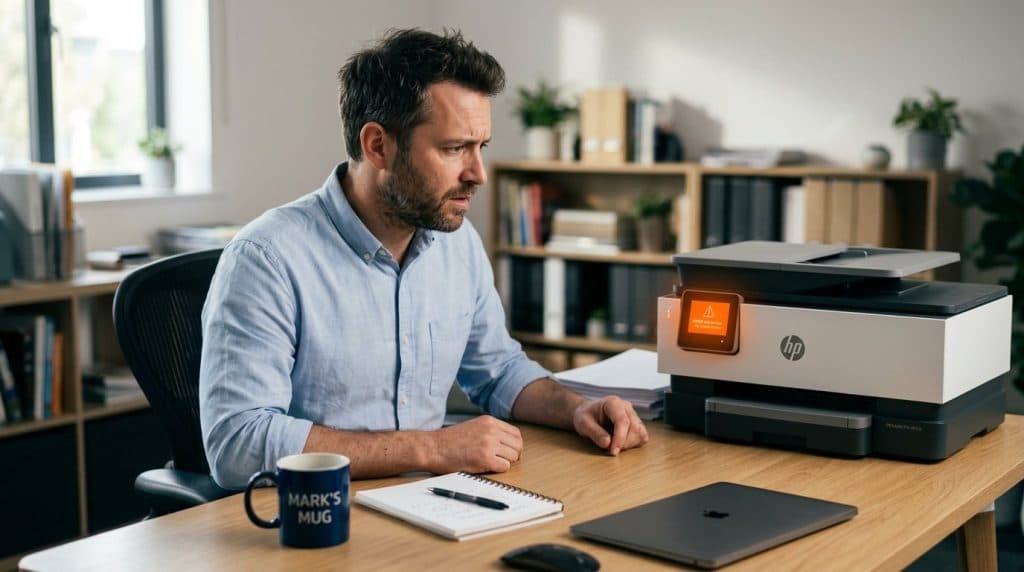
You install a new cartridge. HP rejects it. Before you try anything, here’s the most important thing to know: HP cartridge errors fall into two completely different categories. Some are physical problems you can fix in under 5 minutes — tape still on, dirty contacts, wrong model number. Others are intentional HP firmware blocks, and whether they’re fixable depends entirely on which printer you have.
Confusing the two wastes a lot of time. This guide identifies your exact error, tells you which category it falls into, and gives you the right fix — not generic steps that may not apply to your situation. If your HP is showing an “offline” error instead, our printer offline troubleshooting guide covers that separately.
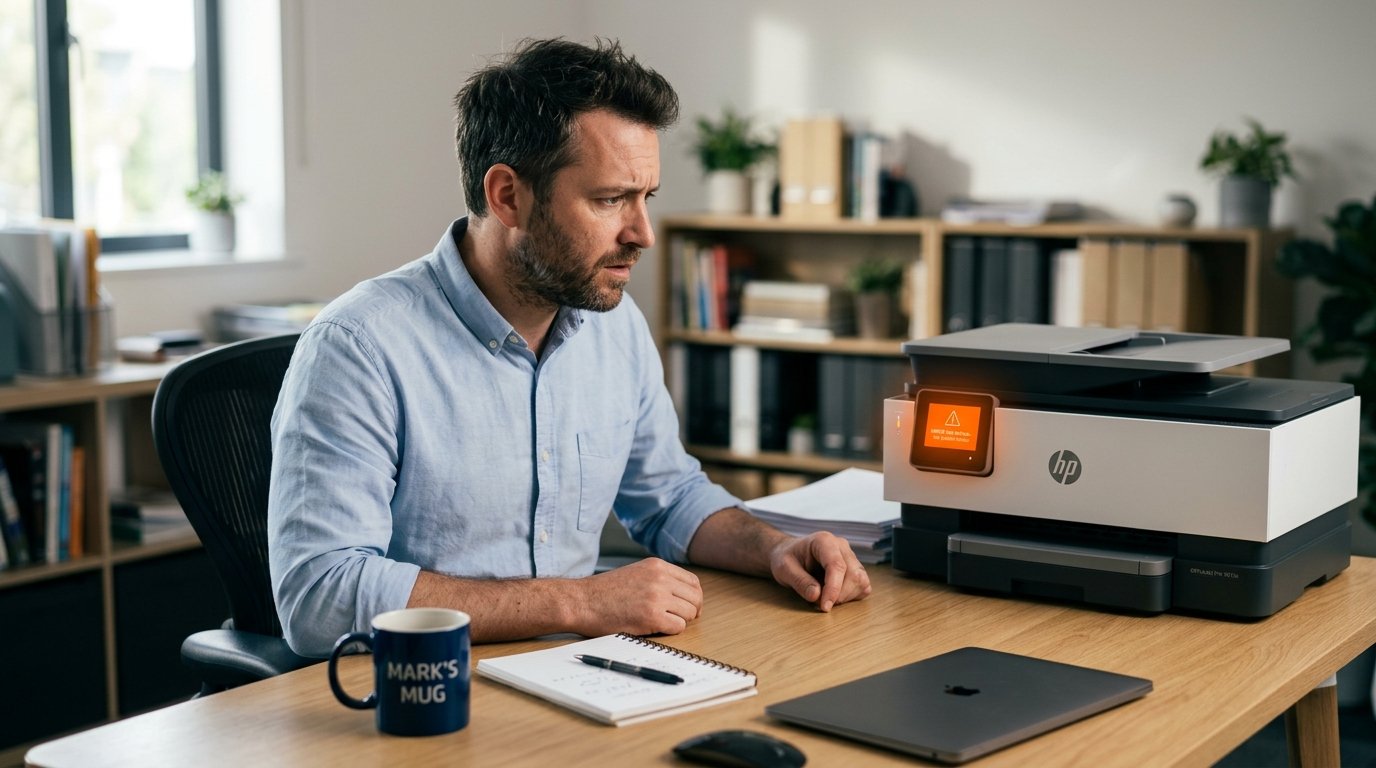
Step 1 — Match Your Exact Error Message to the Cause
Find your error on this table first. Each message points to a specific cause — and some have no fix regardless of what you try.
| Error Message | Most Likely Cause | Fixable? |
|---|---|---|
| “Problem with print cartridge” | Dirty contacts, wrong model, or firmware glitch | Usually yes |
| “One or more cartridges are missing or damaged” | Protective tape, contacts, or loose seating | Yes |
| “The indicated cartridges are not intended for use in this printer” | Wrong model number or wrong region | Yes — use correct cartridge |
| “Incompatible print cartridge” | Wrong model, region mismatch, or firmware block | Sometimes |
| “Non-HP chip detected” / “Indicated cartridges blocked for containing a non-HP chip” | HP Dynamic Security firmware | Depends on model — see Step 4 |
| “Cartridge rejected” | HP+ printer with non-genuine cartridge | No workaround — see Step 5 |
| “Cartridge locked: can only be used in the printer that first installed it” | HP Cartridge Protection feature | Yes — disable in EWS |
| “Use SETUP cartridges” | Non-setup cartridges used during first-time init | Yes — contact HP for replacement setup kit |
| “Error Code 11” / “Er11” | HP firmware bug — LaserJet M232–M237, March 2025 update | Firmware re-flash required; HP offered replacements |
If your error says “Non-HP chip detected” or “Cartridge rejected” — skip straight to Step 4 or Step 5. Physical cleaning won’t help with those.
Step 2 — The 4-Minute Physical Fixes
If your error is “problem with print cartridge,” “missing or damaged,” or the generic “incompatible” message — start here before assuming it’s firmware.
1. Remove Both Pieces of Protective Tape
HP cartridges ship with two pieces of tape: one over the ink nozzles (usually orange or pink), and a second one over the copper contact strip. Missing the second one is the single most common cause of “cartridge not recognized” errors we see.
Turn the cartridge over and look carefully at both sides. Both strips must be completely removed — a partial tear still blocking the contacts will trigger the error every time.
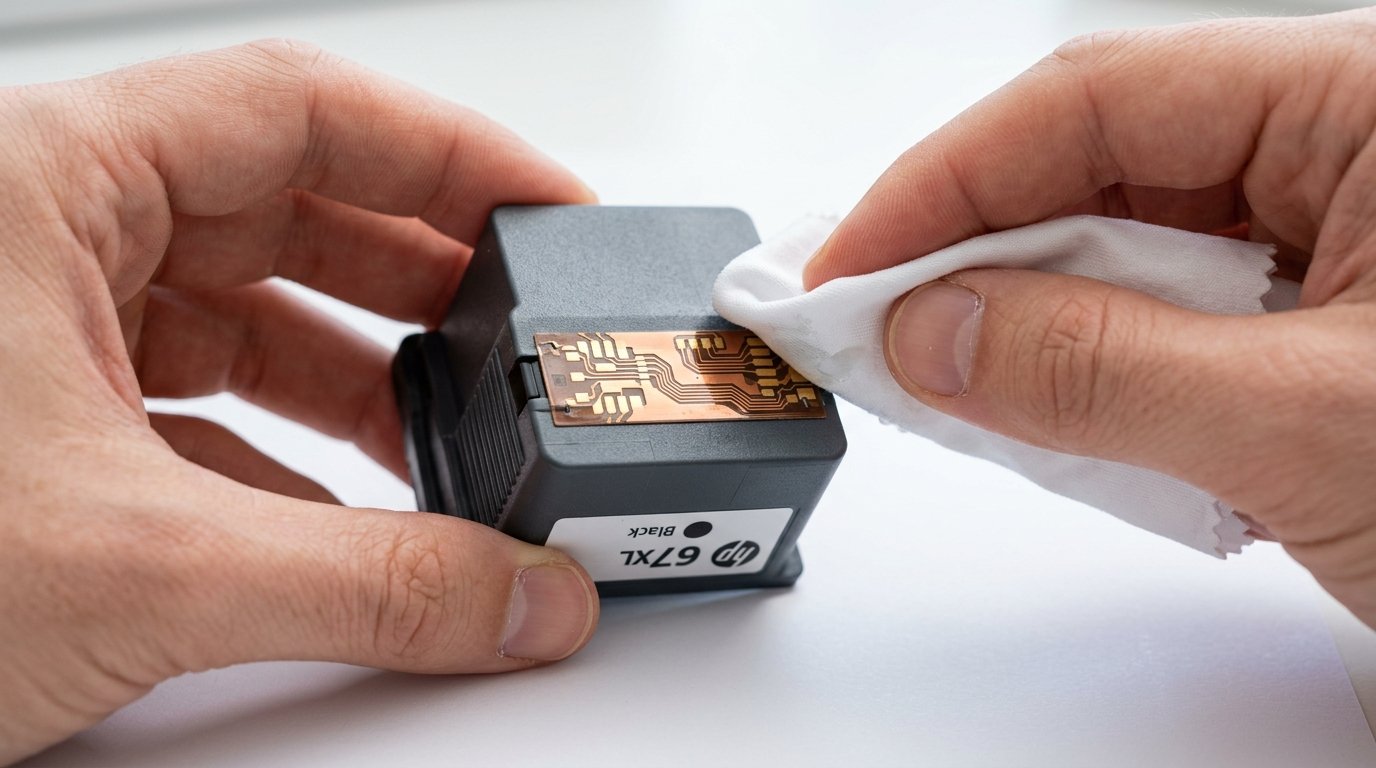
2. Clean the Copper Contacts
The copper strips on the cartridge and the matching contacts inside the printer carriage collect ink residue and oxidation. This alone causes roughly 30% of recognition failures that aren’t firmware-related.
- Remove the cartridge from the printer
- Dampen a lint-free cloth (a folded coffee filter works) with isopropyl alcohol (90%+) or distilled water
- Gently wipe the copper strip on the cartridge — don’t scrub, just clean contact
- Let dry completely: 2 minutes minimum
- Find the matching contacts inside the printer carriage (the cradle where the cartridge sits) and wipe those too
- Reinstall the cartridge firmly until it clicks
3. Hard Power Reset
A hard reset clears the printer’s memory cache and resolves many post-firmware-update recognition glitches.
- With the printer powered on, unplug the power cord directly from the printer — not from the surge protector
- Wait a full 60 seconds — this drains residual capacitor charge that a normal power-off doesn’t clear
- Plug back in and test
4. Verify the Exact Cartridge Number
HP is unforgiving about model matching. An HP 952 and HP 952XL are compatible with different printers. An HP 63 and HP 67 look nearly identical but are not interchangeable.
Open the cartridge access door on your printer — the correct cartridge number is printed on a label inside. Cross-reference against what you installed. Even one digit off means “incompatible.”
Also check: HP Instant Ink cartridges (from the subscription program) will not work in a printer that isn’t actively enrolled in Instant Ink. If you accidentally purchased Instant Ink cartridges at a retail store, return them and buy standard HP replacement cartridges instead.
Step 3 — Control Your Firmware
If the physical fixes didn’t work, a firmware update is almost certainly the cause. HP’s automatic updates have broken third-party cartridge compatibility multiple times — most recently in January 2026 (firmware 2602A/B, affecting 11 models including OfficeJet Pro 7720) and March 2025 (firmware 20250209, which caused Error Code 11 on LaserJet M232–M237 series — rejecting even genuine HP toner).
Check your current firmware version:
- Control panel: Setup gear icon → Printer Information → Firmware Version
- Via EWS (browser): type your printer’s IP address → Home tab shows firmware version
Disable automatic firmware updates to prevent future blocks:
- Control panel: Setup → Printer Update → Auto Update → Off
- HP Smart App: Printer Settings → Advanced Settings → Printer Update → Do Not Update Automatically
- EWS: Settings → Printer Update → set to Manual or Notification Only
If a recent update caused the error: some HP models support firmware downgrade by downloading an older .bdl file from HP and applying it via USB cable. This process is model-specific — search your printer model + “firmware downgrade” for exact instructions. Not all models support it.
Step 4 — Disable HP Dynamic Security via EWS
HP Dynamic Security is a firmware feature that blocks cartridges containing non-HP authentication chips. HP introduced it in 2016 and has expanded it with every major firmware cycle since. It’s the reason a compatible cartridge that worked in your old HP fails in a newer one.
On many HP models you can disable it through HP’s built-in browser-based admin panel (Embedded Web Server, or EWS). Here’s how:
Step 1 — Find your printer’s IP address:
- On the printer’s control panel, print a Network Configuration Page (Setup → Information → Print Network Configuration, or hold the Wi-Fi and Information buttons simultaneously)
- Find the IPv4 Address — for example:
192.168.1.42
Step 2 — Open EWS in a browser:
- On a computer connected to the same network, open any browser
- Type the printer’s IP address directly into the address bar and press Enter
- The HP EWS interface loads — no login required on most home/small office networks
Step 3 — Disable Cartridge Policy:
- Click the Settings tab
- Navigate to Supply Settings (some models show this under “Supplies” or “Preferences”)
- Find Cartridge Policy → set to Off
- Find Cartridge Protection → set to Off
- Click Apply, then power cycle the printer
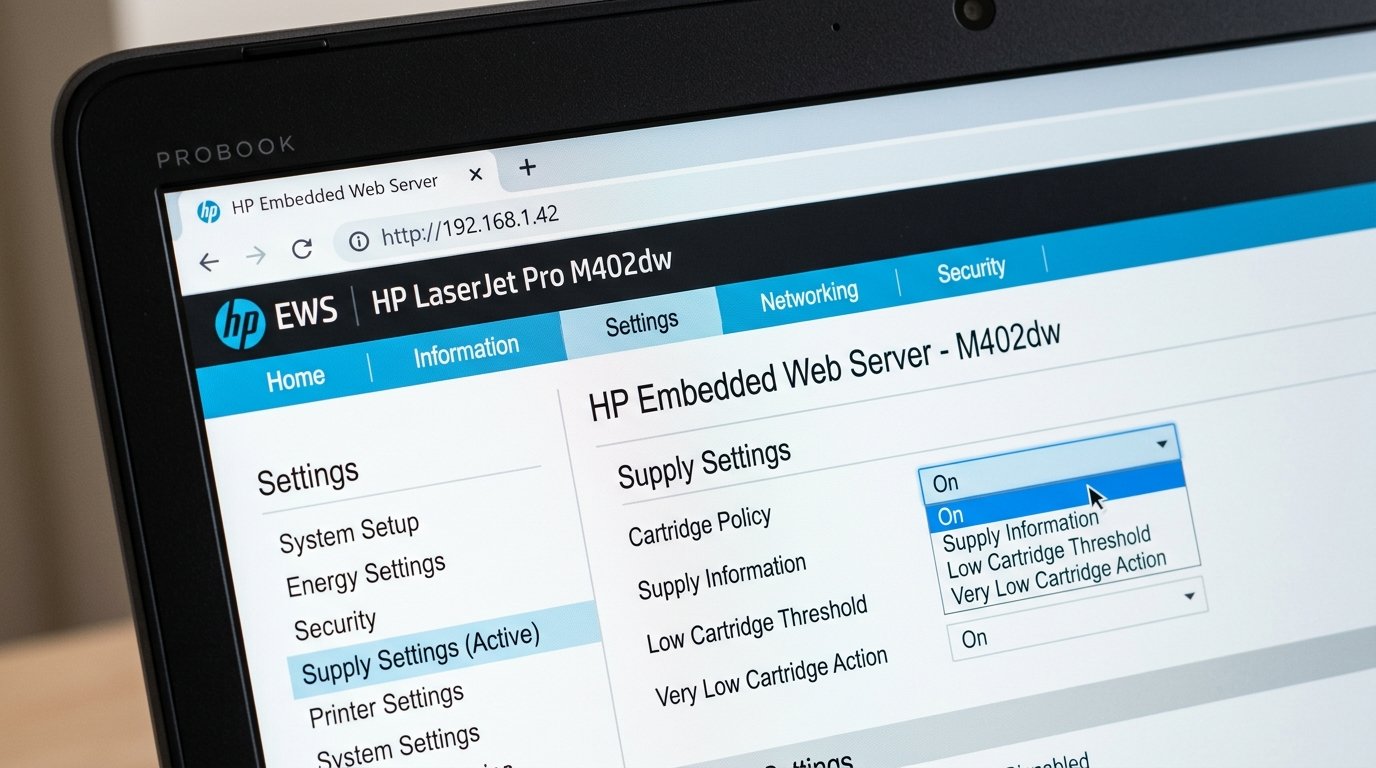
If you don’t see a “Supply Settings” section in your EWS — either your model doesn’t support this option, or it’s an HP+ printer. In that case, see Step 5.
Note on the 2025 class action: A US federal court approved a settlement in March 2025 (Mobile Emergency Housing Corp. v. HP Inc.) requiring HP to allow users to decline Dynamic Security firmware updates and to offer firmware unlocks on a specific list of older models. If your printer was manufactured before December 2016, check HP’s support site for whether your model qualifies for an unlock.
Step 5 — Is Your Printer HP+? Here’s the Real Situation
This is the section most troubleshooting guides skip — and the most important one if your error says “Cartridge rejected.”
Any HP printer with a lowercase “e” at the end of its model name is an HP+ device:
- HP OfficeJet Pro 9015e, 9025e
- HP ENVY 6055e, 6455e
- HP LaserJet MFP 3101fdwe, M234dwe
- HP DeskJet 2755e
Once you activated HP+ during setup via the HP Smart app — which the app strongly encourages — the printer is permanently locked to genuine HP cartridges only. There is no EWS setting, no firmware downgrade, no technical workaround. HP’s own support documentation confirms this.
What HP doesn’t make clear at any point during purchase or setup: activating HP+ is irreversible and permanently eliminates your ability to use any third-party, remanufactured, or refilled cartridge. Ever.
Your practical options if you have an HP+ printer:
- Use only genuine HP cartridges — buy in bulk or through HP’s subscription to reduce per-page cost
- Return the printer (if within the return window) for a non-“e” model or a different brand
- Avoid HP+ activation on future purchases — set up via USB cable instead of the HP Smart app to skip the HP+ enrollment screen
We worked through this with a client at a small accounting firm in Charlotte’s SouthPark area. They bought an HP OfficeJet Pro 9015e for their reception desk and had a box of compatible cartridges from their previous printer. Every cartridge was rejected immediately. The resolution: set up a small HP ink supply account and buy genuine 962XL cartridges in multi-packs — cost per page came out to roughly the same as what they’d paid for compatible cartridges. Not ideal, but workable once the expectation was reset.
HP Instant Ink Cartridges After Subscription Cancellation
If your printer was on HP Instant Ink and you cancelled — or if someone gave you used Instant Ink cartridges — you’ll see a rejection error even with physically genuine HP ink.
Instant Ink cartridges are subscription-locked via their chip. Once your subscription is cancelled or lapses, those cartridges are permanently unusable regardless of how much ink remains. The printer reads the chip and blocks the cartridge.
The fix: replace with standard retail HP cartridges for your model (check the label inside the cartridge access door for the correct number). Standard HP cartridges have no subscription requirement and should work normally once installed.
When to Call IT Support
If you’ve worked through all five steps and the printer still won’t accept cartridges, you’re likely dealing with one of these situations:
- HP+ permanent lock — no technical fix exists; the choice is genuine HP ink or printer replacement
- Damaged contacts or carriage — bent pins or corrosion inside the printer cradle that cleaning can’t resolve; needs hardware inspection
- Firmware-bricked printer — specifically HP LaserJet M232–M237 series after the March 2025 firmware version 20250209, which caused Error Code 11 even with brand-new genuine HP toner. HP acknowledged the issue and offered replacement vouchers rather than a fix; some units required hardware replacement
- Region-locked cartridge — cartridges purchased in a different country than the printer was registered in will authenticate-fail regardless of model number match
IT Carolina helps homeowners and small businesses across Charlotte resolve printer issues — including HP firmware problems, cartridge failures, and recommendations on when repair makes more sense than replacement. If you’ve worked through this guide and still can’t get the printer running, reach out for a free diagnostic. We’ll find the real problem and give you a straight answer.
Frequently Asked Questions
My compatible cartridge worked fine before — why did HP stop recognizing it after an update?
HP’s firmware updates periodically add new authentication requirements that block third-party chips. Compatible cartridge manufacturers typically release updated chip versions within 4–8 weeks of each new blocking event. If your cartridge stopped working after a recent printer or Windows update, check whether the manufacturer has released a newer chip version for your specific model. In the meantime, disable automatic firmware updates in your printer settings (Setup → Printer Update → Auto Update → Off) to prevent further blocks while you wait.
Can I use HP Instant Ink cartridges I already have after canceling my subscription?
No. HP Instant Ink cartridges are subscription-locked via their embedded chip and become permanently unusable once your subscription is cancelled or lapses — regardless of remaining ink. Replace them with standard retail HP cartridges showing the correct model number for your printer (printed on the label inside the cartridge access door).
Which HP printers allow third-party cartridges?
HP printers manufactured before December 2016 — including OfficeJet Pro 6230, 6830, 8610, 8620, and 8630 — generally support third-party cartridges and have EWS settings to disable Dynamic Security. Many printers manufactured from late 2016 through 2022 can have Dynamic Security disabled via EWS if you act before firmware locks that option out. All HP+ printers (any model ending in lowercase “e”) permanently block non-HP cartridges with no workaround. When buying a new HP printer, avoid any model with an “e” suffix if you want to use compatible cartridges.
My new HP printer says “use SETUP cartridges” — what does this mean?
This error appears during first-time setup when you try to use regular replacement cartridges instead of the setup cartridges that came in the printer box. Setup cartridges prime the print heads during initial initialization and can’t be substituted. If you’ve lost or already disposed of the setup cartridges, contact HP Support — they typically send replacement setup kits at no cost for printers still under warranty.